00198501-02_IM_711.1_R18-1_EN.pdf - 第69页
Station Software V ersion 711.1 (R 18 - 1) / Installat ion Manual 05/2018 Edition 69 The Select machi ne type dialog b ox is displayed. Figure 9-2: Selecting machine typ e ► Select the machin e type for which the softwar…
Station Software Version 711.1 (R18-1) / Installation Manual 05/2018 Edition
68
9 Repairing the Installation
With the Repair option, you can try to repair a defective installation, e.g. if you suspect that files
were deleted.
9.1 Repairing the Station Software Installation
► Log in under the ASM_Admin user account on the station computer.
► Insert the installation media and mount the *.iso file.
► Open Windows Explorer.
► Double-click the BundleInstaller.exe file to repair the station software.
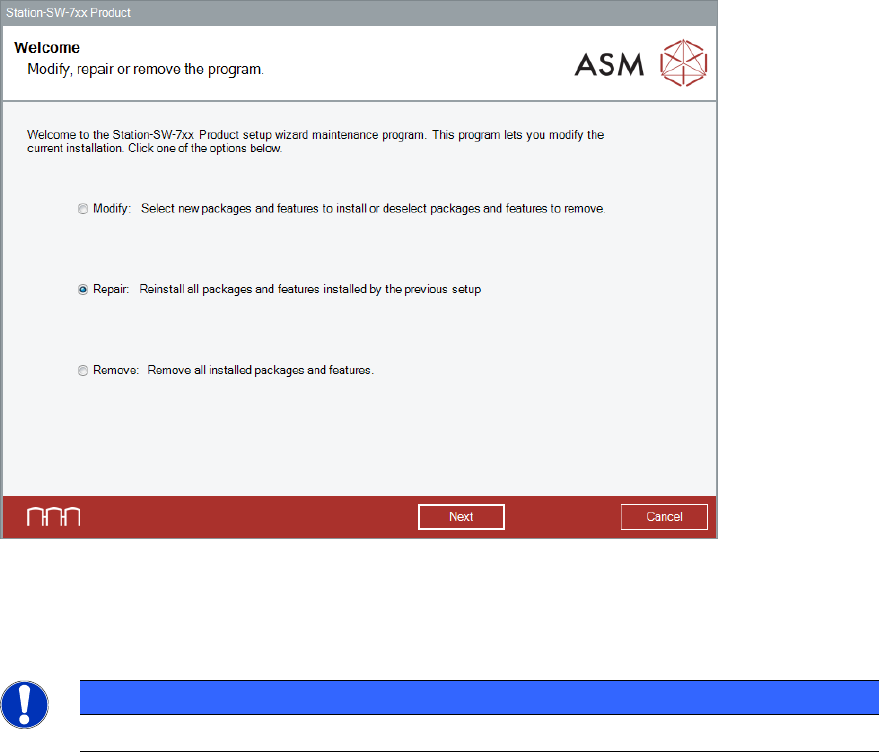
The Welcome dialog box is displayed.
Figure 9-1: Welcome dialog box
► Select Repair.
► Click the Next button.
NOTICE
The installed features and packages cannot be redefined when using the Repair option.
Station Software Version 711.1 (R18-1) / Installation Manual 05/2018 Edition
69
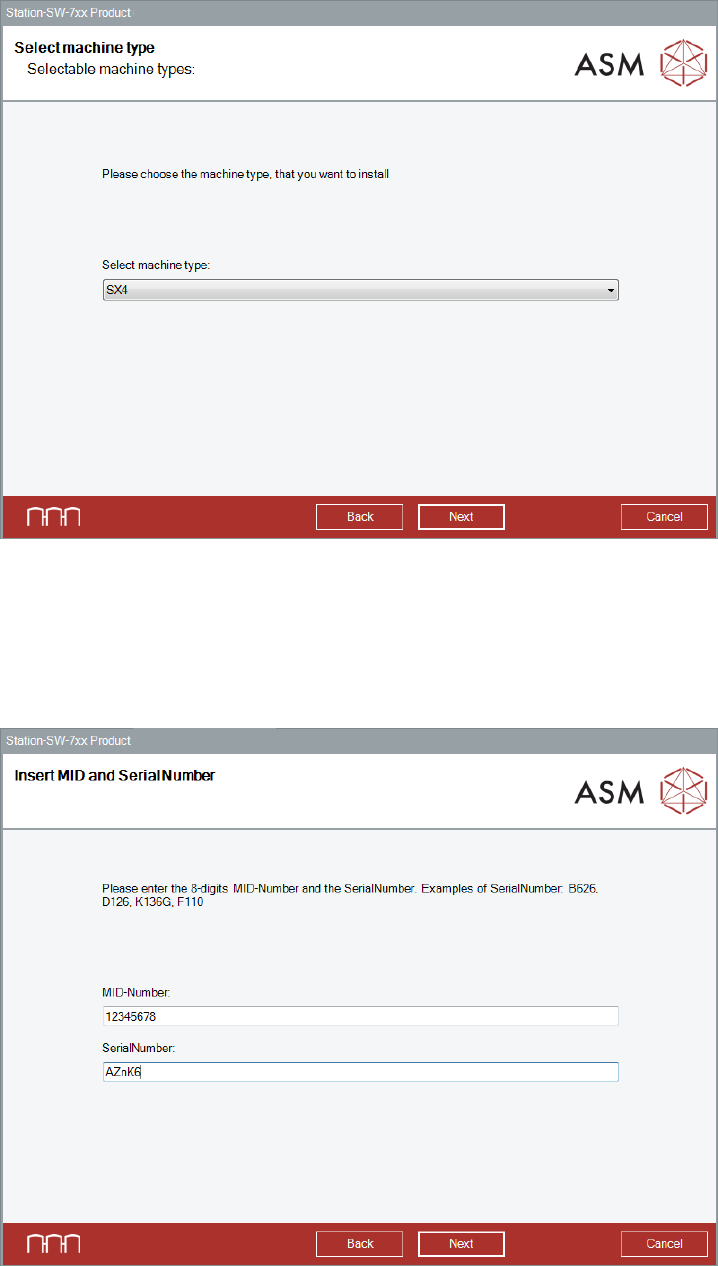
The Select machine type dialog box is displayed.
Figure 9-2: Selecting machine type
► Select the machine type for which the software shall be repaired.
► Click the Next button.
The Insert MID and SerialNumber dialog box is displayed.
Figure 9-3: Inserting machine ID and serial number
Station Software Version 711.1 (R18-1) / Installation Manual 05/2018 Edition
70
► Enter the 8-digit machine identification number in the MID-Number entry field.
► Enter the serial number in the SerialNumber entry field.
► Click the Next button.
After the repaired installation has been completed, it is recommended to restart your computer for
all changes to take effect.