VI User Manual.pdf - 第120页
.TST file edition 5 - 12 Vision 2007 4.10 User Manual Re v 01 5.4.4 V iewing unattached compon ents In View menu, go in Editio n tool bar ... sub menu and select Show elements not in zon e , or click on the Unattached co…
.TST file edition
Vision 2007 4.10 User Manual Rev 01 5 - 11
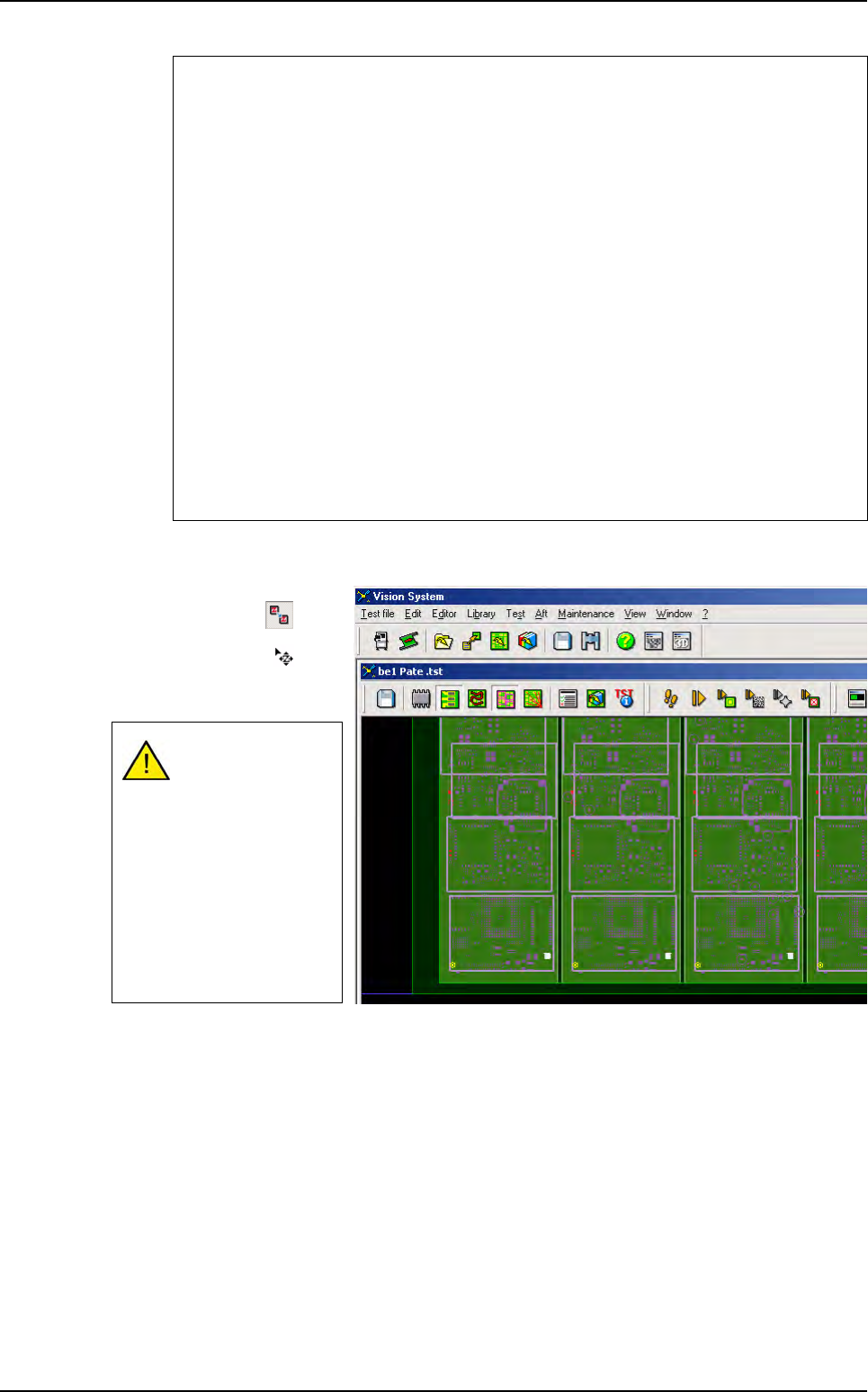
5.4.3 Moving zones
To move a zone, click on
Move zone button in the
Tools palette, the mouse
cursor change to , and
with a mouse click, select
and move the wanted zone.
Reset to default values
The reset to default values is available by clicking on the Default comp. or Default
paste buttons from the Zone Edition window.
The default lighting values for components and pads are defined for each zone in the
defaultvalue.ini file:
[Lighting zone 1]
Direct Amber(1,255)=70
Direct green(1,255)=0
Horizontal amber(1,255)=0
Horizontal green(1,255)=0
Camera accessory(0,1)=0
[Lighting zone 1 (paste inspection)]
Direct Amber(1,255)=70
Direct green(1,255)=0
Horizontal amber(1,255)=0
Horizontal green(1,255)=0
Camera accessory(0,1)=0
Check that the com-
ponents linked to
the zone are still in
the zone, after mov-
ing a zone.
When you click on a
zone with the right
mouse button, the
color of the zone
changes from ma-
genta to yellow.
Zones edition
.TST file edition
5 - 12 Vision 2007 4.10 User Manual Rev 01
5.4.4 Viewing unattached components
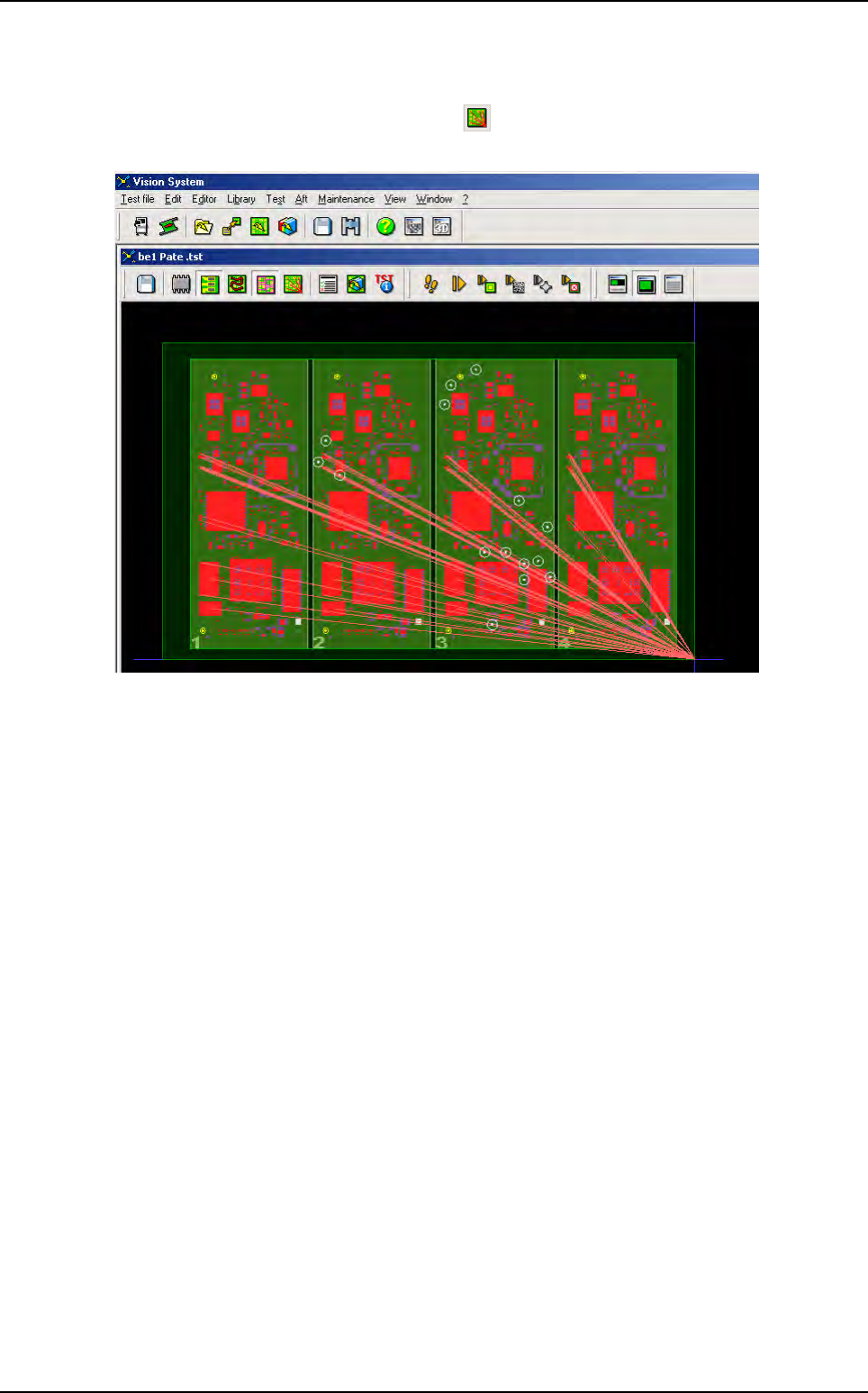
In View menu, go in Edition tool bar ... sub menu and select Show elements not in zone, or
click on the Unattached components icon in the tool bar of the .tst file window to see the
components that are not linked or attached to the zone.
The components that are not attached to the zone are displayed in red in the window of the .tst
file, the other disappear. Since the automatic method is implemented, all components are auto-
matically attached to a zone.
Zones edition
.TST file edition
Vision 2007 4.10 User Manual Rev 01 5 - 13
5.5 Components edition
5.5.1 Searching for a component
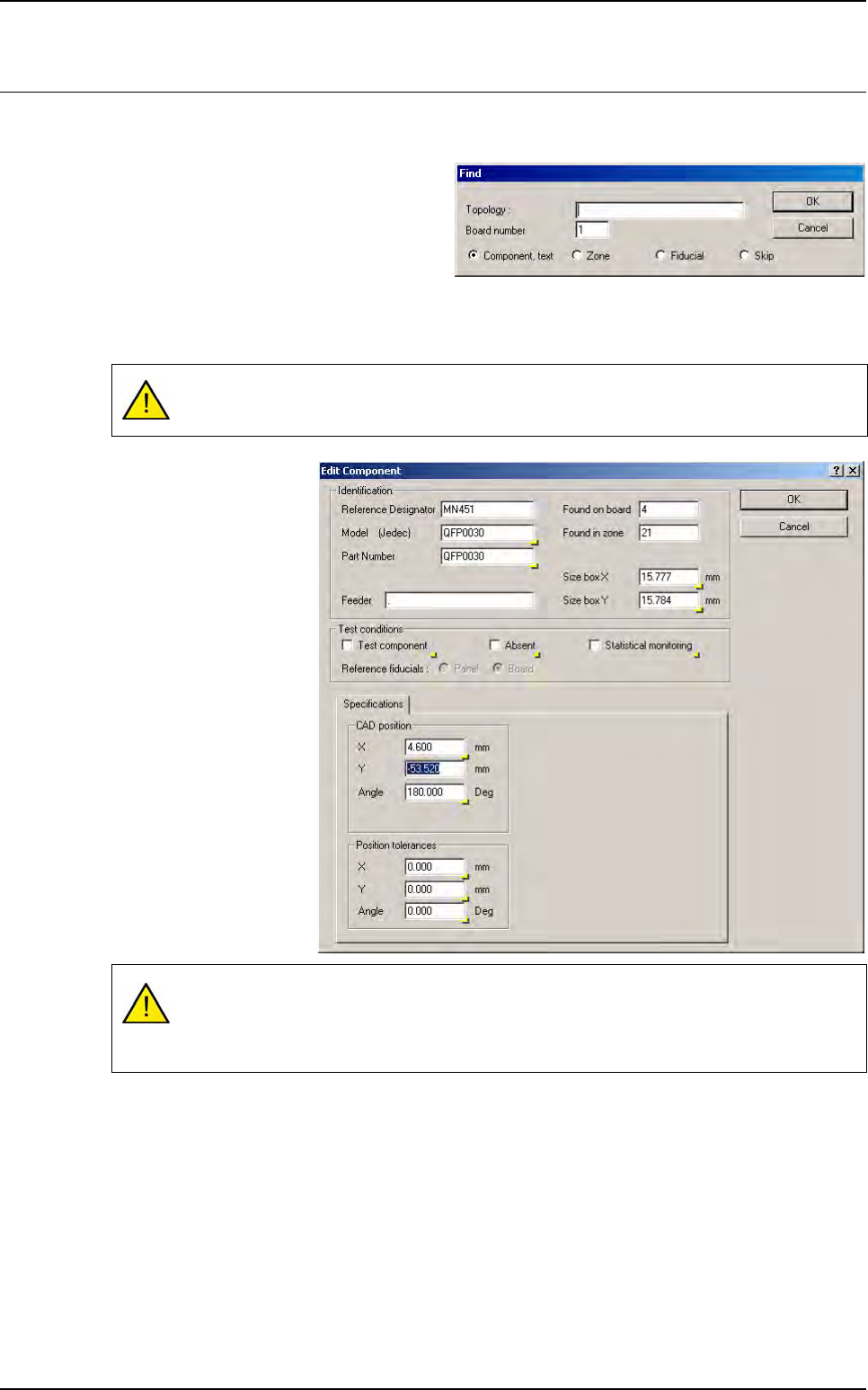
In the Edit menu select Search (Ctrl+F)
to locate a component. The Find window
appears.
Enter the Component topology and the
Board number if it is part of a multi-board
panel.
To edit the zones, the fiducials and the skips, enter the zone number, the fiducial number or the
skip type (0 is for panel). Then, click OK to run the search.
The component will be
displayed in yellow and
the Edit Component
window will appear.
To view the selected
component, click on the
title bar of the Edit Com-
ponent window and
slide it so that the .tst file
window appears again.
Once you have moved
the Edit Component
window, the component
you are looking for is vis-
ible.
The component name must be entered correctly (respect CAPS and lower cases).
The topological reference is Case sensitive.
If the component that you are looking for does not exist, the message Component not
found appears.