VI User Manual.pdf - 第126页
.TST file edition 5 - 18 Vision 2007 4.10 User Manual Re v 01 5.7.2.2 Specification tab This tab shows the connector features. In Connector ( A ) section, the Size X & Y is the connector size in X, Y direc- tion. Pre…
.TST file edition
Vision 2007 4.10 User Manual Rev 01 5 - 17
5.7 Connectors edition
5.7.1 Connector sub menu
To edit connector, go in Edit menu and select Connector sub menu:
1. Select Add connector... to run a wizard to add a connector.
2. Select Edit connector group... to open the connector group editor.
3. Select Export a connector library... to create a connector library based on connector in the
.tst file.
4. Select Import a connector library... to convert all component which have the same name as
connector model to a connector.
5. Select Test connectors to do connector test.
5.7.2 Connector edition box
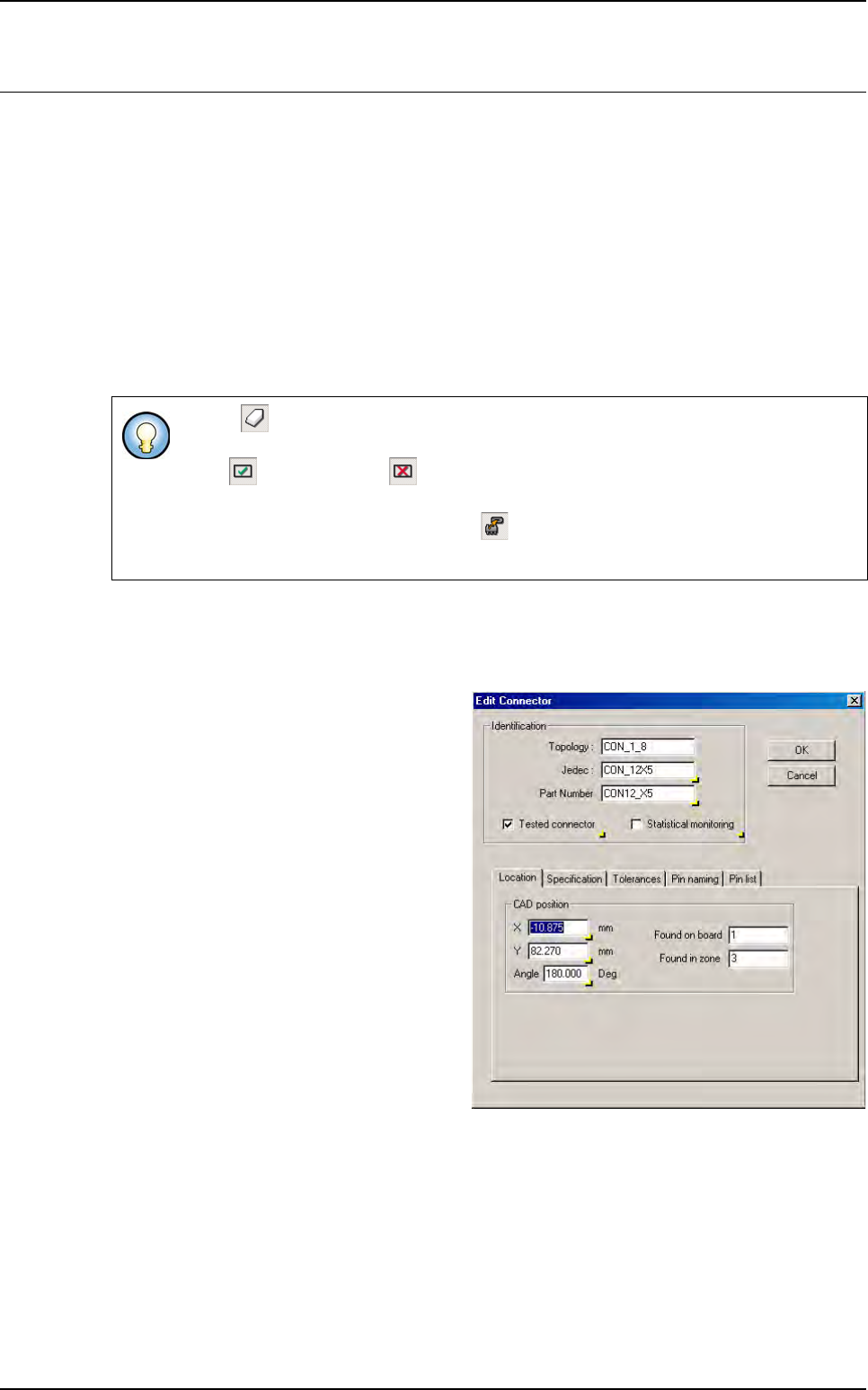
5.7.2.1 Location tab
These parameters define the con-
nector CAD position in the .tst file.
If Erase icon is pushed in, you can directly remove component using mouse without
answer to the fatal question Are you sure you want to remove this component.
If Test icon (or No test icon) is pushed in, you can directly put in test or remove
from test component with the mouse.
If Convert component to connector icon is pushed in, you can choose with the
mouse, which component you want to convert to connector.
.TST file edition
5 - 18 Vision 2007 4.10 User Manual Rev 01
5.7.2.2 Specification tab
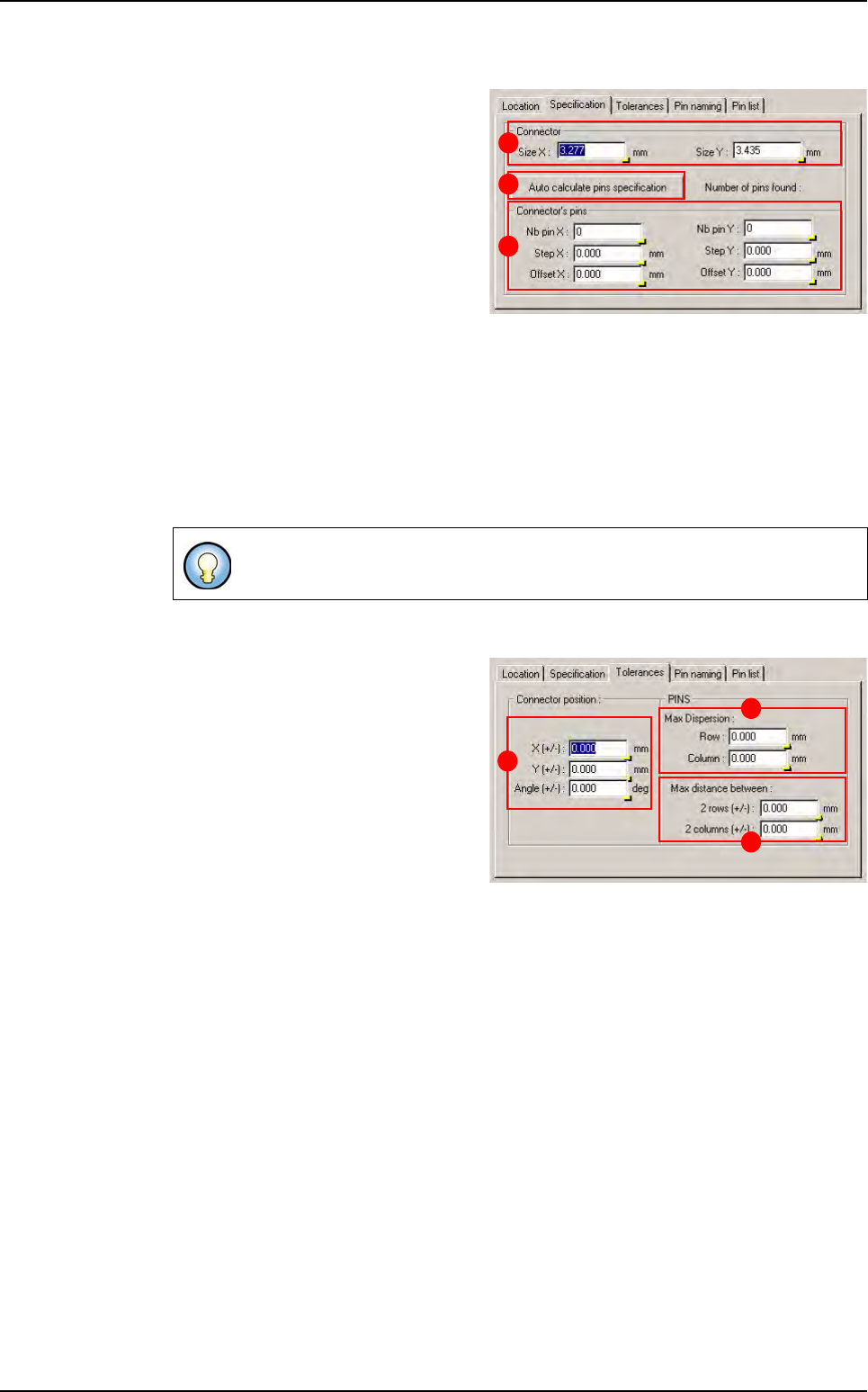
This tab shows the connector features.
In Connector (A) section, the Size X
& Y is the connector size in X, Y direc-
tion.
Press Auto calculate pins specifica-
tion (B) button to calculate automati-
cally connector feature according to
pin which are under the connector. If
you have not pin in your .tst file, you
can enter manually connector features
and the connector wizard could create pin component according to connector specifica-
tion.
In Connector’s pins (C) section:
Nb pin X & Y: number of pin in the connector in the X, Y direction.
Step X & Y: step, in X, Y direction, between 2 pins.
Offset X & Y: offset apply to the pin matrix from connector center position in X, Y direc-
tion.
5.7.2.3 Tolerance tab
This tab show the connector toleranc-
es and pin alignment tolerances
In Connector position (A) section:
X & Y (+/-): maximum distance be-
tween connector CAD and real posi-
tion in X, Y direction.
Angle (+/-): maximum angle between
connector CAD and real angle.
In Pins section:
Maximum dispersion (B):
Row: maximum distance between 2 pins of the same row in Y direction.
Column: maximum distance between 2 pins of the same column in X direction.
Maximum distance between (C):
2 rows (+/-): maximum distance between rows CAD and real step.
2 columns (+/-): maximum distance between columns CAD and real step.
All this specifications are given for a connector at 0°.
B
A
C
B
C
A
Connectors edition
.TST file edition
Vision 2007 4.10 User Manual Rev 01 5 - 19
5.7.2.4 Pin naming tab
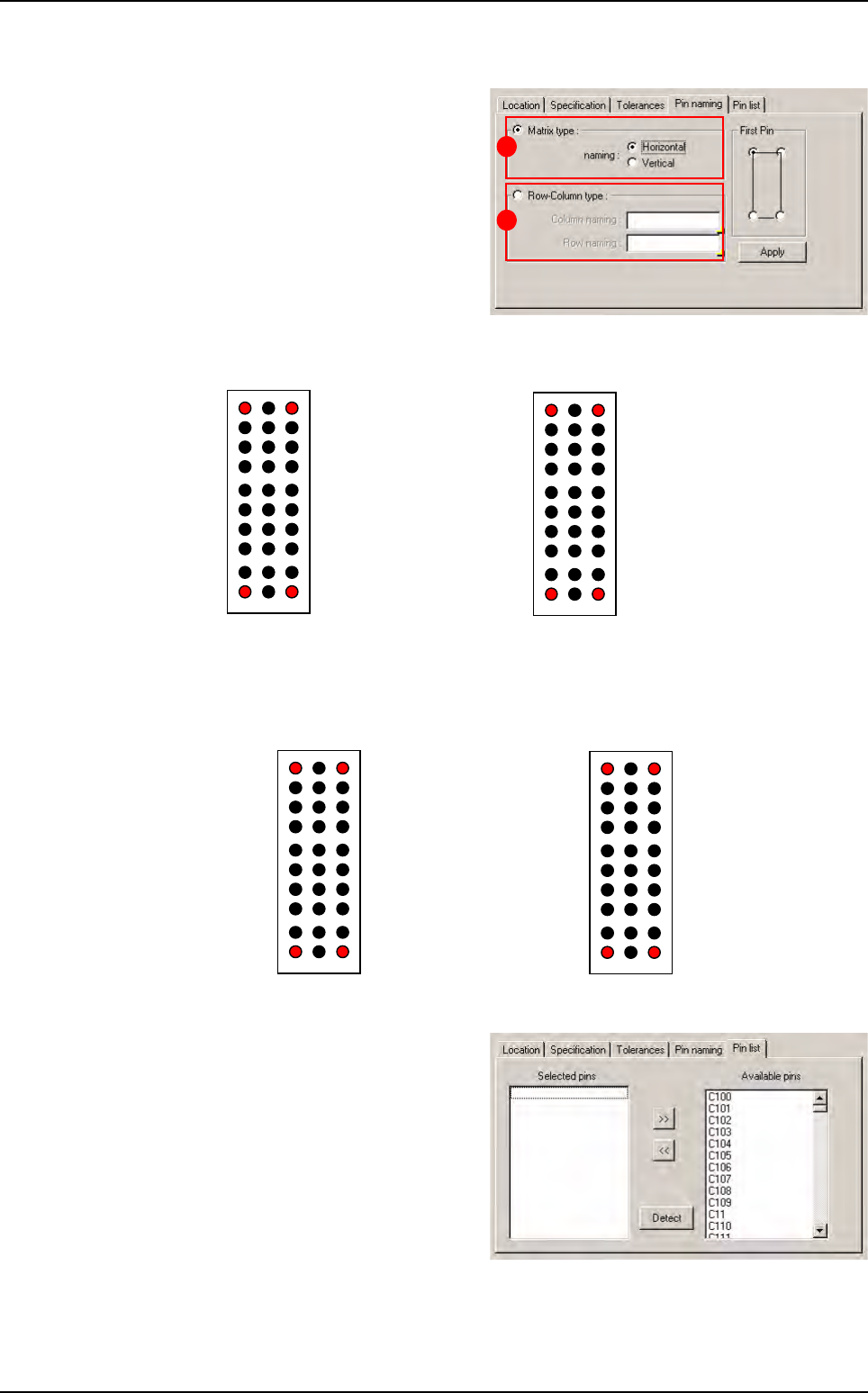
This tab allows to rename connector's
pin.
In Matrix type (A) section, the pins are
named from 1 to the number of pin in
the connector.
Horizontal way Vertical way
In Row-column type (B) section, you can choose column and row name.
Horizontal way Vertical way
5.7.2.5 Pin list tab
This tab shows you which pin are at-
tached to the connector. You can re-
move or add pin attachment as you
which but it is recommended to use
default attachment.
The Detect button lets you automati-
cally attach pin which are at the good
position under the connector.
A
B
Pin1
Pin2
7
Pin30
Pin3
27 30
1 3
Pin1
Pin10 Pin30
Pin21
10 30
1 21
Z A B
Pin Z_1
0
Pin B_10
Pin Z_1 Pin B_11
1
0
1 3
Pin3_10Pin1_1
0
Pin1_1 Pin 3_11
1
0
Connectors edition