VI User Manual.pdf - 第131页
.TST file edition Vision 2007 4.10 User Manua l Rev 01 5 - 23 5.8.3 The menu section 5.8.3.1 Summary tab In this part the operato r can find informatio n concerning th e panel inspected an d the total number of tests per…
.TST file edition
5 - 22 Vision 2007 4.10 User Manual Rev 01
5.8 Test coverage report
5.8.1 Presentation
The test coverage report allows to know at a glance which tests (polarity, presence, etc…) will
be performed on each element inspected. The user has just to click on icon to know this. These
informations are easy to print and to export in order to be opened with Excel or reopened with
Vision 2007.
5.8.2 Test coverage report description
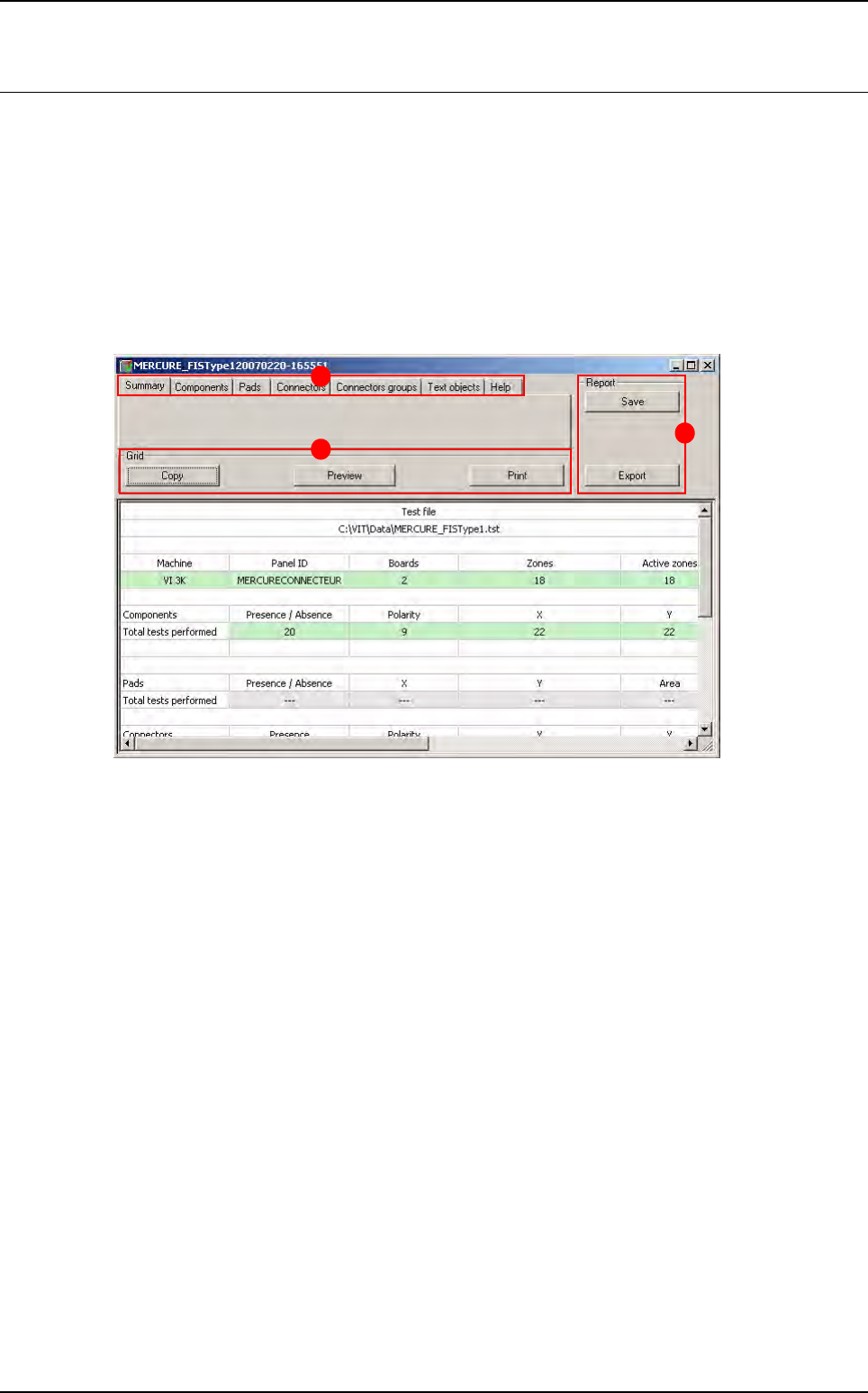
When opening the test coverage report, the window below appears.
This window is divided in 3 main parts:
The Menu (A) section
• Summary tab
• Report tabs
The Grid (B) section
The Report (C) section
A
B
C
.TST file edition
Vision 2007 4.10 User Manual Rev 01 5 - 23
5.8.3 The menu section
5.8.3.1 Summary tab
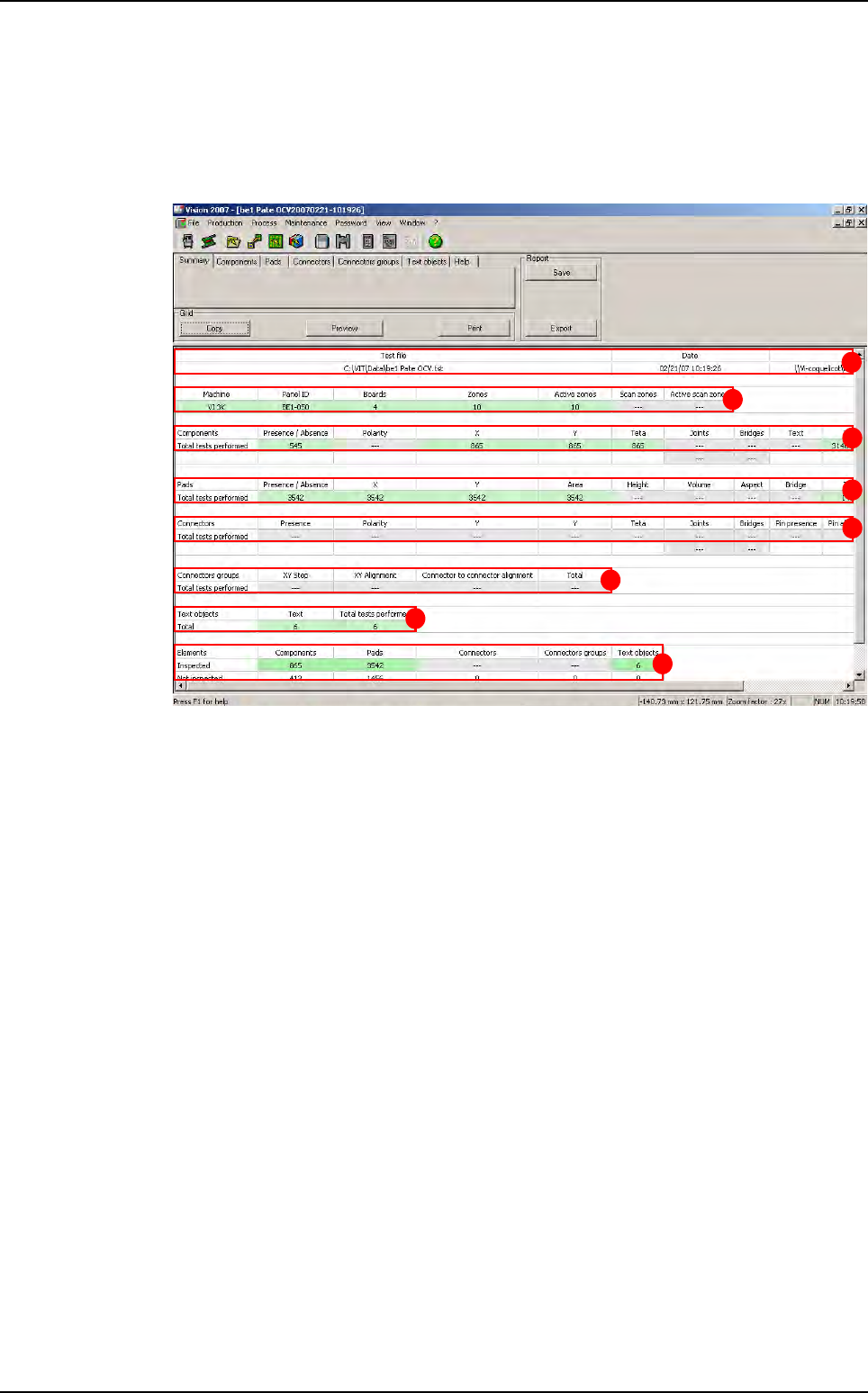
In this part the operator can find information concerning the panel inspected and the total
number of tests performed.
The part (A) contains general informations:
Location of test file
Date
Location of the library
The part (B) contains informations concerning the panel
Machine,
Panel ID,
Number of boards on the panel,
Number of inspection zone and activated zone
Number of scan zone and activate scan zone
The part (C) contains informations about Components,
The part (D) contains informations about Pads,
The part (E) contains informations about Connectors,
The part (F) contains informations about Connectors groups,
The part (G) contains informations about Text objects.
The part (H) is the summary of all these informations.
A
B
C
D
E
F
G
H
Test coverage report
.TST file edition
5 - 24 Vision 2007 4.10 User Manual Rev 01
5.8.3.2 Report tabs
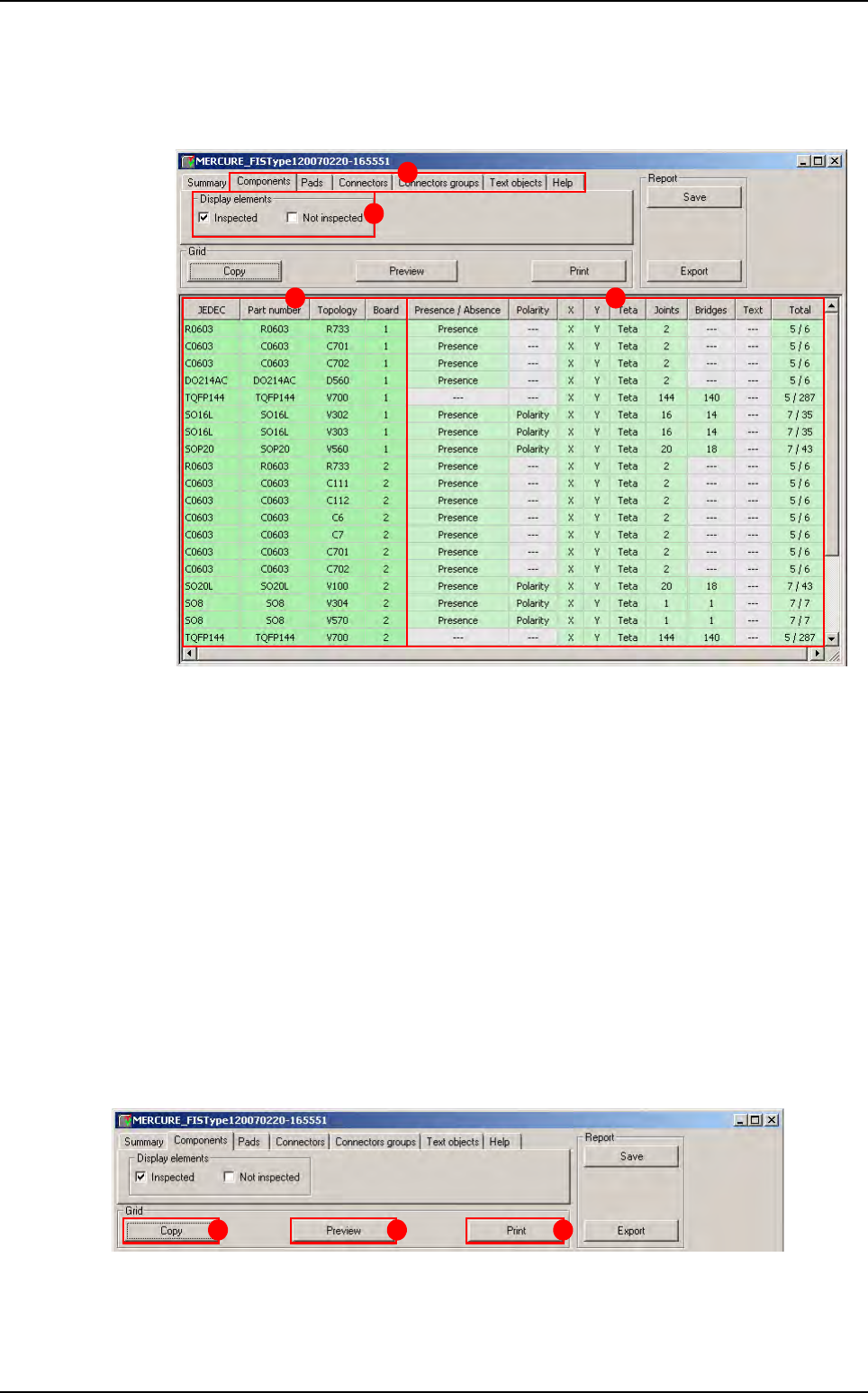
Selecting one of following tabs (A): Components, Pads, Connectors, Connectors
groups or Text objects, you can display information sorted by type objects.
In Display elements (B) section the options Inspected and not inspected enable to
view all the components inspected and / or all the components not inspected. The oper-
ator can choose to display result by component, pads, connectors, connectors group or
text objects (A).
In the (C) section, the user can find informations concerning elements (Jedec, part num-
ber, topology and number of board). Pads do not have any part number and the option
sorted by Jedec is inactive for text object. In this part the element in green are the tested
elements. (The element which are not tested are in gray).
In the (D) section, the user can see performed test on each element. In light green ap-
pears test performed. The column on the right end displays:
The number of tests per component: each cell in a row counts for 1,
The number of sub-tests: each cell in a row counts for 1, except for joints and bridges
that return the number of joints and bridges to be tested.
5.8.4 Grid section
This section allows to the user to copy the report.
Click on Copy button (A), all the report is selected, and paste it on an Excel file for example.
The user can also print this report by clicking on Print button (C) and Preview button (B) the
report before printing.
A
B
C D
A B C
Test coverage report