VI User Manual.pdf - 第135页
Vision 2007 4.10 User Manua l Rev 01 6 - 1 Chapter 6 Match Maker 6.1 Presentation Match Maker is a tool that enables to e asily add mo dels in the Customer Library from the Standa rd Li- brary for the unknown components.…
Vision 2007 4.10 User Manual Rev 01 6 - 1
Chapter 6
Match Maker
6.1 Presentation
Match Maker is a tool that enables to easily add models in the Customer Library from the Standard Li-
brary for the unknown components.
Match Maker is a module integrated inside Vision 2007 and starts from the TST file creation Wizard.
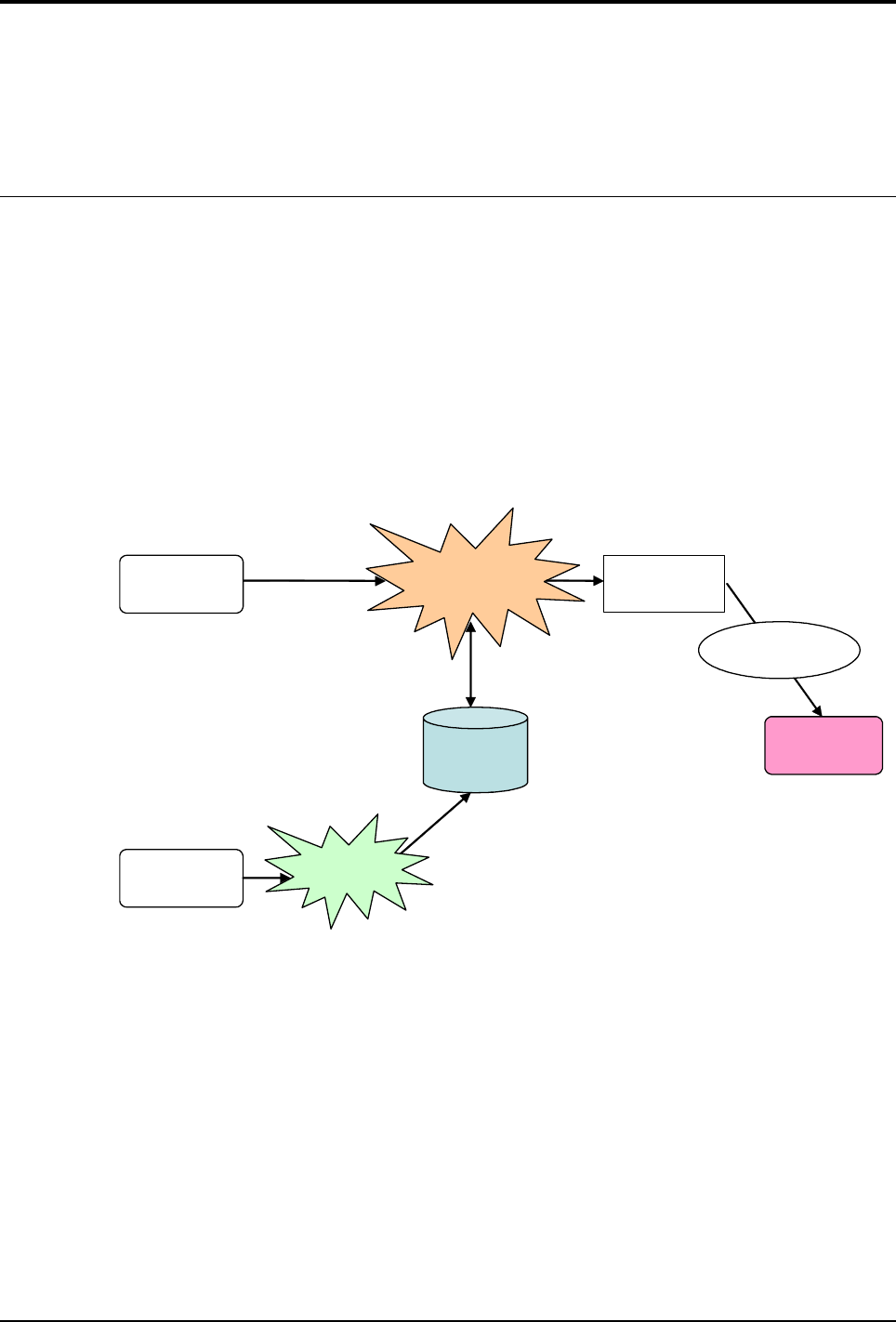
6.1.1 Detailed function
Match Maker is the interface tool between Customer Library and Standard Library.
Match Maker proposes a list of models that can match the unknown component in term of geo-
metric features. Thanks to a graphical representation of the component, select among the list
which model to import from the Standard Library.
The models selected are saved in a BuildModel database (BMdb) for future use.
To realize these functions, the user is guided by a Graphical User Interface.
Match Maker
Jedec
name
Standard
library
Library
manager
Customer
library
Automatic fill
BMdb
Customer
CAD data
Match Maker
6 - 2 Vision 2007 4.10 User Manual Rev 01
6.2 Configuration
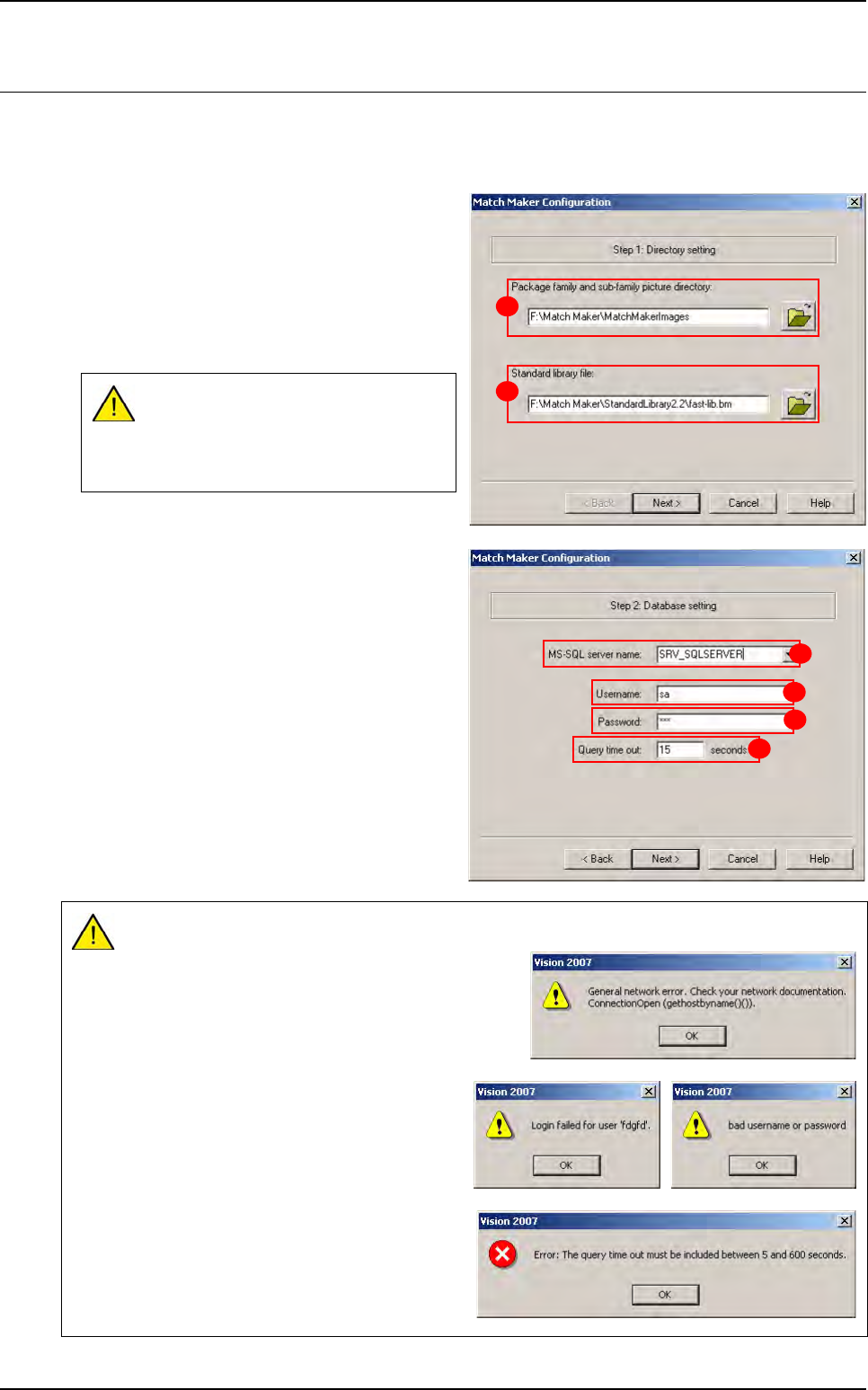
The configuration enables to define the arrangement of the data processing system. To configurate
Match Maker, the user must click on menu Configuration and select Match Maker, then a wizard
opens. Several actions must be realized:
1. Directory setting (choice of Package family
icons and Standard Library file with its path).
In Package Family & sub-family picture di-
rectory (A), select the folder containing Packa-
ge family and Package sub family.
In Standard library file (B), select the Library
of reference used by Match Maker.
Click on the Next > button.
2. Database setting (the BuildModel database
server settings).
Choose the MS-SQL server name and fill in the
fields:
In MS-SQL server name list (A), select the
server on which the database model is stored.
In User name field (B), enter the login for con-
nection to the database.
In Password field (C), enter the password for
connection to the database.
In Query time out field (D), enter the time of re-
search (min 5 s, max 600 s, default value 15 s).
Click on the Next > button.
If the directory Standard library file is
not well filled in, it will not be possible
to start Match Maker and copy
models from the Standard Library.
If a field is not well filled in, a message appears:
Network connection failed
Login - Password mistake
Value out of limits
A
B
A
B
C
D