VI User Manual.pdf - 第143页
Match Maker Vision 2007 4.10 User Manua l Rev 01 6 - 9 6.4.1.3 Package type The field can be empty or indicate a refe rence: The field is empty In W izard TST the Jedec Client is not present in the VIS file. In Match Mak…
Match Maker
6 - 8 Vision 2007 4.10 User Manual Rev 01
6.4.1 Top part
6.4.1.1 Part Number field
The field indicates the Part Number of components existing in the VIS file.
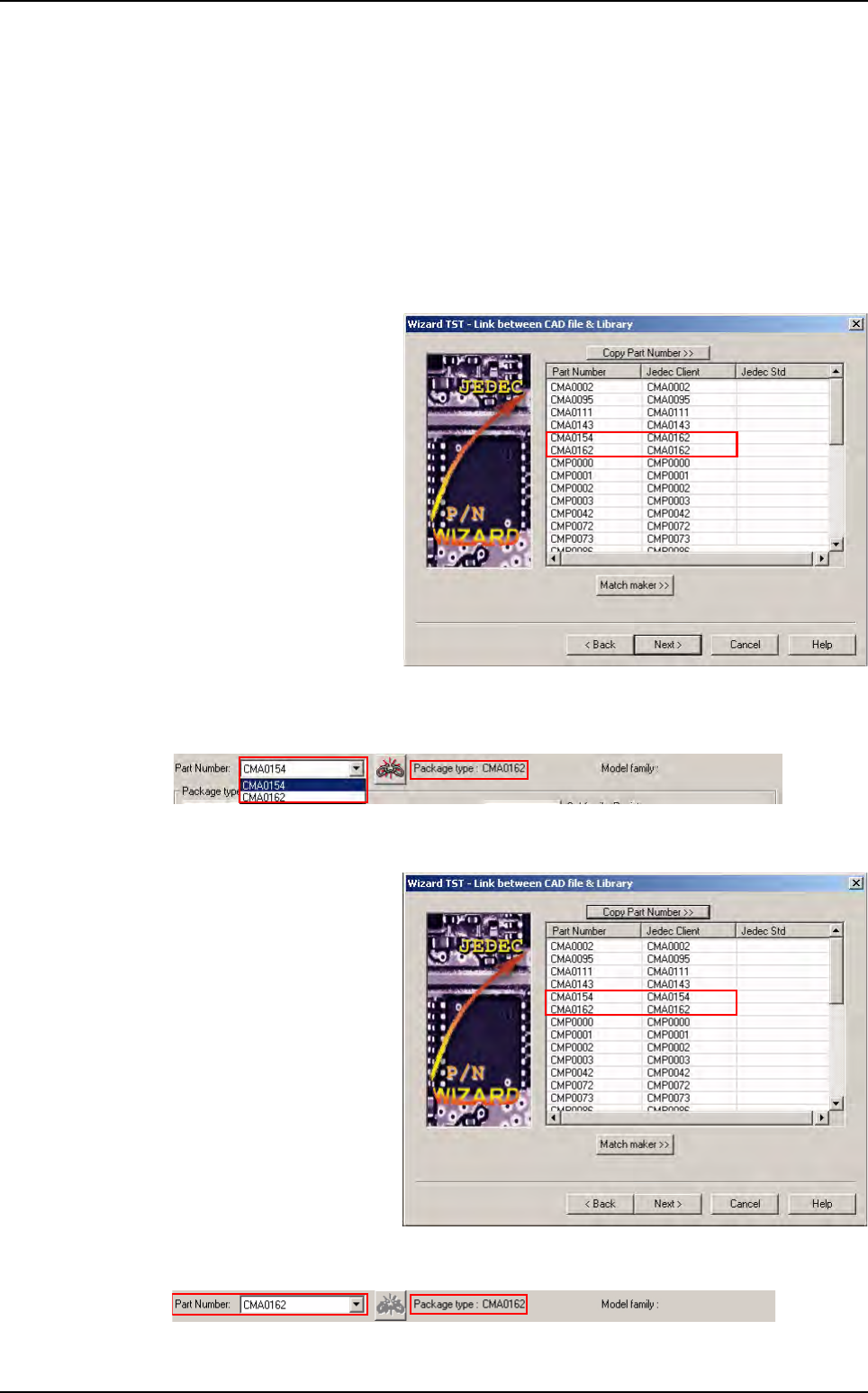
6.4.1.2 «unlink» Part Number to Package type
The button can be active or inactive:
The button is active (red)
In Wizard TST
two
Part
Number
have the same
Je-
dec Client
.
In Match Maker the button is active (red) and a Package type is linked to several Part
Number.
The button is inactive (grey)
In Wizard TST each Part
Number have a Jedec Cli-
ent.
In
Match Maker
the button is inactive and a
Package type
is only linked to a
Part Number
.
Match Maker graphical user interface
Match Maker
Vision 2007 4.10 User Manual Rev 01 6 - 9
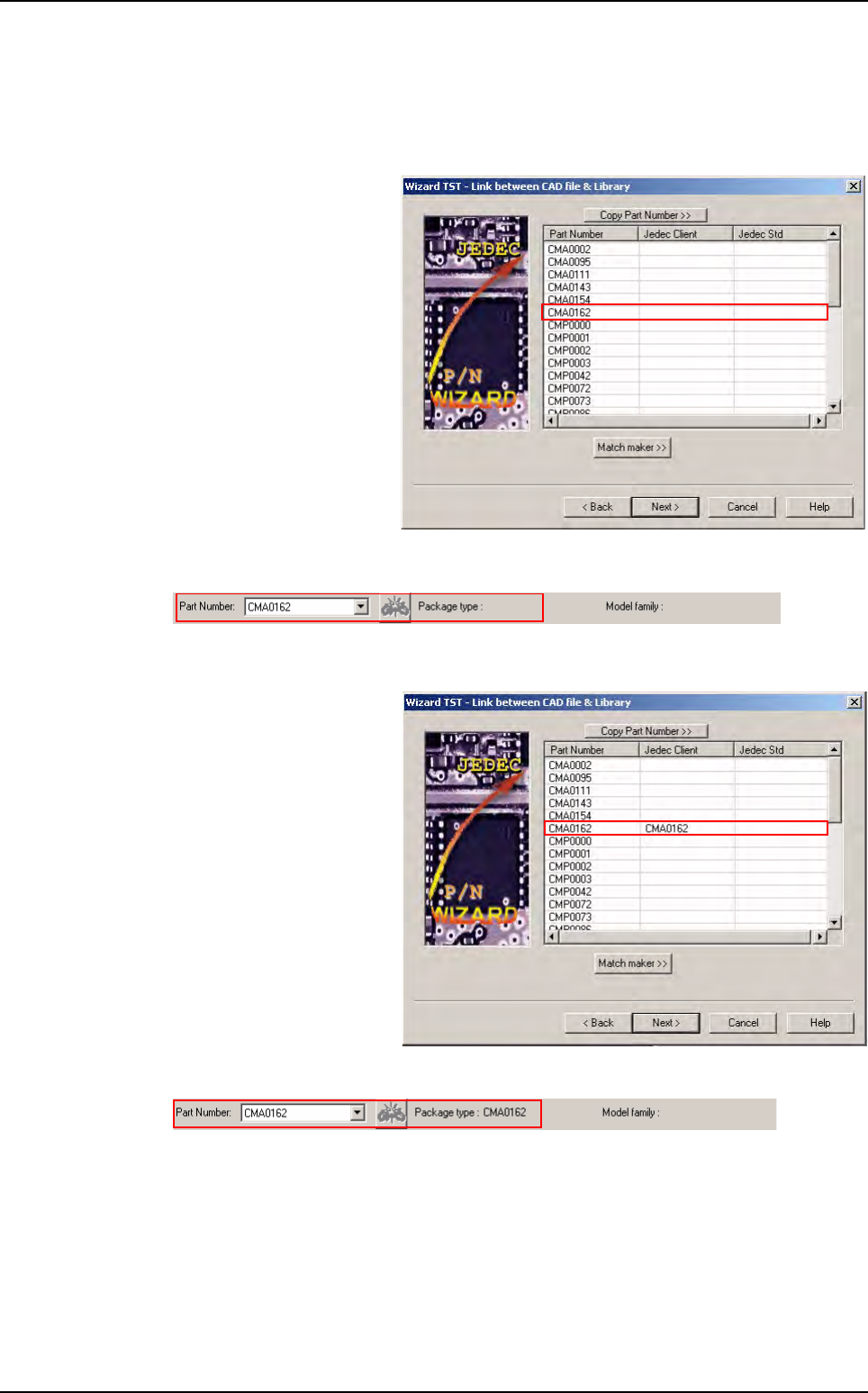
6.4.1.3 Package type
The field can be empty or indicate a reference:
The field is empty
In Wizard TST the Jedec
Client is not present in the
VIS file.
In Match Maker:
The field is not empty
In Wizard TST the Jedec
Client is present in the VIS
file.
In Match Maker:
Match Maker graphical user interface
Match Maker
6 - 10 Vision 2007 4.10 User Manual Rev 01
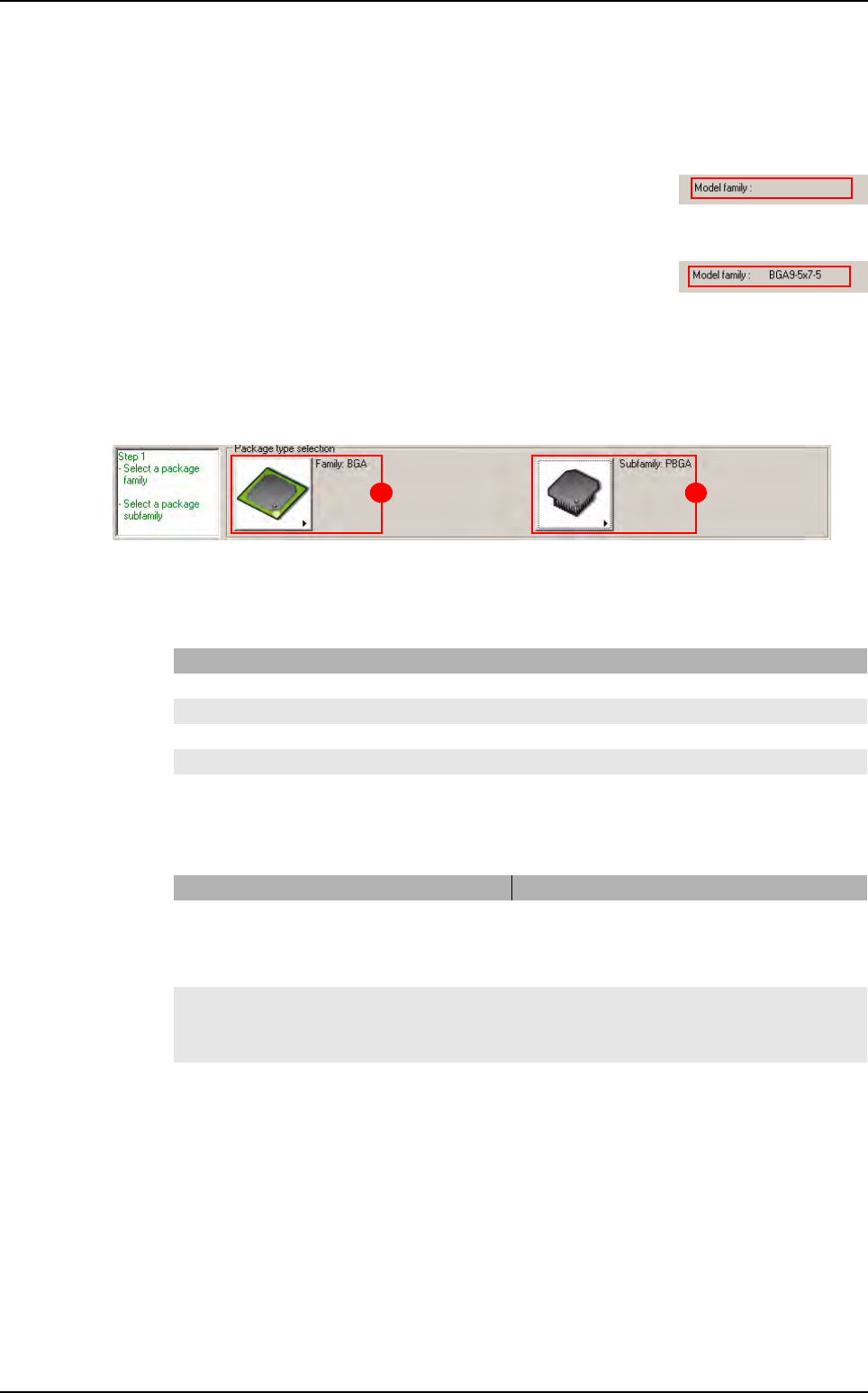
6.4.1.4 Model family
The field can be empty or indicate a reference:
The field is empty
The
Part Number
is not linked to a model in the Standard Library.
The field is not empty
The Part Number is linked to a model in the Standard Library.
Match Maker has been realized for this Part Number.
6.4.2 Step 1: Package type selection
This first step enables to choose the Package family (A) and the Package subfamily (B) which
correspond more to the selected Part Number.
The status of the Step 1 (black, red, green) depends of the actions realized.
6.4.2.1 Case 1: Black or red Step 1
6.4.2.2
Case 2: Green Step 1
The Package family is composed of five families and the Cancel button.
Each family has a Cancel and None button.
State Action
The Package family button is activated
Choose a
Package family.
A Package family is selected Select a Package subfamily or go to step 2.
The Package subfamily button is activated Choose a Package subfamily or go to Step 2.
The Package subfamily button is not activated Choose a Package family.
A Package subfamily is selected Go to Step 2.
State Information
A
Package family
is selected a Standard Library Model is loaded.
it is possible to change:
- the Package family
- the Package subfamily
The Package subfamily button is active a Standard Library Model is loaded
it is possible to change the Package family
it is possible to choose a Package subfamily.
A Package subfamily is selected a Standard Library Model is loaded
it is possible to change:
- the Package family
- the Package subfamily.
A B
Match Maker graphical user interface