VI User Manual.pdf - 第192页
Tools library 7 - 30 Vision 2007 4.10 User Manual Re v 01 7.7.3 SO or QFP model edition For SO and QFPs, 2 tools check the presen ce and position of the component as well as an y joints and solder bridges. If you program…
Tools library
Vision 2007 4.10 User Manual Rev 01 7 - 29
7.7 SO or QFP model
7.7.1 Joints detection
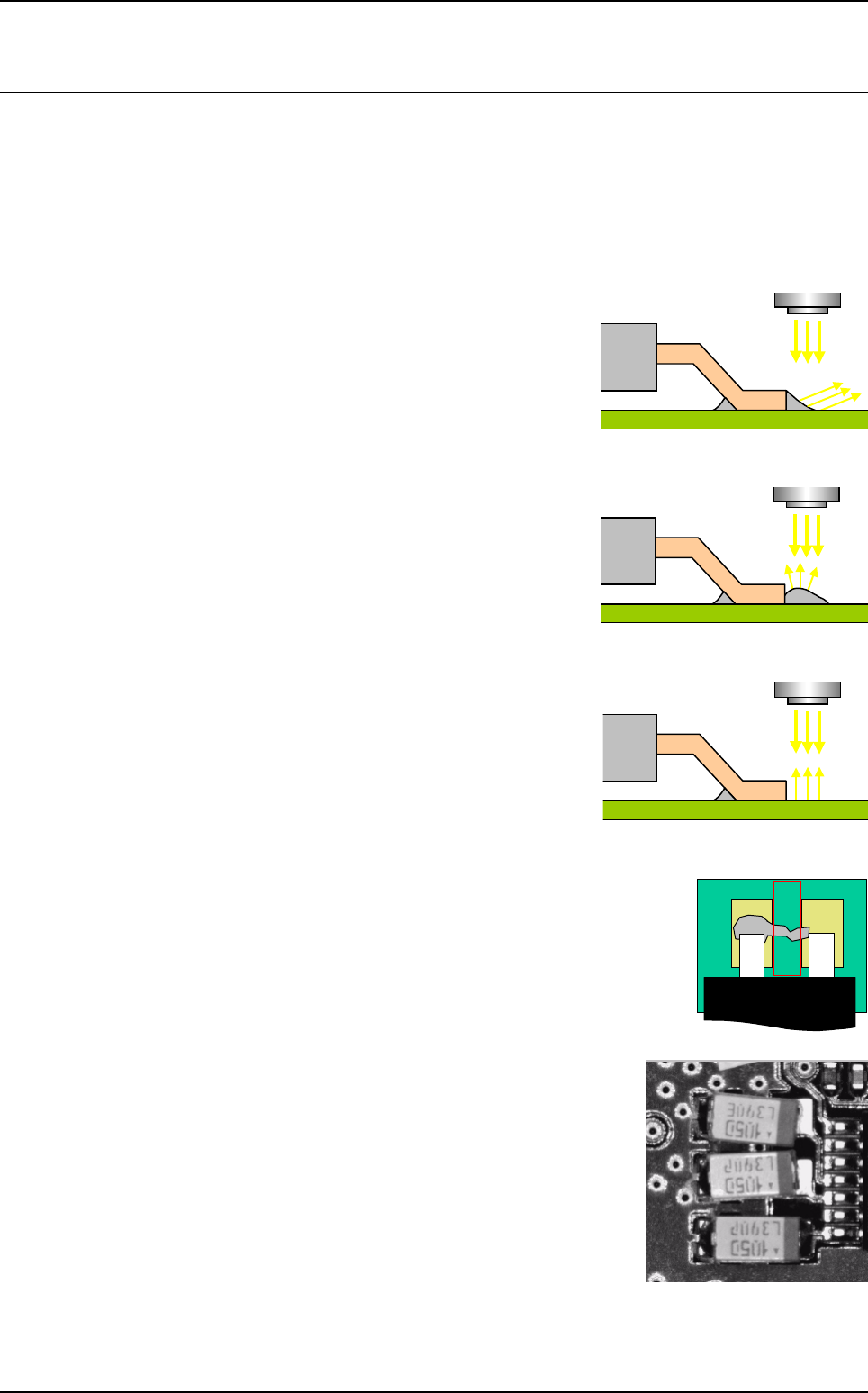
Joint inspection is the ability to check if there is solder or not. This tool does not consider quality. The
solder reflect few light to camera when the solder is good, and many when the solder is not good.
Histogram is used to perform joint inspection.
7.7.1.1 Good joint
With solder the reflection is out of the camera, which
causes a black area at the end of lead.
7.7.1.2 Bad joint
The curve of a bad joint weld reflects the major light
flux at the vertical of the solder.
7.7.1.3 No joint
Without solder the reflection is directly inside the
camera which causes a very bright area at the end
of lead.
7.7.2 Solder joint detection
The bridge tool allows inspection of bridges between 2 leads of SO or
QFP components.
Edge is used to perform bridge detection.
There are 2 equation fields in the Edit a model window for de-
tecting joints and solder bridges.
If you want to detect weld joints on small SMCs, like the 0603 or
0402, place a histogram at the end of the component. The equa-
tion in the Joint field will be R2 and R3 if your histograms are pro-
grammed in windows 2 and 3. If you use direct lighting, bad
solder will be very shiny and good welding will be dull.
This enables the presence or absence of joints to be checked.
A
Tools library
7 - 30 Vision 2007 4.10 User Manual Rev 01
7.7.3 SO or QFP model edition
For SO and QFPs, 2 tools check the presence and position of the component as well as any
joints and solder bridges.
If you program a SO or QFP tool and you want to check the joints and / or welding bridges of
the model, enter 1-J1 in the Joint field, and 1-B1 in the Bridge field. J1 and B1 respectively con-
tain the number of faulty joints and the number of solder bridges detected. The result of the
equation must be positive (> 0) for the test to be considered valid. Therefore, if there are no
faulty joints or bridges (J1 = B1 = 0), the 2 equations are equal to 1.
Vision 2007 sends back solder_afterOven and bridge_afterReflow for these 2 faults.
For these 2 tools, it is very important to define the component size in your .tst file, bearing in
mind the lead length. These tools use the leads to determine the position of the components and
if the leads are outside the camera range, the tool will return a false fault.
We recommend creation of an image representing the component, using BuildModel.
If you draw a TYPE 2 model with BuildModel, the image will contain all the parameters enabling
automatic creation of the SO or QFP model in the library.
7.7.4 Model description tab
1.
On the
Model description
tab, in the
Edit a model
window, click on the button . The .bmp
file name to add in picture list window appears. Select the image on which to load the treatment.
2. Click on Edit area button to define the treatment area.
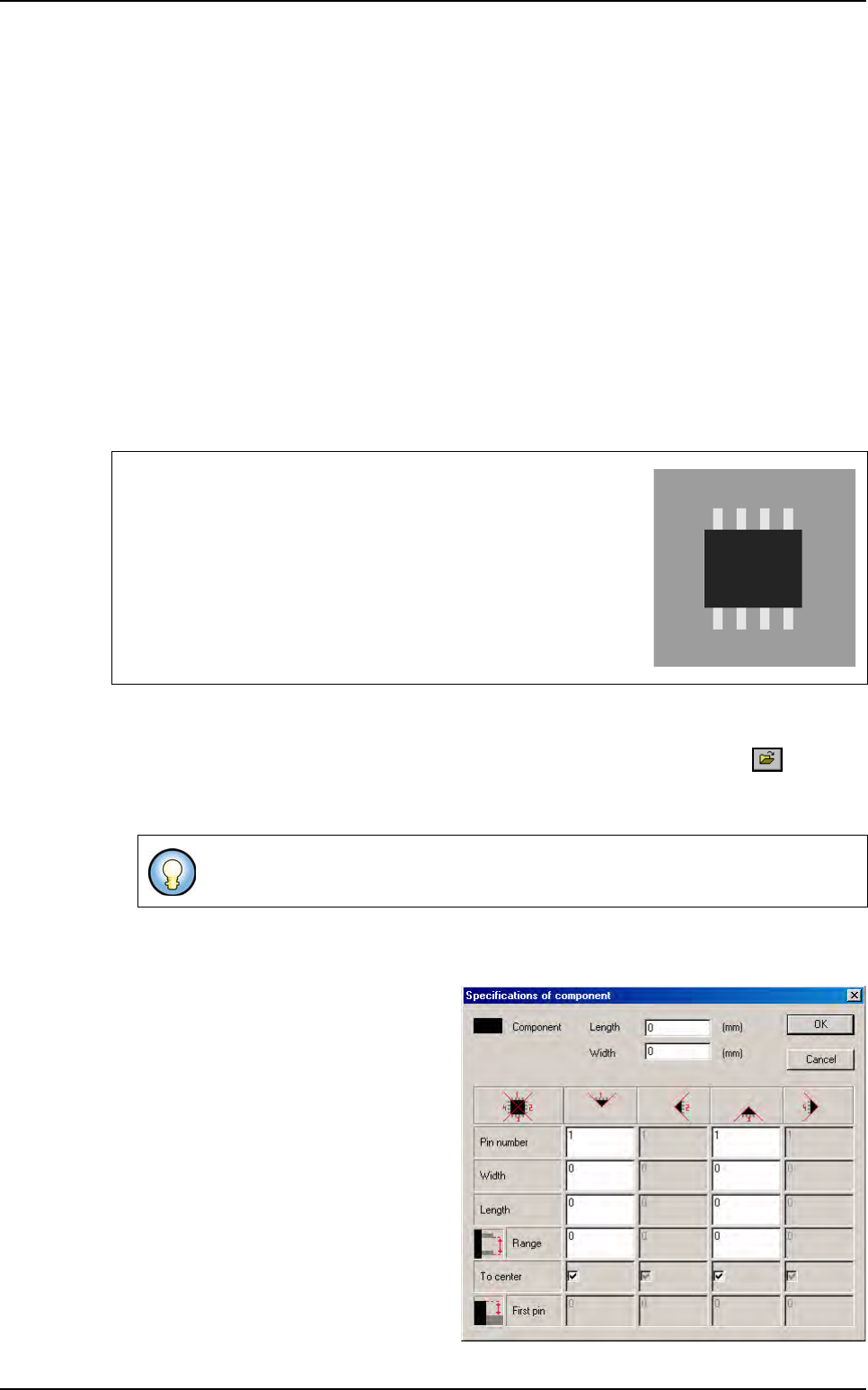
3. Choose the treatment operation: SO or QFP, a new tab appears (with the inspection tool
name) behind the Model description tab.
4. The software asks if you want to use the
image parameters to create the model.
If you answer no or if you have not cre-
ated an image with BuildModel, the
Specifications of component window
appears to enter the specifications of
your components.
If you have created an image with Build
Model, enter its name in the Model im-
age field of the Model description tab.
After filling in all the fields, click OK and
the model will be initialized automatical-
ly with the parameters you have just en-
tered.
The SO model must be drawn with the leads at the top and bottom
of the image as shown opposite
Gray levels used:
Body: 30
Leads: 226
Background: 128
When you use synthetic model, click on
Auto area
button to define the component size.
SO or QFP model
Tools library
Vision 2007 4.10 User Manual Rev 01 7 - 31
7.7.5 SO
The SO tool returns the (X, Y, θ) position of the component with the joint faults and welding
bridge faults.
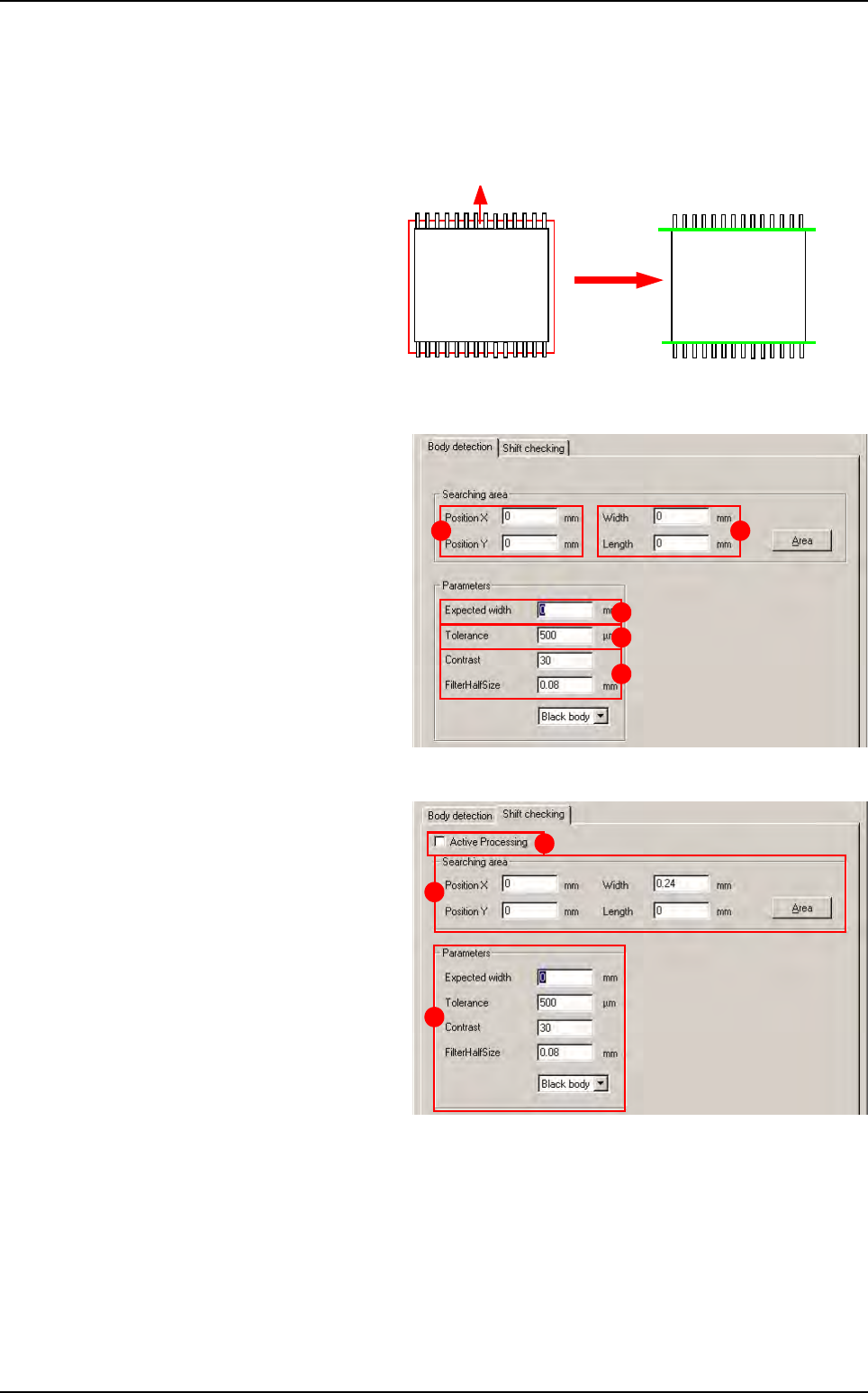
7.7.5.1 Body detection
Body detection of the SO
component is performed by
a double transition edge.
The window which appears
when you click on the Body
detection button gives ac-
cess to the parameters of
this edge.
Body detection tab
Position X & Y (A): double
edge position offset.
Width & Length (B): edge
size.
Expected width (C) of the
component body.
Tolerance (D) on the ex-
pected width.
Contrast & Filter Half Size
(E): edge parameters used.
Shift checking tab
This option processing is
used if the component is
shifted by one lead width.
Tick Active Processing (A)
box to activate the process if
you want to check the posi-
tion in X of your component
with the body and not the
lead.
In the Shift checking tab,
Searching area (B) and Pa-
rameters (C) are the same
that for Body detection tab
(see above).
Transition: white
Î
black and black
Î
white
Pos Y1
Pos Y2
Score by size
and contrast
A B
C
D
E
B
A
C
SO or QFP model