VI User Manual.pdf - 第198页
Tools library 7 - 36 Vision 2007 4.10 User Manual Re v 01 7.8 Custom The Custom tool is available in the library to inspect automatically exotic SO and QFP components or connectors. To inspect so lder joints and bridges …
Tools library
Vision 2007 4.10 User Manual Rev 01 7 - 35
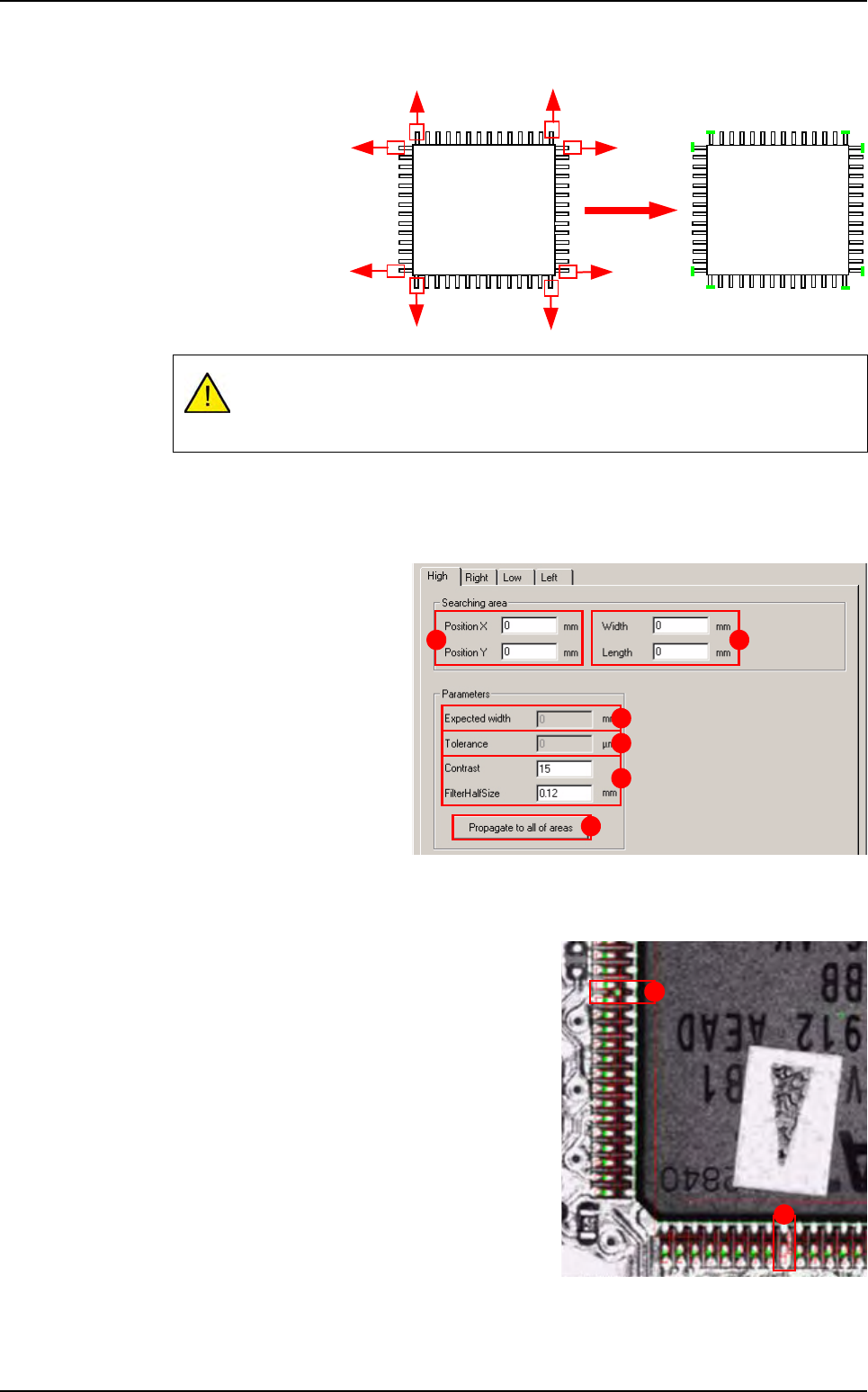
7.7.6.2 Accurate detection of the component position
This position is cal-
culated from the
edges that are posi-
tioned at either end
of the component
lead.
The next window appears when you click on the Accurate detection of component po-
sition button.
Searching area
Position X & Y (A): position
offset of the double transition
edge.
Width & Length
(
B
): edge size.
Parameters
Expected width
(
C
) of the com-
ponent body.
Tolerance
(
D
) on the expect-
ed width.
Contrast & Filter Half Size
(E): edge parameters used.
Propagate to all of areas (F) button: propagation to the other tabs.
7.7.6.3 Solder joint and bridge detection
This treatment is performed in the same way as
for the SO tool, except that the edges and histo-
grams are positioned on the 4 sides of the com-
ponent.
Solder bridge (A).
Faulty weld joint (B).
This diagram only shows 8 edges positioned, but the tool positions one for each
lead. With the position of each lead end, the exact position (X, Y,
θ) of the com-
ponent can be calculated.
Score
by contrast
A B
C
D
E
F
A
B
SO or QFP model
Tools library
7 - 36 Vision 2007 4.10 User Manual Rev 01
7.8 Custom
The Custom tool is available in the library to inspect automatically exotic SO and QFP components or
connectors. To inspect solder joints and bridges on components with a different number of pins, with
pins of different size and position and color:
You can set different parameters for each pin.
You can test and active each pin individually.
The component detection is made in 2 steps:
Body detection.
Leads detection.
After finding the precise component position, each joint and bridge inspection tool is automatically
placed. This tool can be used for multizones components (the only difference is the body detection).
7.8.1 Model description tab
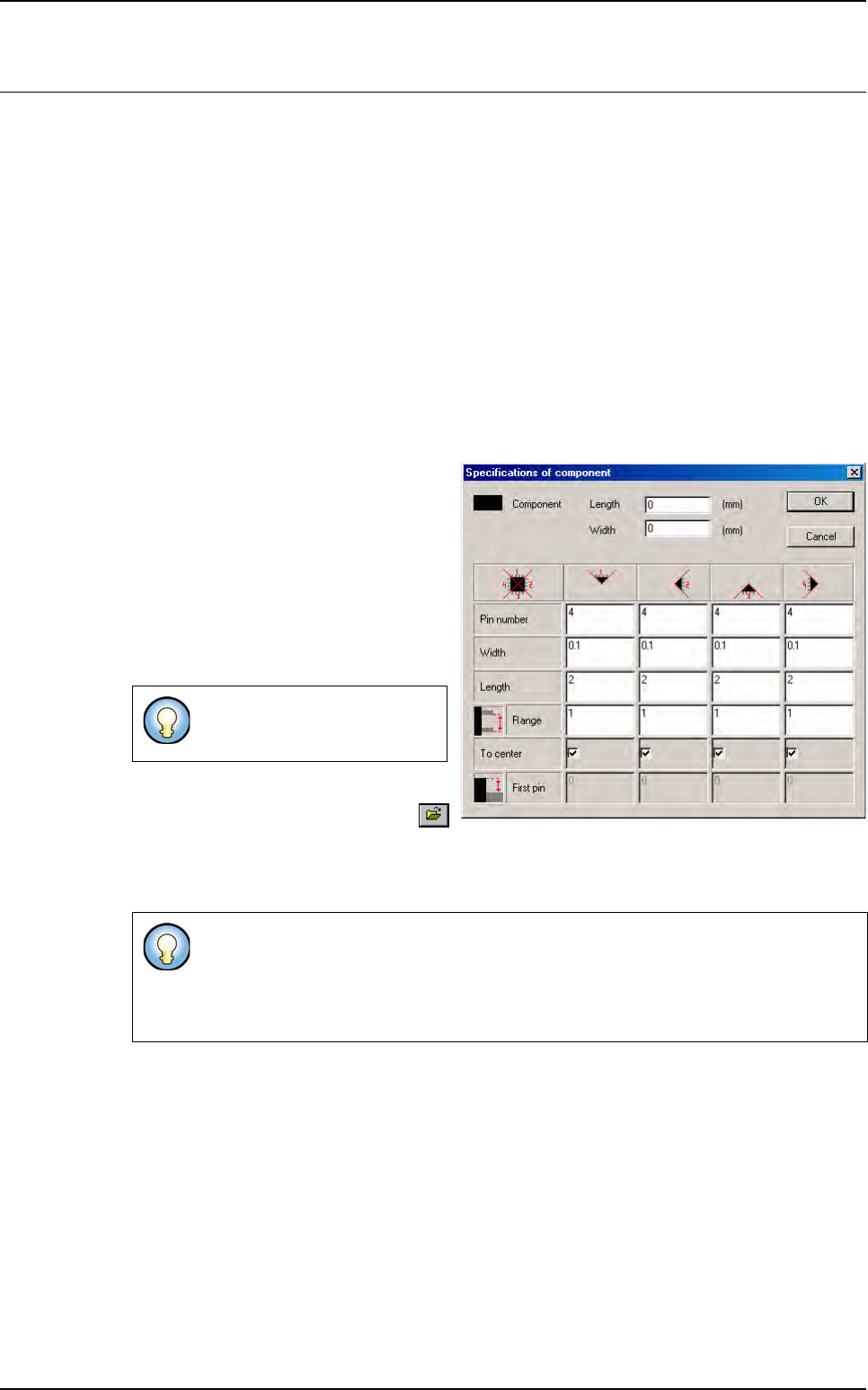
Follow this procedure to easily program a
component.
1. Draw a synthetic image with Build Model
Type 2. You can still program a custom
model if you do not have any synthetic
image.
2. When opening the custom edition, enter
all the component features in the oppo-
site window.
3. On the Model description tab, in the
Edit a model window, click on the
button. The bmp file name to add in picture list window appears. Select the image on which
load the treatment.
4. Click on Edit area button to define the component size.
5. Choose the treatment operation: Custom, a new tab appears (with the inspection tool name)
behind the Model description tab.
The Custom tool is based on the QFP tool. When opening the custom edit page, all the treat-
ment areas are automatically placed according to the component features. You just have to
check that these parameters fit on real components.
Load a real image on the camera display and adapt the parameters.
You can just create regular SO
and QFP on this interface.
When you create a Custom, use the encompassing rectangle dimension to initialize
Custom tool dimension.
When you use synthetic model, click on
Auto area button to define the component
size.
Tools library
Vision 2007 4.10 User Manual Rev 01 7 - 37
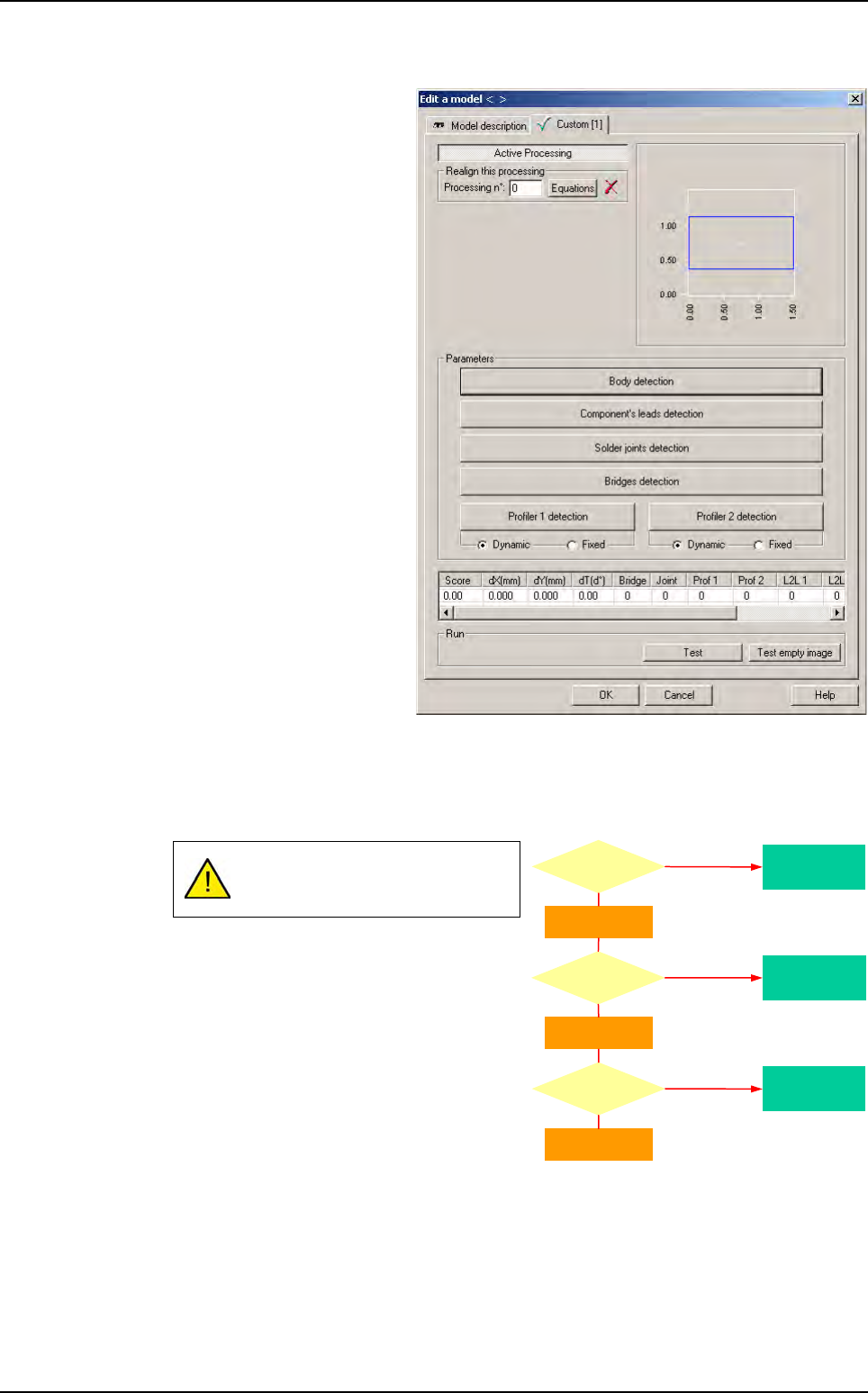
7.8.2 Custom tab
The Custom tool is based on the
QFP tool. When opening the custom
edit page, all the treatment areas are
automatically placed according to the
component features.
Check that these parameters fit on
real components.
Load a real image on the camera dis-
play and adapt the parameters.
7.8.3 Body detection
7.8.3.1 Algorithm
If one of these 3 steps fails, the
component is missing.
Missing
component
Missing
component
Missing
component
Return Theta
Angle
detection
fails ?
Return X
Width
detection
fails ?
Return Y
Height
detection
fails ?
Yes
Yes
Yes
No
No
No
Custom