VI User Manual.pdf - 第203页
Tools library Vision 2007 4.10 User Manua l Rev 01 7 - 41 7.8.5 Solder joints detection We can detect this flux by pl acing histograms in to p of the solder joint. There are 3 locations around the lead wher e the weld co…
Tools library
7 - 40 Vision 2007 4.10 User Manual Rev 01
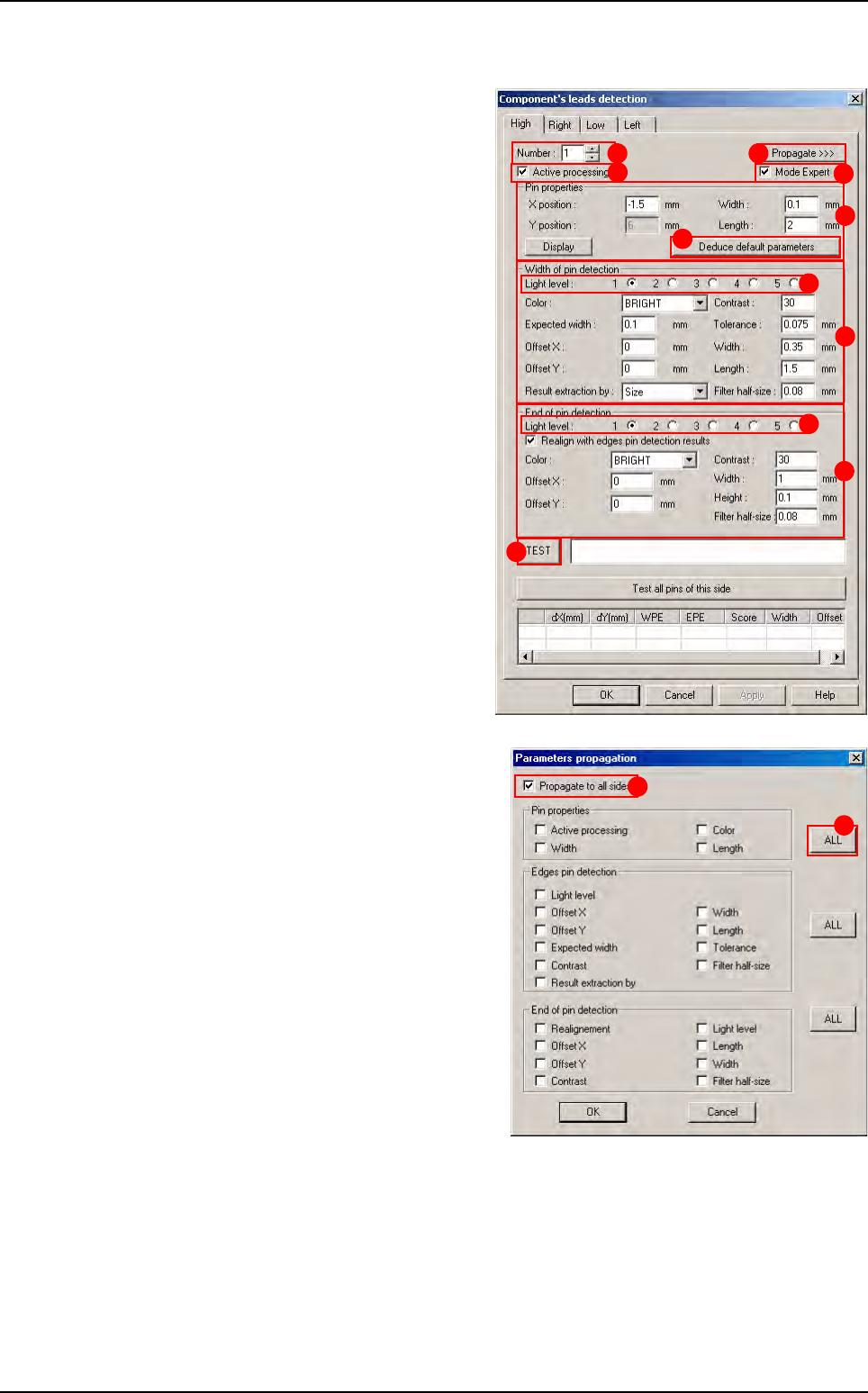
With Expert Mode
Tick the Expert mode (J) to display this
window.
Select the tab to edit the wanted side of
the component.
Select the pin number (
A
) you want to edit.
For the selected pin of the selected side,
tick
Active processing
(
B
) to run the
detection and select the
Light level
(
C
).
In Pin properties (D) section, enter the
features of the selected pin. Ensure
changes to adapt the model to reality. If
you change any parameters, press De-
duce default parameters (E) button to
change automatically the linked treat-
ments (solder joints and bridge detec-
tion).
In Edges pin detection (F) section,
enter the various parameters.
In End of pin detection (G) section,
enter the various parameters.
Press TEST (H) button to test of the
selected pin.
When you click on Propagate >>> ( I )
button, in order to propagate the different
parameters to all the sides, the opposite
window appears.
Tick Propagate to all sides (1) to propa-
gate the ticked parameters to all sides of
the component. Otherwise they will be
propagated to all pins of the selected
side.
Click on ALL button (2) to tick or not all
the parameters from the section.
A
B
D
E
F
G
I
H
J
C
C
1
2
Custom
Tools library
Vision 2007 4.10 User Manual Rev 01 7 - 41
7.8.5 Solder joints detection
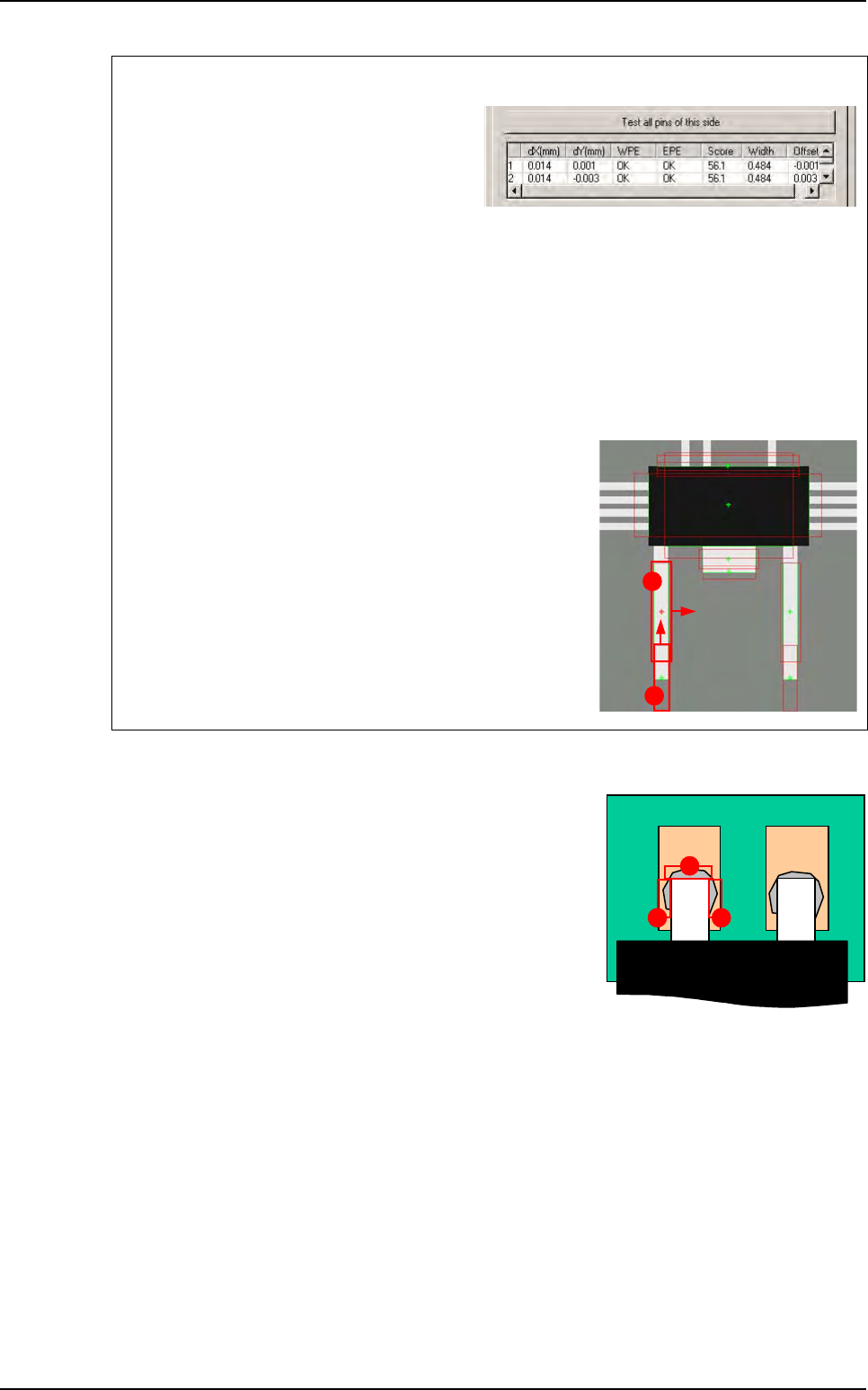
We can detect this flux by placing histograms in top of the
solder joint. There are 3 locations around the lead where the
weld could be inspected:
A End of lead,
B Right side,
C Left side.
One side test
Click on Test all pins of this area button to
test all the pins of one side.
dX & Y(mm): lead position deviation.
WPE: success of the edge for the width de-
tection.
EPE: success of the edge for the end of lead detection.
Score: average of the 2 scores.
Width: width computed by the double Edge.
Offset: lateral offset of the double edge from the center of the edge window.
Test results
A
Edges pin detection: edge double.
B End of pin detection: simple edge.
A
B
A
BC
Custom
Tools library
7 - 42 Vision 2007 4.10 User Manual Rev 01
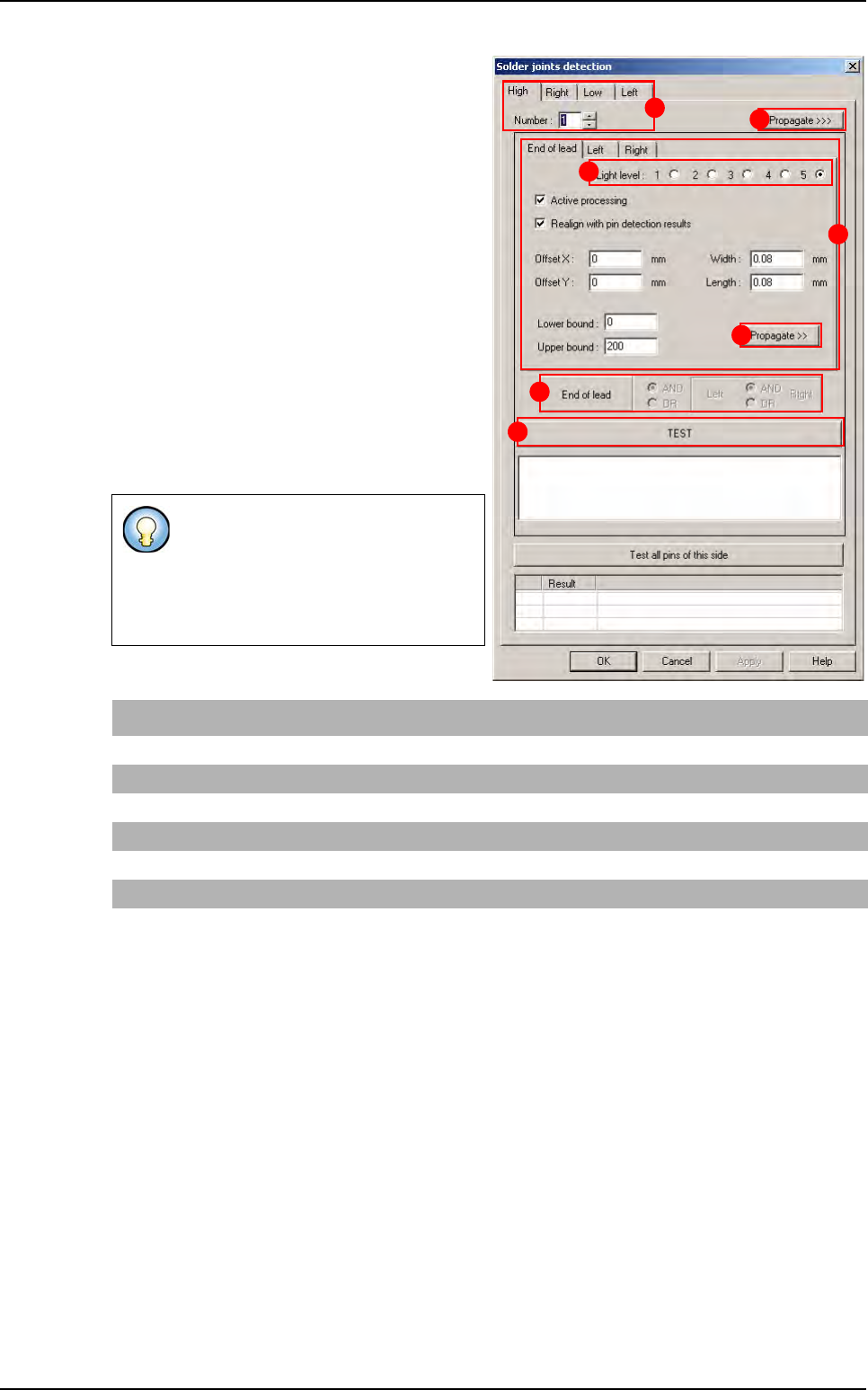
Individual lead setting: choice of the lead by
choosing his location on the component side
(
A), and the which one number on this side.
Individual histogram setting: select the lead
side (
B) tab to set the wanted histogram.
Select the
Light level (C): each histogram can
have its own light level.
In
End of lead AND/OR left AND/OR right (D)
specify the global test result definition.
Press
TEST (E) button to test and display the 3
histograms results.
Press
Propagate >> (F) button (in the lead side
tab) to propagate the parameters to the 3 histo-
grams: end of lead, left and right.
Press
Propagate >>> (G) button (in the com-
ponent side tab) to propagate the parameters
to all the leads and all the sides.
3 histograms are used to detect joint
around the lead.
You can specify the global joint test re-
sult according to these three one: it is
a boolean function.
End of lead histo First operator Left histo Second operator Right histo Global result
OK AND (NOT OK OR OK) = OK
OK AND (NOT OK AND OK) = NOT OK
NOT OK AND (NOT OK OR OK) = NOT OK
NOT OK OR (OK AND OK) = OK
NOT OK OR (NOT OK AND OK) = NOT OK
NOT OK OR (NOT OK OR OK) = OK
A
B
C
D
E
F
G
Custom