VI User Manual.pdf - 第239页
Tools library Vision 2007 4.10 User Manua l Rev 01 7 - 77 7.12.5.2 DMatrix tab 1. In Camera ( A ) section, select the cam era used to read the Data Matrix. 2. Adjust the tool learn area around the Data Matrix in the Cogn…
Tools library
7 - 76 Vision 2007 4.10 User Manual Rev 01
Time before first Acq (ms) (J) is a delay between the SMEMA acknowledge (when
board go in the machine) and the first acquisition.
Time between Acq (ms) (K) is a delay between 2 pictures.
Number of images (L) to take (maximum 20).
Tick
Save image in C:\temp (M), if you want to save pictures during Data Matrix in-
spection.
7.12.4 Maintenance mode
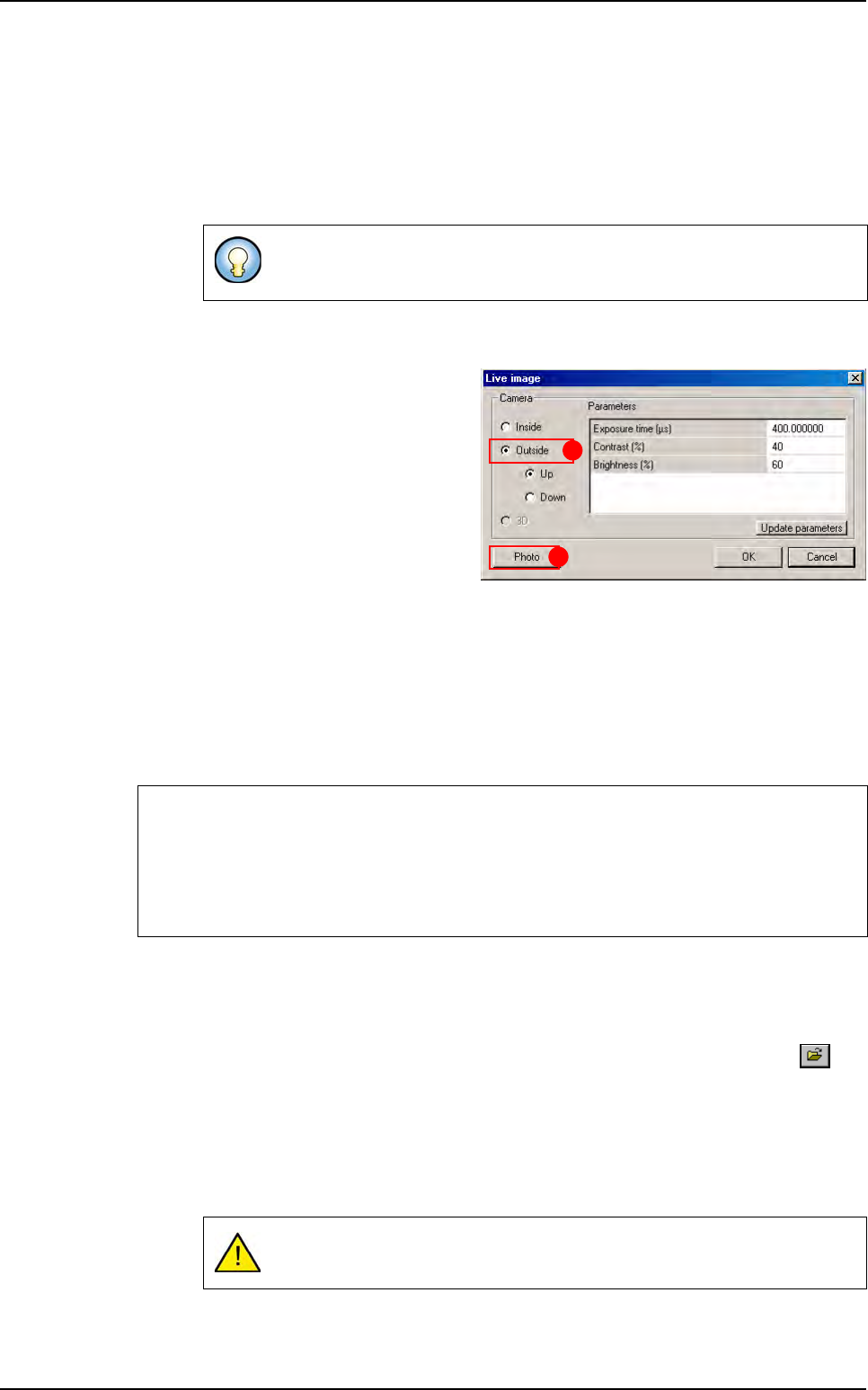
In Maintenance mode, press Video ac-
quisition
button, the Live image window
appears.
If you select
Outside (A), you can see a
live image from the camera used to read
the Data Matrix. You can choose
Up or
Down because there is an option to read
data matrix on the both side of a board.
The
Photo (B) button take an image with
the selected camera. The picture is saved
in
C:\vit\data folder and named:
Cam1.bmp if you have selected Inside camera,
Data Matrix.bmp for the outside camera,
3D.bmp for the 3D camera (3D option only).
It is helpful to store a good quality image of your Data Matrix because you will need it in library
to learn your Data Matrix type to the system.
7.12.5 Cognex Data Matrix model creation
7.12.5.1 Model description tab
1.
On the Model description tab, in the Edit a model window, click on the but-
ton. The .bmp file name to add in picture list window appears.
2. Select the image on which load the treatment.
3. Click on Edit area button to define the component size.
4. Choose the treatment operation: a new DMatrix tab appears behind the Model
description
tab.
Use this option to set and adjust the acquisition parameters. When your set-
tings are OK, you can remove the check box to save time.
If you have a poor quality picture you can:
Adjust the camera settings.
Tune the diaphragm and focus ring of the lens.
Tune the camera gain potentiometer in manual mode.
Be sure to select DM icon in the model description window.
A
B
Data Matrix
Tools library
Vision 2007 4.10 User Manual Rev 01 7 - 77
7.12.5.2 DMatrix tab
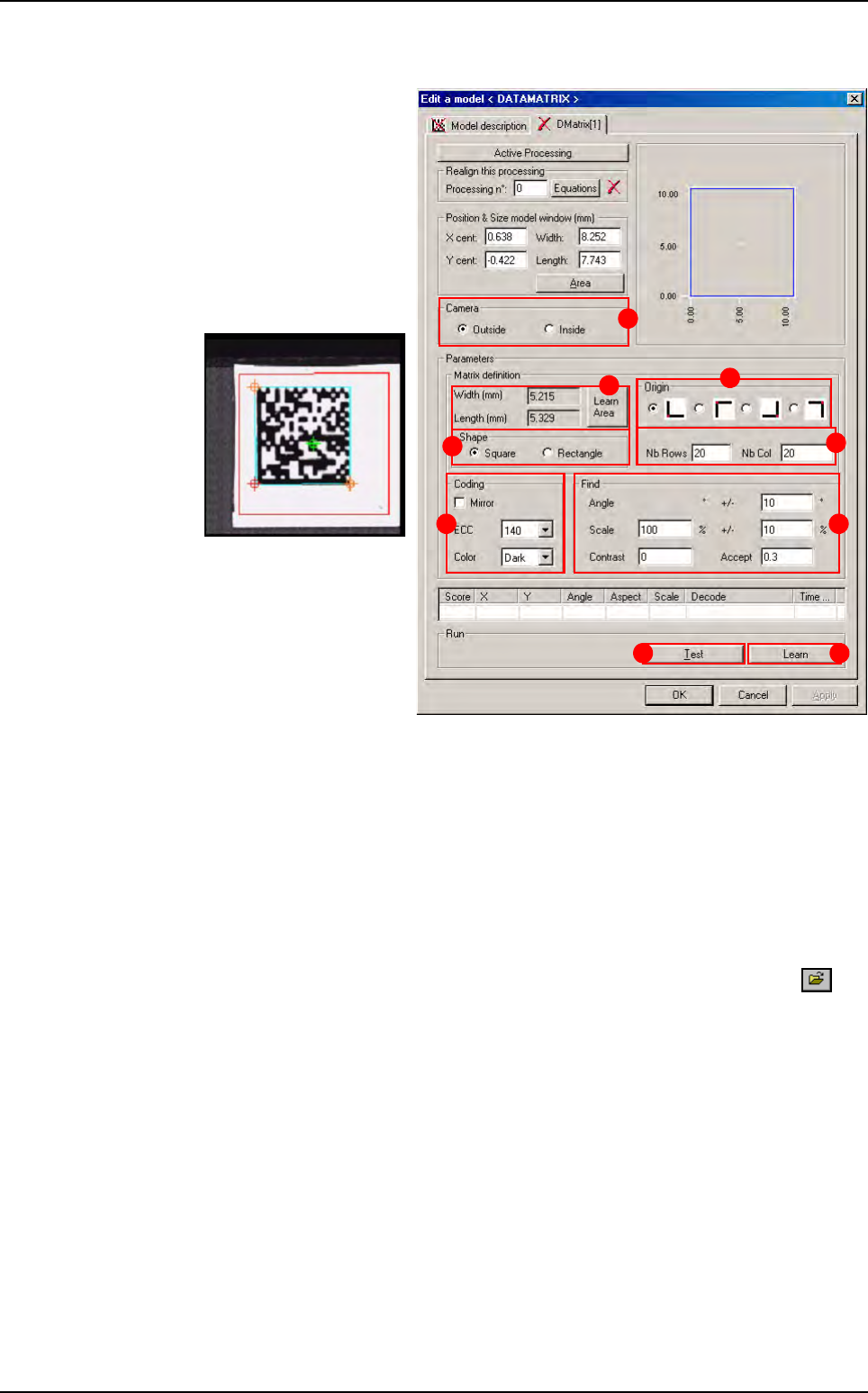
1.
In Camera (A) section,
select the camera used
to read the Data Matrix.
2. Adjust the tool learn
area around the Data
Matrix in the Cognex con-
sole, the search area will
automatically be setted
when pressing
Learn
Area
(B) button.
3. In Origin (C) section,
select the Data Matrix or-
igin position,
4. In Shape (D) section,
select the Data Matrix
shape.
5. Enter the number of
rows and columns (
E).
6. In Coding (F) section, select the coding type (ECC), and color.
7. Press Learn (G) button.
8. Once the model is learnt, press Test (H) button and adjust the detection parame-
ters (
I ): angle tolerance, scale, contrast and acceptance.
7.12.6 Data Matrix CVB model
7.12.6.1 Model description tab
1.
On the Model description tab, in the Edit a model window, click on the but-
ton. The .bmp file name to add in picture list window appears.
2. Select the image on which load the treatment.
3. Click on Edit area button to define the component size.
4. Choose the treatment operation: DMatrix CVB. A new DMatrix tab appears be-
hind the
Model description tab.
7.12.6.2 DMatrix tab
A
B
C
D
E
F I
GH
Data Matrix
Tools library
7 - 78 Vision 2007 4.10 User Manual Rev 01
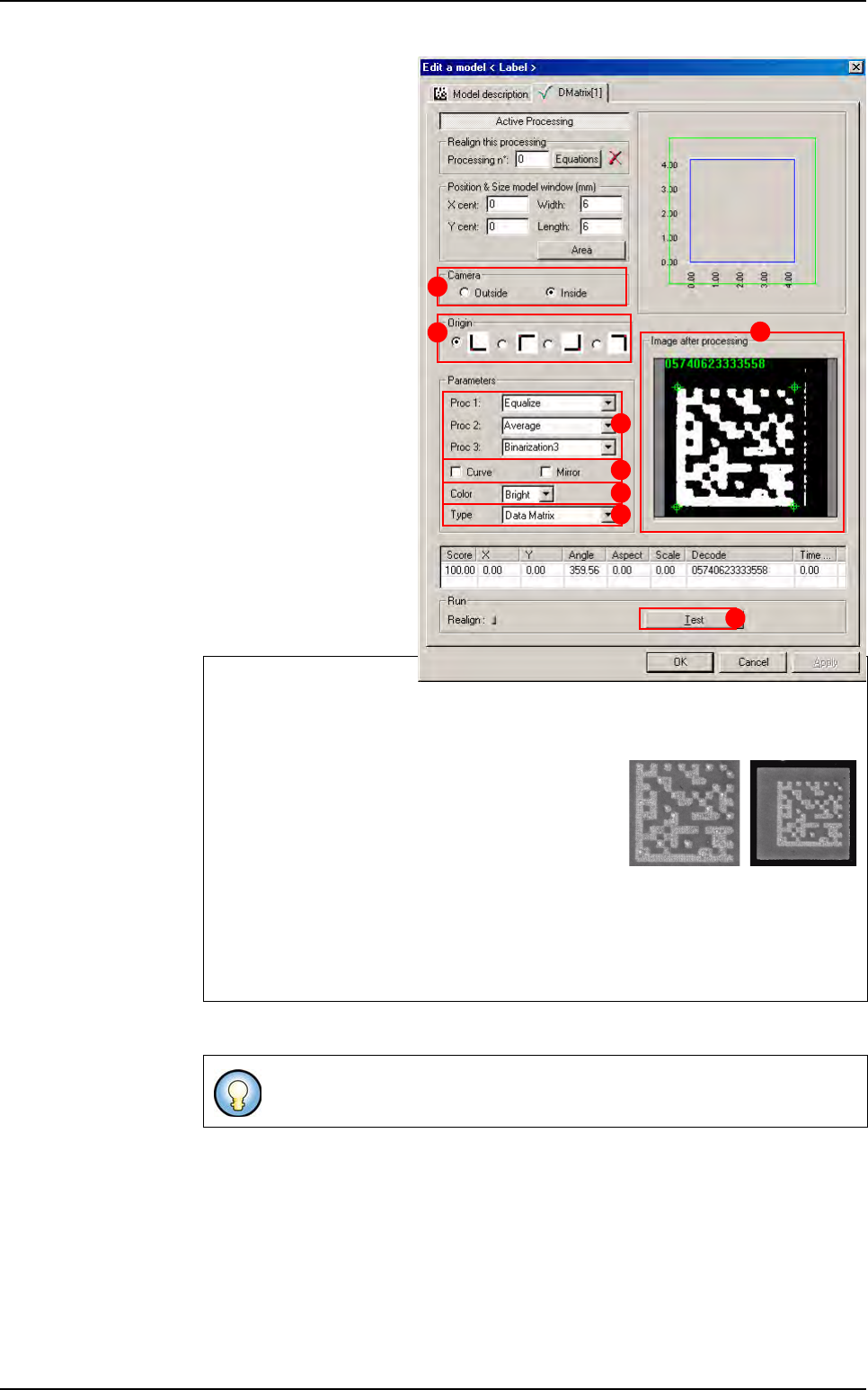
1. In Camera (A) section,
select the camera used to
read the Data Matrix. The
external camera takes
picture during the board
loading. If you have cho-
sen an external camera,
the search area is not
used, the software takes
care of the entire image.
2. In Origin (B) section,
you can select where is
the Data Matrix origin but
in most cases, the soft-
ware is able to find it it-
self.
3. In Parameters section,
when the picture is too
noisy to be decoded (ex:
Laser engraved data ma-
trix), it is possible to im-
prove the image quality.
Choose among the
Proc
...
(C) lists, the process-
ings to be executed on
the picture.
Tick
Curve or (and) Mirror (D) according to the Data Matrix type.
Select the Data Matrix
Color (E): dark on a bright background or bright on a dark bac-
kground.
Select the Data Matrix
Type (F) corresponding to the application.
Equalize: this processing increases the image dynamic to have pixel gray level
from 0 to 255.
Average
: this processing makes an average of the picture. It reduces the picture noise.
Binarization2: this processing computes 2 pixel
classes and returns a binary image based on these
2 classes.
Binarization3: this processing computes 3 pixel
classes and returns a binary image based on these
3 classes.
Inversion: this processing inverts the gray level scale. White pixels become black
and black become white.
Up to 3 processings will be applied one after the other.
Some Data Matrix are curved or (and) mirrored.
A
B
C
D
E
F
G
H
Data Matrix
Binarization2 Binarization3