VI User Manual.pdf - 第242页
Tools library 7 - 80 Vision 2007 4.10 User Manual Re v 01 7.13 Bar code CVB model 7.13.1 Model description tab 1. On the Model description tab, in the Edit a model window, click on the bu tton. The .bmp file name to add …
Tools library
Vision 2007 4.10 User Manual Rev 01 7 - 79
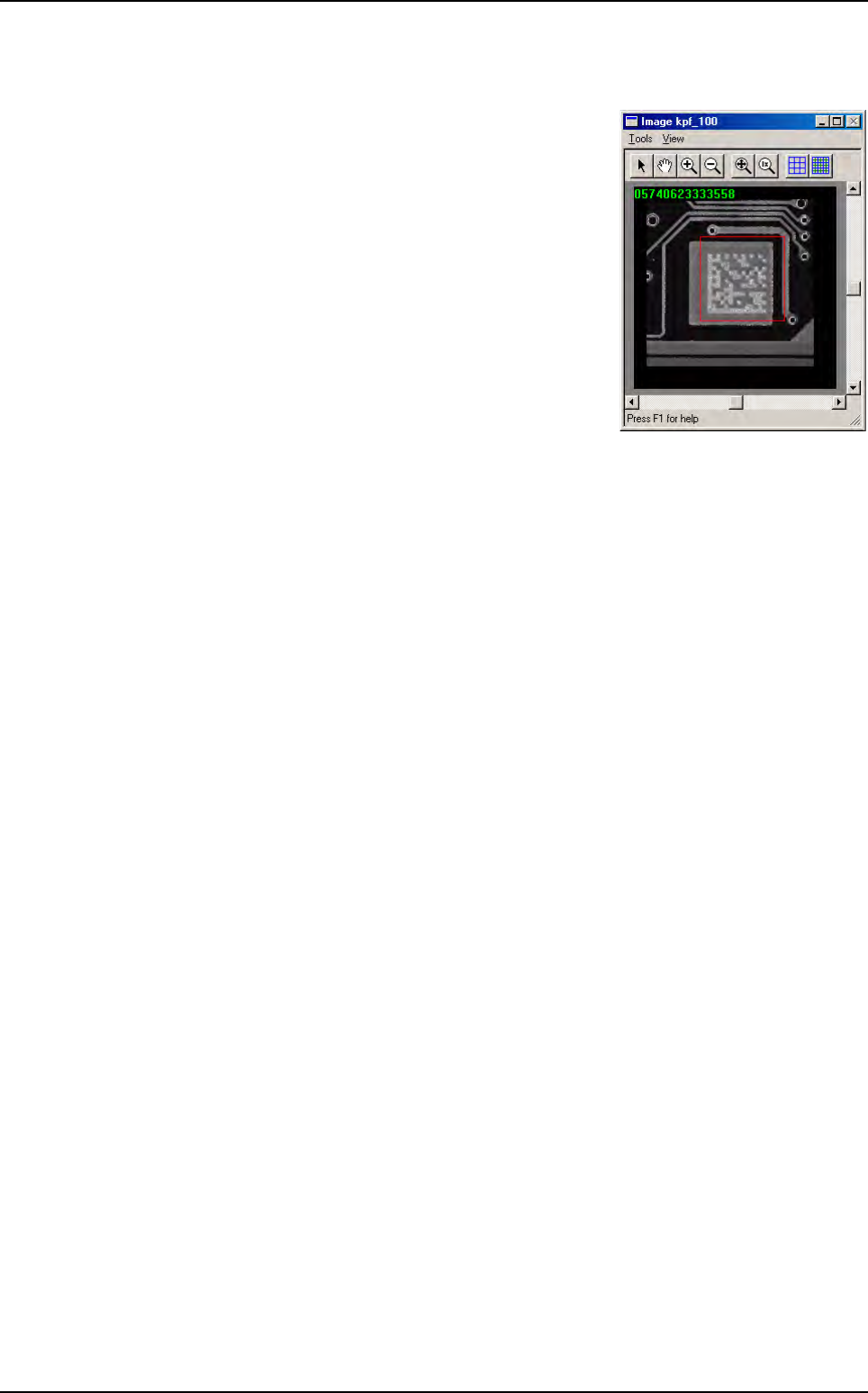
5. Press Test (G) button to lauch the Data Matrix reading test. The standard result
(score, XY position, theta, ...)
and the decoded character string are displayed.
You can also see the result in the COGNEX con-
sole
6. In Image after processing (H) section, the resulted image after processing is dis-
played to allow you to adjust the image processings.
Data Matrix
Tools library
7 - 80 Vision 2007 4.10 User Manual Rev 01
7.13 Bar code CVB model
7.13.1 Model description tab
1. On the Model description tab, in the Edit a model window, click on the button. The
.bmp file name to add in picture list window appears.
2. Select the image on which load the treatment.
3. Click on Edit area button to define the component size.
4. Choose the treatment operation: Barcode CVB. A new Bar code tab appears behind the
Model description tab.
7.13.2 Bar code tab
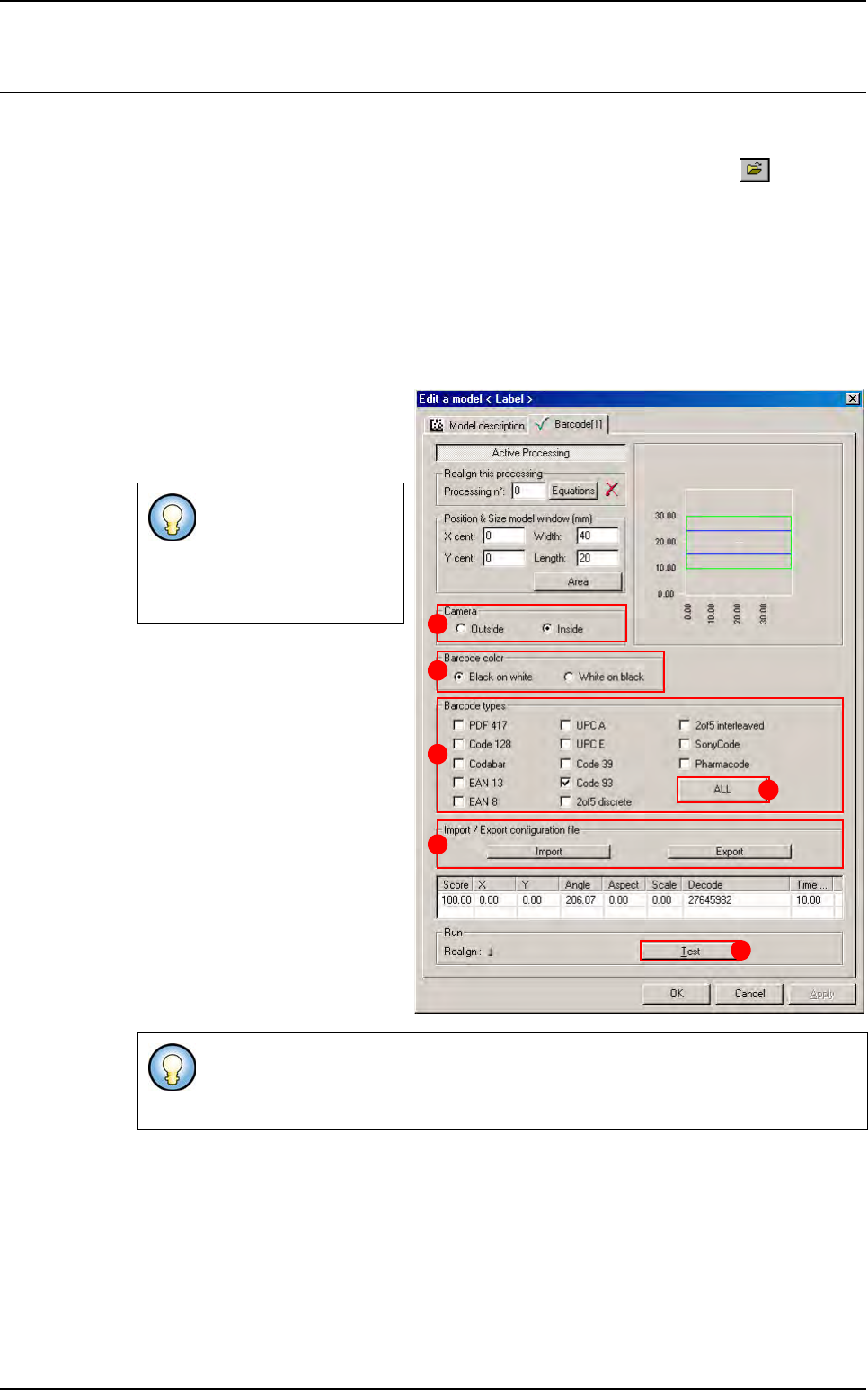
1. In Camera (A) section, select
the camera used to read the bar
code. The external camera take
picture during the board loading.
2. In Bar code color (B) section,
select the bar code type among
the 2 available:
Black code on a white back-
ground,
White code on a black back-
ground.
3. In Bar code types (C) section,
select the bar code coding type to
read.
The
All (D) button is used to se-
lect or deselect all coding type.
If you have chosen an ex-
ternal camera, the search
area is not use, the
software take care of the
entire image.
The CVB bar code reader is able to read several different bar code coding type. If
you do not know the coding type select all the type but it is time consuming. It is
better to select only the one you use.
A
B
C
D
E
F
Tools library
Vision 2007 4.10 User Manual Rev 01 7 - 81
4. In Import / Export configu-
ration file
(E) section, you can
choose to import or export a
configuration file (.cfg file).
5. Press Test (F) button to
lauch the Data Matrix reading test. The standard result
(score, XY position, theta, ...)
and the
decoded character string are displayed.
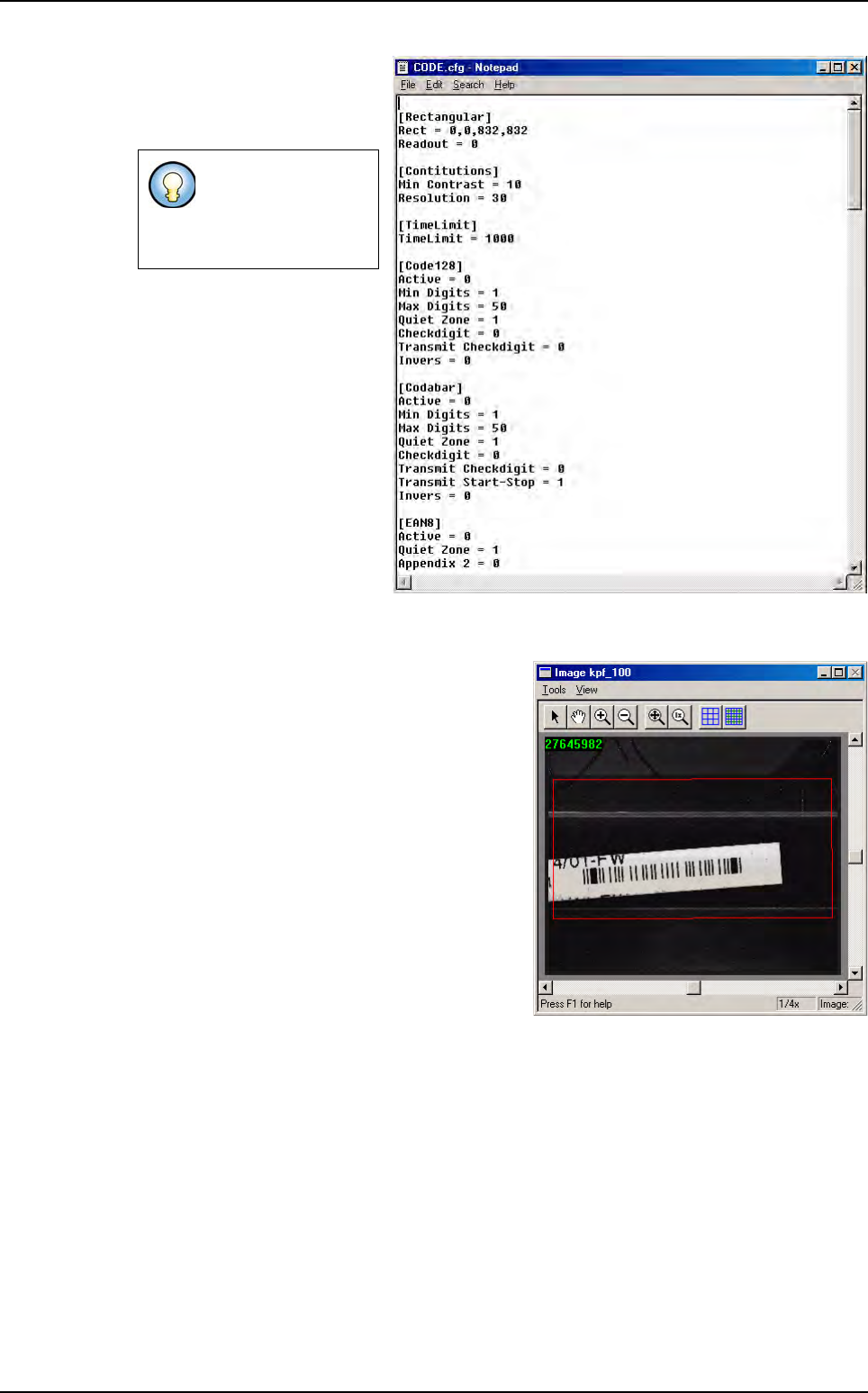
You can also see the result in the COGNEX con-
sole.
The .cfg file contain
bar code coding
type parameters. It
is an ASCII file.
Bar code CVB model