VI User Manual.pdf - 第243页
Tools library Vision 2007 4.10 User Manua l Rev 01 7 - 81 4. In Import / Export config u- ration file ( E ) section, you can choose to impo rt or export a configuration file (.cfg file). 5. Press Test ( F ) button to lau…
Tools library
7 - 80 Vision 2007 4.10 User Manual Rev 01
7.13 Bar code CVB model
7.13.1 Model description tab
1. On the Model description tab, in the Edit a model window, click on the button. The
.bmp file name to add in picture list window appears.
2. Select the image on which load the treatment.
3. Click on Edit area button to define the component size.
4. Choose the treatment operation: Barcode CVB. A new Bar code tab appears behind the
Model description tab.
7.13.2 Bar code tab
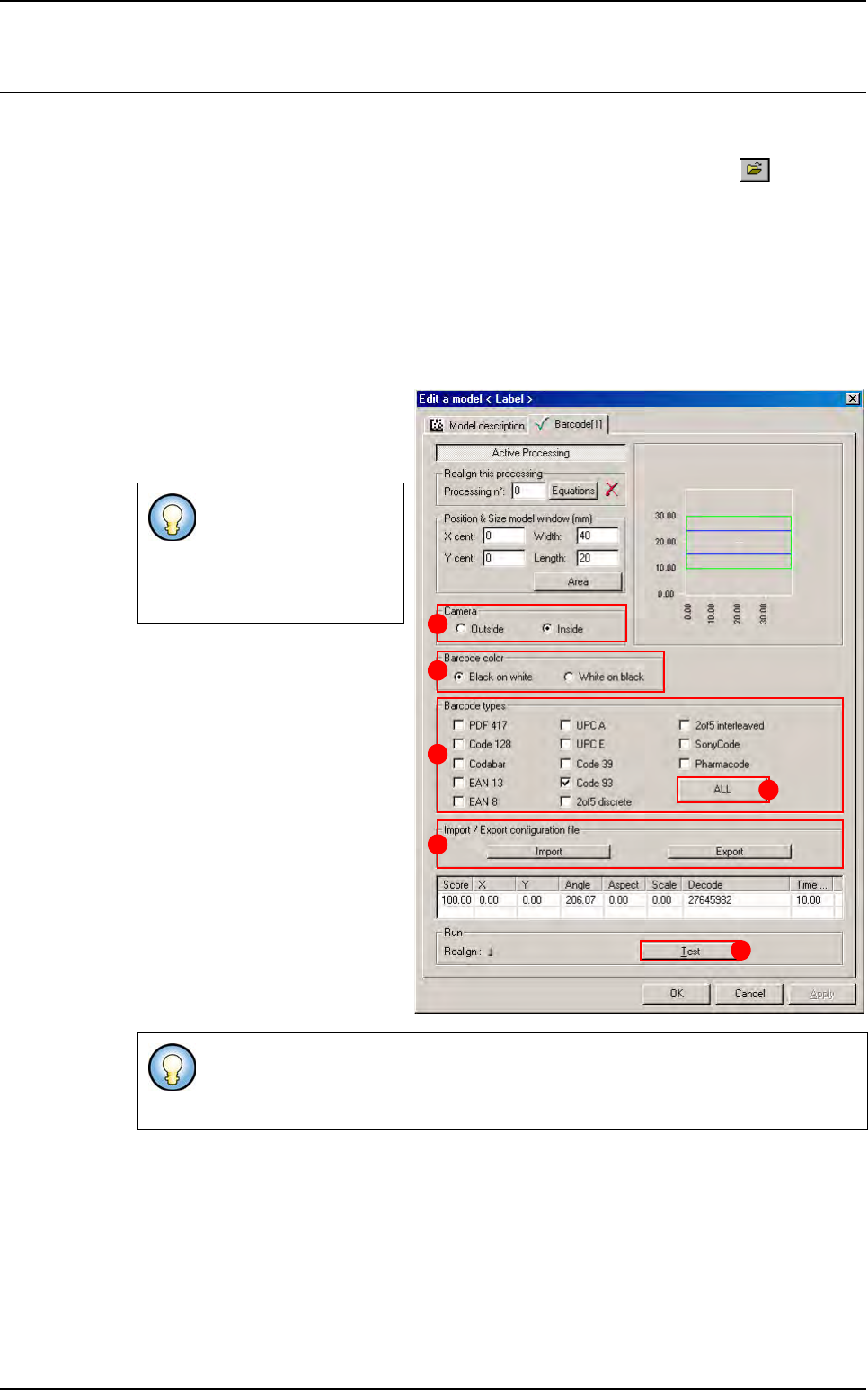
1. In Camera (A) section, select
the camera used to read the bar
code. The external camera take
picture during the board loading.
2. In Bar code color (B) section,
select the bar code type among
the 2 available:
Black code on a white back-
ground,
White code on a black back-
ground.
3. In Bar code types (C) section,
select the bar code coding type to
read.
The
All (D) button is used to se-
lect or deselect all coding type.
If you have chosen an ex-
ternal camera, the search
area is not use, the
software take care of the
entire image.
The CVB bar code reader is able to read several different bar code coding type. If
you do not know the coding type select all the type but it is time consuming. It is
better to select only the one you use.
A
B
C
D
E
F
Tools library
Vision 2007 4.10 User Manual Rev 01 7 - 81
4. In Import / Export configu-
ration file
(E) section, you can
choose to import or export a
configuration file (.cfg file).
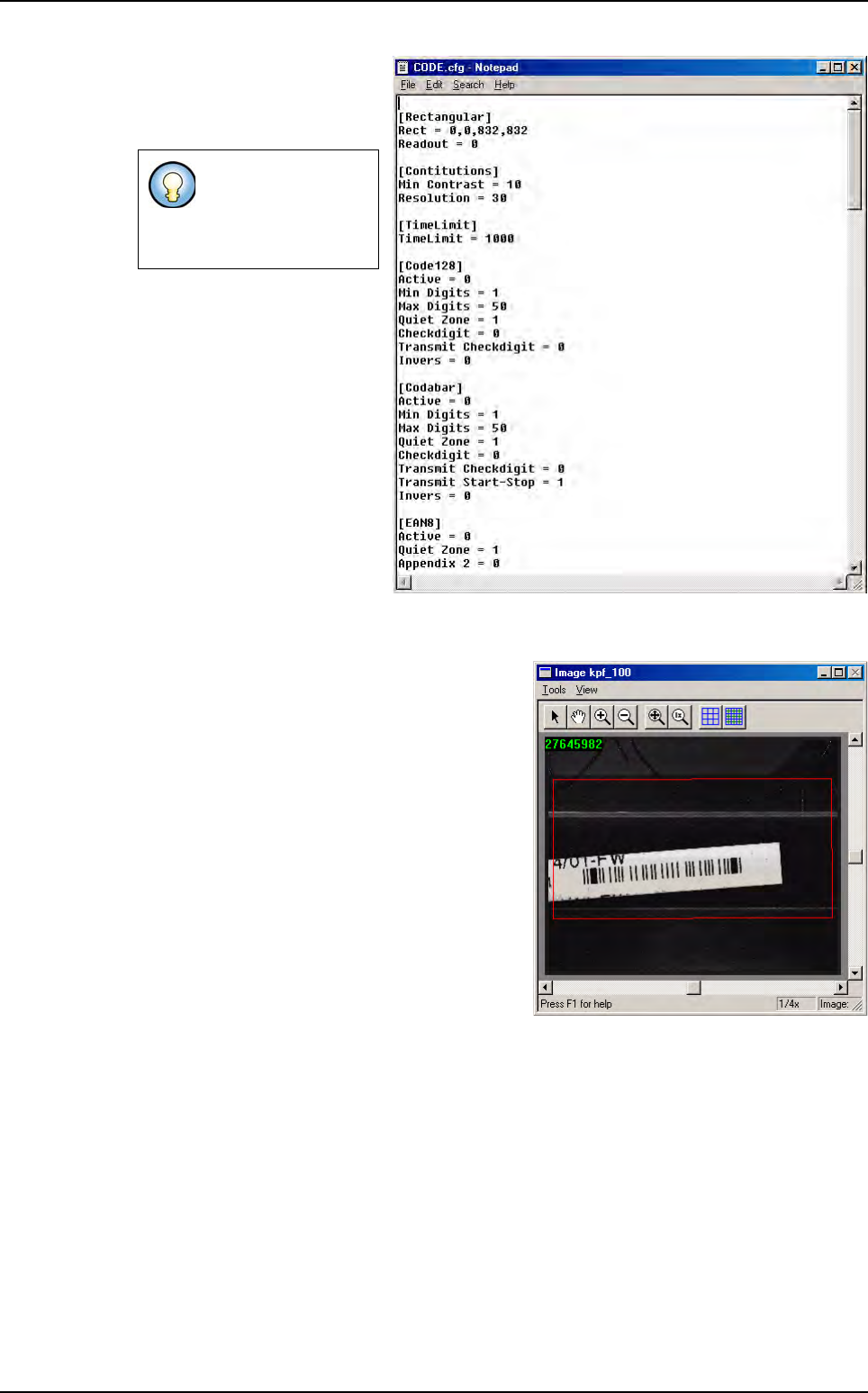
5. Press Test (F) button to
lauch the Data Matrix reading test. The standard result
(score, XY position, theta, ...)
and the
decoded character string are displayed.
You can also see the result in the COGNEX con-
sole.
The .cfg file contain
bar code coding
type parameters. It
is an ASCII file.
Bar code CVB model
Tools library
7 - 82 Vision 2007 4.10 User Manual Rev 01
7.14 Blob
7.14.1 Blob tool definition
The Blob tool detects random shapes based on the gray levels in the image. It identifies
groups of pixels that fall into a user defined gray scale range. Several parameters allow
shape-based filtering.
The Blob tool is used to find contrasted objects, when the object shape is not known precisely.
It can find pin tips for backplane or connector inspection, polarity marks, solder defects as pin-
holes, missing or excess solder, or various PCB pollution... It returns presence, X, Y and The-
ta position of the biggest found shape. Blob runs in several steps:
7.14.1.1 Segmentation
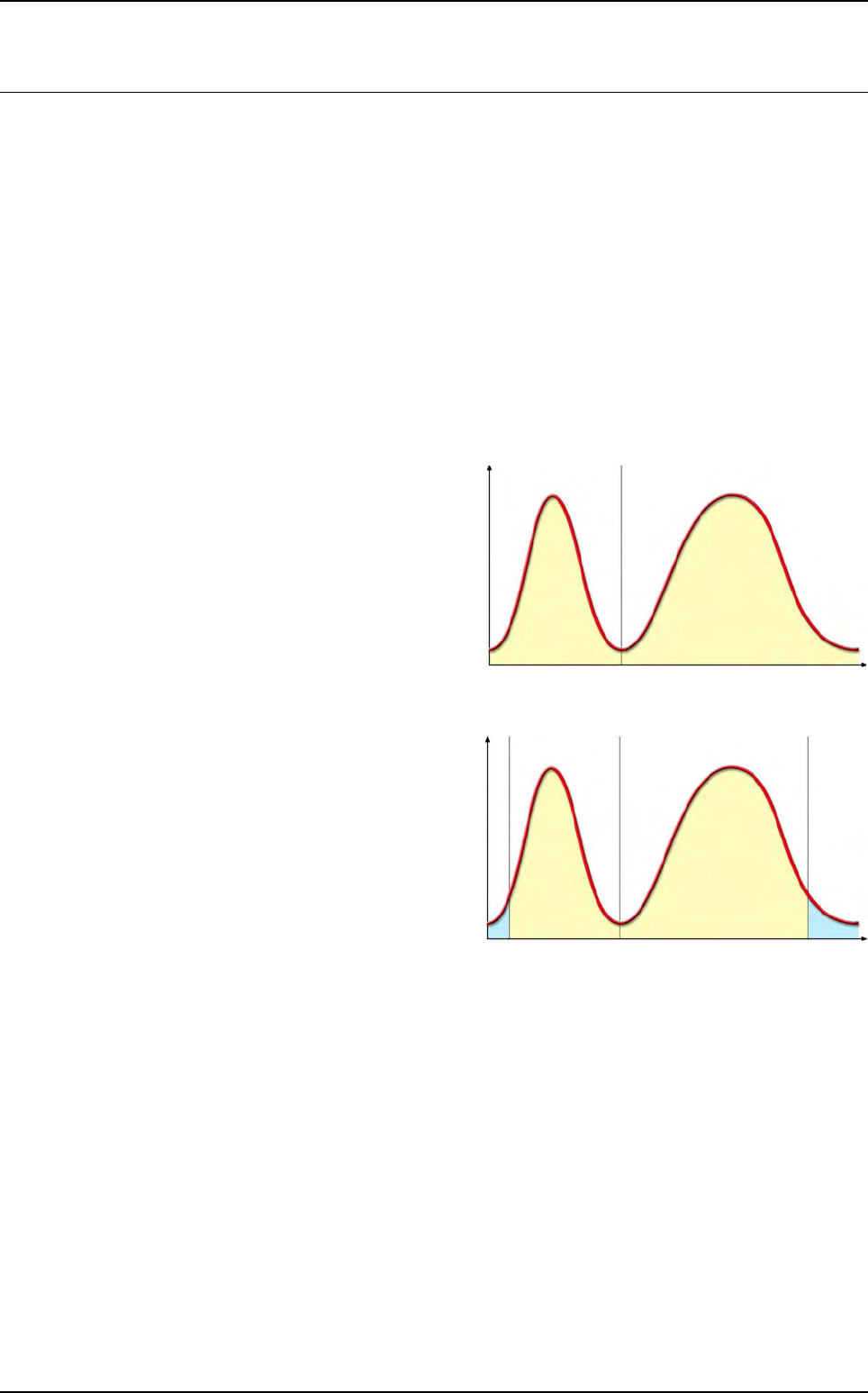
This step determines which pixels are object pixels or background pixels. Two types
of segmentations are available:
Fixed thresholding
The division between object
and background pixels is deter-
mined by a gray level value
Relative thresholding
The threshold is computed ac-
cording to the values of all the
pixels in the search area. 2 “tail”
parameters represent the per-
centage of noise-level pixels
that are excluded from the
threshold calculation. The
threshold is a percentage of the
gray levels range without the
tails.
7.14.1.2 Masking
The Blob can apply a mask that will exclude some portions of the segmented image.
The mask is a binary bitmap image. The center of this bitmap is realigned with the
center of the tool’s search area. Pixels of the segmented image covered with the
mask’s black pixels won’t be analyzed.
7.14.1.3 Blob analysis
The tool finds groups of pixels in the segmented and masked image. It returns vari-
ous shape parameters that tend to describe the shape features: Area, Acircularity,
Elongation, Angle.
Area
The area is the number of pixels included in the shape, multiplied by the area of a
single pixel (X pixel size * Y pixel size).
From now on, the blob search area is adapted to pad with angles: a mask is applied
to the search area to simulate the search area rotation. The sidewalk has then to be
set (set to 0 by default by the customers to avoid false defects).
0255Gray levels
N
u
m
b
e
r
o
f
p
i
x
e
l
s
Threshold
Background Object
0255Gra
y
levels
Low tail High tail
N
u
m
b
e
r
o
f
p
i
x
e
ls
Threshold
Background Object