VI User Manual.pdf - 第246页
Tools library 7 - 84 Vision 2007 4.10 User Manual Re v 01 Click Thres holding tab to access the segmenta- tion step parameters. 1. Select between Fixed and Proportional ( A ) threshold: Fixed threshold is fast- er, bec…
Tools library
Vision 2007 4.10 User Manual Rev 01 7 - 83
Acircularity
The Acircularity is the deviation of the radius values of the blob from the radius of a
circle that has an equivalent area.
Elongation
The Elongation is the ratio of the dispersion along the minor blob axis to the disper-
sion along the major blob axis.
Angle
The blob angle is the angle of its major axis with respect to the horizontal axis.
7.14.1.4 Filtering and sorting
User-defined criteria for each of the above parameters enable filtering the results.
7.14.2 Model description tab
1. On the Model description tab, in the Edit a model window, choose the processing: Blob.
A new
Blob tab appears behind the Model description tab.
2. Click Auto area button to place the model encompassing area exactly on the image.
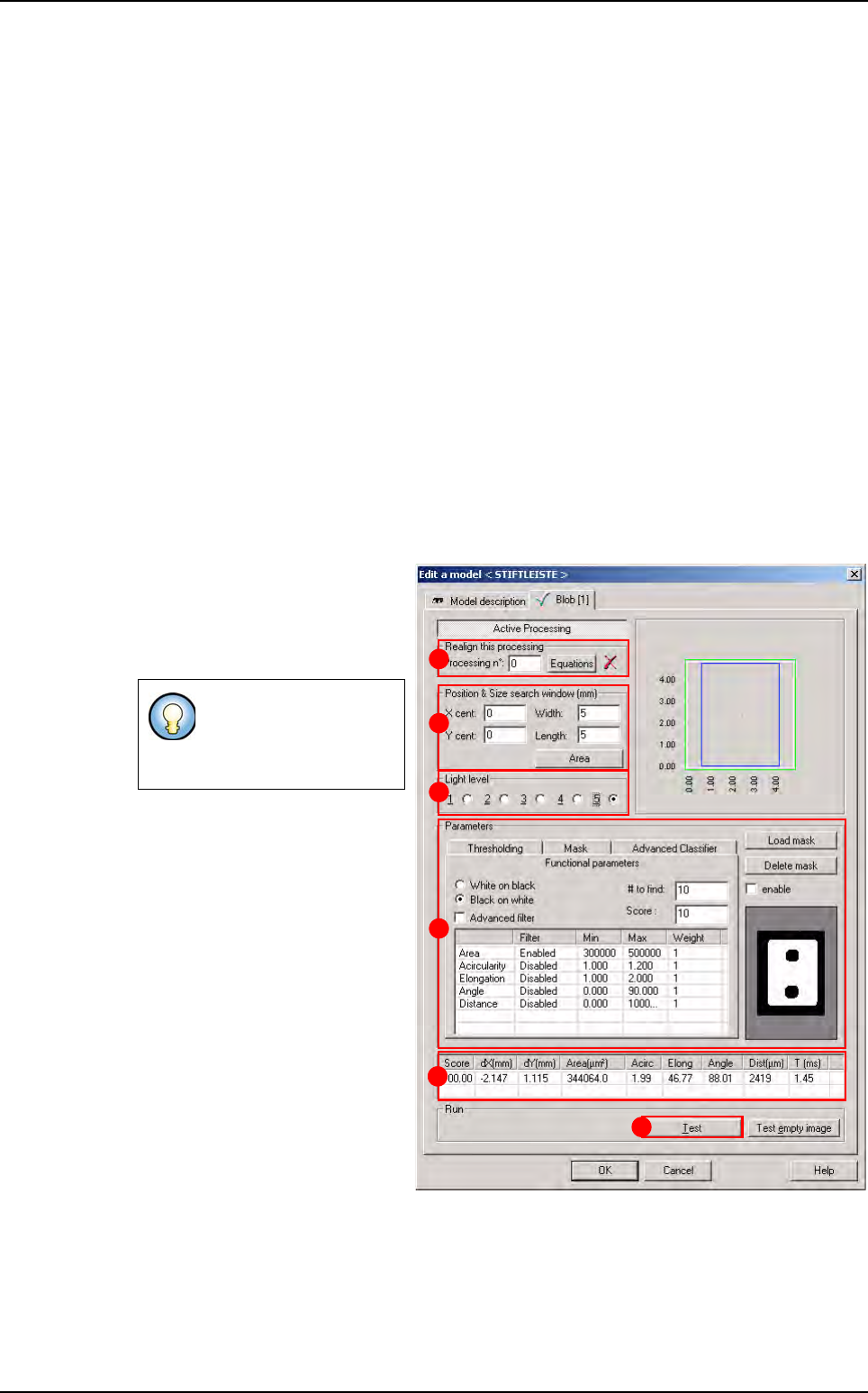
7.14.3 Blob tab
1.
Use
Realign this processing
(
A
) section
if you want to realign
the position of the tool with anoth-
er one (not available for window
1).
2. In Position & Size search
window (mm)
(B) section, enter
the size and position of the search
window (zone in which the feature
will be searched for).
3.
In
Light level
(
C
)
section, s
elect
the light level you want to use.
4. In Parameters (D) section, en-
ter the Blob tool parameters (see
below
7.12.3.1 Blob parame-
ters
).
5. Click Test (E) button to test the
Blob tool and display the results
(see below
7.12.3.2 Blob test).
The result show in the table (
F).
7.14.3.1 Blob parameters
Thresholding tab
If you need a special
equation to realign, you
can do so using the
Equations button.
A
B
C
D
E
F
Blob
Tools library
7 - 84 Vision 2007 4.10 User Manual Rev 01
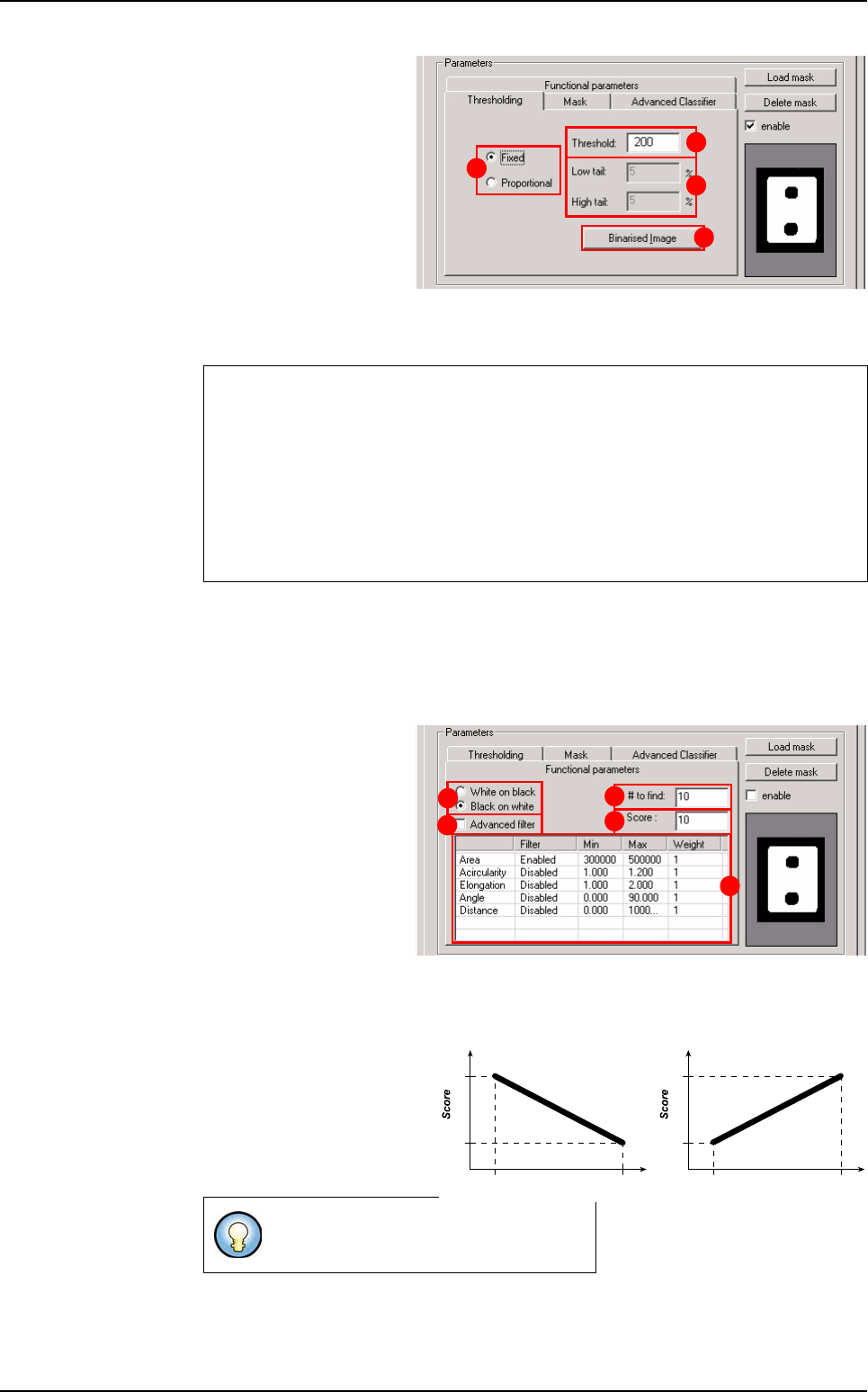
Click Thresholding tab
to access the segmenta-
tion step parameters.
1. Select between Fixed
and Proportional (A)
threshold:
Fixed threshold is fast-
er, because the threshold
values do not have to be
computed.
Proportional threshold enables to compensate for linear lighting changes.
2. Define the Threshold (B).
3. Define the Low and High tail (C) parameters (only available when proportional
threshold is active).
4. Click on Binarised Image button (D) to see the result of the thresholing.
Functional parameters tab
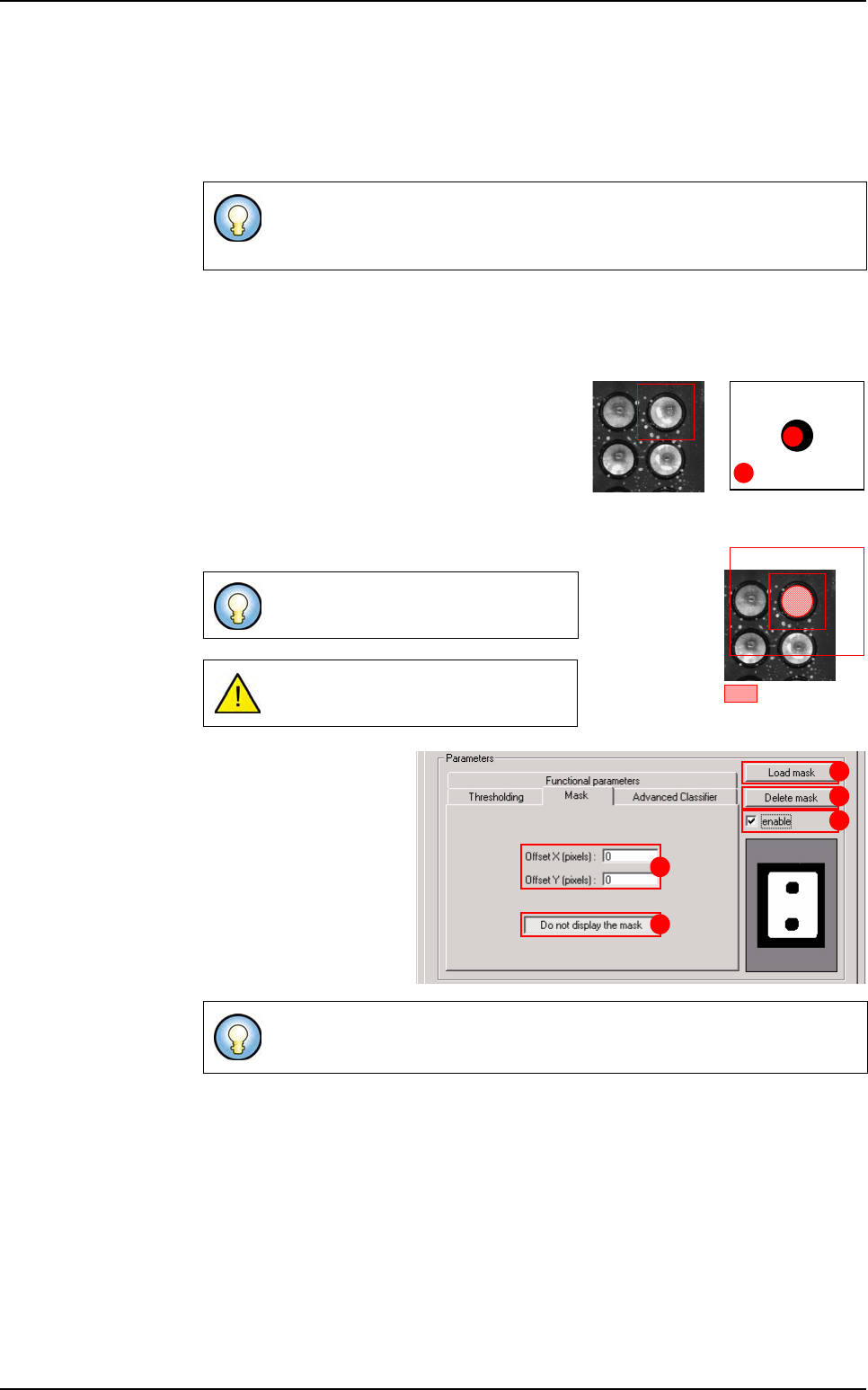
Click Functional param-
eters
tab to access the
filtering and sorting pa-
rameters.
1. Select the color (A) of
the blob and background.
2. In Filter (B) section,
define the parameters
enable filtering the re-
sults list by the computed
shape parameters.
If you have several parameters, you can define the most important by increasing its
weight. You can choose:
Ascending, Descending, Enabled or Disabled.
Ascending give the great
score for a blob near the
min.
Descending give a great
score for a blob near the
max.
Threshold units
Gray levels when fixed threshold is active.
Percentage when proportional threshold is active.
When using proportional threshold, the Blob tool will always find a result in the im-
age. Therefore a Blob tool with proportional threshold can hardly be used to test
for presence of a feature in the image - unless criteria as area, acircularity, elon-
gation or angle allow an efficient filtering.
The Max value must be larger than the
Min value.
A
C
B
E
A
B
C
D
E
Area
Min Max
Y0
Y1
Area
Min Max
Y0
Y1
Y0 = Min score
Y1 = Max score
Blob
Tools library
Vision 2007 4.10 User Manual Rev 01 7 - 85
3. # to find (C): the blob tool will return only the results of the biggest blob of the re-
sults list. The number to find selects how many results are displayed in the list, al-
though only the first one is used. This is useful for debugging purpose.
4. Score (D) is the score min to find blob. All blob which their score is lower than de-
fined score have zero score.
5. Advanced Filter (E): If you want to define the parameters more precise (see be-
low
Advanced Filter).
Mask tab
The mask is a binary bitmap image. Using a
mask you can hide portions of the search area
so that the blob finds no result in the masked ar-
eas.
The centre of the mask is realigned to the centre
of the search area. Pixels of the search area
covered with black pixels of the mask won’t be
included in the results.
1. Mask loading
Use
Load mask (A) but-
ton to load a mask image
from the hard drive.
Press
Delete mask (B)
button to clear the mask.
Tick
enable (C) to enable
the mask.
In the file .ini, there is a parameter No Score Min (and nb blob searched:#
)
, if this parameter is equal to 0, there is no score min: you have a blob sim-
ilar to Release.
Use
Image Edit
or any other bitmap ed-
itor to draw the mask from an image.
The mask image dimensions must be
greater than the blob’s search area.
Right click in the mask image pops up a display menu to zoom in / out...
Masked area
Mask image
A Gray level = 0
B Gray level ≠ 0
A
B
+
=
A
B
C
D
E
Blob