VI User Manual.pdf - 第254页
Tools library 7 - 92 Vision 2007 4.10 User Manual Re v 01 In Number of obje cts to fin d (only li b) ( C ) enter the number of resu lts to display in the list, al though only the f irst one is used. This is useful f or d…
Tools library
Vision 2007 4.10 User Manual Rev 01 7 - 91
You should set the confusion threshold high enough to ensure that confusing features in a
search image do not receive scores above the acceptable score.
The contrast threshold is the ratio of the pixel values dispersion from the trained image to the
real image. It is relative to the trained image.
7.15.3 Model description tab
1. On the Model description tab, in the Edit a model window, choose the processing:
Search. A new tab appears (with the tool name) behind the Model description tab.
2. Click Auto area to place the model encompassing area exactly on the image.
7.15.4 Search tab
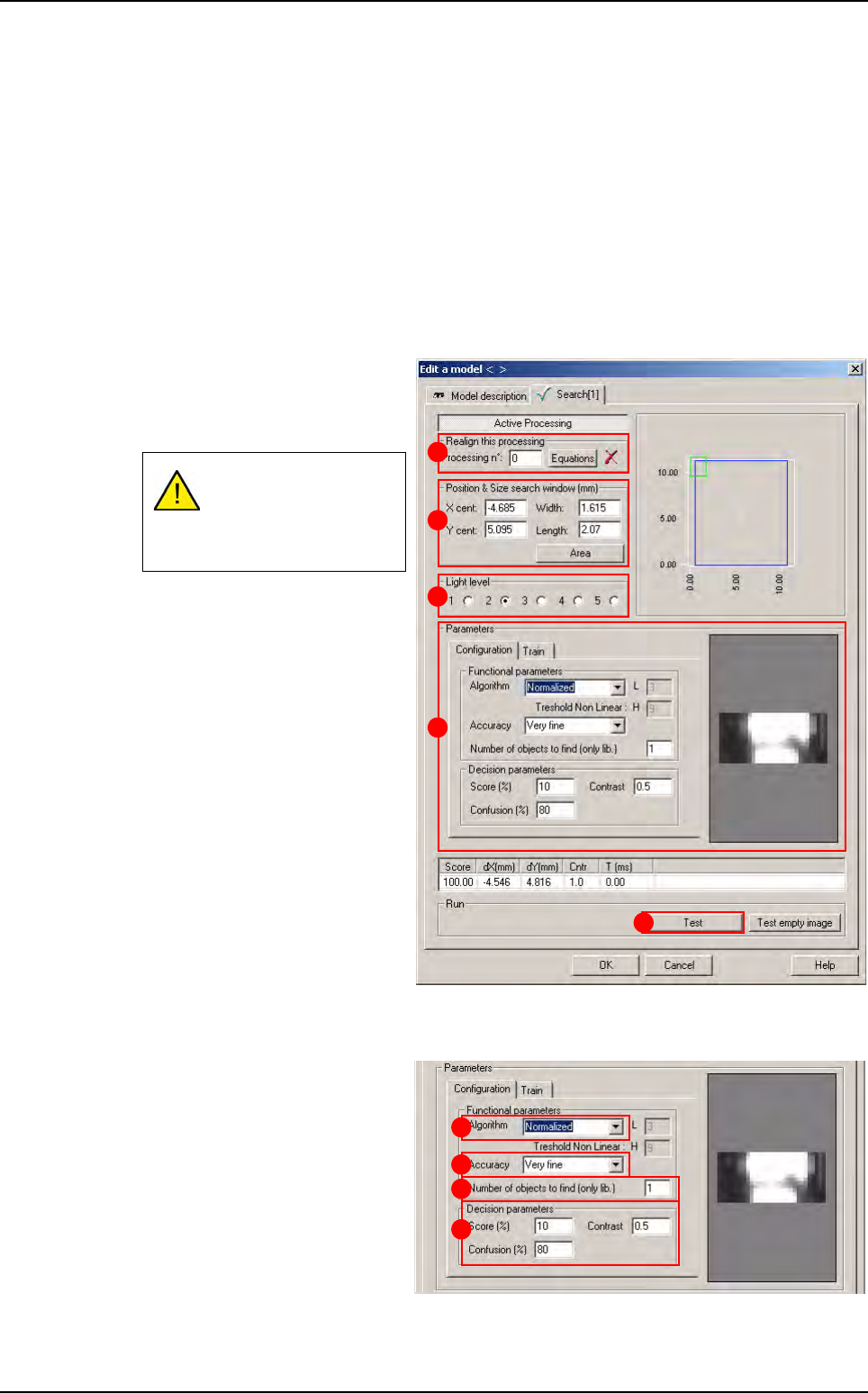
1.
Use
Realign this processing
(
A
) section if you want to realign
the position of the tool with another
one (not available for window 1).
2. In Position & Size search
window (mm)
(B) section, enter
the size and position of the
search window (zone in which
the feature will be searched for).
3. In Light level (C) section, se-
lect the light level you want to
use.
4. In Parameters (D) section, en-
ter the Search tool parameters
(see below
7.15.4.1 Search pa-
rameters
).
5. Click Test (E) button to test the
Search tool and display the re-
sults (see below
7.15.4.2 Search
test
).
7.15.4.1 Search parameters
Configuration tab
Click Configuration tab
to access the main run
time parameters.
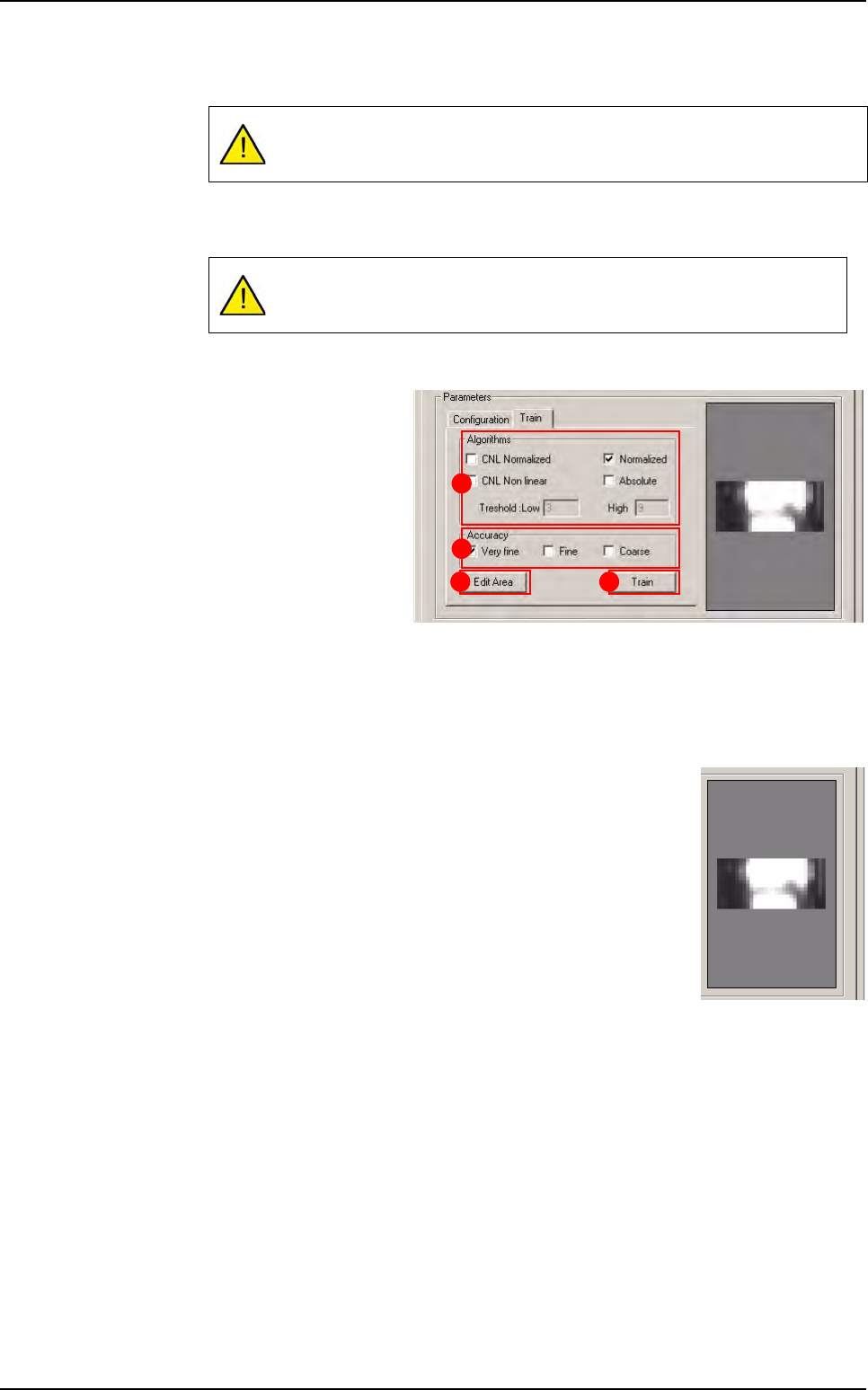
1. In Fonctional param-
eters
section:
Select the
Algorithm
(A) that will be used,
among the trained algo-
rithms.
Select the
Accuracy (B)
level from the trained accuracy levels.
If you need a special
equation to realign, you
can do so using the
Equations button.
A
B
D
C
E
A
B
C
D
Search
Tools library
7 - 92 Vision 2007 4.10 User Manual Rev 01
In
Number of objects to find (only lib)
(
C
) enter the number of results to display in
the list, although only the first one is used. This is useful for debugging purpose.
2. In Decision parameters (D) section, define the minimum score, the confusion
threshold, and the contrast threshold for the tool.
Train tab
Click Train tab to access
the train parameters.
1. In Algorithms (A)
section, select the algo-
rithms you need to train.
The more algorithms
you select, the longer
the train procedure will
last (and the more mem-
ory).
2. In Accuracy (B) sec-
tion, define the accuracy levels you wish to train.
3. Press Edit Area (C) button to encompass the model you need to train or press
Train (D) button to train the model.
Trained image display
Right click in the mask image to display a pop-up menu:
Use this menu to zoom in / out...
7.15.4.2 Search test
The Search tool will return only the results of the highest scoring instance
of the results list.
The selected algorithm and accuracy level may greatly influence the
tool’s processing time. Please refer to the Definition paragraph.
A
B
C D
Search
Tools library
Vision 2007 4.10 User Manual Rev 01 7 - 93
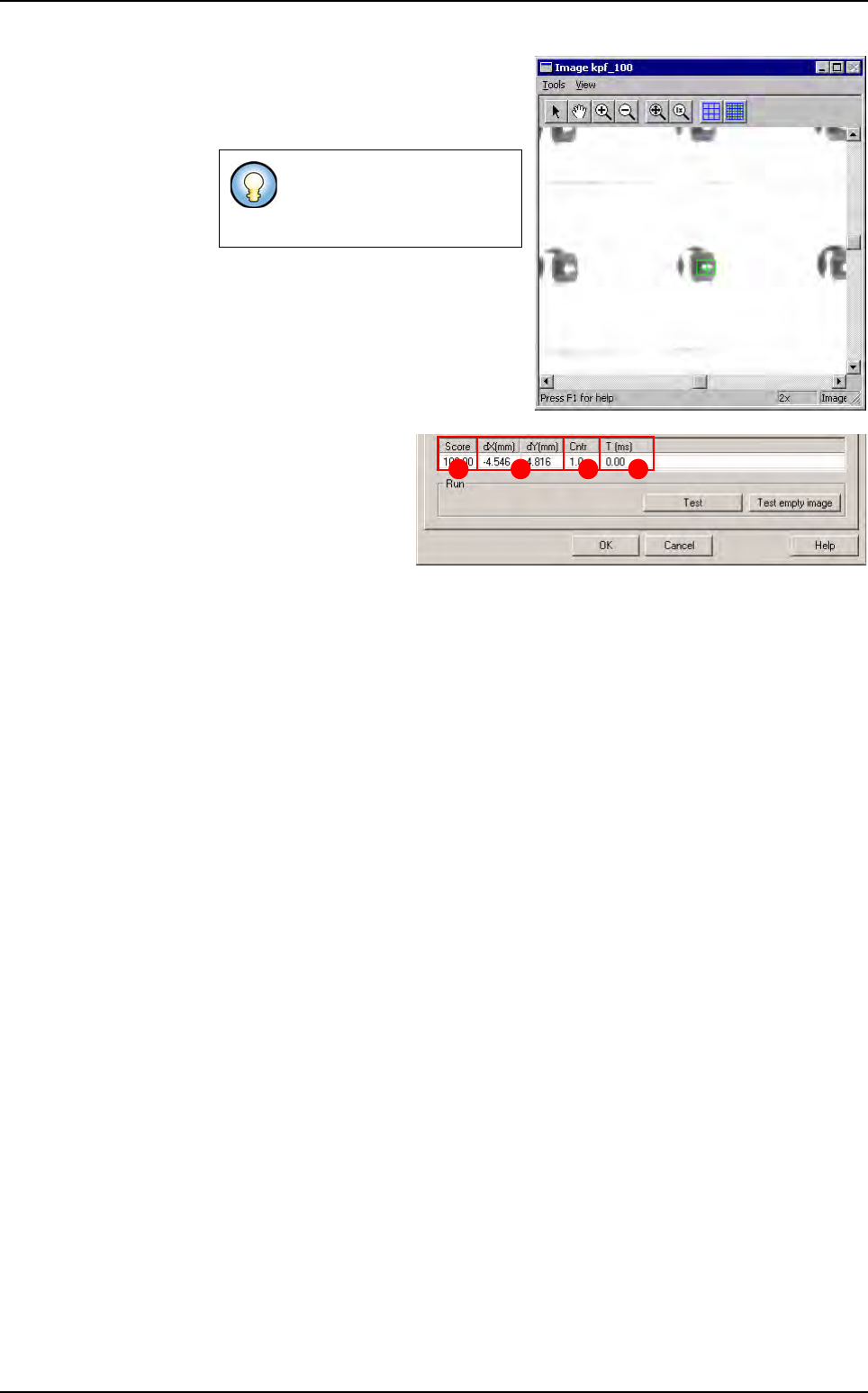
Click on
Test
button to apply all the in-
spection parameters to the model, then
a red box representing the tool’s search
area will appear in the camera window.
Score
(
A
): score of the
tested tool (rate of detec-
tion success).
dX & Y (mm)
(
B
): posi-
tion in X and Y of the
model found with re-
spect to the center of the
model’s encompassing area.
Cntr
(
C
): contrast relative to the trained model.
Time (ms)
(
D
): inspection time.
If the tool finds a result, it will
display a green cross and a
green box.
BA C D
Search