VI User Manual.pdf - 第255页
Tools library Vision 2007 4.10 User Manua l Rev 01 7 - 93 Click on Test button to apply all the in- spection parameters to the model, then a red box representing the tool’s search area will appear in the camera window. S…
Tools library
7 - 92 Vision 2007 4.10 User Manual Rev 01
In
Number of objects to find (only lib)
(
C
) enter the number of results to display in
the list, although only the first one is used. This is useful for debugging purpose.
2. In Decision parameters (D) section, define the minimum score, the confusion
threshold, and the contrast threshold for the tool.
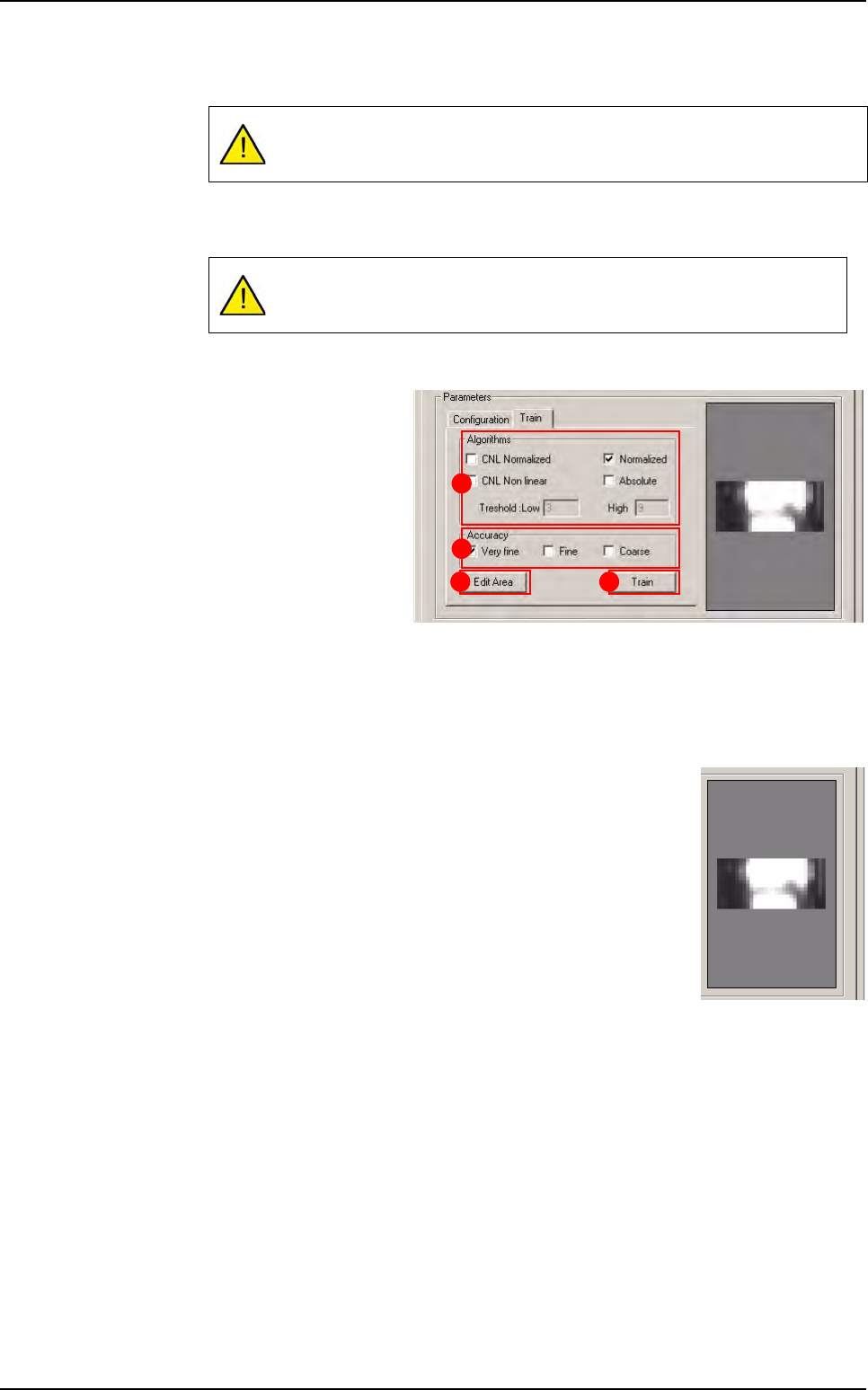
Train tab
Click Train tab to access
the train parameters.
1. In Algorithms (A)
section, select the algo-
rithms you need to train.
The more algorithms
you select, the longer
the train procedure will
last (and the more mem-
ory).
2. In Accuracy (B) sec-
tion, define the accuracy levels you wish to train.
3. Press Edit Area (C) button to encompass the model you need to train or press
Train (D) button to train the model.
Trained image display
Right click in the mask image to display a pop-up menu:
Use this menu to zoom in / out...
7.15.4.2 Search test
The Search tool will return only the results of the highest scoring instance
of the results list.
The selected algorithm and accuracy level may greatly influence the
tool’s processing time. Please refer to the Definition paragraph.
A
B
C D
Search
Tools library
Vision 2007 4.10 User Manual Rev 01 7 - 93
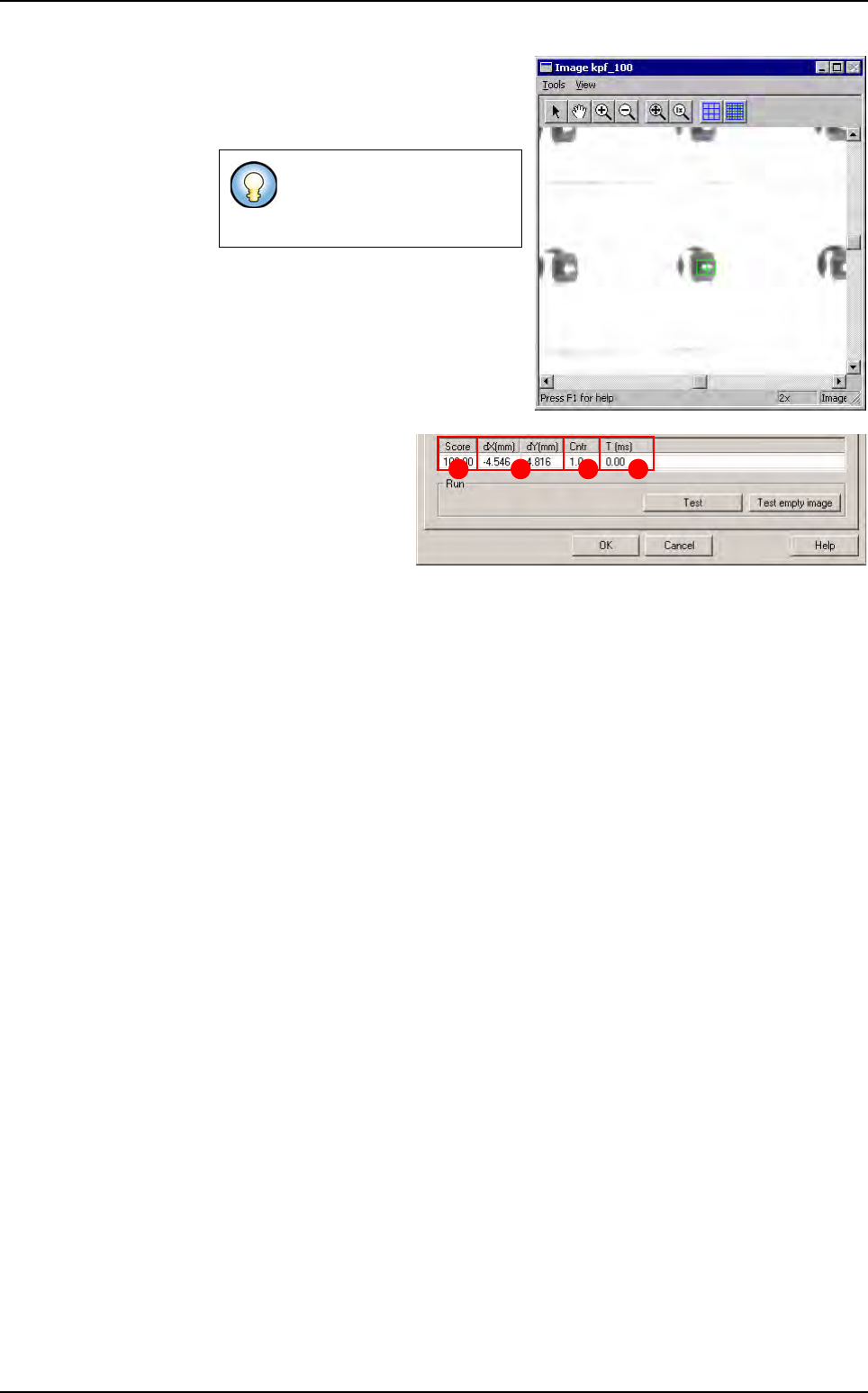
Click on
Test
button to apply all the in-
spection parameters to the model, then
a red box representing the tool’s search
area will appear in the camera window.
Score
(
A
): score of the
tested tool (rate of detec-
tion success).
dX & Y (mm)
(
B
): posi-
tion in X and Y of the
model found with re-
spect to the center of the
model’s encompassing area.
Cntr
(
C
): contrast relative to the trained model.
Time (ms)
(
D
): inspection time.
If the tool finds a result, it will
display a green cross and a
green box.
BA C D
Search
Tools library
7 - 94 Vision 2007 4.10 User Manual Rev 01
7.16 Shared library
7.16.1 Description and purposes
From Vision 2007 software, libraries can be used in a sharing mode to allow multi-users to
edit models.
The system will allow sharing the model files from a server and controlling the edition to
avoid that several users edit a model file at the same time.
There are 2 main purposes for this system:
Share efficiently the library files
Maintain the history of all modifications on each of the individual models inside the library.
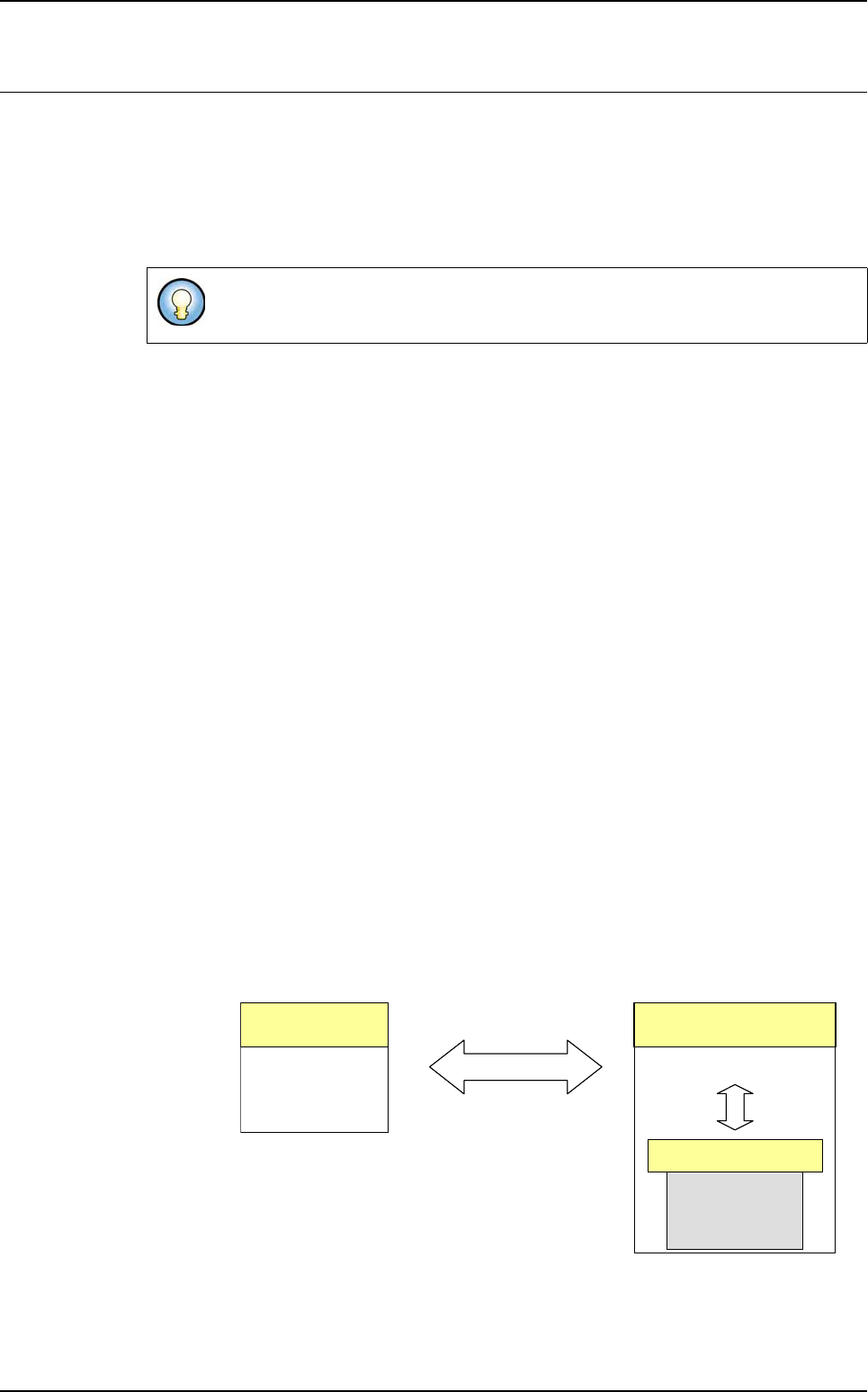
The file share will be done using a client / server architecture. This way the operator can ask
for the latest version of any library or model inside a library in one simple operation. When
a user wants to change one model he can activate the edit mode, locking the file only to him-
self, making sure that his changes will not be discarded. While one operator edits and
changes one model no other user can change the same model, but its last version will be
available for read operations.
A list of all modifications to a model will be available; the operator can choose from it which
version to work with. Also a list of global tags will be available, allowing the recovering of all
models from a library in a particular date.
The file server will control all data synchronization and modification, but the working files will
be located in a working folder in the local PC. If the server can not be contacted the operator
will be informed and will be asked if he wants to work locally. When an operator works locally
all changes to the models will also be local and will be discarded the next time he connects
to the file server.
7.16.1.1 Configure the library
1.
After the Vision 2007 installation on the AOI, the following files must be located
in
C:\VIT folder to have the Work with file server option available:
CVS.exe (this is the client interface to access to the server)
FileSharingManager.dll
TortoiseInt.dll (Vision 2007 uses this dll to start CVS.exe application)
Refer to the document install-cvsnt.doc for the server installation and configura-
tion procedure.
Server
CVSNT.exe
Client
CVS.exe
Client/Server
Vi-2006
FileSharingMgr.dll
Server
CVSNT.exe
Client
CVS.exe
Client/Server
Vi-2006
FileSharingMgr.dll
Vision 2007