VI User Manual.pdf - 第260页
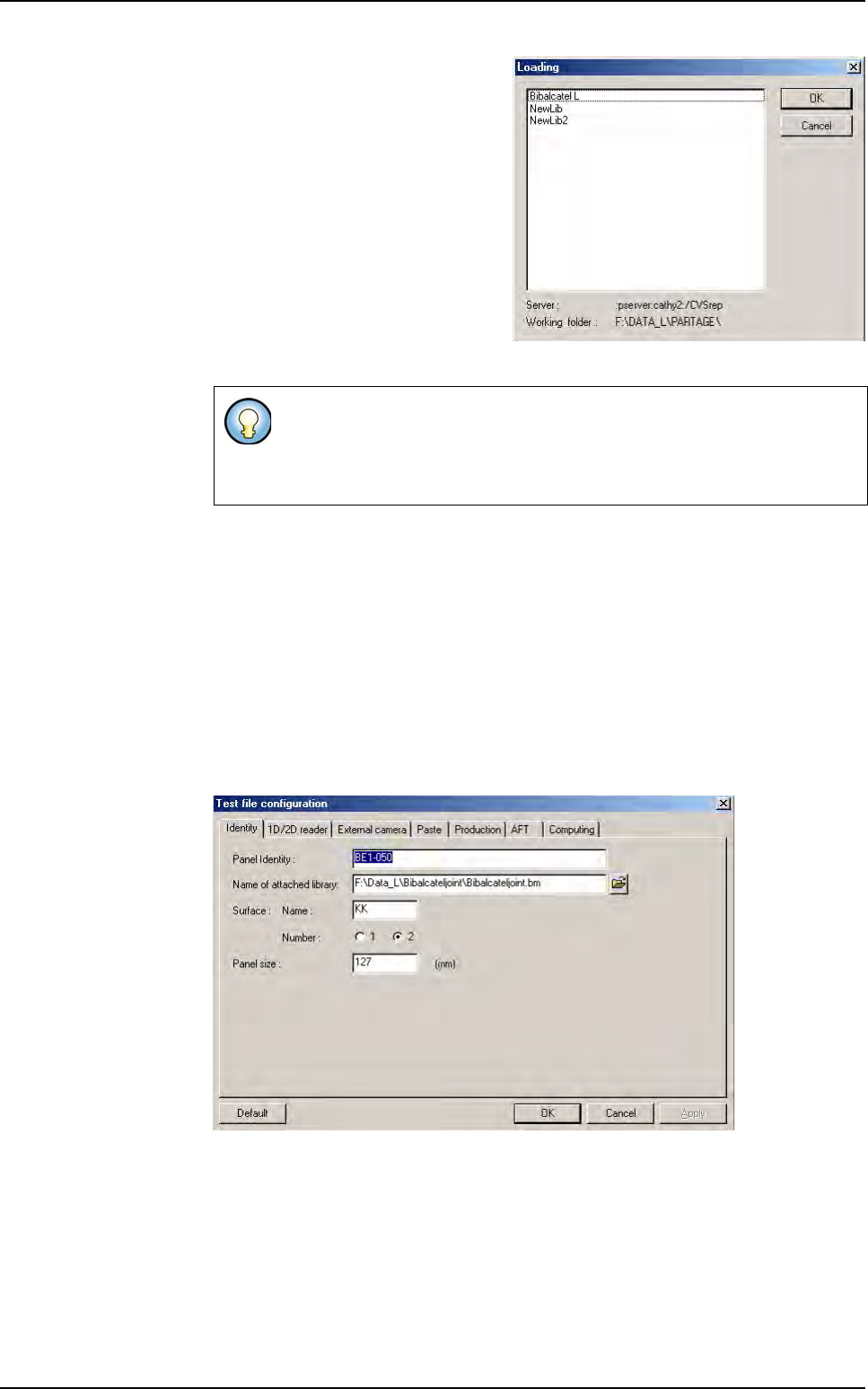
Tools library 7 - 98 Vision 2007 4.10 User Manual Re v 01 This will open a window with the list of the available shared library. Select the library among the list. It will automatically update the field with the path of …
Tools library
Vision 2007 4.10 User Manual Rev 01 7 - 97
If the connection with the server is
successful, it displays the list of the
available libraries. Select the library
to open within the list of the available
libraries on the server.
The application always gets the lat-
est version of the server library and
copy it into the working folder on lo-
cal disk.
If the connection is not successful
the operator will be informed that it is
not possible to get the latest server
version of the library but it is still pos-
sible to work with the current local version.
7.16.2.2 Close a library
When closing a library, if there are still modifications not saved to any model, the
operator will be asked to save or discard changes. If saving library, refer to section
7. Saving library, else the changes will be discarded and all reserved models will
become free.
7.16.2.3 Configure the .tst file
1.
Specify the name of the attached library for all the .tst files.
2. Open the Test file configuration window and click on the icon to specify the path
of the attached library.
If the connection to the server fails, the operator can not obtain the library’s
latest version from the server. A dialog box informs him that the server is
not available. The operator will work locally but all modifications will be dis-
carded at the next connection to the server
.
Shared library
Tools library
7 - 98 Vision 2007 4.10 User Manual Rev 01
This will open a window with the list
of the available shared library.
Select the library among the list. It
will automatically update the field
with the path of the local library.
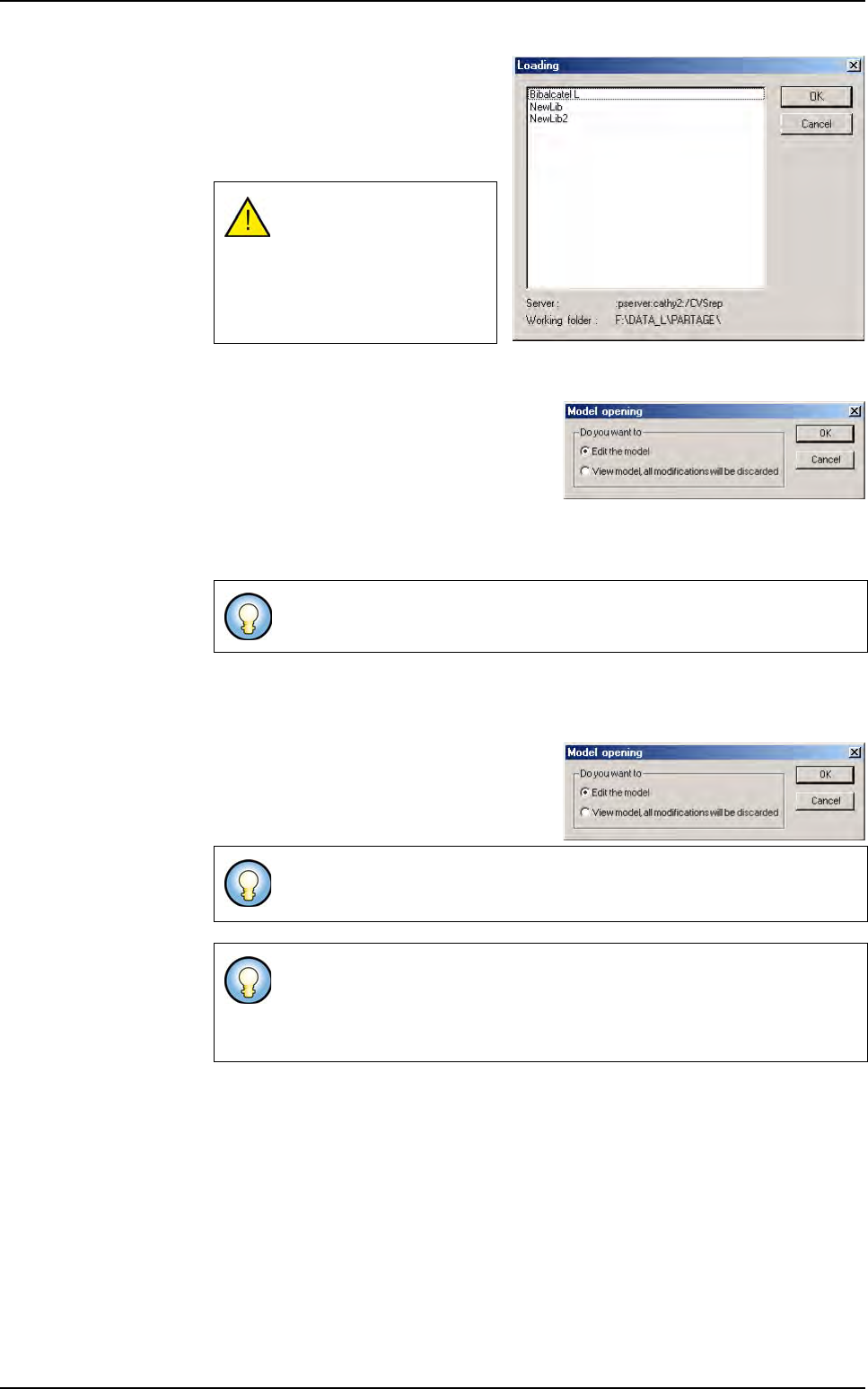
7.16.2.4 View a model
Double click on the model, the opposite
window appears. Select
View model, all
modifications will be discarded
.
Right click on the model and select View
a model
.
When you look at a model, the button
OK of the model edition window is grayed out.
Modifications will not be saved.
7.16.2.5 Edit a model
Select the model to be edited and press Enter on the key board.
Double click on the model, the opposite
window appears. Select
Edit the model.
Right click on the model and select
Edit
a model
.
If you modify the local path
setting in Mainte-
nance\Parameters\File
sharing menu, you may
need to modify the library
path in all the .tst files.
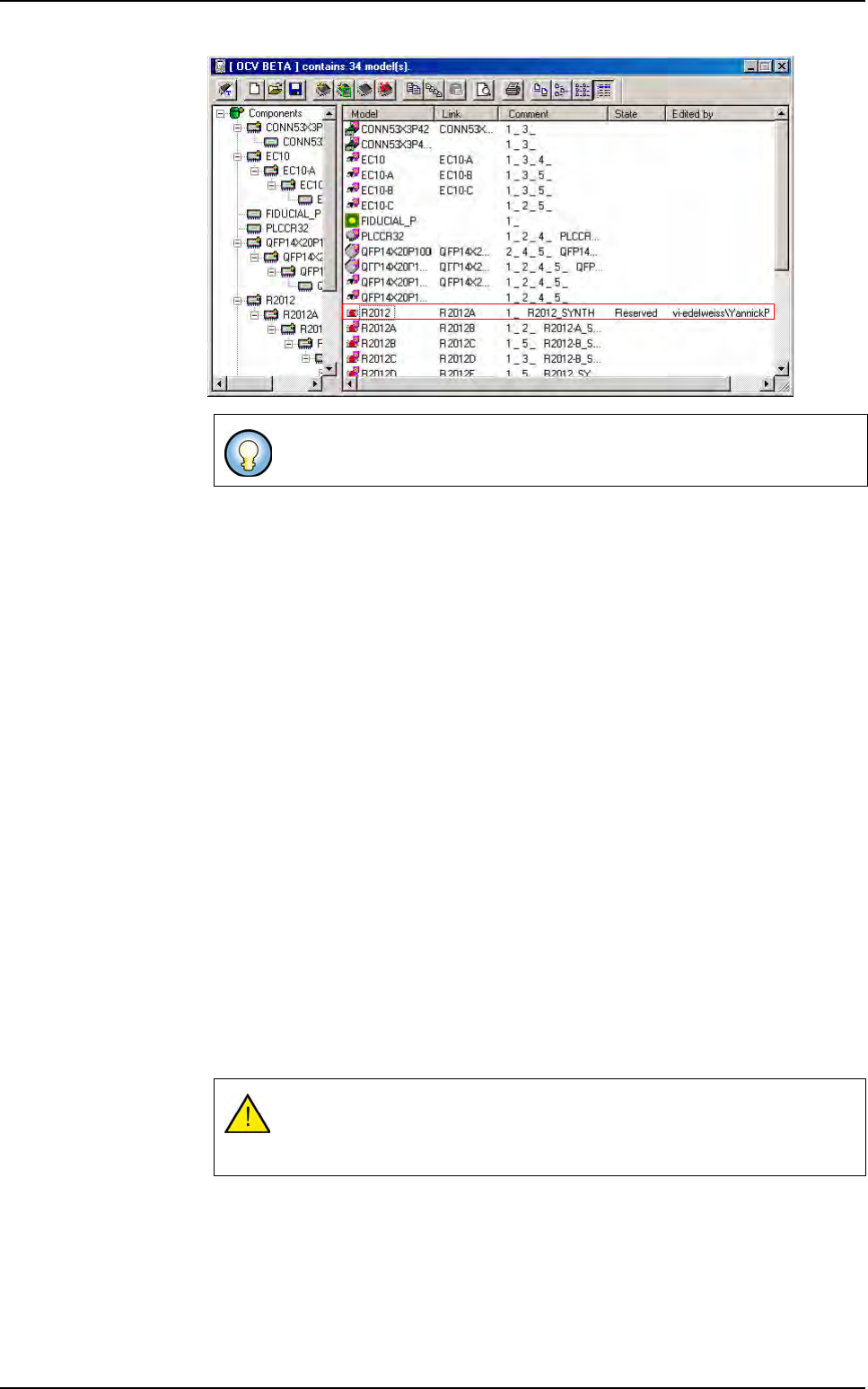
If a model is already locked by another user, you can only view it.
When you edit a model it is locked with your login (the one used to log on
the PC).
If network connection fails when opening a model for editing there is an er-
ror message, saying that the model can not be modified. The only way to
work if no network is in local mode, but then the operator knows that he will
loose all work the next time he connects to the server.
Shared library
Tools library
Vision 2007 4.10 User Manual Rev 01 7 - 99
From the model edition window, if you cancel the changes, the model will be auto-
matically unlocked. Otherwise, if you press
OK, it will stay reserved for you.
As long as you do not save the library or release the model, it will not be editable by
someone else.
People will be able to visualize it, but not do any modifications.
7.16.2.6 Validate the changes and submit to the server library
To validate your modifications on one model, right click and select Save a model.
This action is also available if you select several models with the
Ctrl and Shift keys
from the keyboard.
Immediately after saving a model, it is unlocked and other persons can edit it. Your
modifications are saved on the server library.
7.16.2.7 Delete a model
Select the model that you want to delete, right click and select Delete Model.
7.16.2.8 Save the library
This will save all modifications to the local disk and then commit the changes to the
server. The models become free and your modifications are updated on the server
library (Only models that are locked by your login are saved onto the server library).
If the server is not accessible there is an error message saying that the current ver-
sion will not be sent to the server.
7.16.2.9 Save as the library
To copy a library before doing some modifications, you can Save as the library on
the server. Go in
Files and select Save as ... you just have to rename the library.
7.16.2.10 Cancel the changes
If you have done some modifications on a model that you do want to submit to the
server library, use the
Unreserved a model menu available from the right click
It is recommended to not log on different PC with the same user name.
If the application hangs up while some models are locked by a user, next
time you open the library these models may still be locked. You will have
to free these models.
Shared library