VI User Manual.pdf - 第263页
Vision 2007 4.10 User Manua l Rev 01 8 - 1 Chapter 8 Optical Character Verification Optical Character Verification (OCV) is used to check strings of char acters on com ponents or anywhere on a board. Using this, you can …

Tools library
7 - 100 Vision 2007 4.10 User Manual Rev 01
menu. This will free the model and nobody will see your changes.
You will get a message to confirm to loose modifications:
If you press
Yes, the model will be unreserved and your modifications will be
lost.
If you press
No, you will have to first save the library (or the model itself) to un-
reserved it.
7.16.2.11 Get the latest version of the library
To update your local copy of the server library, use the Update library menu
available from the right click menu. All changes must be saved before this oper-
ation.
This will update all the models of your local copy and also refresh the GUI to re-
flect the current model status.
7.16.2.12 Track modifications
You can create a special entry in the libraries’ history, called a Tag. It enables you
to get all models made until the date of the Tag in one single operation.
This operation is available in the Library main frame.
7.16.2.13 Use a previous version of a model
To use a previous version of a model, use the Display history menu available
from the right click menu. This will open a window with the list of all the changes
made on this model. Select one version to work with.
7.16.2.14 Import
To import a model from an another library, right click and select Import. Then
choose the model that you want to import.
7.16.2.15 Export and Export with links
To export a model to an another library, right click and select Export. Then
choose the library in which you want to export the model. You can also Export a
model with link.
7.16.2.16 Start production
Each time you start production, the local copy of the library is updated with the
latest version of the library available on the server.
Shared library
Vision 2007 4.10 User Manual Rev 01 8 - 1
Chapter 8
Optical Character Verification
Optical Character Verification (OCV) is used to check strings of characters on components or anywhere on a
board. Using this, you can detect if a component with a wrong part number is placed on a board.
This tool is mainly used on SO, QFP or BGA.
8.1 OCV description
From Vision 2007, OCV has been totally rebuilt to propose a more efficient, user friendly and easy to
program tool.
The major improvements are:
Propagation by topology
Execution of a group of the text object with the same name root with the menu run by Jedec
The OCV principle is still:
In the .tst file: the text object defines WHAT to verify,
In the library: the font defines HOW to verify.
Optical Character Verification
8 - 2 Vision 2007 4.10 User Manual Rev 01
8.2 Creation procedure
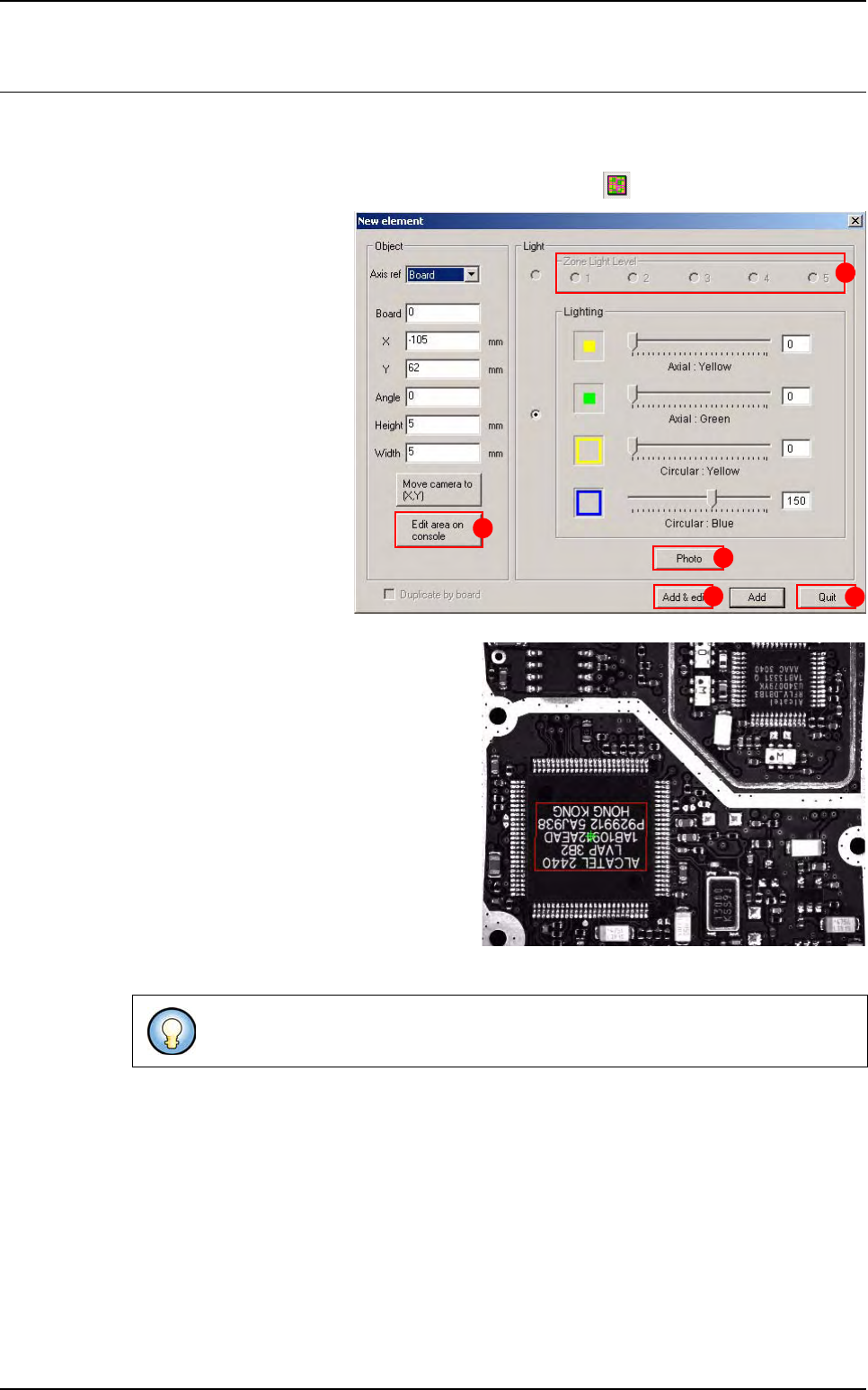
8.2.1 Add a new text object in a test file
1. Display the acquisition zones using the corresponding icon
2. Select the menu: Edit\
Text\Add a text object to
open the creation window:
3. Click on the .tst file to refresh the video con-
sole.
4. Select the light level (A).
5. Adjust the text location and area (B).
6. Take a Photo (C) of the string.
7. Click Add & edit button (D) to add the text
object in the .tst file at the defined location
and to edit the text object. The Edit text
window appears (see next page).
8. Click on OK from the Edit text window to
validate the settings.
9. Then close the creation window with the
Quit button (E).
You can add the text on all boards with the option Duplicate by board.
A
B
C
D
E