VI User Manual.pdf - 第268页
Optical Character Verification 8 - 6 Vision 2007 4.10 User Manual Re v 01 The Median , Open and Close functions can also be used to cl ean the images. Median analyses the imag e pixel by pixel. Press Median button ( B ) …
Optical Character Verification
Vision 2007 4.10 User Manual Rev 01 8 - 5
8.2.3 Train a font in the library
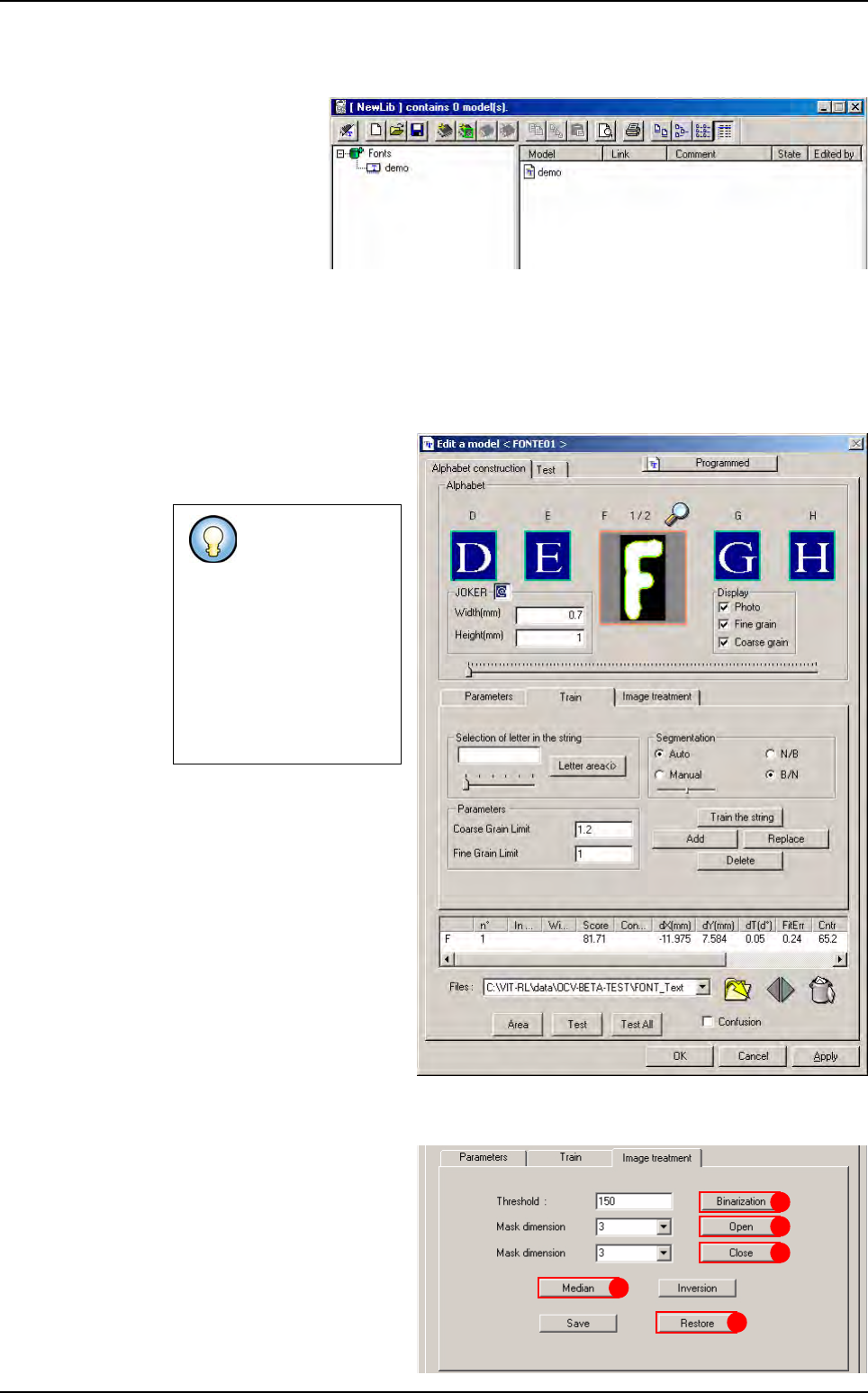
1. Open the library and
display the fonts
2. Create a new model
(make sure you use the
same name as defined
in the text object).
3. Edit the font model. The Edit a model window is composed of 2 tabs:
Alphabet construction: to train the characters and record the parameters.
Test: to test the settings on a real image.
8.2.3.1 Alphabet construction tab
Alphabet construction tab
permit to train the characters
and record the parameters
.
Before beginning the training,
select the picture of the string
that you have previously tak-
en.
You can open several pic-
tures and use the arrows
icons to swap from a picture
to another one. The dustbin
icon will remove pictures
from your list.
Image treatment tab
Go to the Image treatment
tab.
Use Binarization (A) to con-
vert the image into the binary
mode and create a synthetic
image.
It is recommended
to use a black and
white picture, wi-
thout noise, to
train the charac-
ters.
Use the Image
treatment tab to
get a correct bina-
ry picture.
A
B
C
D
E
Creation procedure
Optical Character Verification
8 - 6 Vision 2007 4.10 User Manual Rev 01
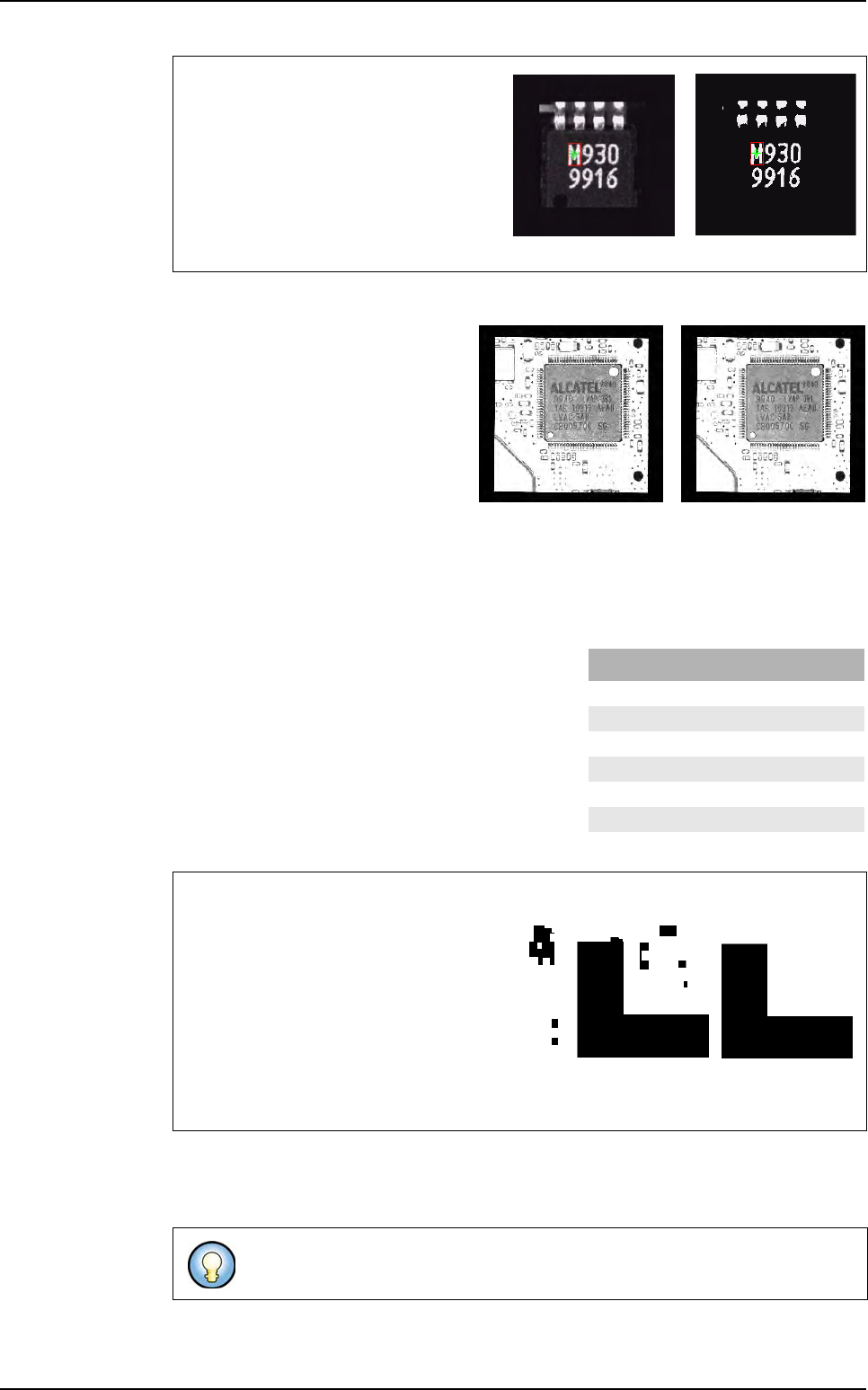
The Median, Open and Close functions can also be used to clean the images.
Median analyses the image pixel by
pixel. Press Median button (B) to an-
alyze each pixel by looking at the val-
ues of the 8 pixels around the current
pixel. They are first sorted by gray
level. Whatever the value of the me-
dian pixel, the surrounding pixels
takes that level.
The Open function (C) enables
cleaning the image of its white noise (white pixels whose gray level is above the transition
average) and Close function (D) to clean the black noise (black pixels whose values are
lower than the average).
Seven values can be used for the Open and
Close functions. Each of the values masks,
cleans and restores the given number of pixels.
Save the new image if required. After saving, you can always modify the image. If you
are not satisfied with the image, you can return to the original image by clicking Restore
button (E).
Binarization uses the threshold value to
determine whether a pixel is black or white.
The threshold, in that case is set at 150.
Any pixel with a gray level lower than
150 will be black and any pixel with a
gray level above 150 will be white. Ad-
just the threshold so that the image is
containing relevant information.
Example: the goal is to eliminate noise to only get an L in the picture
Clean the black noise by setting the mask
dimension to 3 and selecting the Close
button.
All the objects within the image will be
trimmed by 1 pixel (CLEAR). The noise is
eliminated.
All that belongs to the image will be enlarged by 1 pixel at each edge. The only remain-
ing object is the L without any noise around.
If the image is useable for treatment, train the letters with the Train tab.
Image converted
into the binary
Original image
Before Median
After Median
Creation procedure
Mask dimensions
Value Cleaned and restored pixels
31
5 3
75
9 7
11 9
13 11
15 13
Optical Character Verification
Vision 2007 4.10 User Manual Rev 01 8 - 7
Train tab
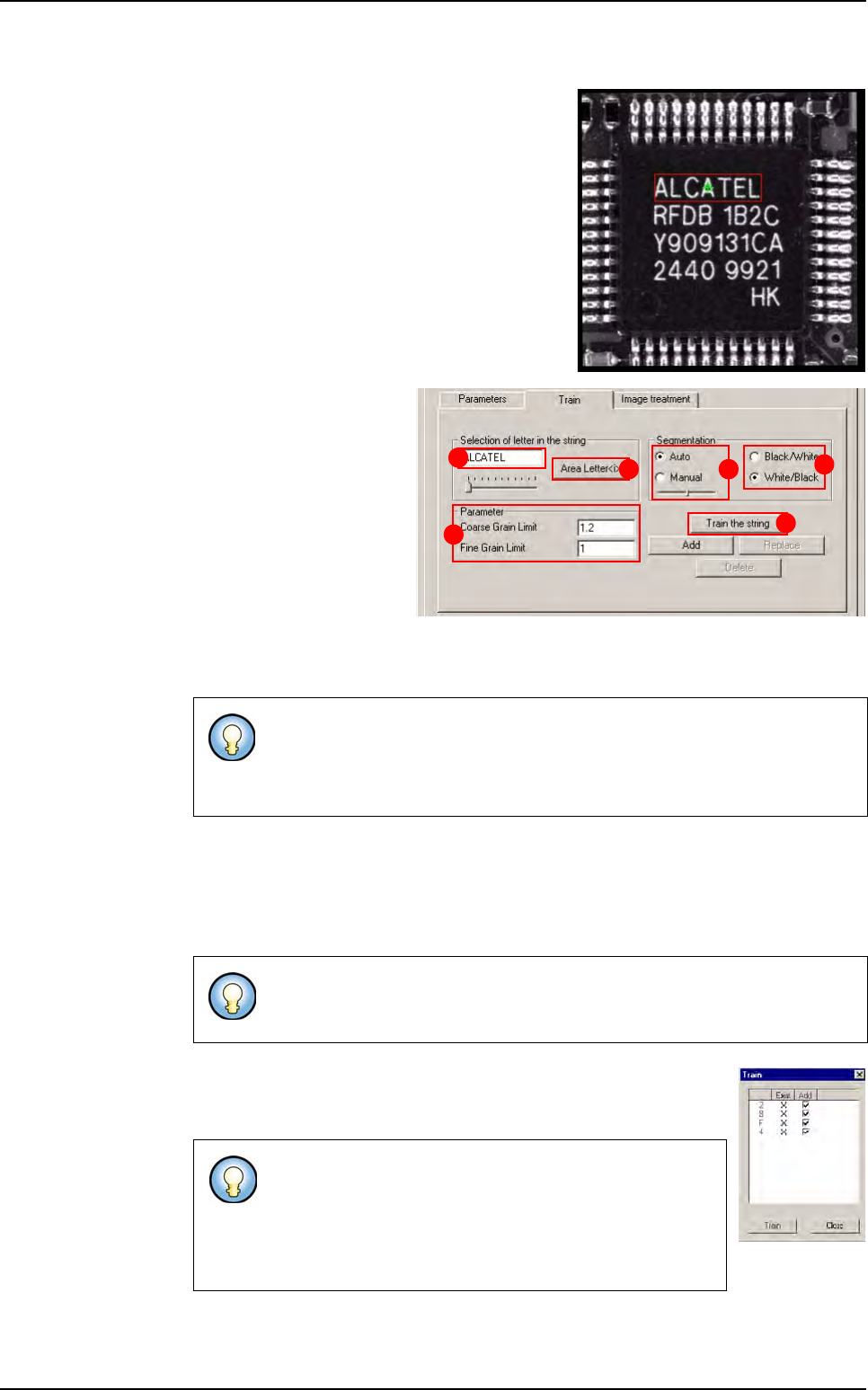
1. Define the area around the string to train (train
only one line once a time).
2. Enter the characters of the
string that needs to be
trained (A) (without space
between two words).
3. Define if the characters are
Black on a White zone or
White on a Black zone
(B).
4. Use the Auto or Manual
segmentation (C) to adjust
the area around each
character of the string. The Auto will perform an automatic segmentation of the pic-
ture.
5. Modify the Coarse/Fine Grain Limit parameters (E) used to define the size of the vec-
tors used to detect transitions:
Large transitions are detected with the Coarse grain limit.
Small transitions are detected with the Fine grain limit.
6. When all characters are well surrounded, you can use the Train the
string button (F) to automatically train all the characters and add
them in the alphabet.
To select the current character, use the arrows icon.
If the result is not as expected, use the Manual segmentation and adjust the
threshold and see the result on the video console or select the character with
the cursor and click on Area Letter<i> button (D) to adjust manually the han-
dles of the training area around the letter.
Increase the Coarse grain limit: reduces accuracy.
Reduce the Fine grain limit: increases accuracy and fine detection.
If some characters are already inside the alphabet, a list
will be displayed and you will be able to select the ones to
add into the alphabet.
If you add a character, it will be linked to the model already
trained and executed if the previous one fails.
A
B
C
E
F
D
Creation procedure