VI User Manual.pdf - 第275页
Optical Character Verification Vision 2007 4.10 User Manua l Rev 01 8 - 13 8.3 Text in debug mode 8.3.1 Ctrl + E Use Ctrl + E shortcut to display the window below If the text is joined to the component: The Edit CAO Comp…
Optical Character Verification
8 - 12 Vision 2007 4.10 User Manual Rev 01
8.2.6 Test the string
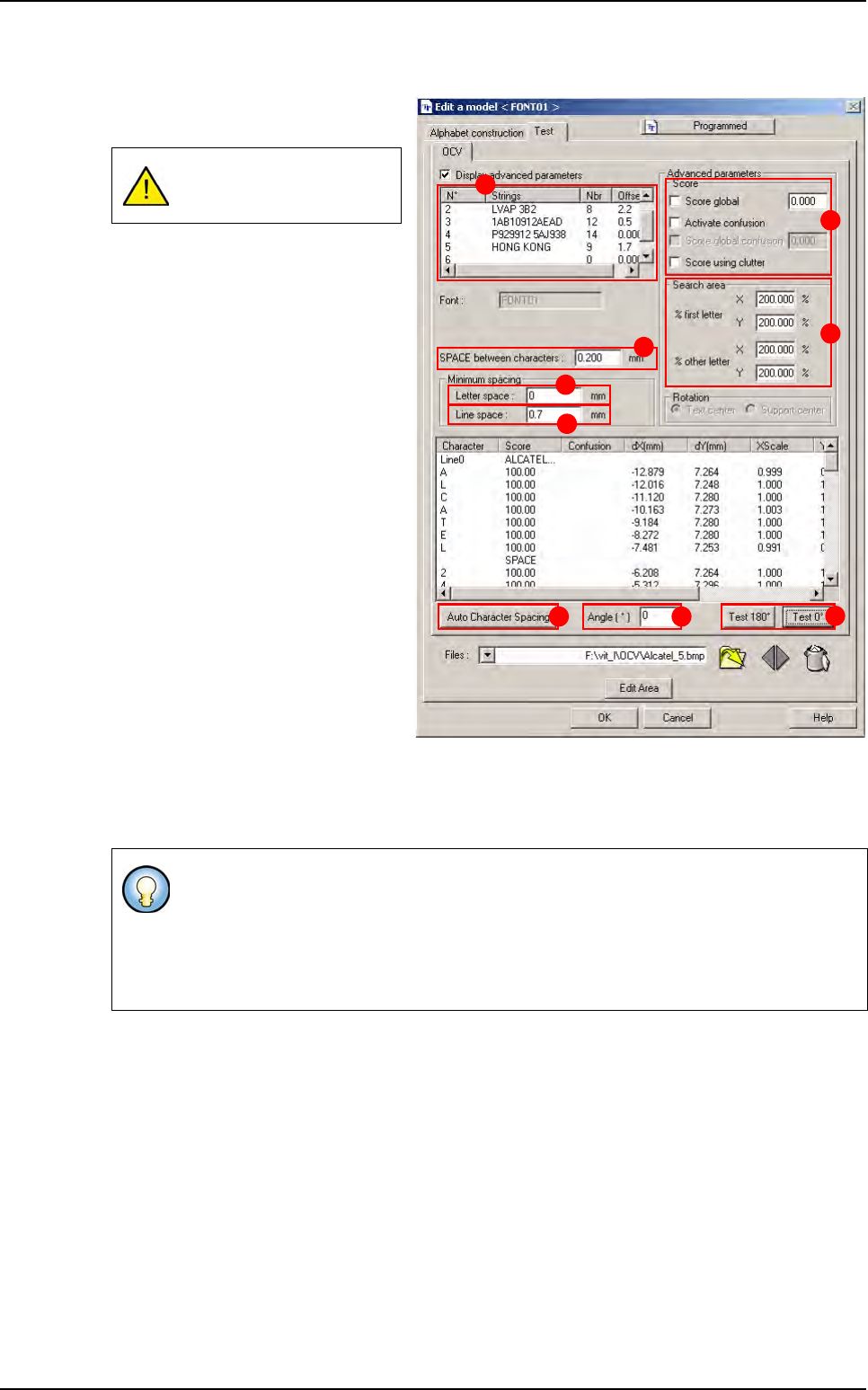
Test: to test the settings on a real im-
age.
1. Open an image.
2. Draw the area around the text.
3. Define the text to find (A).
4. Define the SPACE between char-
acters (B) (the size of the space
character).
5. Define Letter space (C) (the mini-
mum spacing between 2 charac-
ters).
The Auto Character Spacing
button (D) defines, for one line,
the space between 2 characters.
6. Define Line space (E) (the mini-
mum space between 2 lines of
text.)
7. If necessary define the Score pa-
rameters (F) for all letters.
8. Define the Search area (G) in % of
the train area, for the 1
st
letter of
the string and for the others let-
ters.
9. Define the Angle [°] (H) of the text.
10. Click on the Test 0° button ( I ), or if the text is at 180°, use the Test 180° button.
All modifications made on
this tab will not be saved.
In the line, if a character is in error, the other characters of the line are not tested.
In the line, if the number of characters found is larger than the number Nbr, then the
test succeeded.
If you define a joker character, then JOKER character is written near the character. It is
not tested.
A
B
C
D
E
F
G
H
I
Creation procedure
Optical Character Verification
Vision 2007 4.10 User Manual Rev 01 8 - 13
8.3 Text in debug mode
8.3.1 Ctrl + E
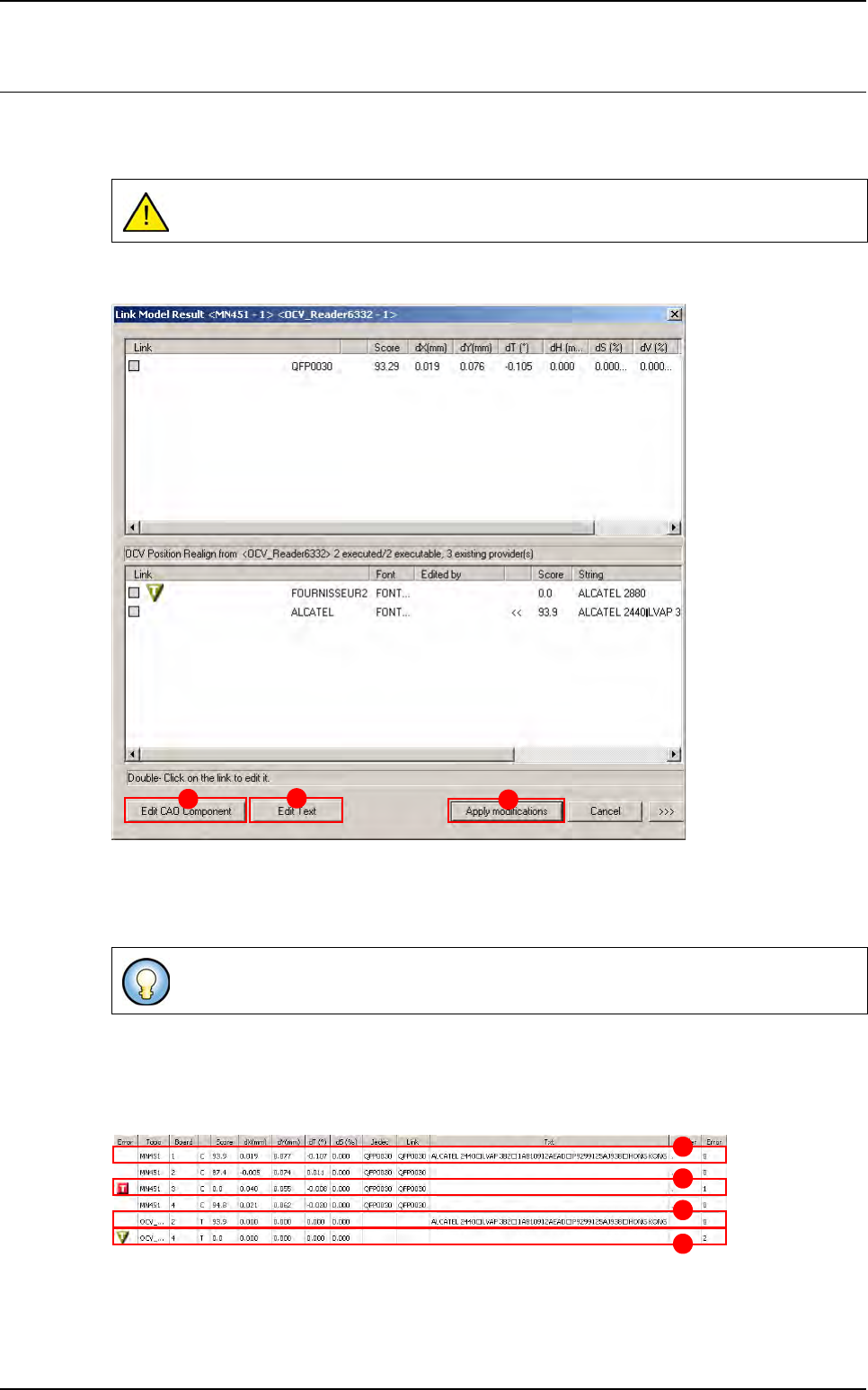
Use Ctrl + E shortcut to display the window below
If the text is joined to the component:
The Edit CAO Component button (A) allows to edit the component parameters.
The Edit Text button (B) allows to edit the text parameters.
8.3.2 Execution
The results of the execution of the panel are shown in the result table.
A The text is joined to the component.
B The text is joined to the component but it is in error.
C The text is not joined to the component and it executed alone.
D The text is not joined to the component, it executed alone but it is in error.
If a component is in error, the joined text is not executed.
To apply all your modifications in the file tst or in the library (on the CAD component,
text object, Model font), you can use the Apply modification button (C).
A
B
C
A
B
C
D
Optical Character Verification
8 - 14 Vision 2007 4.10 User Manual Rev 01
8.4 Text in production mode
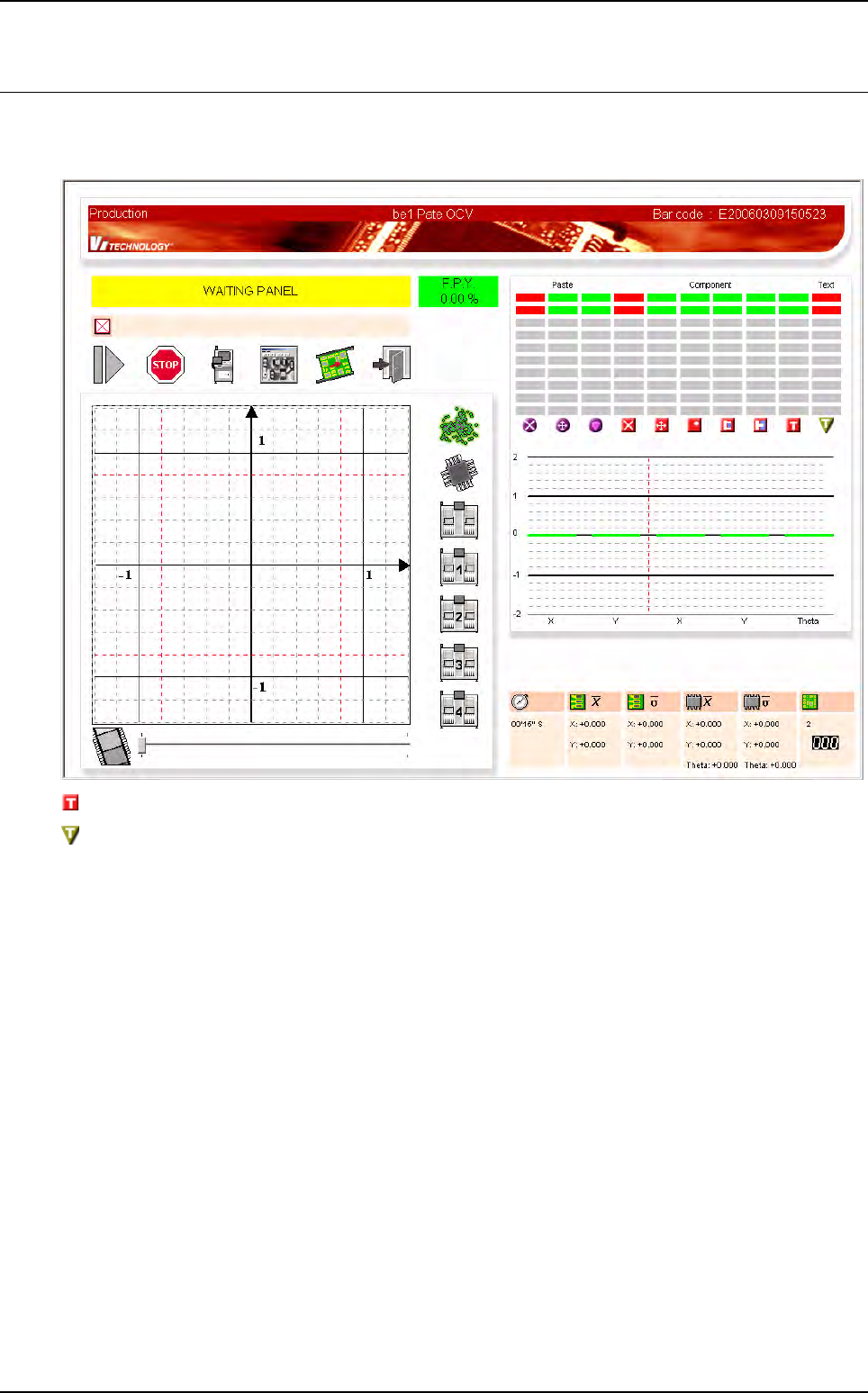
In production mode, in the case of a .tst file with text object joined to a component and with text object
alone, you can have the following screen:
This column gathers the result of the text joined to a component.
This column gathers the result of the text alone (it is not joined to the component).