VI User Manual.pdf - 第290页
2D solder paste inspection 9 - 12 Vision 2007 4.10 User Manual Re v 01 9.6 Paste pad execution (Ctrl + E) The paste pad test is run as for normal components. You can perfor m the same tests by topology, JEDEC, zone, etc.…
2D solder paste inspection
Vision 2007 4.10 User Manual Rev 01 9 - 11
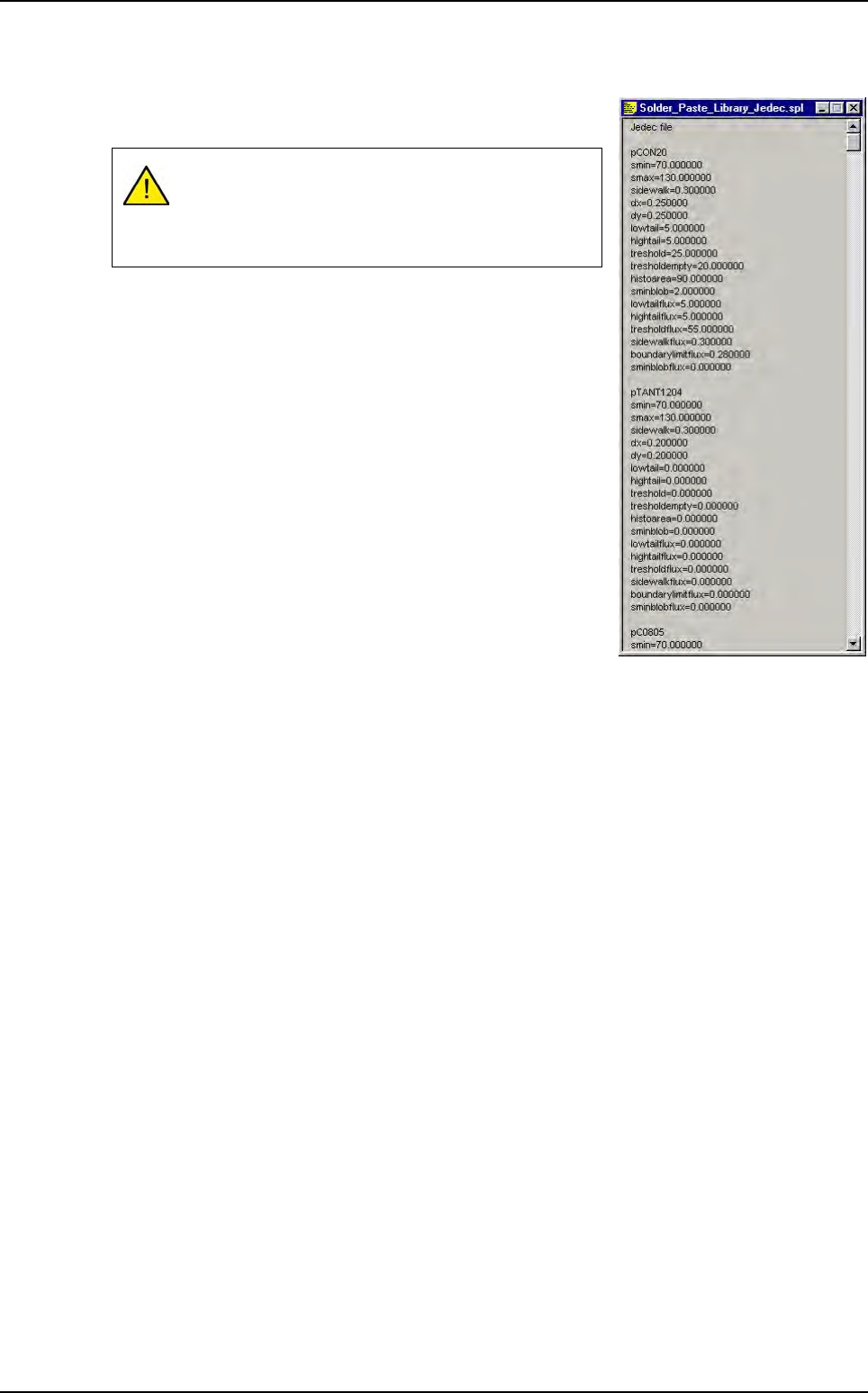
9.5.2 .spl file based on JEDEC
The first line must be jedec file otherwise Vision 2007 does not
recognize that it is a .spl file based on JEDEC family.
As for this .spl file format, when you import it into a .tst file, the
.spl file parameters are automatically entered in pads parame-
ters according to their JEDEC name.
9.5.3 .spl file importation
To import a .spl file, open the .tst file and in Test file menu go to Import and select Solder paste
file. The Open window appears. Select the .spl file you want to import.
In the .tst file, when you click on a paste pad, the imported .spl file parameters appear on the
Special parameters and Special parameters for flux tabs in the Pad edition window.
It is important to have linked pad to component (see
§ 9.2.2 Link pads to components) before importing
this kind of .spl file, otherwise all pads are pPaste JE-
DEC.
.spl files
2D solder paste inspection
9 - 12 Vision 2007 4.10 User Manual Rev 01
9.6 Paste pad execution (Ctrl + E)
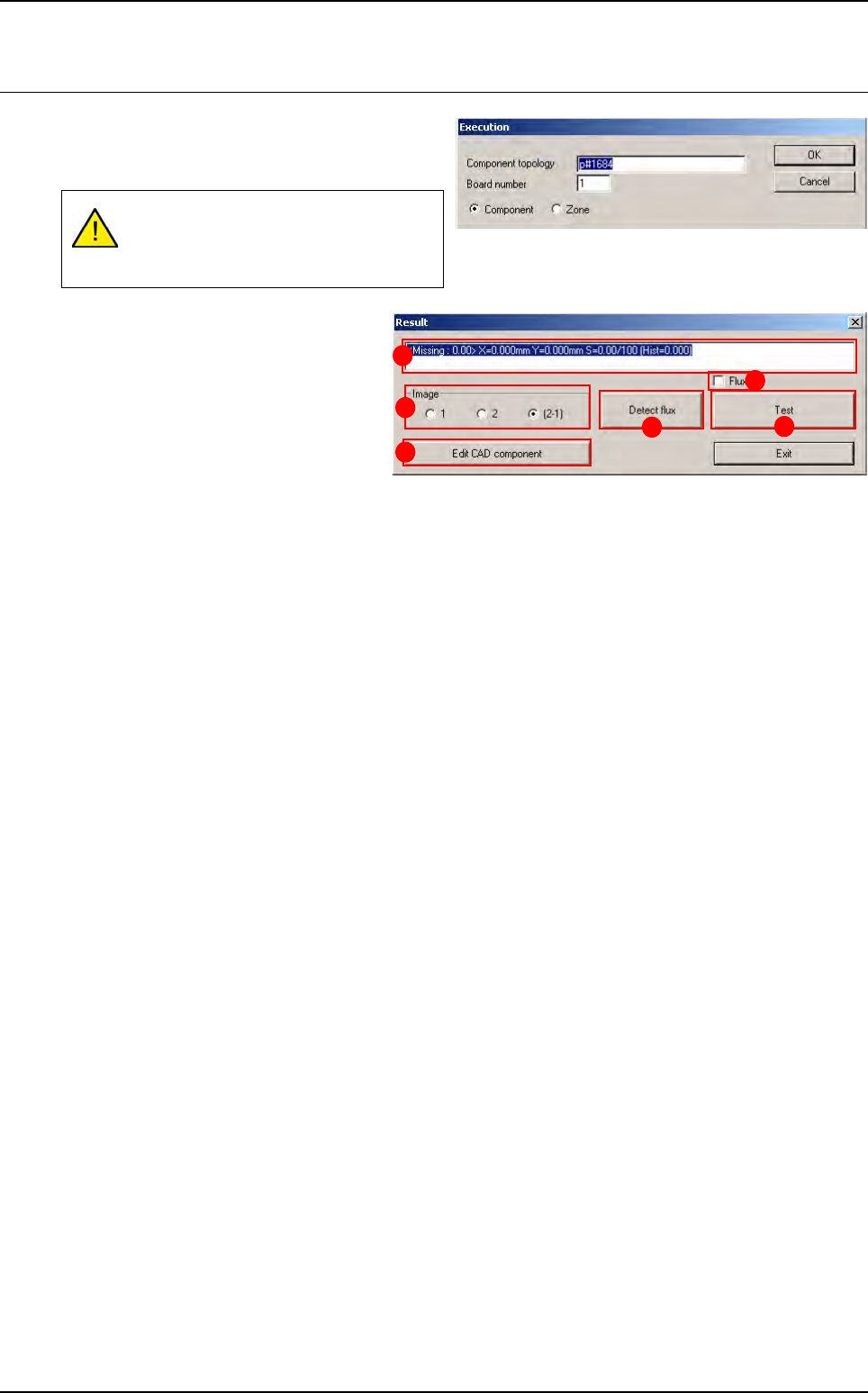
The paste pad test is run as for normal
components. You can perform the same tests by
topology, JEDEC, zone, etc.
In Image (A) section select the lighting
level to display in the image window:
1 Lighting level 1 (amber direct).
2 Lighting level 2 (blue peripheral).
2 - 1 Subtraction of the 2 images.
Press Edit CAD component (B) button
to edit the paste pad and change certain
parameters.
The field (C) displays test results (∆x, ∆y, %S: theoretical surface area of the pad, histogram result).
The Flux (D) tick box enable or disable the flux algorithm during the solder paste control.
Press Detect flux (E) button to run the flux detection on the level 1. Shapes found are displayed in the
Cognex console and their position and surface are shown in the result window of the Ctrl + E box.
Press Test (F) button to re-test the paste pad.
Display of the paste pad must be acti-
vated in the .tst file for the paste inspec-
tion to be possible.
A
B
C
D
F
E
2D solder paste inspection
Vision 2007 4.10 User Manual Rev 01 9 - 13
9.7 Solder paste inspection results
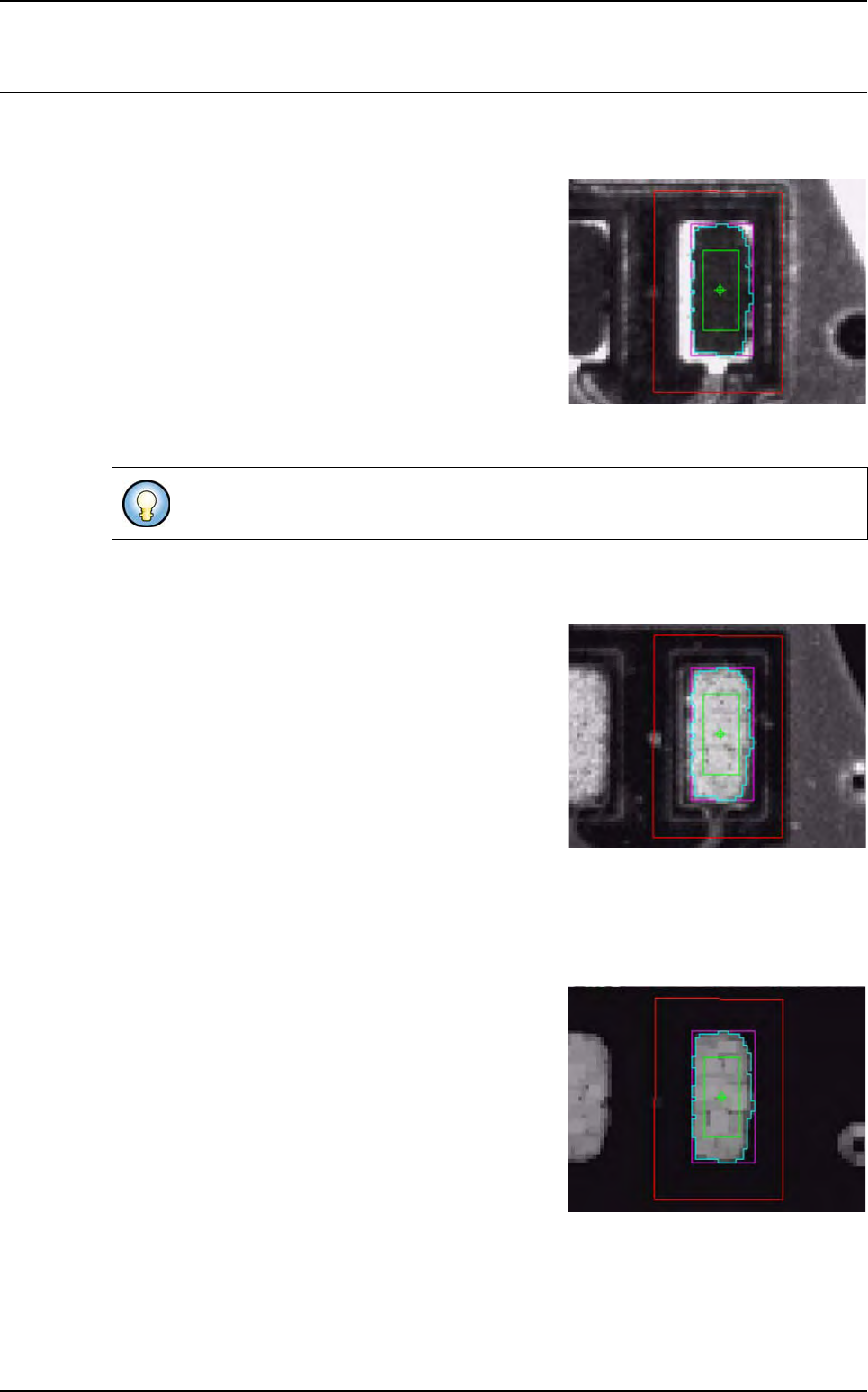
9.7.1 Image in direct amber lighting (level 1)
Characteristics of this lighting:
Panel + track: uniform gray
Reception pad: white
Paste: uniform black
Light level setting: intensity
60 axial amber
1 axial green
1 peripheral amber
1 peripheral blue
9.7.2 Image in peripheral blue lighting (level 2)
Characteristics of this lighting:
Panel: gray
Reception pad: uniform black
Paste: white
Light level setting: intensity
1 axial amber
1 axial green
1 peripheral amber
255 peripheral blue
9.7.3 Final image (image subtraction)
The result of the subtraction should be:
Panel + reception pad: black
Paste: white
Adjust intensity to obtain a smooth paste texture.