VI User Manual.pdf - 第323页
Optimization Vision 2007 4.10 User Manua l Rev 01 12 - 5 12.1.2.3 Models selection A list of the models available in the libr ary appears. Select the models you wish to optimize using >> and << and click Next…
Optimization
12 - 4 Vision 2007 4.10 User Manual Rev 01
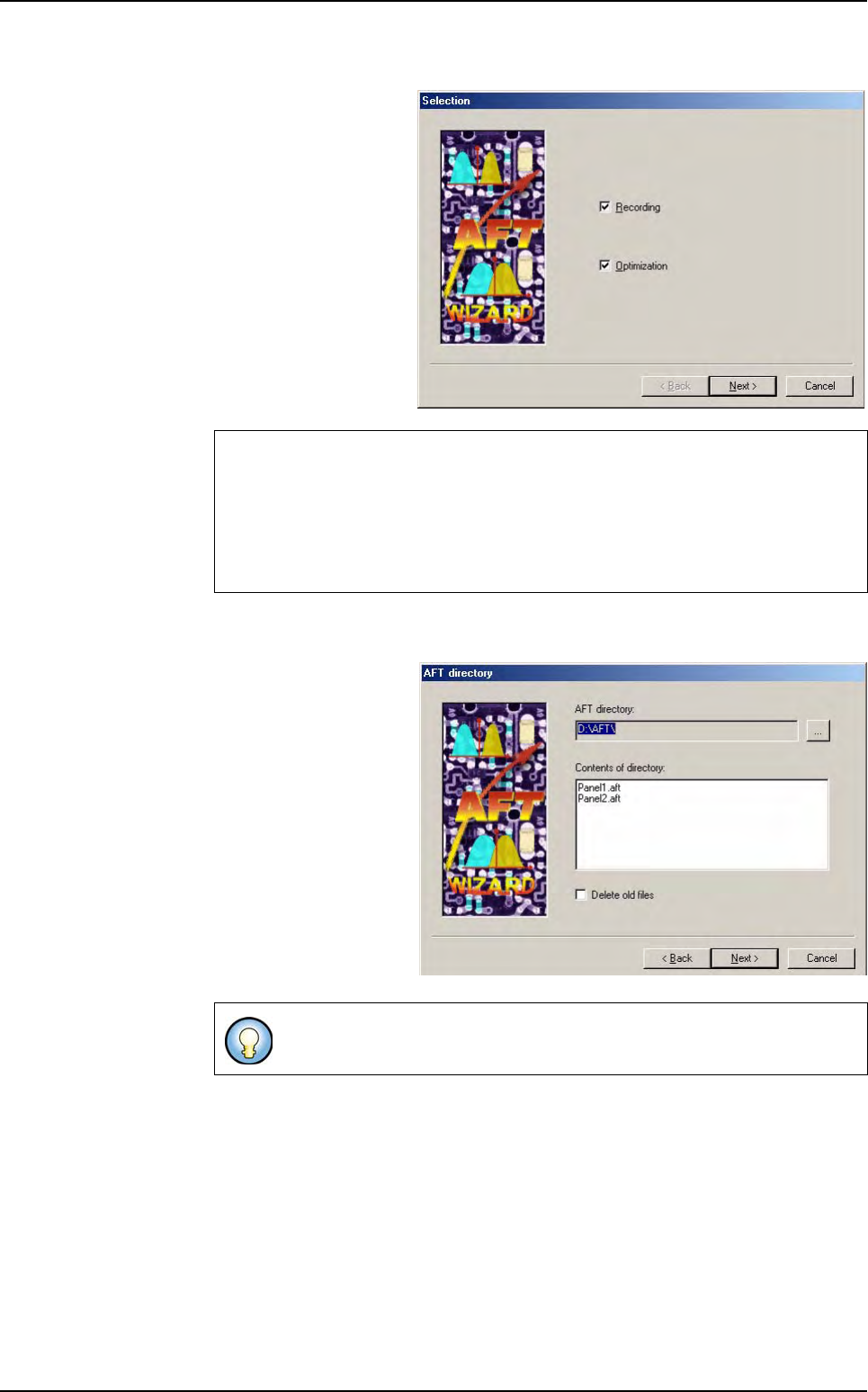
12.1.2.1 Selection
You can choose to
record panels and opti-
mize the library on these
records (default), to
record panels only, or to
optimize the library on
existing records.
Click Next to go to the
next step.
12.1.2.2 AFT directory
Select the AFT safety di-
rectory if required.
This window lists the
previous AFT files found
in the selected directory.
If you wish to overwrite
the previous records,
tick Delete old files.
Otherwise, the new
records will be added to
the previous ones.
Click Next to go to the
next step.
We will describe the whole process (recording and optimization) here.
If you select only recording or only optimization, the wizard steps will appear in a
different order.
If you already have AFT records, you can run the AFT Wizard with only Optimi-
zation selected on an offline station.
The optimization steps will use all the AFT files in the selected directory.
Auto Fine Tune (AFT)
Optimization
Vision 2007 4.10 User Manual Rev 01 12 - 5
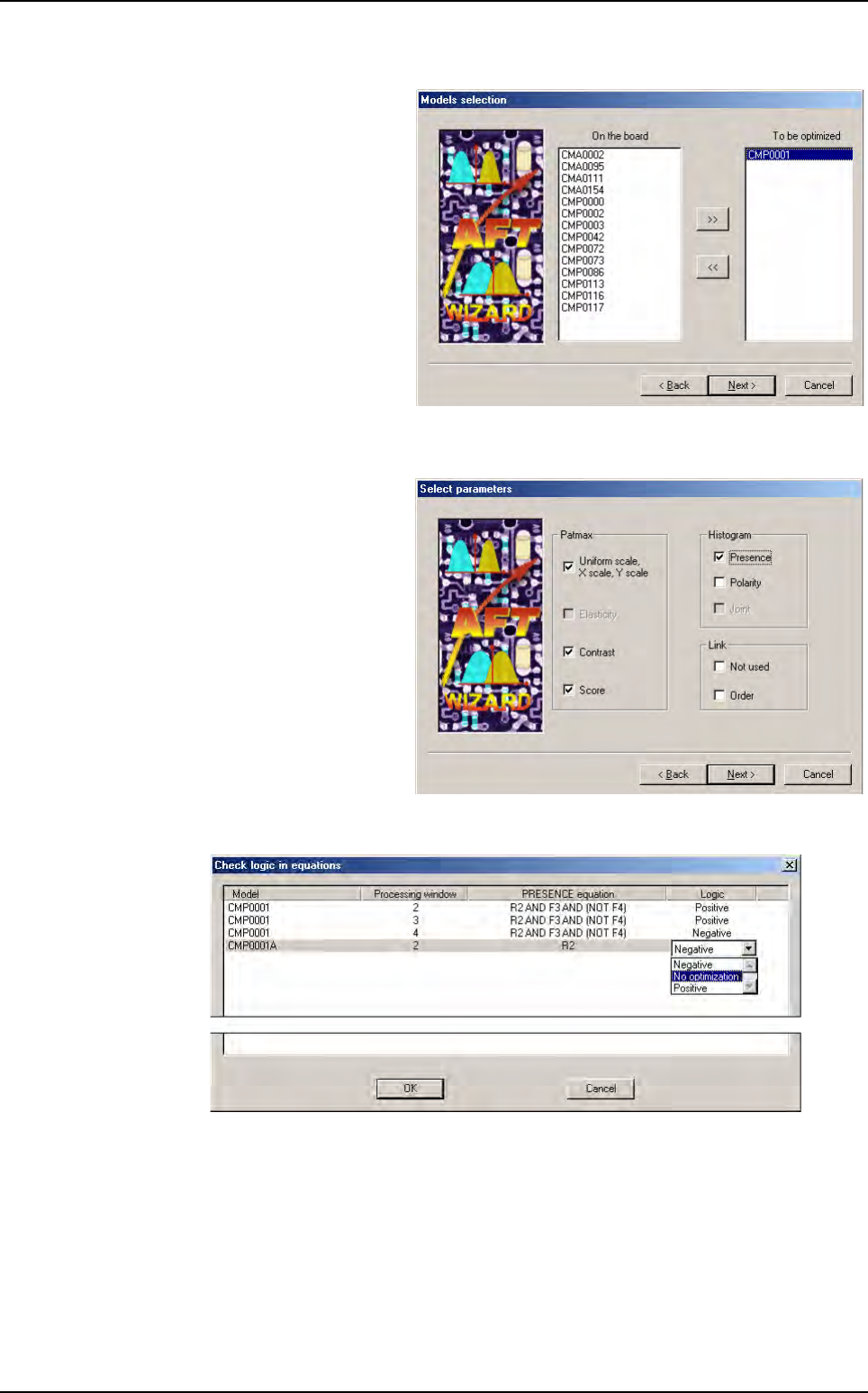
12.1.2.3 Models selection
A list of the models
available in the library
appears.
Select the models you
wish to optimize using
>> and << and click
Next.
12.1.2.4 Select parameters
Select the parameters
you wish to optimize.
If you tick
Presence
or
Polarity
optimization in
the
Histogram
section,
the system will analyze
the model equations to
look for Histogram tools.
A window will appear and list the Histogram tools found.
You have to confirm the detection logic used in the equation for each model (in most
cases, the equations are quite simple, and the logic proposed is OK).
If you need to modify the logic proposed for a model, right-click on the field, and a list
box will appear. Once each detection logic is correct, press
OK
to validate the data and
return to the AFT Wizard.
Click
Next
to go to the next step.
Auto Fine Tune (AFT)
Optimization
12 - 6 Vision 2007 4.10 User Manual Rev 01
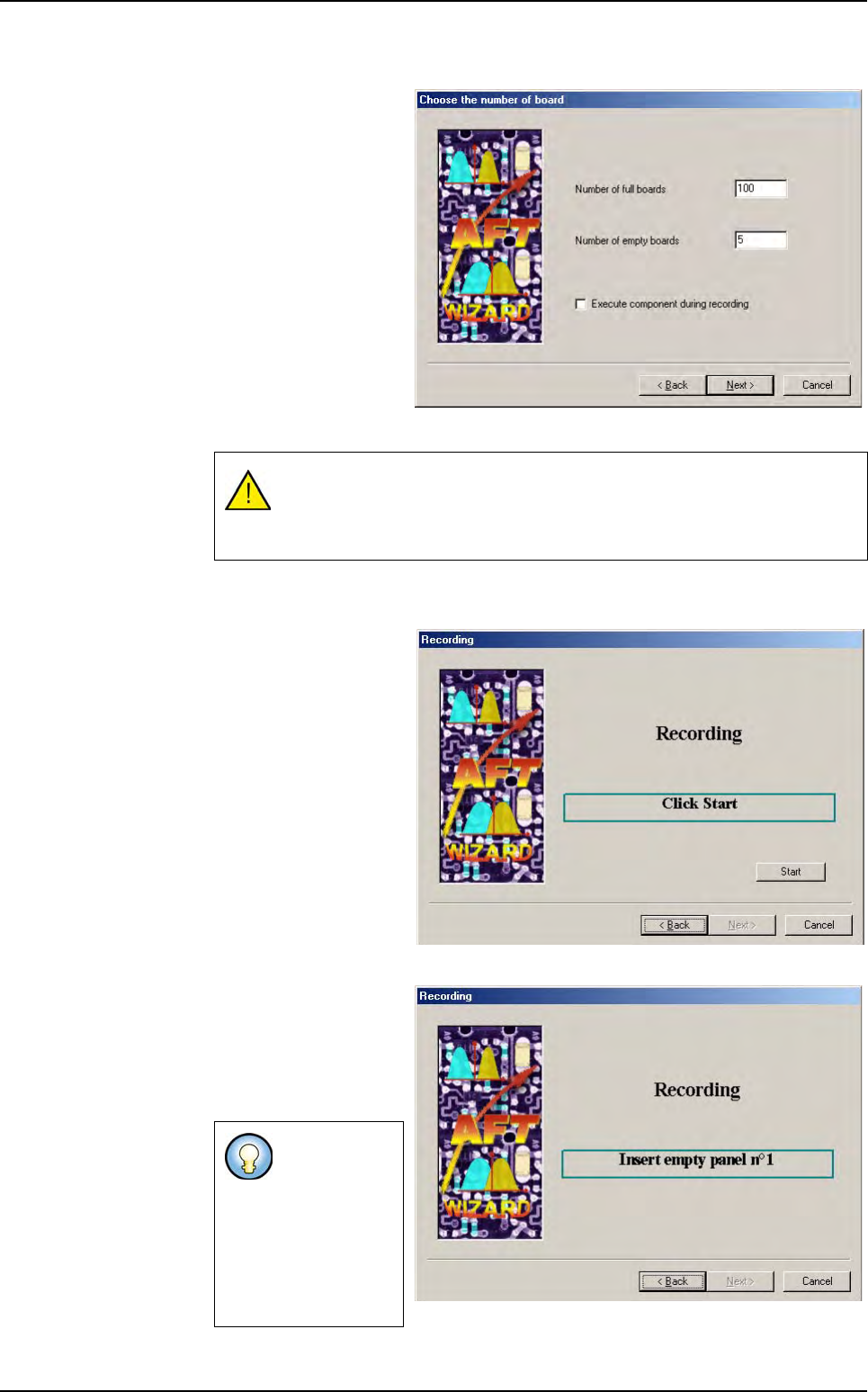
12.1.2.5 Number of boards to record
Enter the number of full
and empty boards you
wish to record.
If you tick Execute
components during
recording, the models
will run on each panel
during recording. Other-
wise, the system will
only shoot pictures of
the zones (much fast-
er).
Click Next to go to the
next step.
12.1.2.6 Recording panels
You are now ready to
start recording panels.
You will have to record
the empty panels first.
Make sure you have the
required panels, and
click Start to begin re-
cording.
The system asks for
empty panels until the
quota is reached. Insert
empty panels in the ma-
chine until the wizard
asks for full panels.
To optimize a model, you will need to run it at least 50 times.
Make sure you record enough boards to run the models you wish to
optimize 50 times.
If the machine
is on a produc-
tion line, it will
automatically
load the boards
using the up-
stream SME-
MA.
Auto Fine Tune (AFT)