VI User Manual.pdf - 第340页
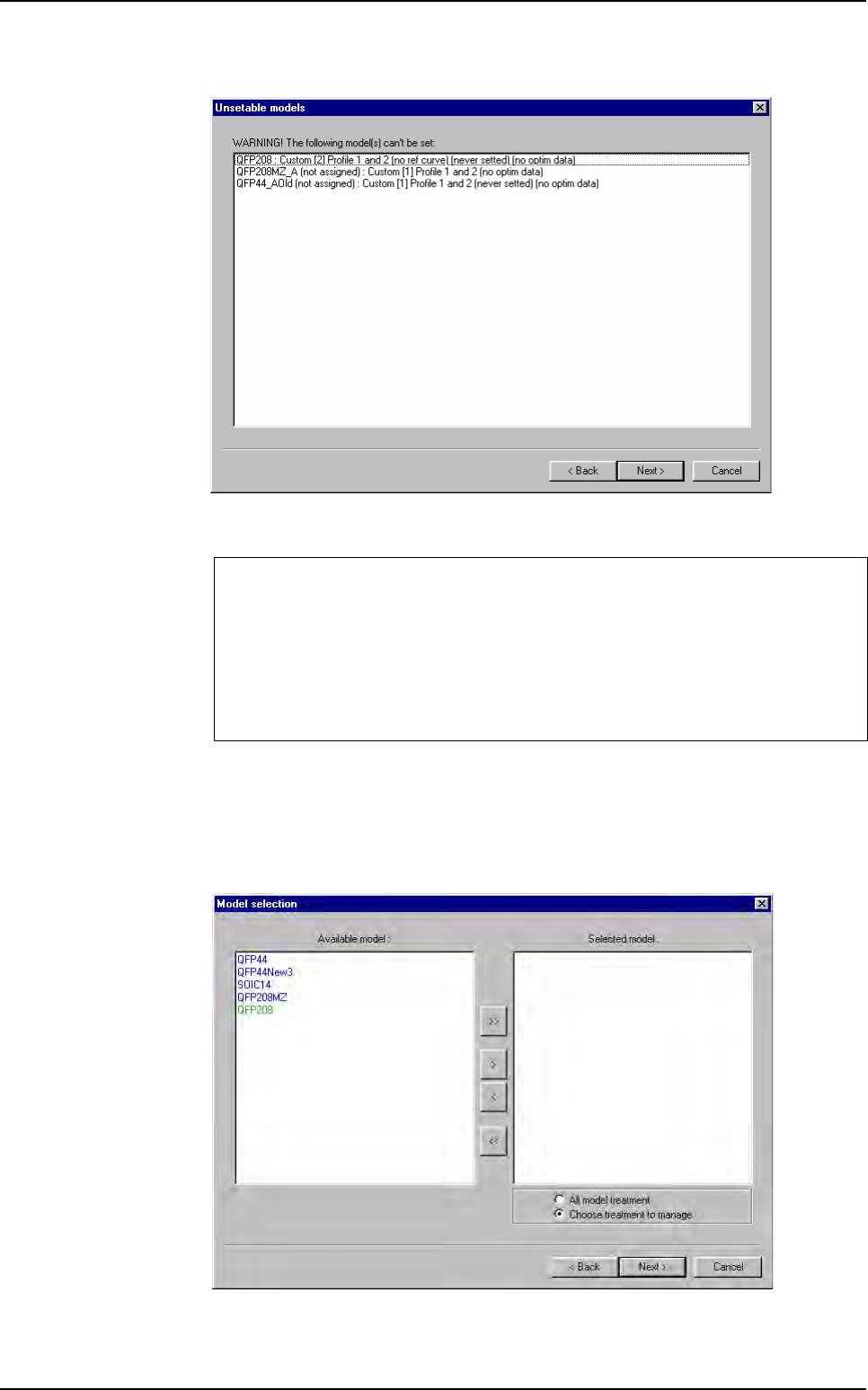
Optimization 12 - 22 Vision 2007 4.10 User Manual Re v 01 12.4.2.2 Unsetable models In the window above, the unstable models list appe ars with the reasons showed be- tween bracke ts. Click on Next > button. 12.4.2.3 …
Optimization
Vision 2007 4.10 User Manual Rev 01 12 - 21
12.4 Profiler
™
Automatic Setting
12.4.1 Presentation
The Profiler™ Automatic Setting allows to automatically set each Profiler™ you have cre-
ate (just for
Profiler™ in Custom tool). To automatically set the Profiler™ you need several
good boards. You need to be sure that there are no defect on these boards (for the model
you want to set). During the automatic setting, all profiles of components are collected, and
tolerances are automatically constructed around them. Tolerances are calculated by statis-
tic, so more boards you use, more tolerances are accuracy. A wizard is available to help you
to select model you want to set.
Before launching automatic setting you need to:
Define the Profiler™ (define the size, position, lighting)
Create the reference
If you use the Peak threshold algorithm, define the threshold and limits (to ignore some
parts).
If you use the 3D analysis algorithm define the limits (to ignore some parts).
If you use an algorithm (other than tolerances) choose the operator of the difference to
average
algorithm (Lead to lead algorithm)
Propagate these parameters to all leads
12.4.2 Profiler Automatic Setting wizard
12.4.2.1 Selecting optimisation type
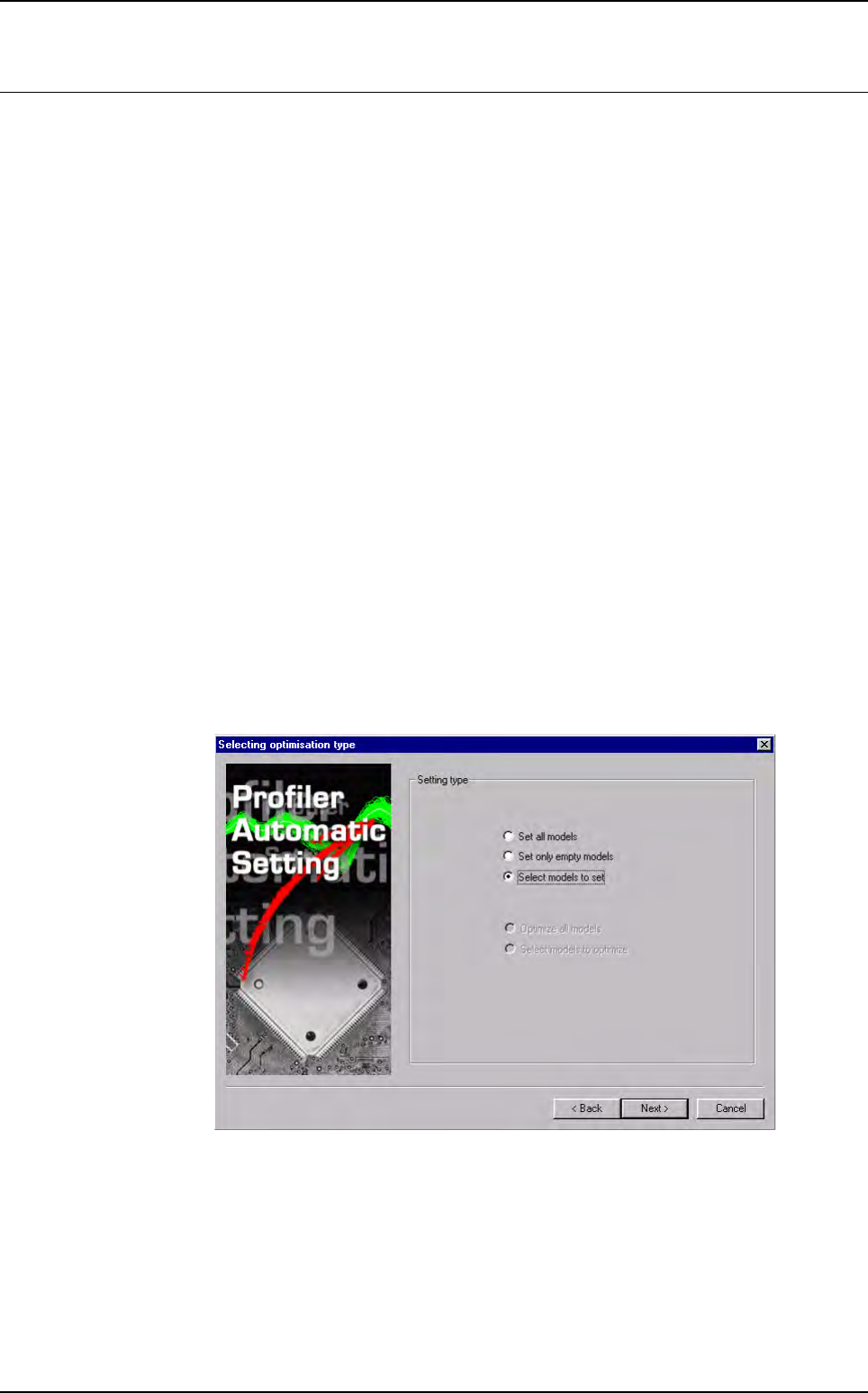
By default Select models to set is ticked to choose models Profiler™ to set.
Tick Set all models to set all models Profiler™ (programmed and unpro-
grammed).
Tick Set only empty models to set all models which Profiler™ are never pro-
grammed.
Click on
Next > button.
Optimization
12 - 22 Vision 2007 4.10 User Manual Rev 01
12.4.2.2 Unsetable models
In the window above, the unstable models list appears with the reasons showed be-
tween brackets.
Click on
Next > button.
12.4.2.3 Model selection
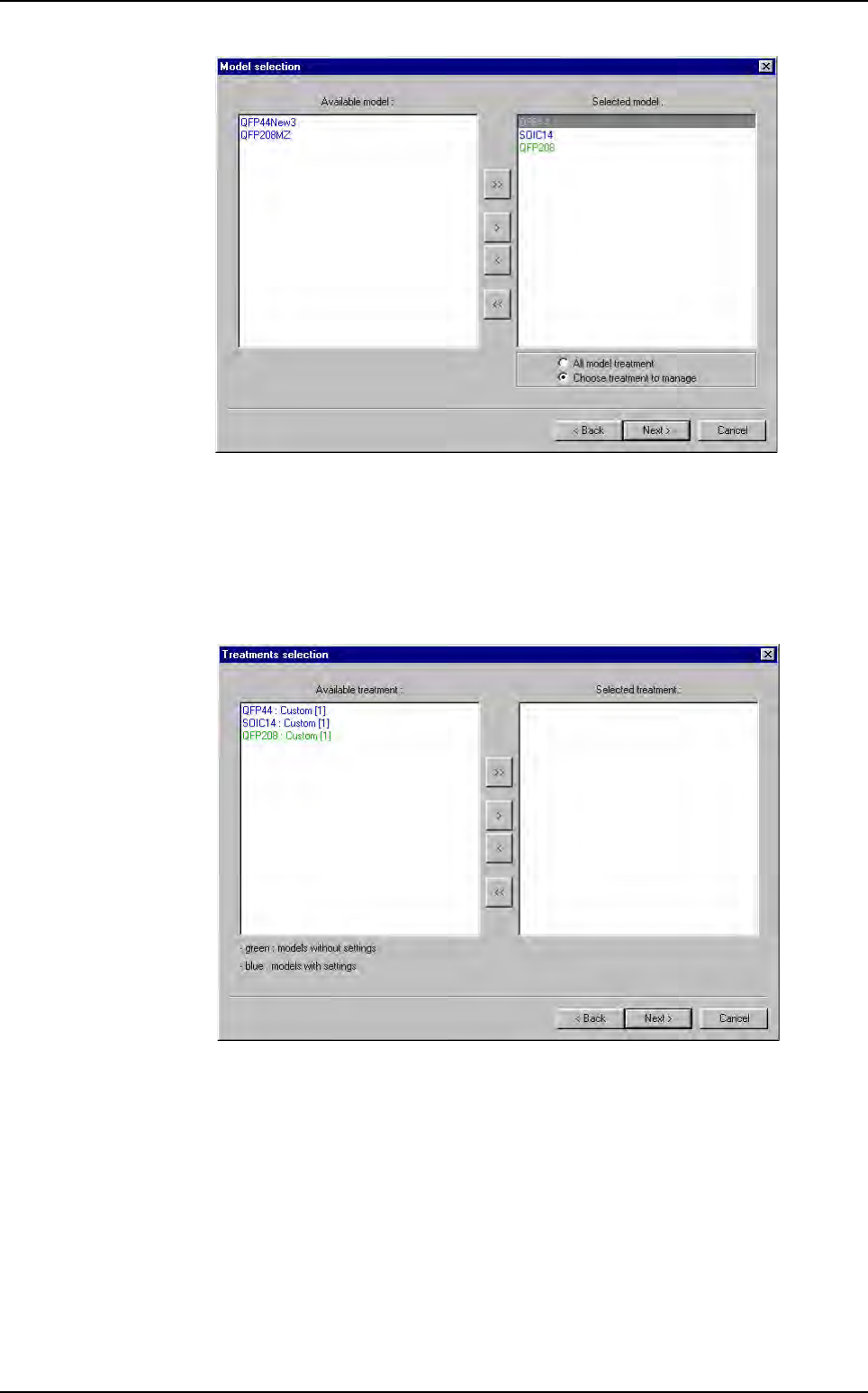
Choose the model to autoset.
Use
>, >> and <, << buttons to select or unselect model to set.
Model you can set:
Model who contain 1 or several custom
Custom must have the 2 Profiler™ programmed
Profiler™ must have a reference curve
Each Profiler™ must be uniform (propagate setting to all leads)
Profiler
™
Automatic Setting
Optimization
Vision 2007 4.10 User Manual Rev 01 12 - 23
Tick All model treatment to set all model treatments.
Tick
Choose treatment to manage to select model treatments to set.
Click on
Next button.
12.4.2.4 Treatments selection
For each selected model, choose the treatments to set.
Use
>, >> and <, << buttons to select or unselect model treatments to set.
Profiler
™
Automatic Setting