VI User Manual.pdf - 第355页
Reparation Vision 2007 4.10 User Manua l Rev 01 14 - 3 14.2 Reparation launching 14.2.1 First launching The first time, the Reparation software is laun ched, a wizard is executed. It presents the fol- lowing windows. 14.…

Reparation
14 - 2 Vision 2007 4.10 User Manual Rev 01
We can use the repair station in on-line or off-line configuration. The on-line and off-line repair sta-
tions are operated in almost the same manner. The major differences are as follows.
14.1.1 On-line
Faults reported by the AOI system are stored in the supervisor database and automatically
forwarded to the repair station after the board has left the AOI system. Both machines are
linked by a SMEMA connection. Boards repaired on the on-line repair station are immediate-
ly released back to the production line.
14.1.2 Off-line
Faults reported by the vision system are stored in the supervisor database and only forward-
ed and displayed on the repair station upon request. The operator requests board informa-
tion by means of a scanner to read the bar code information or by using the keyboard.
14.1.3 Off-line FIFO (First In First Out)
After selecting the product to repair, the software display automatically the first board to re-
pair. This mode is useful to repair boards without code identity. The off-line repair station, or
off-line rework allows buffering of faulty boards to be attended to in non-real time.
Overview
Reparation
Vision 2007 4.10 User Manual Rev 01 14 - 3
14.2 Reparation launching
14.2.1 First launching
The first time, the Reparation software is launched, a wizard is executed. It presents the fol-
lowing windows.
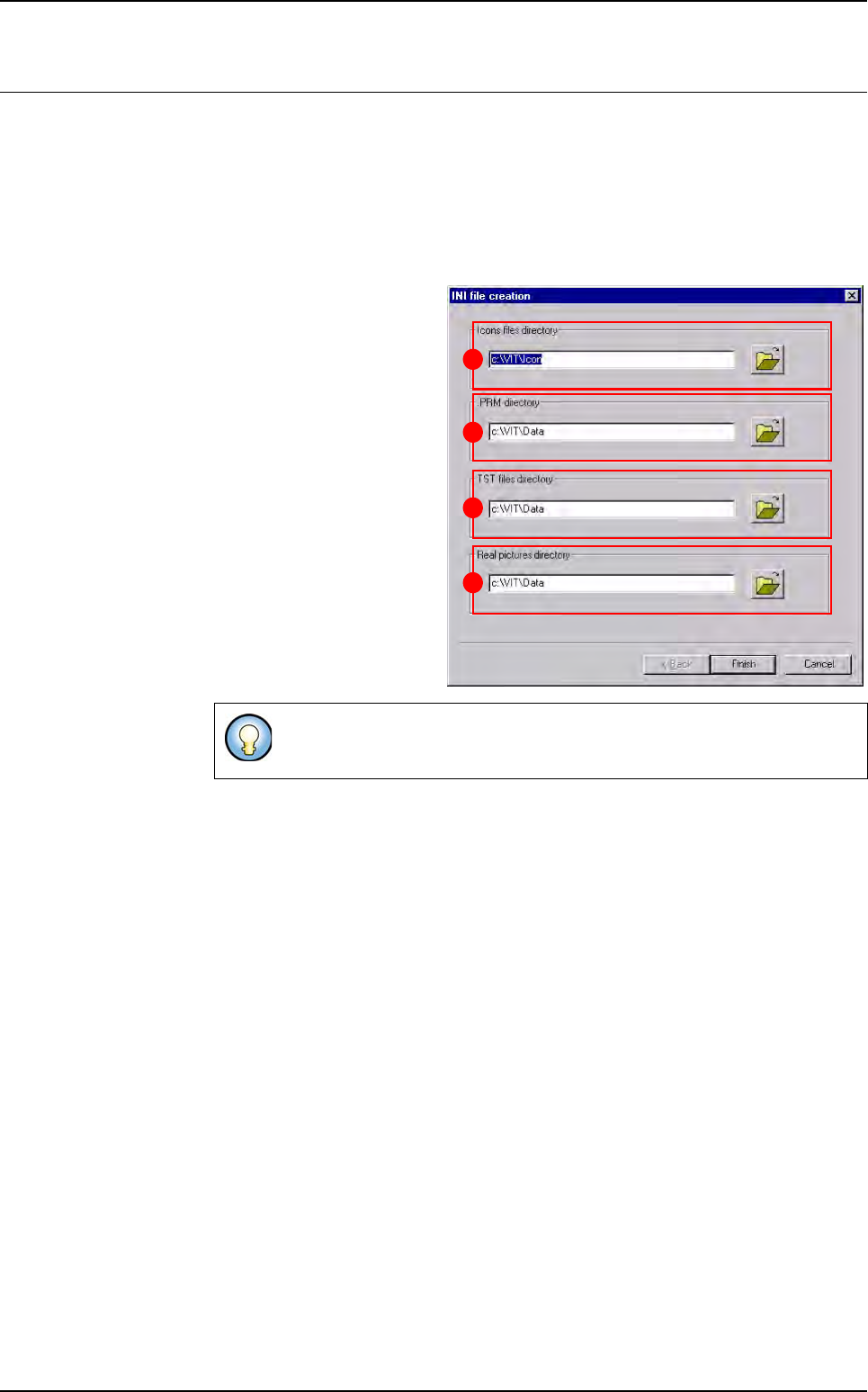
14.2.1.1 Path Setting window
This window lets you choose:
The Icons files directory
(A) where the software will
find the icons of each but-
ton.
The .PRM directory (B)
where the repair station
configuration file will be
saved.
The TST files directory (C)
where the software will find
the inspection program file.
The Real pictures directo-
ry (D) where the software
will find the images taken by
the AOI system, which show
the defects.
14.2.1.2 Main and detail buttons windows
These windows lets you configure the user interface and functionality of the 1st in-
terface showing the defects to repair. Clicking on one of the button from this inter-
face will set the same values to all the defects. To access to the detail of each defect
press F4 or the associated button.
The button list is totally configurable. You can:
Add and remove some buttons,
Change the text on the button,
Change the symbol on the button,
Change the function associated to the button,
Change the result information saved in the database.
To retrieve this window, go in Configuration menu and select Path set-
ting.
B
C
D
A
Reparation
14 - 4 Vision 2007 4.10 User Manual Rev 01
.
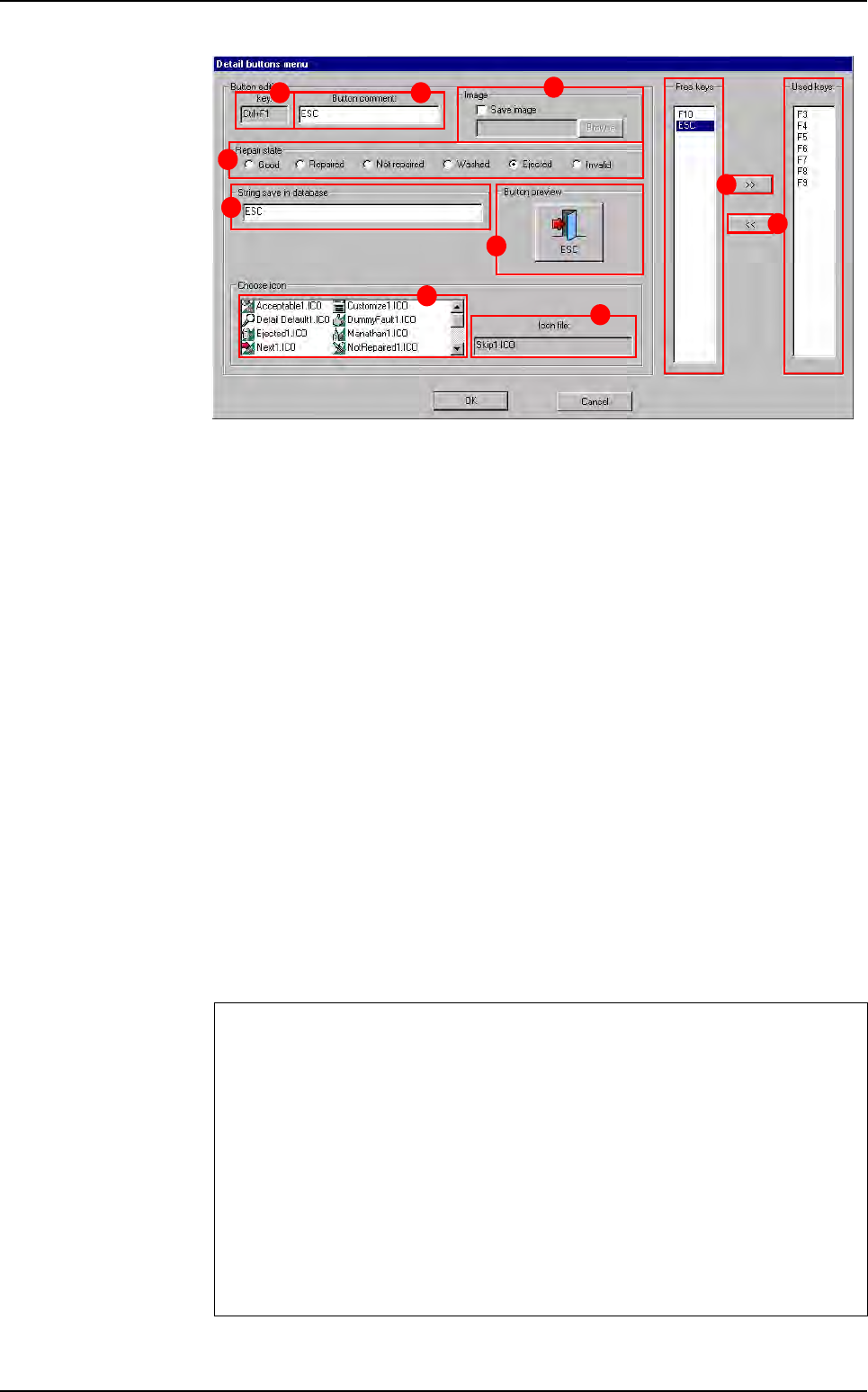
In the Free keys (A) list, select one key and click on the button >> to add it to the
used keys list.
In the Used keys (B) list, select one key and click on the button << to remove it and
let it free. All the used keys have defaults values and they also can be configured.
Click on one key from the Used keys list and set it as you want.
Selected key identification (C) of the keyboard.
In Button comment (D) field is displayed the button caption.
In Repair state (E) section, select the defect status associated to the button. It will
be saved into the database:
Not repaired: allow you to review the defect with the repair offline,
Invalid: all defects of the same board will have the Invalid status.
In String save in database (F) section, enter the comment associated to the but-
ton. It will be saved into the database.
In the list of predifined (G) icons, select the icon to associate to the selected key.
This list is in directory Icon and you can add you own files.
Preview (H) of the selected button.
File name ( I ) of the selected button.
In Image (J) section, you can associate the Save image function with some keys.
Select the folder in which you want the picture to be saved when the operator press
this button.
Main and Detail buttons windows differences
Even if the interfaces are the same, the keys list is different according to the se-
lected menu.
In the Main buttons menu the F4 key can not be removed from the used key list.
This button will always display the detail window. However, you can configure it
differently.
In the Detail buttons menu the F3 and F4 keys can not be removed from the
used key list. These buttons will always go to the next and the previous defect.
However, you can configure it differently.
To retrieve these windows, go in Configuration menu and select Main buttons
menu or Detail buttons menu.
A
B
C D
E
F
G
H
I
J
Reparation launching