VI User Manual.pdf - 第366页
Reparation 14 - 14 Vision 2007 4.10 User Manu al Rev 01 14.3.5.3 Real image If you want to display the real pictu re of th e board, yo u need to indi cate the fiducia ls positions in order to tar get the components. Sele…
Reparation
Vision 2007 4.10 User Manual Rev 01 14 - 13
14.3.5 Main menu
To access to the main menu press Alt+F4. The menu bar is accessible. Here, in Configu-
ration menu you have access to several parameters repair interface and functionality.
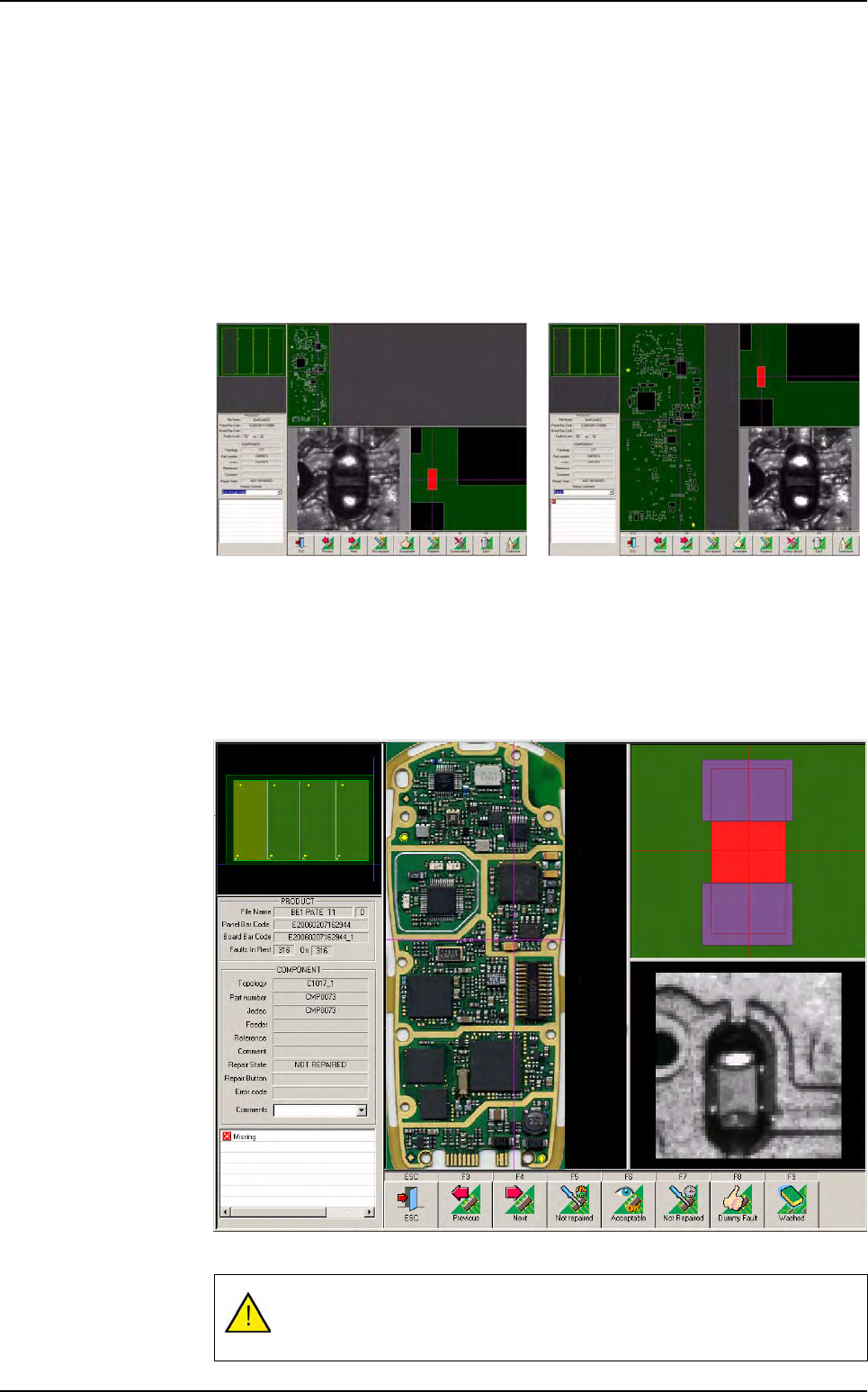
14.3.5.1 Orientation
This menu lets you change the page orientation for the detail screen.
Select Landscape if the X dimension of the board is bigger than the Y dimension,
and Portrait for the opposite type of board.
Select Auto for software automatic selection.
Landscape
Portrait
14.3.5.2 Display real images
This menu allows you to display the real picture of the board in the detail screen.
Scan your board with a scanner in order to generate a .bmp file. It must be in the
folder specified in the .ini file.
This file must have the same name as the .tst file with the extension .bmp.
Do not generate too large .bmp file (< 80Mb).
Reparation use
Reparation
14 - 14 Vision 2007 4.10 User Manual Rev 01
14.3.5.3 Real image
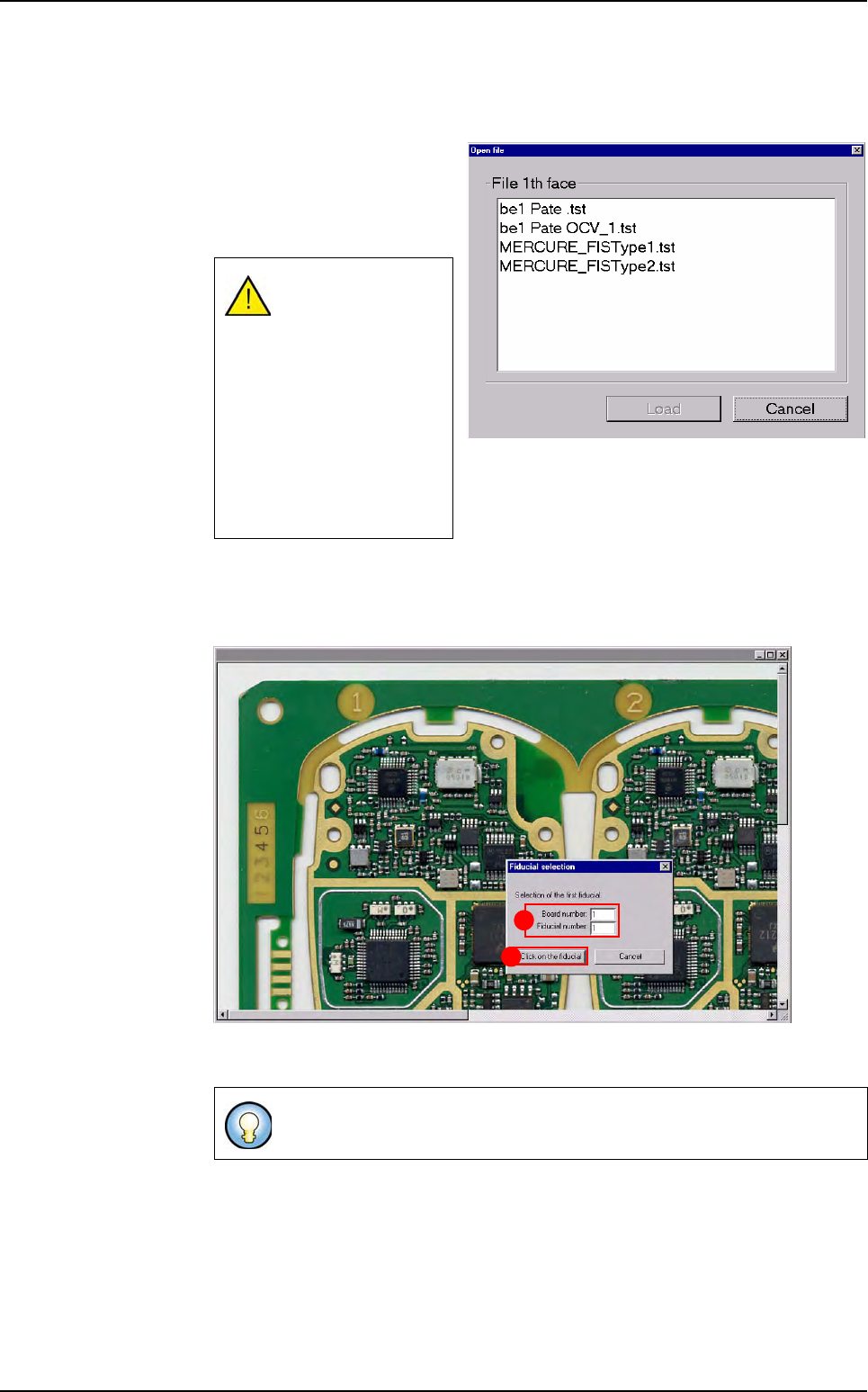
If you want to display the real picture of the board, you need to indicate the fiducials
positions in order to target the components.
Select the Real image menu,
the opposite window appears,
when you click on the wanted
.tst file, that display the real im-
age of this .tst file.
Select the 2 fiducials that are the furthest apart diagonally (must be fiducials that
are used in the .tst file). This will allow the software to find the components position
of the real picture.
Indicate the Board number and the Fiducial number (A) according to the .tst file
information and press Click on the fiducial (B) button.
The real image must
have the same name
as the .tst file, with
the extension .bmp.
If the .bmp file can
not be found in the in-
dicated folder, you
will have a message
(the path folder can
be changed in the .ini
file).
If Board number: 0 = panel.
B
A
Reparation use
Reparation
Vision 2007 4.10 User Manual Rev 01 14 - 15
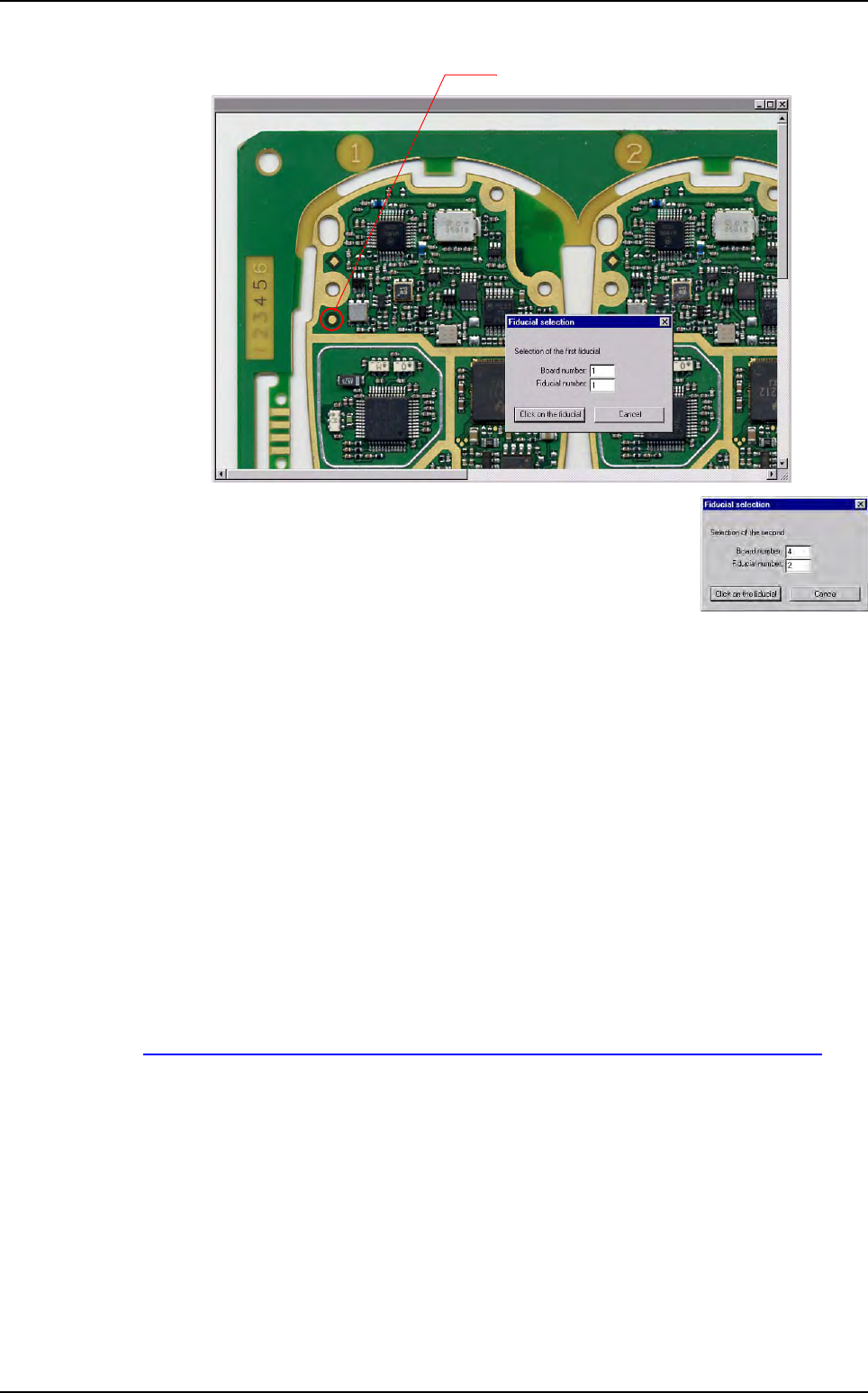
Use the scroll bar to see the fiducial you want to pick on the real picture.
In the Fiducial selection window, indicate the board number
and the order of the second fiducial, according to the .tst file
information and press Click on the fiducial button.
14.3.5.4 Password
You can use a password to limit access to the configuration menus. Every time you
want to access to the menu bar to configure the repair station (press Alt+F4), you
will be asked the password.
Enter the password and confirm it.
14.3.6 Bar code printing
This feature gives the opportunity to the operator to print a label (1D bar code) with the iden-
tifier of the inspection, in order to be able to repair offline afterwards.
The identifier may be a bar code or the date and time stamp of this inspection.
The supported printer is the Zebra bar code printer TLP 3842. It should be connected to the
parallel port of the PC.
The EPL table for Zebra printer is available on:
http://www.megacz.com/software/eltron/manuals/EPL2ProgrammersManual.pdf
This feature can be configured in ConfigReparation.ini file, in the [Barcode printer] sec-
tion.
Reparation use