VI User Manual.pdf - 第93页
.TST file creation Vision 2007 4.10 User Manua l Rev 01 4 - 19 4.7 New element creation Once the .tst file is created, new elements can still be added: compon ents, pad, connector, text, trace, datamatrix or barcode, ski…
.TST file creation
4 - 18 Vision 2007 4.10 User Manual Rev 01
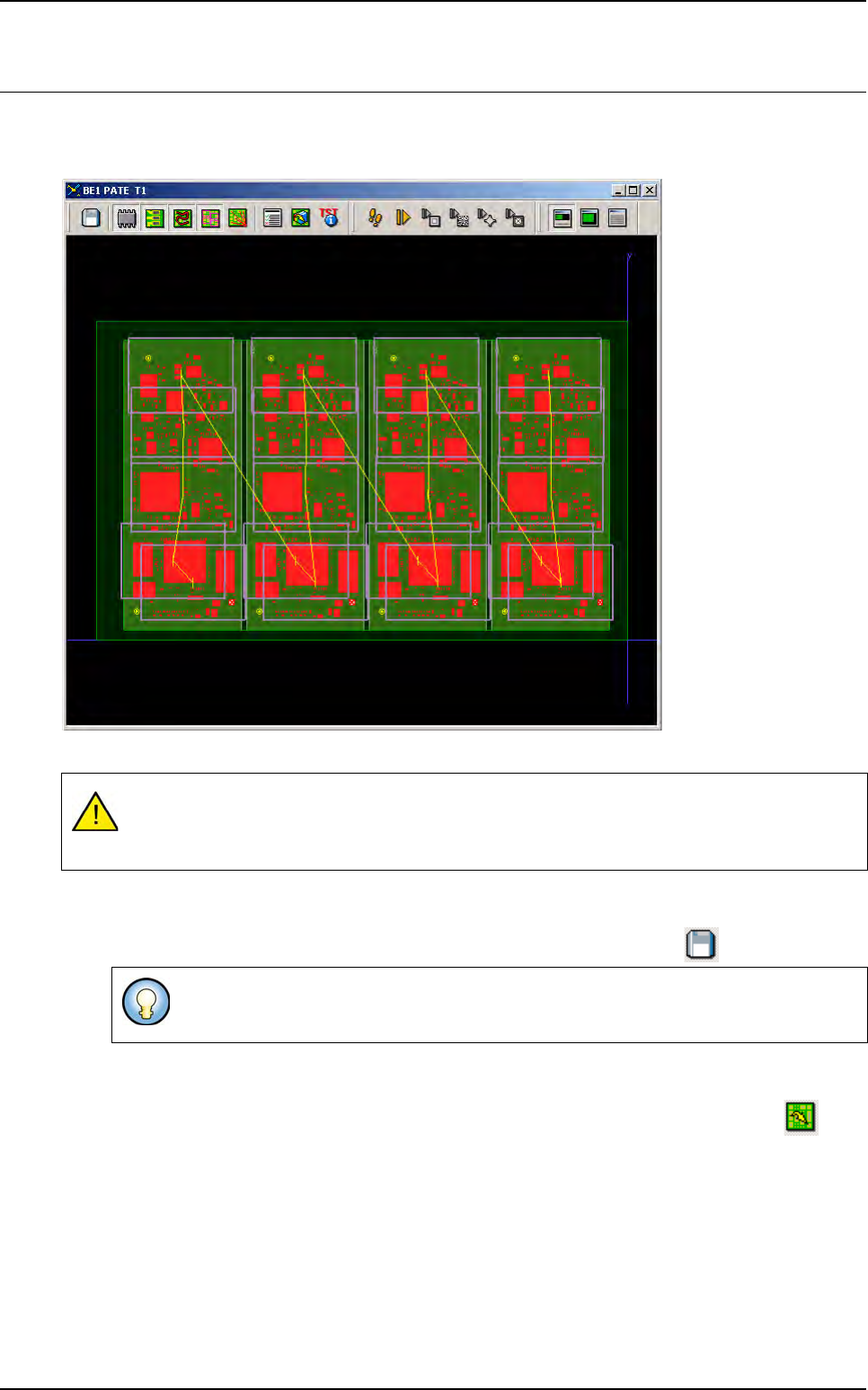
4.6 Creation result
The .tst file obtained is a representation of the panel with all its components and fiducials that are ac-
cessible by clicking on them.
The panel can now be inspected by the machine, both in the production and debug mode.
4.6.1 Saving the .tst file created
Select Save or Save as in the Test file menu, or click on the Save icon in the tool bar.
4.6.2 Opening and closing an existing .tst file
Select Open test file (Ctrl+I) in the Process menu, or click on the Open .tst file icon in the
tool bar.
If a .tst file is already open, the Open .tst file function is available in the Test file menu. Select
Open test file in the Test file menu.
Vision 2007 will ask you to select a .tst file. The default directory is always: C:\VIT\Data. By de-
fault, Vision 2007 presents the .tst files. Double click on the selected .tst file or press Open in
order to view it on the screen.
Press Close from the Test file menu in order to close a Process Test window.
A visual inspection comparing your panel with its graphic representation ensures that inspec-
tion is not carried out using an incorrect .tst file, resulting in inspection (position) errors stem-
ming from the .tst file.
By default, the file will take the name of the panel (PANEL_NAME of the .vis file used
for creation).
.TST file creation
Vision 2007 4.10 User Manual Rev 01 4 - 19
4.7 New element creation
Once the .tst file is created, new elements can still be added: components, pad, connector, text, trace,
datamatrix or barcode, skip and zones.
4.7.1 Create a component
1. Open a .tst file then load the corresponding panel.
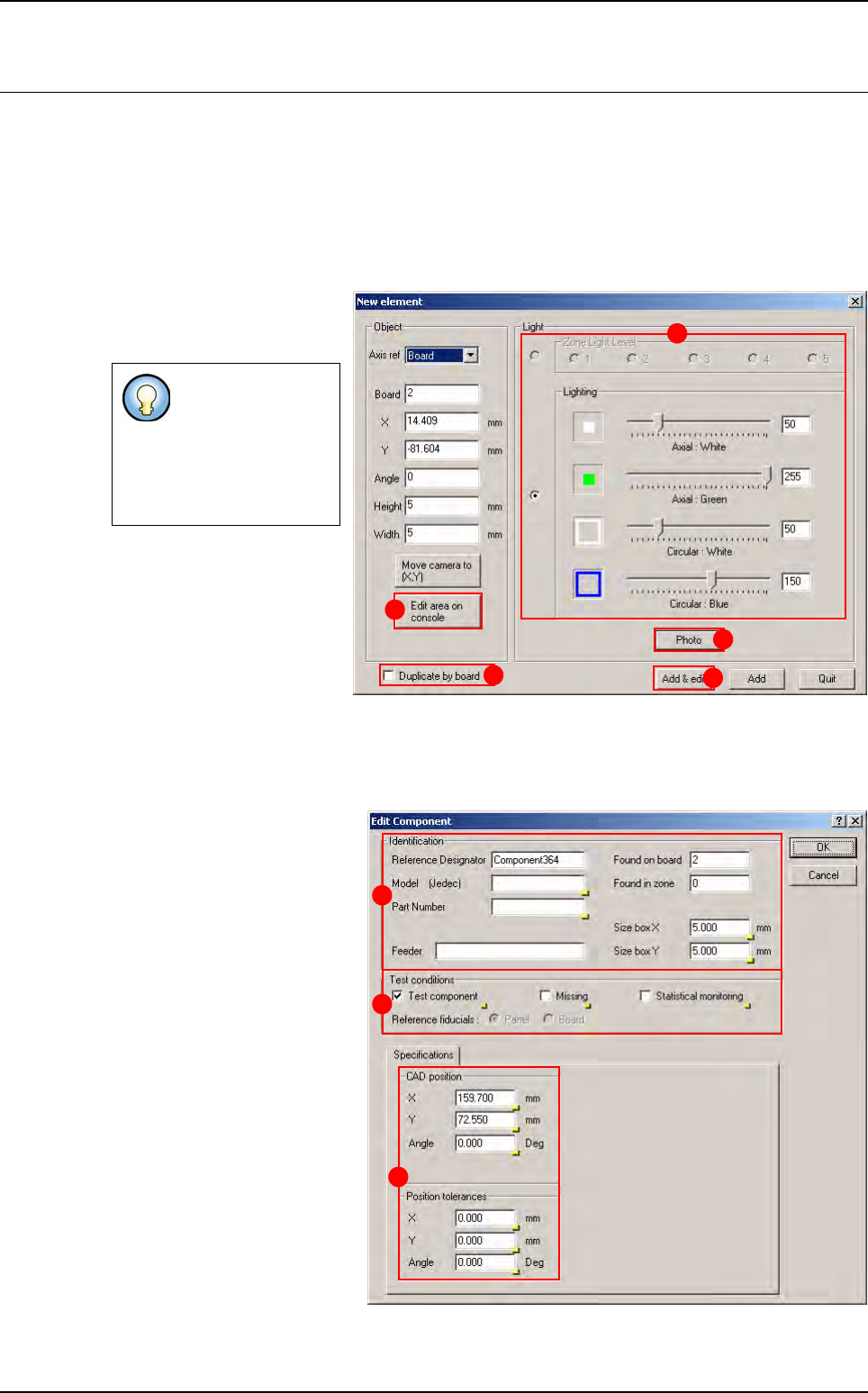
2. In Edit menu select Component, then Add a Component to open New element window.
3. The window New element
appears after the fiducials in-
spection.
4. Define the lighting level
(A), take a photo if needed
by clicking on Photo button
(B).
5. Define the position of the
component by clicking on the
.tst file, then adjust the com-
ponent location with the Edit area on console button (C).
6.
You can duplicate the component creation by board by picking the option
Duplicate by board
(
D
).
7. Click on Add & edit button (E): the Edit Component window is displayed.
8. The Identification parame-
ters can be set on the A part.
9. The Test conditions can be
selected in the B part.
10. The CAD position param-
eters can be modified in the
Specifications tab (C).
11. The modifications can be
applied by clicking on OK but-
ton, or discarded by clicking on
Cancel button.
If fiducials are not
correctly acquired a
shorter version of
the New element
window is
displayed
.
A
B
C
D
E
A
B
C
.TST file creation
4 - 20 Vision 2007 4.10 User Manual Rev 01
4.7.2 Create a pad / a reference pad
1. Open a .tst file then load the corresponding panel.
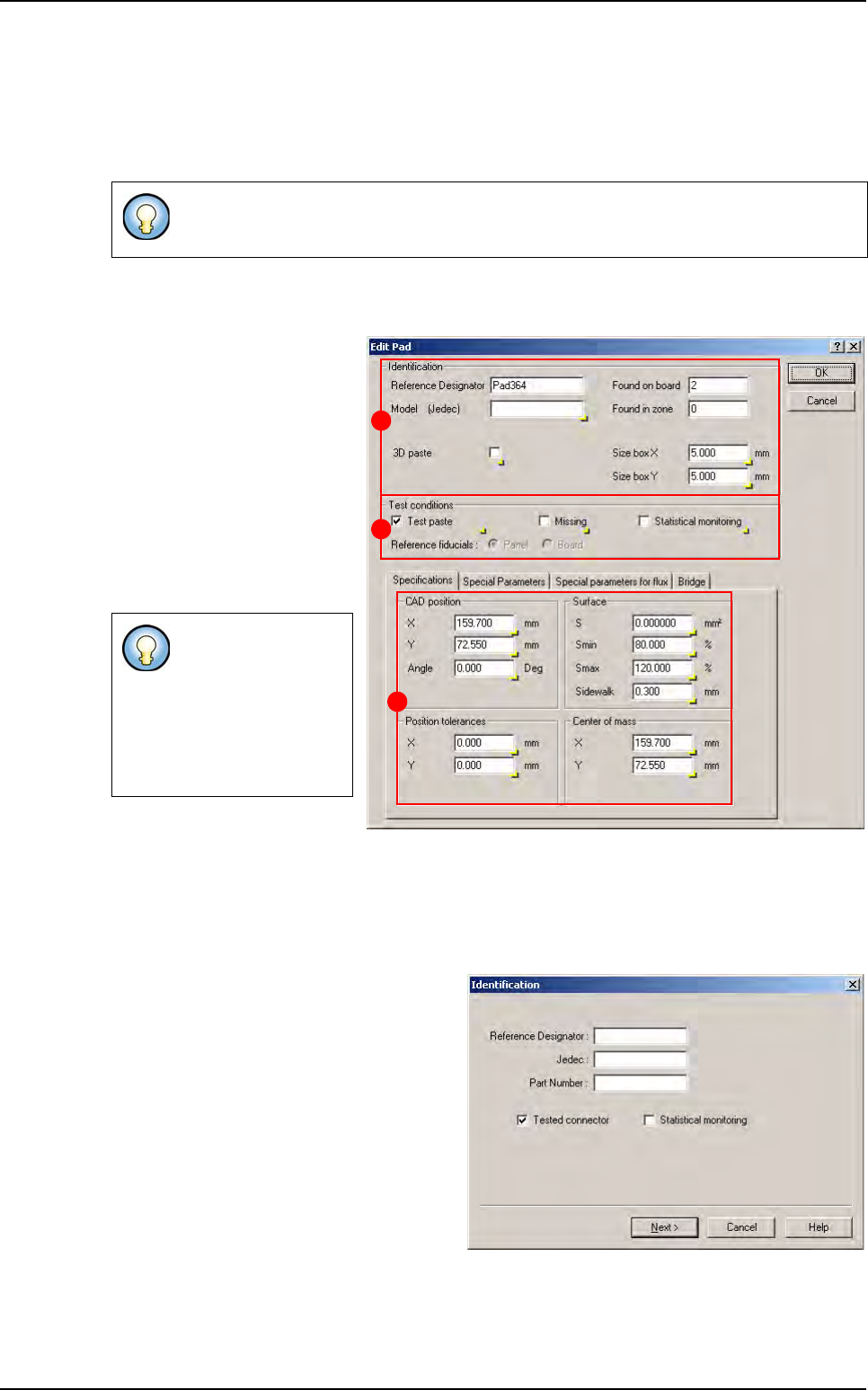
2. In Edit menu, select Pad, then Add a pad to open New element window.
3. The window New element appears after the fiducials inspection.
4. Set the parameters as described on chapter 4.7.1, then click on Add & edit button, the con-
figured pad is added on the .tst file, and the Edit Pad window appears.
5. The Identification parame-
ters can be set on the (A) part.
6. The Test conditions can
be selected in the (B) part.
7. The CAD position parame-
ters can be modified in the
Specifications tab (C).
8. The modifications can be
applied by clicking on OK but-
ton, or discarded by clicking on
Cancel button.
4.7.3 Create a connector
1. Open a .tst file then load the corresponding panel.
2. In Edit menu select Connector then Add a connector to open Identificiation window.
3. The Identification window appears after
the fiducials inspection.
Input the connector identification parame-
ters in Identification window, and then click
on Next button.
If fiducials are not correctly acquired a shorter version of the New element window is
displayed.
Reference pad
menu is only
available for 3D
machines.
3D paste check box
is only available for
3D machines.
A
B
C
New element creation