00198705-01_AI_Portalmodularität_SX12_V3_DE_EN.pdf - 第113页
3 Fitting the Gantry 3.6 Final Work Assembly Instructions / Montageanleitung SIPLACE SX1/SX2 V3 Gantry Modularity Portalmodularität 05/2020 113 Fig.52: Service menu ► Click the button to enter the Ser- vice menu. ► Clic…
3 Fitting the Gantry
3.6 Final Work
112 Assembly Instructions / Montageanleitung SIPLACE SX1/SX2 V3 Gantry Modularity Portalmodularität 05/2020
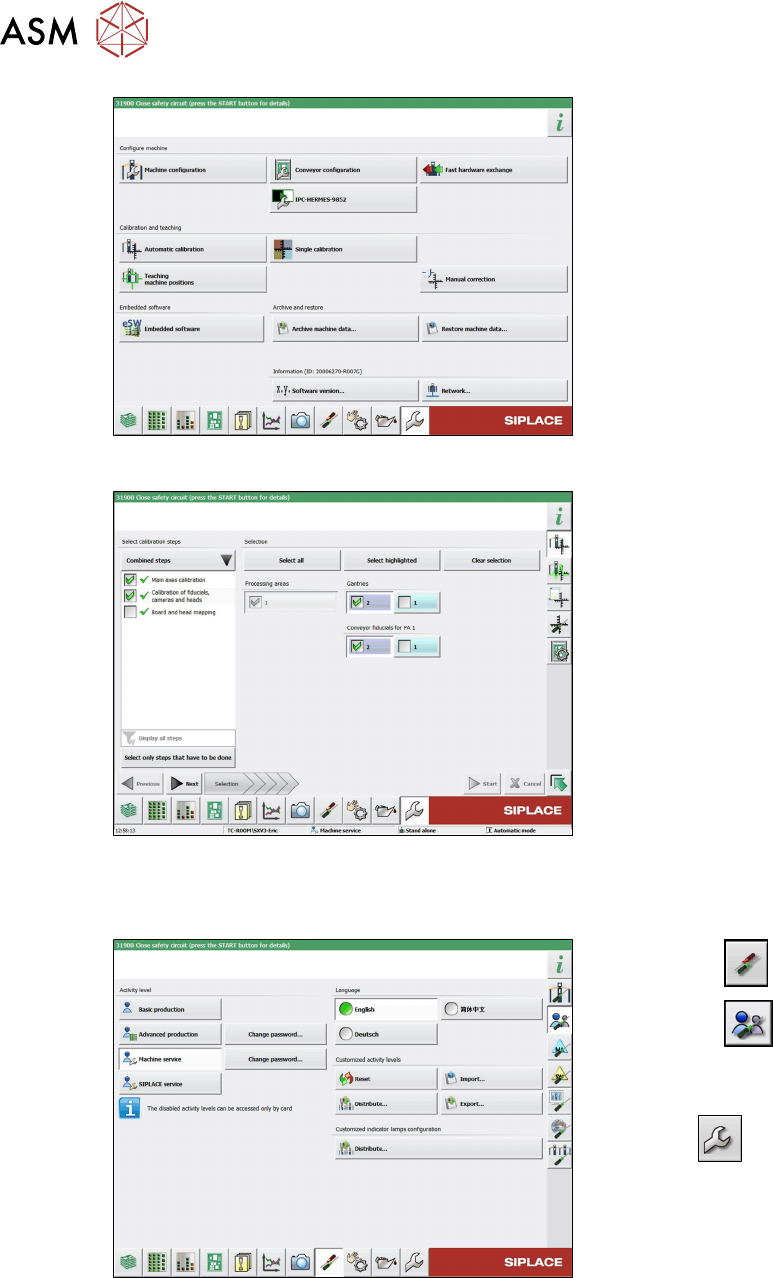
Fig.49: Service menu
► Select Automatic Calibration.
Fig.50: Calibration
► Go to Combined steps and select the
items Main axes calibration and Cali-
bration of fiducials, cameras and
heads.
► Select the gantry.
► Select Next and follow the instruction
on the screen.
3.6.6.1 eSW Download (SW 70x)
Fig.51: Select operator level
► Select the button.
► Select the button.
► Switch over to the operator level Ma-
chine service.
ð The button will be shown.
3 Fitting the Gantry
3.6 Final Work
Assembly Instructions / Montageanleitung SIPLACE SX1/SX2 V3 Gantry Modularity Portalmodularität 05/2020 113
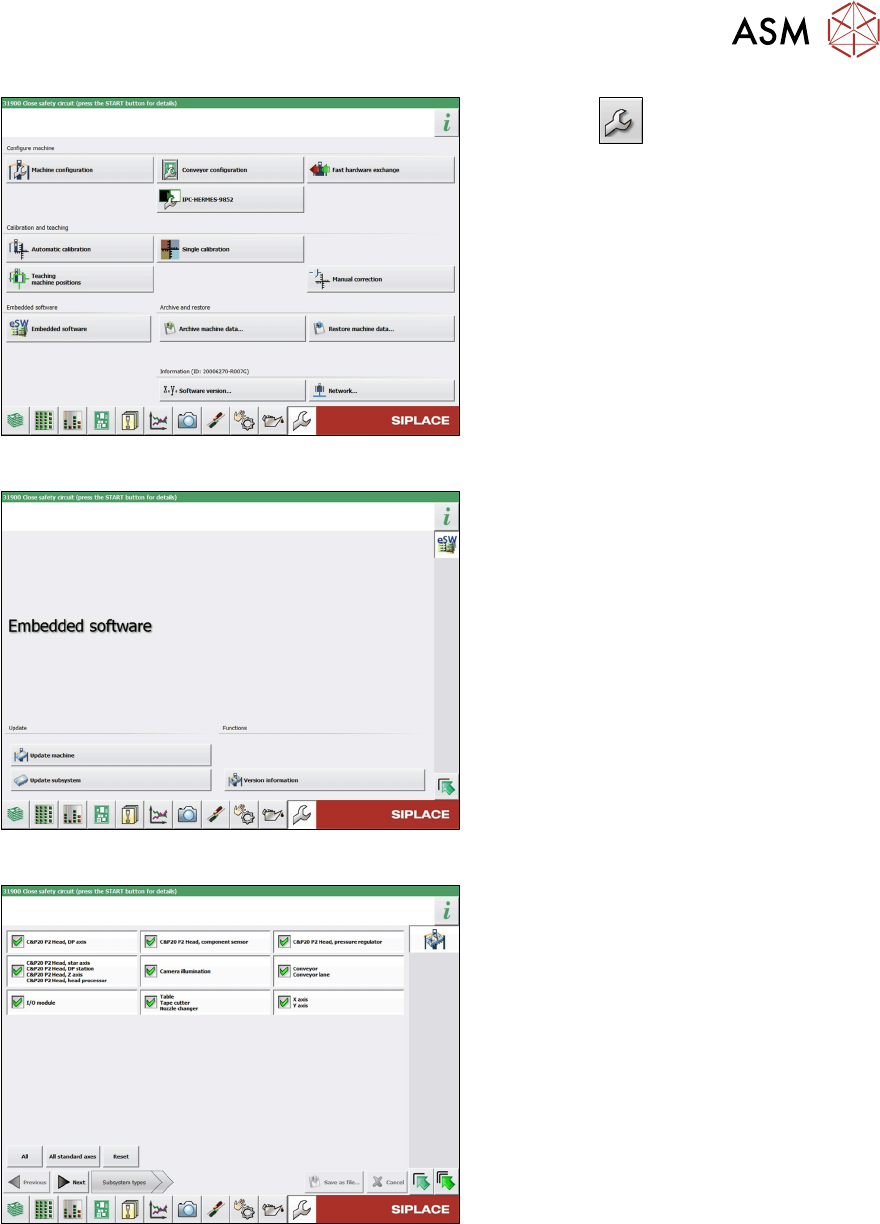
Fig.52: Service menu
► Click the button to enter the Ser-
vice menu.
► Click on the Embedded software but-
ton.
Fig.53: Embedded software menu
Select the required function:
► Click on Update machine… to check
the entire machine and to perform an
eSW download for multiple subsystems
(see next picture).
► Click on Update subsystem… to se-
lect one subsystem, check and to per-
form an eSW download.
► Click on the button Version informa-
tion…, to view all versions of the sub-
systems, BIOS, application 1/2/3/5.
Fig.54: Select subsystem
► Select the subsystem for the eSW
download.
► Click on the Continue button.
3 Fitting the Gantry
3.6 Final Work
114 Assembly Instructions / Montageanleitung SIPLACE SX1/SX2 V3 Gantry Modularity Portalmodularität 05/2020
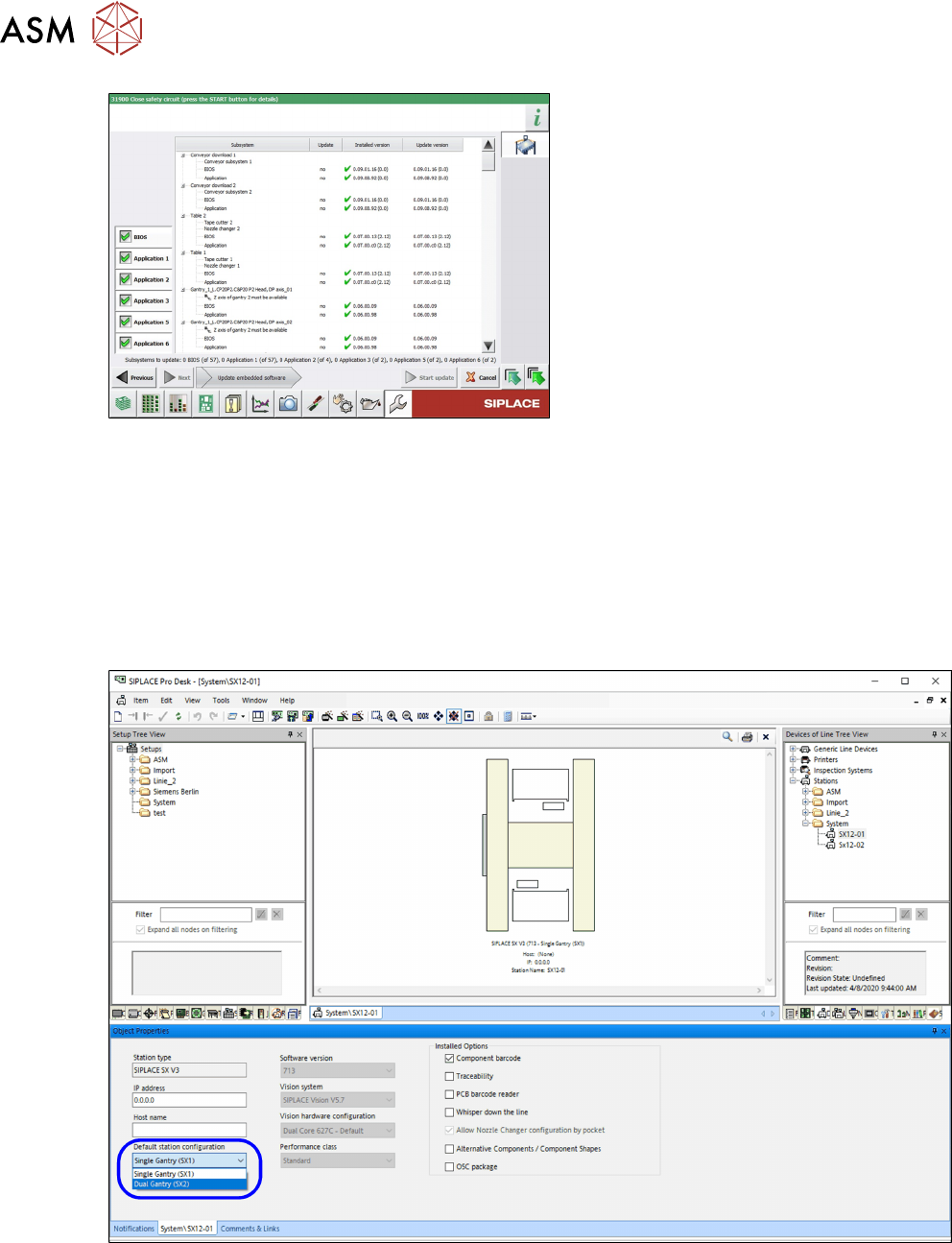
Fig.55: Update machine menu
●
On the left, you can see the selection
buttons:
BIOS
Application 1
Application 2
Application 3
....
●
The large main area in the center
shows the status of the individual sub-
systems.
The lower edge of the main area shows
how many subsystems must still be
downloaded.
●
The button Start update starts the
download
3.6.7 Modifications in SIPLACE Pro
Station
The SX machine type has to be configured in the Station Editor. At the standard station configura-
tion either Single gantry (SX1) or Double gantry (SX2) can be selected.
The new machine configurations are automatically used for new setups.
After a hardware change adequate modifications have to be made in SIPLACE Pro.
Fig.56: Station configuration setting Single gantry (SX1) or Double gantry (SX2)
Setups
The new gantry configuration of the station configuration is used automatically when new setups
are created.
If the existing setups are to be used in the future then each setup must be changed to match the
gantry configuration.