PSV5000_OwnersManual.pdf - 第134页
Maint enance ■ Handler C omp uter - 130 - Data I/O ■ 096 - 046 5 - 00 1C Install ing C H700 Softwar e Updat es CH7 00 Software upda tes are periodicall y publis hed wi th impr ovem ents. Deliv ery de pends on c ontract o…
Handler Computer Handler Computer Air Filter
PSV5000 Owner’s Manual - 129 -
Handler Computer
The main PSV5000 Machine computer, or Handler Computer, is at the
left side of the machine and requires little maintenance.
Handler Computer Air Filter
The Handler Computer has an air filter that requires periodic cleaning or
replacing.
To remove the air filter:
1. Properly shut off the PSV5000 sub-systems and machine power. See
Shutting Down the PSV5000 System on page 38.
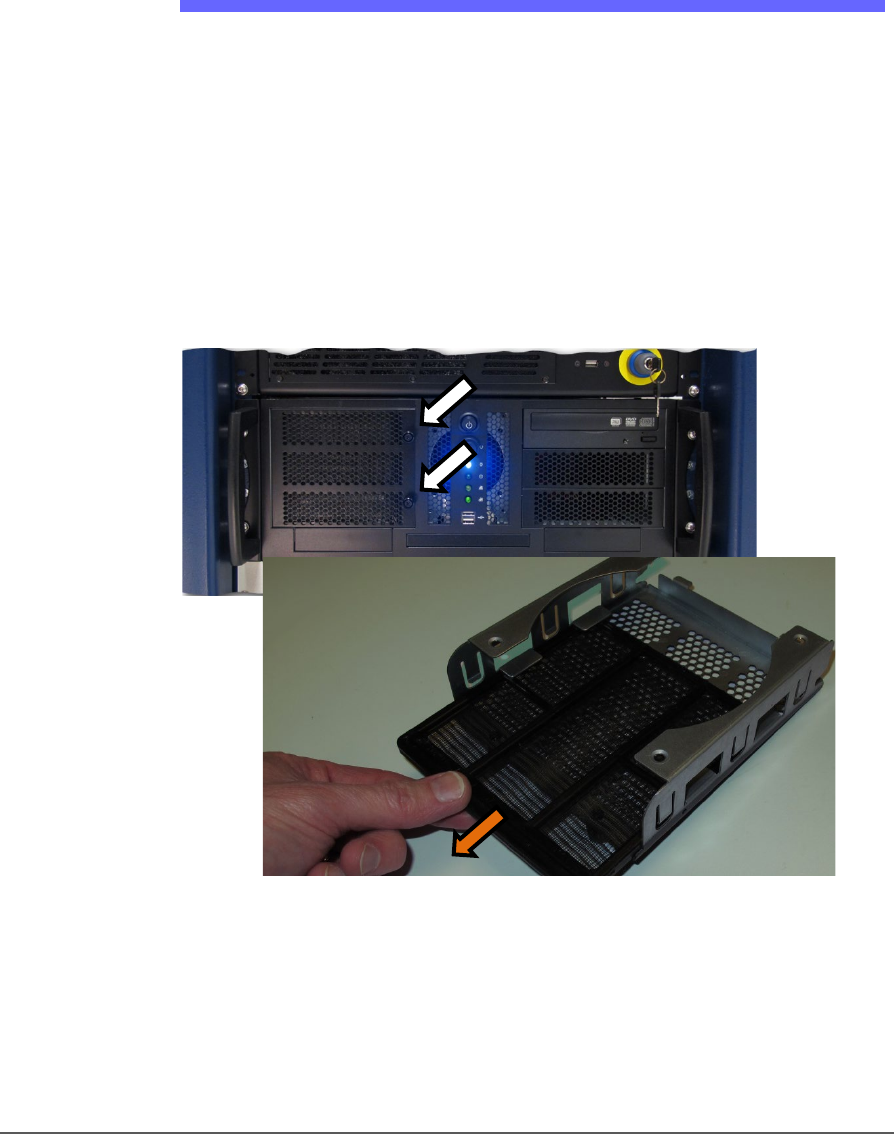
2. Open the filter door by unscrewing the two knurled knobs. The
Handler Computer filter door has two knurled knobs (white arrows).
The filter (screen) slides out.
Figure 79: The Handler Computer filter door has two knurled knobs
(white arrows). The filter (screen) slides out.
3. Open the filter door or lift it out.
4. Pull out the filter tray out of the door.
5. Clean filter as necessary such as with a light-duty vacuum.

Maintenance ■ Handler Computer
- 130 - Data I/O ■ 096-0465-001C
Installing CH700 Software Updates
CH700 Software updates are periodically published with improvements.
Delivery depends on contract options.
To install new CH700 Updates on the Handler Computer, insert the
CH700 CD and follow instructions in the Instructions.rtf
file.
NOTE: Your existing
winAH400.ini
will not be replaced so all your settings
will remain the same.
NOTE: Updating TaskLink (FC) and Job Runner or Job Creator (LX) require
different CDs than the CH700 updates. For more information, see the
online Help for TaskLink or Job Runner or Job Creator.
NOTE: PSV5000 System algorithms are updated periodically and are
available depending on your maintenance plan. For more information
about update kits or the support agreement plan go to
http://www.dataio.com/Support/Software-Firmware
Algorithms are updated via TaskLink (FC) and Job Creator (LX). For more
information see TaskLink Help or Job Creator Help. To search for specific
device support visit our Device Search web page:
www.dataio.com/Support/Device-Support/Device-Search
An
APS
is our
Annual
Programmer
Support
Agreement.

Troubleshooting Common Error Messages
PSV5000 Owner’s Manual - 131 -
Troubleshooting
This section contains solutions to problems that may arise during
operation of the PSV5000.
Troubleshooting for the Tape Output System is covered in a separate
heading; see Tape Output System Maintenance on page 140.
Also, see PSV5000 on-screen Help for a more detailed Troubleshooting
chart.
HEADINGS BELOW COVER THESE TOPICS:
Common Error Messages
Collect all PSV5000 System Logs on page 133
Programming Problems on page 133
Pick and Place Problems on page 137
Air Pressure Problems on page 138
Tray Feeder Problems on page 139
Handler Computer Failure on page 139
Common Error Messages
Lamp Color Error Messages Possible Resolution
Red
• Cannot connect to the
motion controller.
• Check that both Emergency Stop buttons are
OFF.
• Check that all safety doors are closed.
• Properly shut down the PSV5000 Machine if
possible, and restart the system.
Red
• E-STOP
ACTIVATED but the
OK button is grayed
out (unavailable)
•
heck that both E-Stop buttons are
released.
• Check that all safety doors are closed.
• If a restart is necessary, press Ctrl + Alt + Del
on the keyboard