PSV5000_OwnersManual.pdf - 第72页
Ad minist rativ e F unctions ■ Admi nistrat or F unctions - 68 - Data I/O ■ 096 - 0465 - 00 1C 2e. After i t finishe s, verify that th e jo b pas sed the tests. Note: I f a programmer does not have a Socket Adapter, or a…

Administrator Functions ≡ (Optional) Do a First Article Test
PSV5000 Owner’s Manual - 67 -
3a. If the job passed the tests, in TaskLink Task Manager,
select the Task and click Duplicate. Enter a name and click
OK.
3b. Edit the Task so that it can be used on your PSV5000
System as follows:
I Select the Task,
II Click Edit,
III On the Task tab, use the Programming System
Type drop-down arrow to select PSV5000,
IV On the Handler Files tab, select (or create) a
Package File name,
V Click OK.
4. Run the duplicated Task on the PSV5000 System—
Note: If you have the option selected to Automatically Switch Programming
Systems, (System > Options > Automatically Switch ...) then you can skip
the next step.
4a. Close Task Manager and change the programming system
to PSV5000 System (System > Select Programming
System). Re-open the Task Manager.
4b. Select the duplicated job and click Run.
Note: The Package File must be taught if it is new.
TEST AFTER CREATING A PACKAGE FILE
After a Package File is created (described in the next few headings) or it
already exists for this package type and job, then this first article test
method is best when your job includes Laser Marking.
1. Create the PSV5000 job—
1a. In TaskLink, create a new job for PSV5000 Systems.
1b. Click Run (or Load) in TaskLink to start the CH700.
2. Run one device—
2a. In CH700, click Start.
2b. In the Setup window, select media options as usual.
2c. At the PSV5000 workspace set up the input and output
media as usual.
2d. Click Run > Run One.
Programmers that are
not used for a particular
job can be turned off in
the CH700 Start window.

Administrative Functions ■ Administrator Functions
- 68 - Data I/O ■ 096-0465-001C
2e. After it finishes, verify that the job passed the tests.
Note: If a programmer does not have a Socket Adapter, or an incorrect
Socket Adapter is installed, the programmer will automatically be
disabled.
(Optional) Setting TaskLink to Operator Mode
Options to add, remove, and edit Tasks are found in TaskLink’s Task
Manager Dialog when in Administrator Mode (the default). You can set
TaskLink to Operator Mode which limits actions to running and viewing
tasks in the Operator Dialog but not editing or deleting Tasks, Kits, or
Archived Jobs.
To switch between Operator Mode and Administrator Mode, see
TaskLink’s online Help.
Enhanced Yield Programming
1. Several selections on the Setup window > Options tab affect yield
that are not set in TaskLink. Administrators may wish to advise
operators regarding the setting of the Continuity Retries field and
the Fail Retries field.
2. [Automotive Performance Pak only] Optional: Determine if any of
the five utilities available with the AP Pak are required for this job.
They must be set in the CH700 Setup window > Options tab.
3. Set security rights for each operator that you do—and do
not—authorize to make AP Pak changes. Changes to User Rights
are made in the Security Dialog.
Note: Only installed options are available for selection on the Options tab.
If different input media (tape or tray) is desired, the winAH400.ini file may
need to be edited. See the online Help for instructions editing the
WinAH400.int file or contact Data I/O support or an authorized technician.
Dry Run (Ignore Programmers)
(Optional) If you want to do a Dry Run or transfer devices from input
media to output media with no programming, click Ignore Programmers
so it is ON (green); the PNP head will not stop at the programmers. Laser
For more information
about Security see
Creating Security
Profiles on page 65.
For more information
on the AP Pak, see the
CH700 on-screen
Help.
Administrator Functions ≡ Teaching the Workspace Locations
PSV5000 Owner’s Manual - 69 -
marking can be used with Ignore Programmers turned ON. The default is
Off.
Note: Set security rights for each operator to use—or not use—the Ignore
Programmers option. Changes to User Rights are made in the Security
Dialog.
Teaching the Workspace Locations
The Package File is a text file containing calibration information that the
PNP head uses to properly pick, rotate and place devices.
After your new Package File is taught, it will contain information about
the specific device package and Socket Adapter as well as the number of
programmers, input and output media, and optional equipment such as
laser marking, if applicable.
A Package File must be created for each device that uses a different
Socket Adapter. If a Package File already exists that can be reused (same
device package, same Socket Adapter, and same input/output media) a
new one is not necessary.
PREREQUISITES
• A Task and a Package File must exist. For more information, see
topics above.
• A primary device has been selected.
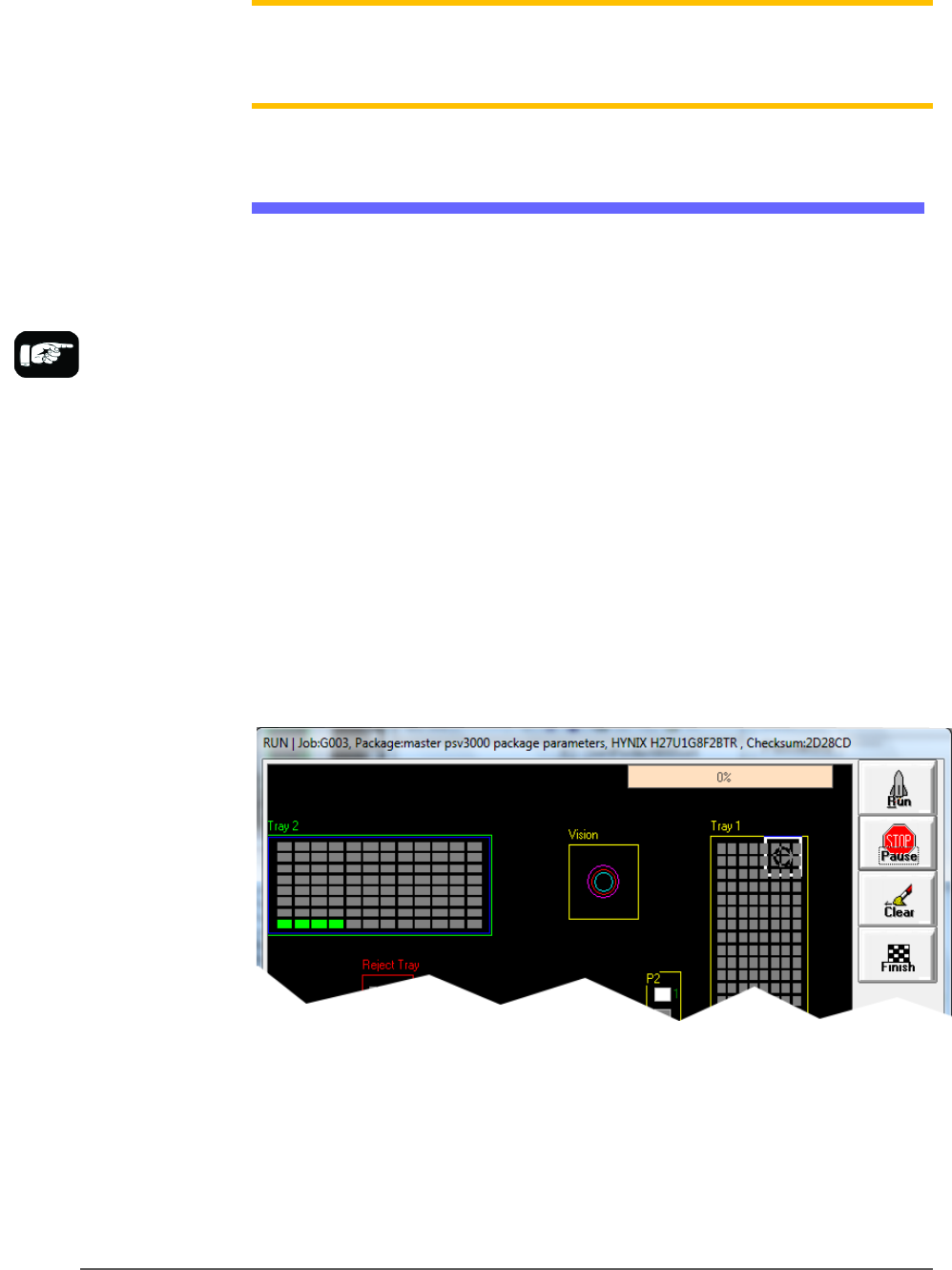
Figure 37: Run window shown with static Trays.
TO TEACH LOCATIONS
1. Run the job in TaskLink/Job Creator/Job Runner that uses your
new (renamed) Package File.
1a. Select a Task/Job and click Run.
Package Files reside in
the Handler Computer in
Folder
C:\CH700\Package..