PSV5000_OwnersManual.pdf - 第74页
Ad minist rativ e F unctions ■ Admi nistrat or F unctions - 70 - Data I/O ■ 096 - 0465 - 00 1C 1b. Wh en the CH 700 Appl ication open s , click Star t . 1c. A t the Setup win dow, make set up selections. 1d. Cli ck Syste…
Administrator Functions ≡ Teaching the Workspace Locations
PSV5000 Owner’s Manual - 69 -
marking can be used with Ignore Programmers turned ON. The default is
Off.
Note: Set security rights for each operator to use—or not use—the Ignore
Programmers option. Changes to User Rights are made in the Security
Dialog.
Teaching the Workspace Locations
The Package File is a text file containing calibration information that the
PNP head uses to properly pick, rotate and place devices.
After your new Package File is taught, it will contain information about
the specific device package and Socket Adapter as well as the number of
programmers, input and output media, and optional equipment such as
laser marking, if applicable.
A Package File must be created for each device that uses a different
Socket Adapter. If a Package File already exists that can be reused (same
device package, same Socket Adapter, and same input/output media) a
new one is not necessary.
PREREQUISITES
• A Task and a Package File must exist. For more information, see
topics above.
• A primary device has been selected.
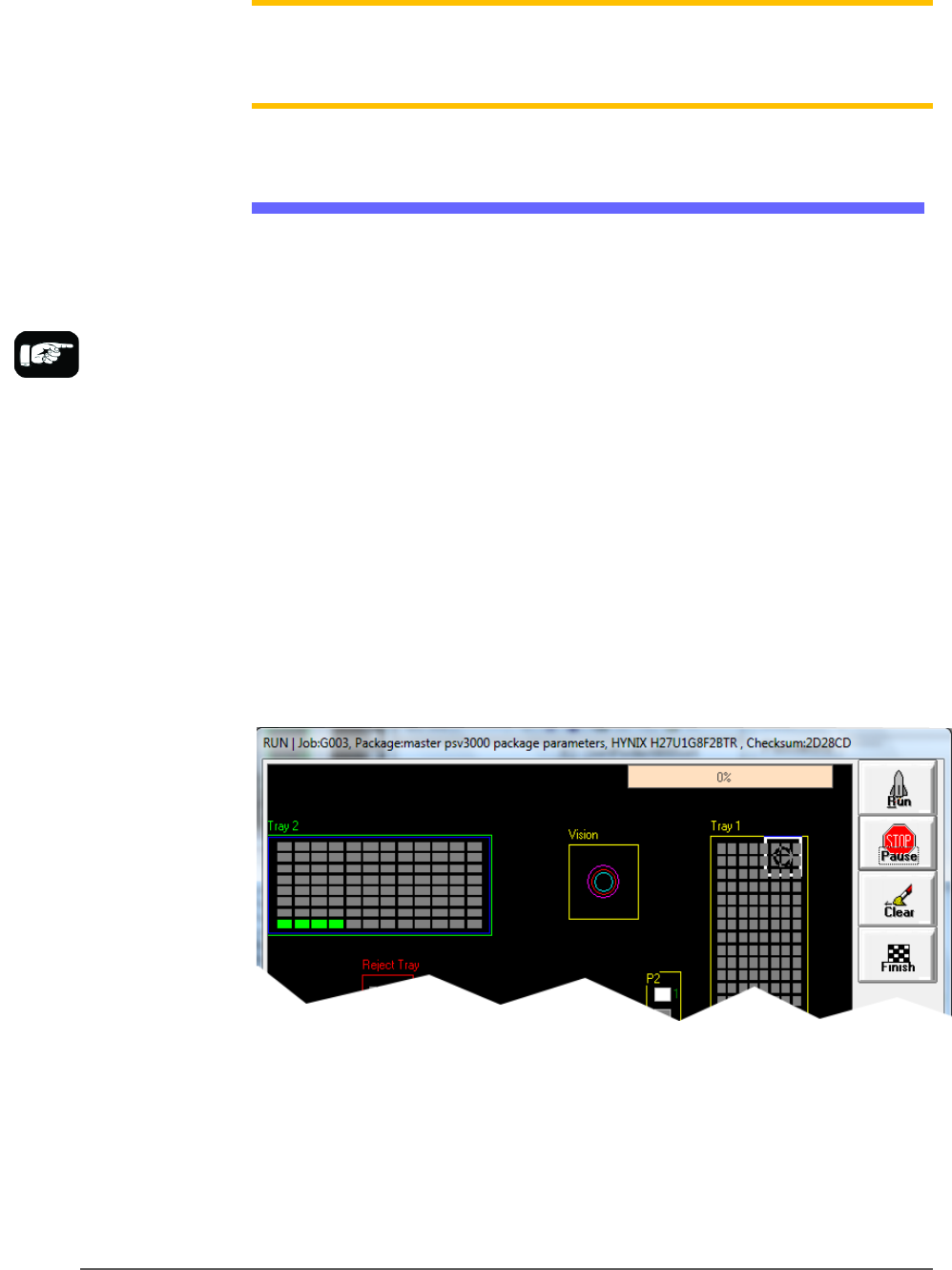
Figure 37: Run window shown with static Trays.
TO TEACH LOCATIONS
1. Run the job in TaskLink/Job Creator/Job Runner that uses your
new (renamed) Package File.
1a. Select a Task/Job and click Run.
Package Files reside in
the Handler Computer in
Folder
C:\CH700\Package..
Administrative Functions ■ Administrator Functions
- 70 - Data I/O ■ 096-0465-001C
1b. When the CH700 Application opens, click Start.
1c. At the Setup window, make setup selections.
1d. Click System > Gantry. A password may be required—refer to
Creating Security Profiles on page 65.
2. To continue, see the CH700 on-screen Help (Teaching Locations >
Printable list of the steps). It covers teaching workspace locations for
all media options.
Note: The PSV5000 System can have static trays or a Tray Feeder.
Teaching tray locations is the same for both.
ERRORS
Please Refer to CH700 on-screen Help. In the Help table of contents click
Browse Sequences->Create a Package File->Errors Creating the Package File.
Optimize Movetimes
After the equipment locations are taught, you can optimize the
movement of the PNP head in the work envelope. This command (Get
Movetimes) calculates programming times versus head travel time to
decide the best PNP head path, especially effective when some
programmers are not used.
To get Movetimes:
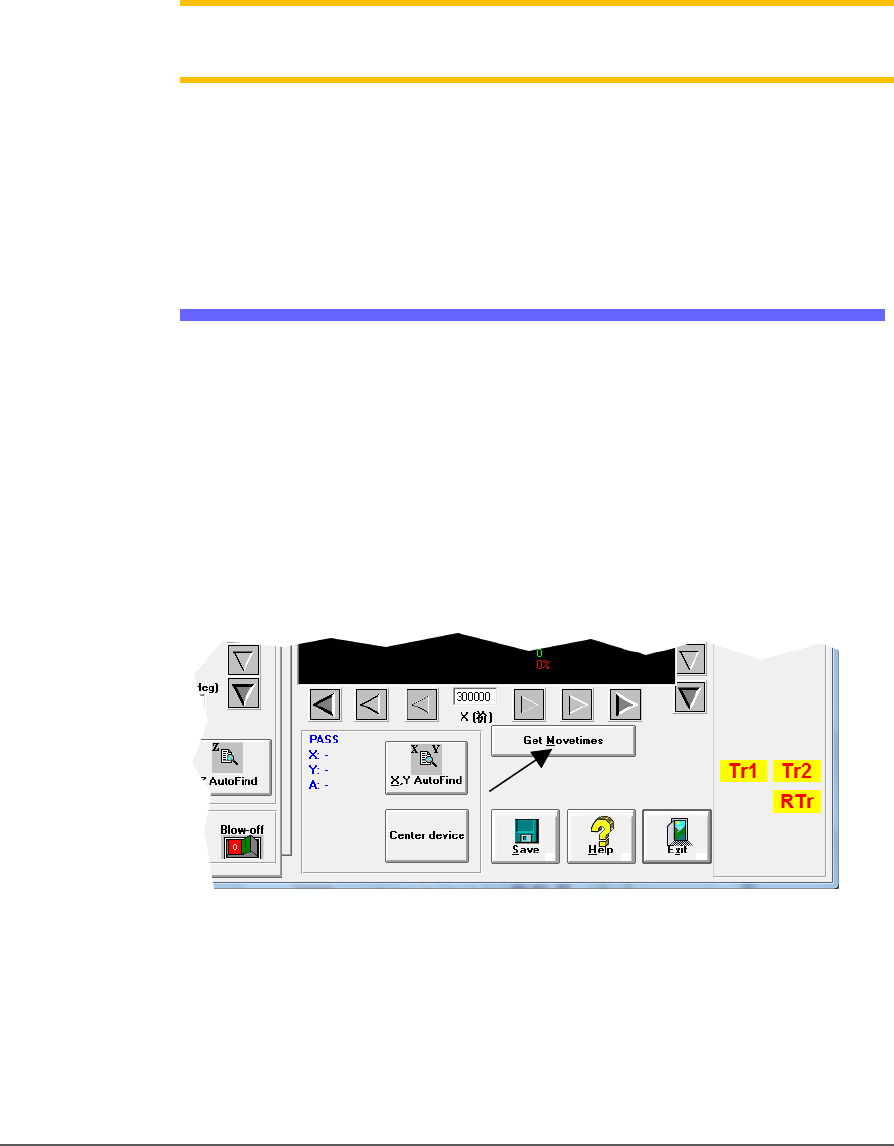
1. On the Gantry window, click Get Movetimes.
Figure 38: Click Get Movetimes to optimize head travel.
2. Click Yes when prompted to save positions.

Administrator Functions ≡ Monitoring Statistics
PSV5000 Owner’s Manual - 71 -
For turning ON
Sort-On-Error-Code in
the winAH400.ini file,
see the CH700 on-screen
Help.
For setting up
Sort-On-Error-Code see
TaskLink Help for
PSV5000.
Monitoring Statistics
Occasionally, the system administrator may require statistics for a group
of devices for a given job. This is easily accomplished using any of three
statistics tools described on the next pages:
• TaskLink’s Session Data Logging feature
• the CH700 Statistics window
• (optional) Statistical Process Control Software (customer-supplied)
• Sort-on-Error-Code separates devices that fail specific, customer
specified processes.
In addition, Data I/O offers additional utilities for enhancing yield and
reducing errors. These include the Automotive Performance Pak (see page
89) and several other software packages and hardware such as Factory
Integration Software (FIS) and Serial Number Server (SNS).
TASKLINK SESSION DATA LOGGING
For complete instructions on enabling and using TaskLink’s Session
Data Logging option, see TaskLink online Help.
CH700 STATISTICS WINDOW
The PSV5000 software called CH700 provides statistics that include:
devices programmed successfully, continuity failures, and verify failures.
To view programming statistics using the CH700 software:
1. At either the Setup window or at the Run window, click Statistics.
2. Select either Package Type or Job Statistics from the drop-down
field in the upper left corner.