PSV5000_OwnersManual.pdf - 第76页
Ad minist rativ e F unctions ■ Admi nistrat or F unctions - 72 - Data I/O ■ 096 - 0465 - 00 1C * For Flash CORE, o nly HIC Soc k et Ada pt ers and HPS S ock et Ada pt ers ar e designed to accommo date replacem ent of ind…

Administrator Functions ≡ Monitoring Statistics
PSV5000 Owner’s Manual - 71 -
For turning ON
Sort-On-Error-Code in
the winAH400.ini file,
see the CH700 on-screen
Help.
For setting up
Sort-On-Error-Code see
TaskLink Help for
PSV5000.
Monitoring Statistics
Occasionally, the system administrator may require statistics for a group
of devices for a given job. This is easily accomplished using any of three
statistics tools described on the next pages:
• TaskLink’s Session Data Logging feature
• the CH700 Statistics window
• (optional) Statistical Process Control Software (customer-supplied)
• Sort-on-Error-Code separates devices that fail specific, customer
specified processes.
In addition, Data I/O offers additional utilities for enhancing yield and
reducing errors. These include the Automotive Performance Pak (see page
89) and several other software packages and hardware such as Factory
Integration Software (FIS) and Serial Number Server (SNS).
TASKLINK SESSION DATA LOGGING
For complete instructions on enabling and using TaskLink’s Session
Data Logging option, see TaskLink online Help.
CH700 STATISTICS WINDOW
The PSV5000 software called CH700 provides statistics that include:
devices programmed successfully, continuity failures, and verify failures.
To view programming statistics using the CH700 software:
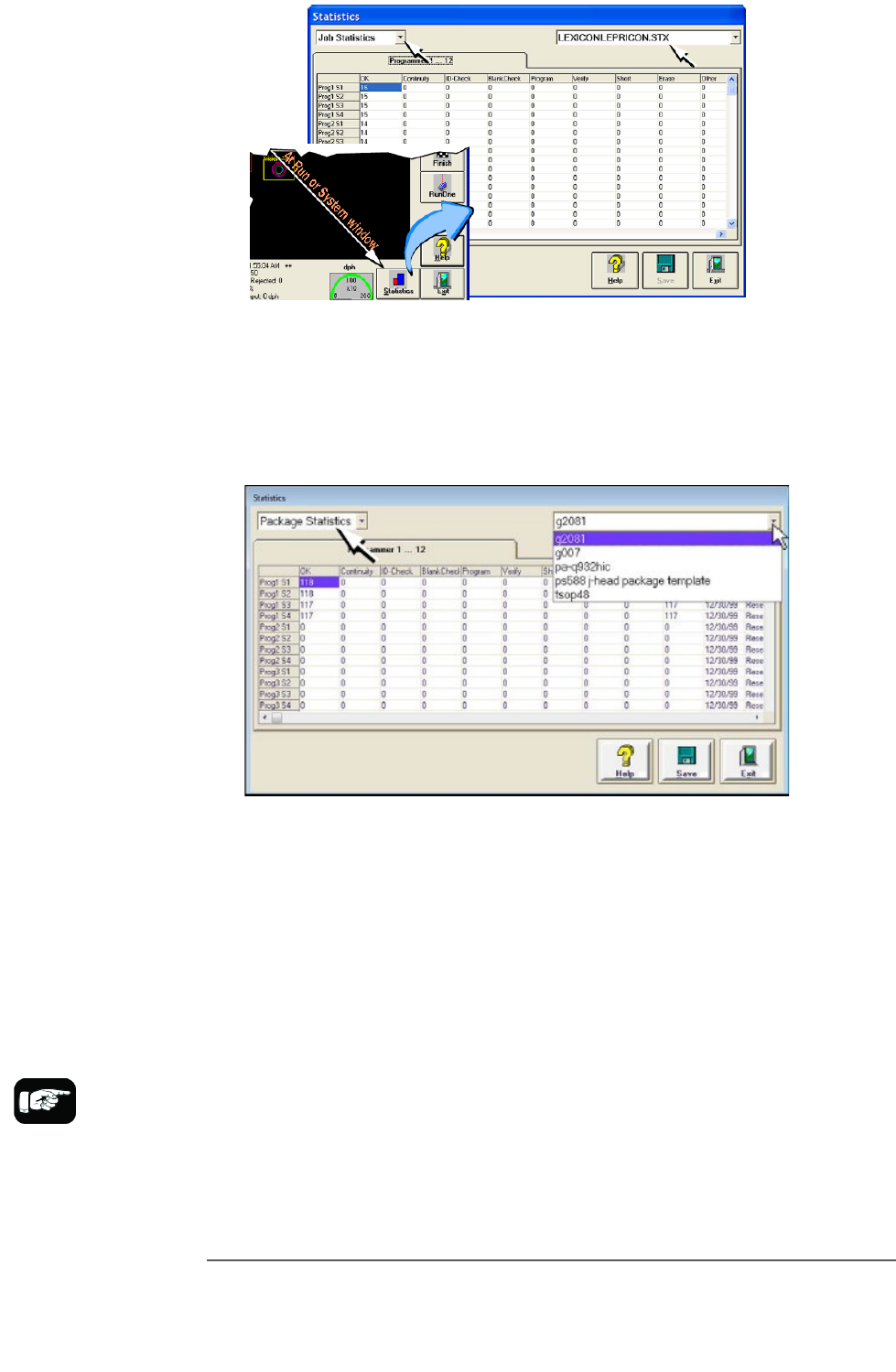
1. At either the Setup window or at the Run window, click Statistics.
2. Select either Package Type or Job Statistics from the drop-down
field in the upper left corner.
Administrative Functions ■ Administrator Functions
- 72 - Data I/O ■ 096-0465-001C
*For FlashCORE, only
HIC Socket Adapters and
HPS Socket Adapters are
designed to
accommodate
replacement of
individual sockets on the
adapter board.
For LumenX, Socket
Adapters only have one
socket.
Figure 39: At the Statistics window, the Job Statistic file can be
viewed (Jobname.stx) as shown. When Job Statistics is selected,
Pass/Fail criteria are logged for each individual socket and
programmer listed in the left column.
Figure 40: At the Package Statistics window, statistic can be
viewed by Package Type (PackageType.sts).
RESETTING PACKAGE STATISTICS
The Package statistics displayed correspond to the Package File and
therefore to the Socket Adapter used. When a Socket Adapter is replaced
on a programmer, statistics for that Socket Adapter must be reset.
To reset Package statistics:
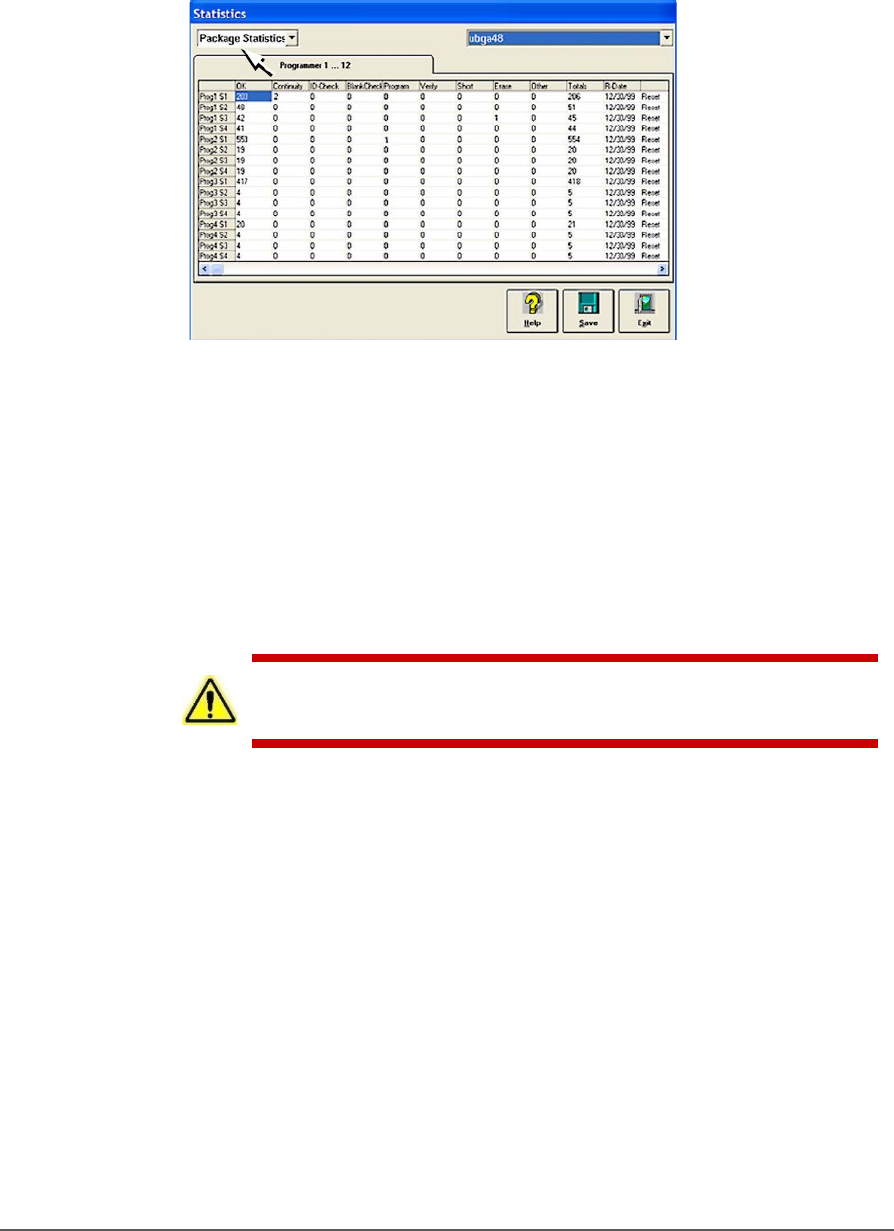
1. In the Statistics window, select Package Statistics in the drop-down
field in the upper left corner. Refer to the image below.
1. Click Reset in the right-most column corresponding to the
programmer on which the Socket Adapter was replaced.
• For example, if a Socket Adapter was replaced, reset all rows for
that programmer.
Administrator Functions ≡ Monitoring Statistics
PSV5000 Owner’s Manual - 73 -
• If an individual socket was replaced*, reset only the row
corresponding to the replaced socket.
The R-date (reset date) is set to the current date and statistics are all
reset to zero.
Figure 41: Resetting Package statistics. Open the Statistics
window from either the Setup window or the Run window.
STATISTICAL PROCESS CONTROL SOFTWARE
The CH700 can be set to generate a semicolon-delimited file whose fields
are described on the next page. A (customer-supplied) Statistical Control
SW can be used to import and process data output by the CH700. Or use
Data I/O’s Enhanced Statistical Software that comes with the CH700;
refer to page 89.
CAUTION: File corruption hazard! Before making any changes to your
winAH400.ini file, save a backup copy.
To generate a semicolon-delimited output file:
1. On the Handler Computer, navigate to C:\CH700 and open
winAH400.ini (with Microsoft® Notepad or IDM Computer
Solutions’s UltraEdit®).
2. Locate the section for SPC Logging. It will look like this:
[SPC Logging]
LoggingEnabled=FALSE
MaxFileSize=10485760
TempLogFile=C:\spcout.txt
3. Set the second line (LoggingEnabled) to TRUE.
4. (Optional) Edit the location of the output file at the line
“TempLogFile=...” entering the drive and path desired.
5. Save and close winAH400.ini.