PSV5000_OwnersManual.pdf - 第88页
Ad minist rativ e F unctions ■ Mark ing Option - 84 - Data I/O ■ 096 - 0465 - 0 0 1C Creatin g a La ser Marking File Laser graphi cs used to mar k devices are gener ated using t he Marking Mate s oftware inclu ded with t…
Marking Option ≡ Installing the Laser Shuttle Module
PSV5000 Owner’s Manual - 83 -
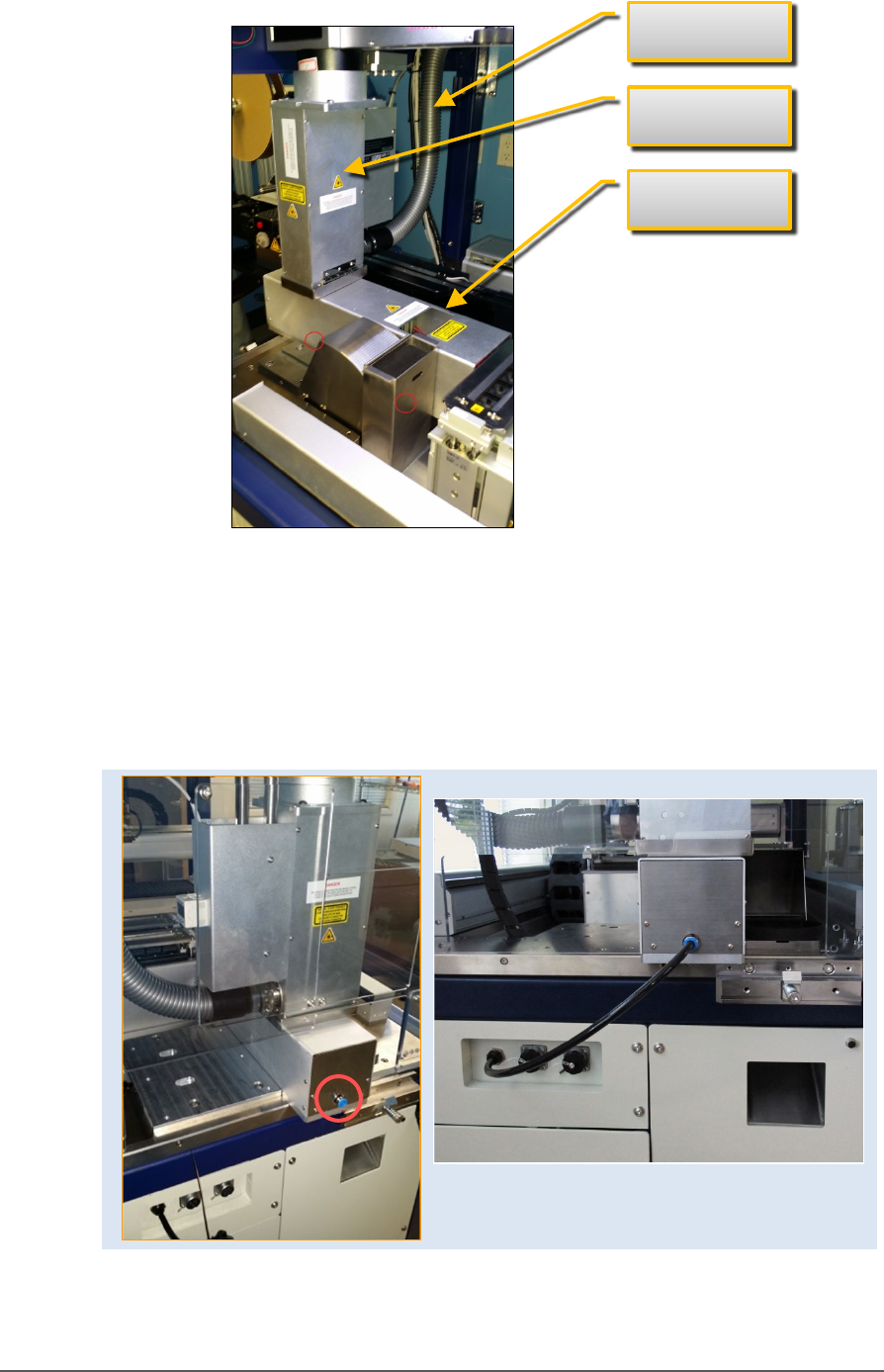
Figure 47: Laser Shuttle fasteners are on the underside at
approximately the two circled locations (near side only shown).
4. Connect the air tube to the machine, two connectors are shown
below.
5. Connect the communications cable to the left side of the machine.
Figure 48: Left: the Laser Shuttle air connection (circled). Right:
connected.
Laser safety
shield
Laser Shuttle
Laser Exhaust

Administrative Functions ■ Marking Option
- 84 - Data I/O ■ 096-0465-001C
Creating a Laser Marking File
Laser graphics used to mark devices are generated using the
MarkingMate software included with the Laser Option. It resides in the
Laser Computer. Any style of marking (whether text-based,
graphic-based, or both) can be generated and used for marking devices.
The only limitation is the size of the device to be marked.
NOTE: For instructions creating an image file for the Laser System, see:
• the Laser_Configuration_And_Operation.pdf (customer letter
983-5075-001A.pdf) on the Handler PC if your programmer was ordered
with the laser option, or see the software operation disc for the
MarkingMate software.
• the CH700 on-screen Help topic Setting up and Teaching > Create a
Laser Marking File.
Verifying Proper Laser Operation
WARNING: Possible health hazard from toxic fumes! Laser marking
generates vapors, fumes, and particles that can be noxious, toxic. Follow
maintenance procedures. Use proper ventilation.
REQUIREMENTS
• An image file is in the MarkingMate SW application.
To verify that the laser is marking as expected:
1. Put one device on the expected marking position.
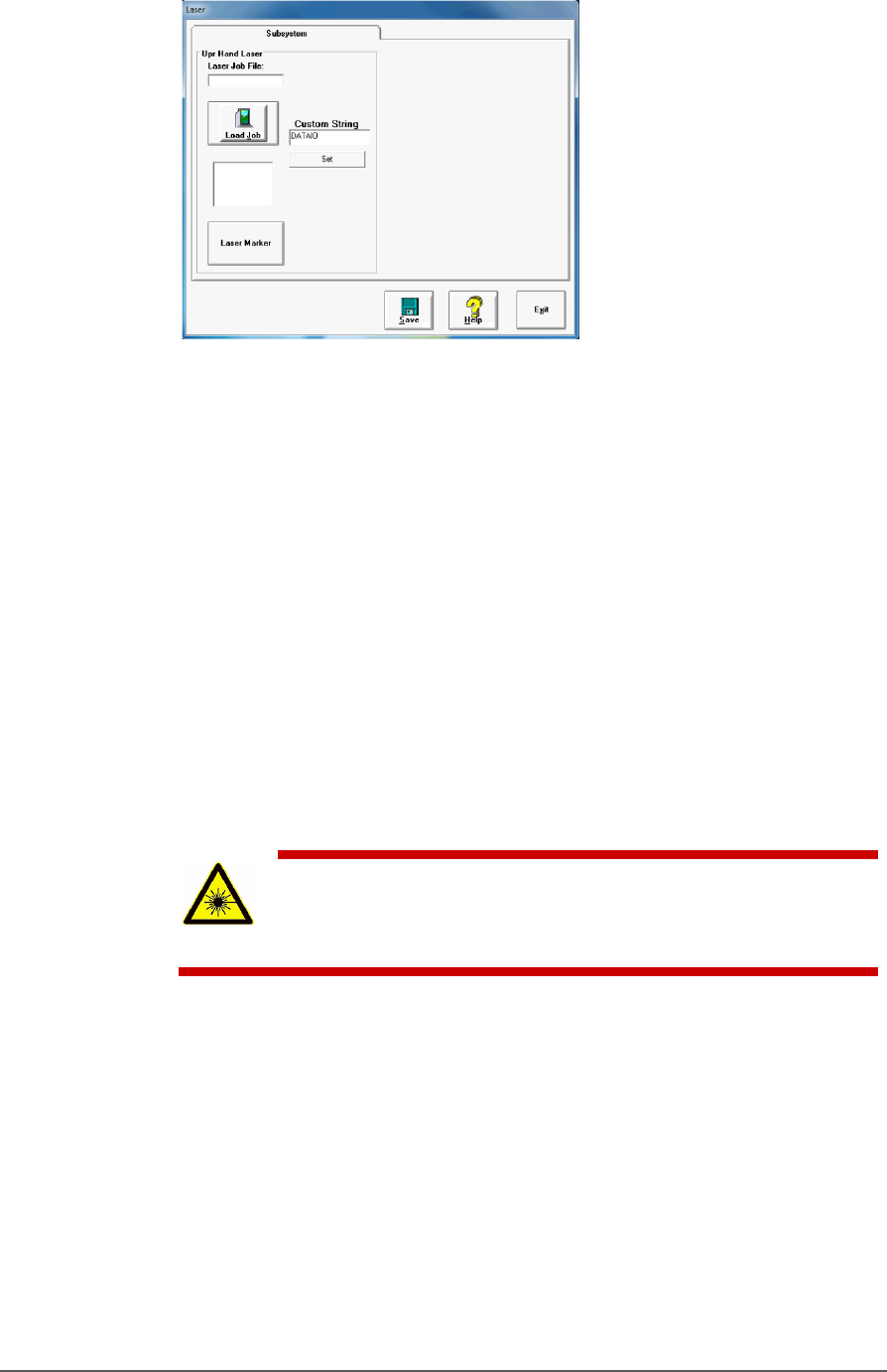
2. At the Laser window, click Laser Marker. This device will be marked.
Marking Option ≡ Verifying Proper Laser Operation
PSV5000 Owner’s Manual - 85 -
Figure 49: Laser Form in CH700
3. Verify that the marking graphic placement on the device is as
desired. If not, adjust the laser file in the UpperHand application or
see the next heading on troubleshooting.
ALIGNING LASER MARKING
REQUIREMENTS
• Two people
• An image file is in the MarkingMate SW application. If the device is
not marked, check that the laser is aimed at the device correctly.
1. Stop any job that is running by clicking Finish on the Run window.
2. Turn off the Laser Switch in the Laser power control panel.
WARNING: Serious injury hazard to eyes and skin! Do not open
or work on the Laser Module when the Laser Switch is in the ON
position. Always make sure it is OFF.