00193910_Install_SQL2000Server_manual.pdf - 第7页
Installation of SQL Server 2000 Edition 10/2005 US The following dialog appea rs: 2 Fig. 3-2: The "Setup SQL Server 2000" dialog box → Click Install Database Server . The following dialog appea rs: 2 Fig. 3-3: …
Installation of SQL Server 2000 Edition 10/2005 US
3 Installation
3.1 Installation of SQL Server 2000
→ Please follow the instructions below for the manual installation of SQL Server 2000.
Note:
Close all other applications before you start with the installation of SQL Server 2000.
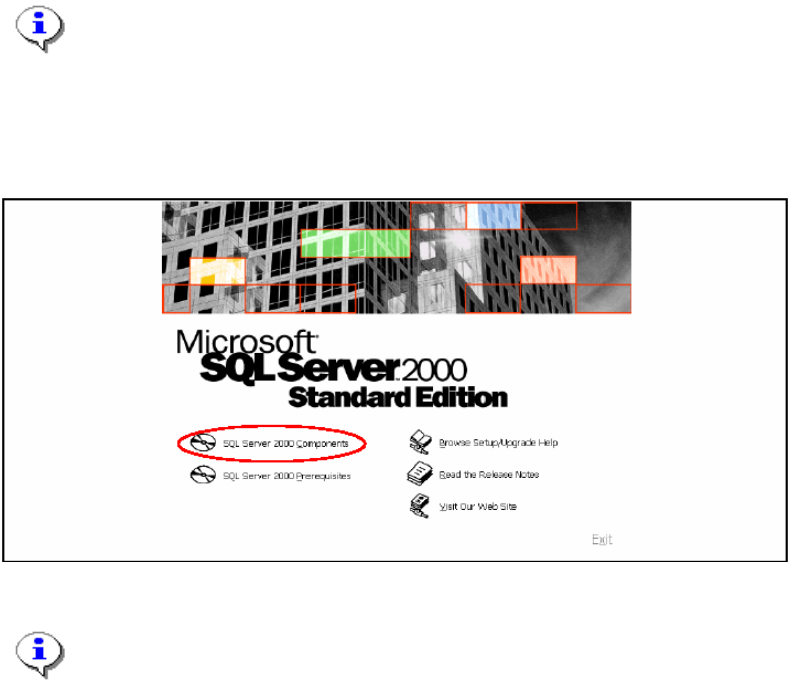
→ Insert the installation CD into the CD-ROM drive. Be sure to use the CD marked Standard Edition
and not Personal Edition.
The following dialog appears:
Fig. 3-1: The "Setup SQL Server 2000" dialog box
Note:
If the dialog will not appear click on windows main menu Start
Æ
Run and click the file
autorun.exe on the SQL Server 2000 installation CD.
→ Click SQL Server 2000 Components.
6 / 24
Installation of SQL Server 2000 Edition 10/2005 US
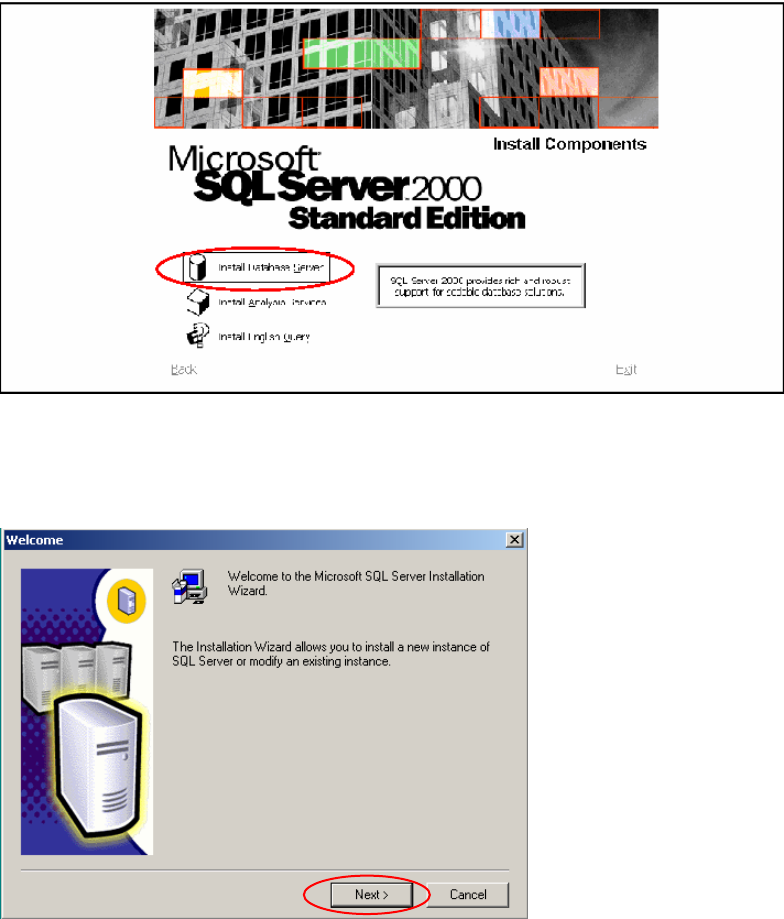
The following dialog appears:
2
Fig. 3-2: The "Setup SQL Server 2000" dialog box
→ Click Install Database Server.
The following dialog appears:
2
Fig. 3-3: Welcome dialog
→ Click the button Next >.
7 / 24
Installation of SQL Server 2000 Edition 10/2005 US
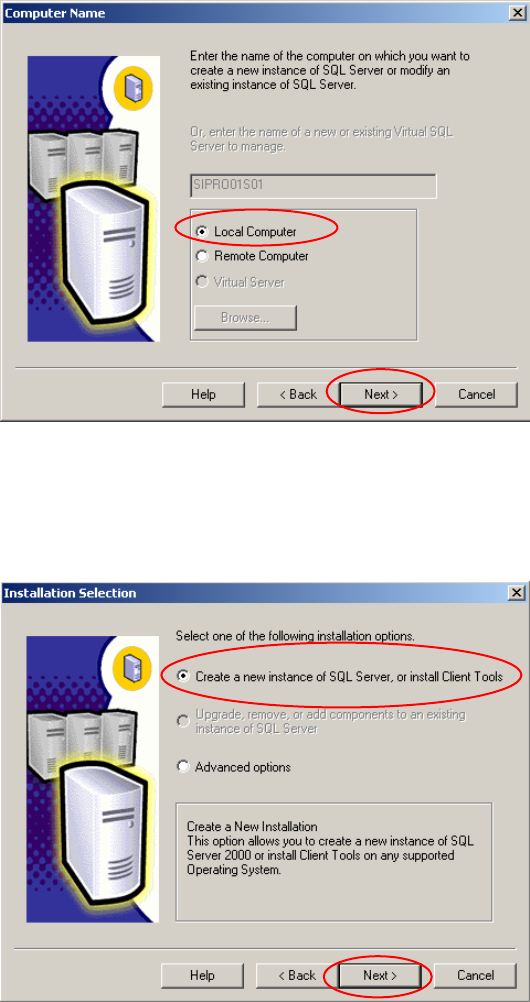
The following dialog appears:
8 / 24
Fig. 3-4: Computer Name
→ Select the radio button Local Computer.
→ Click the button Next >.
The following dialog appears:
Fig. 3-5: Installation Selection
→ Select the radio button Create a new instance of SQL Server, or install Client Tools.
→ Click the button Next >.