00191369-02.pdf - 第175页
User Manual HS-50 5 Single Functions Software Version S R.501.xx 12/99 Issue US 5.3 Single functions, Transpo rt 175 t I I t 5.3.1.1 Functions Ceramic subst. cent. 5 NOTE The ce ramic substr ate cen tering function can o…
5 Single Functions User Manual HS-50
5.3 Single functions, Transport Software Version SR.501.xx 12/99 Issue US
174
t IIt
5.3.1 "Transport functions" screen
The transport functions are used for checking and adjusting the functional modules of the board
conveying systems. 5
5
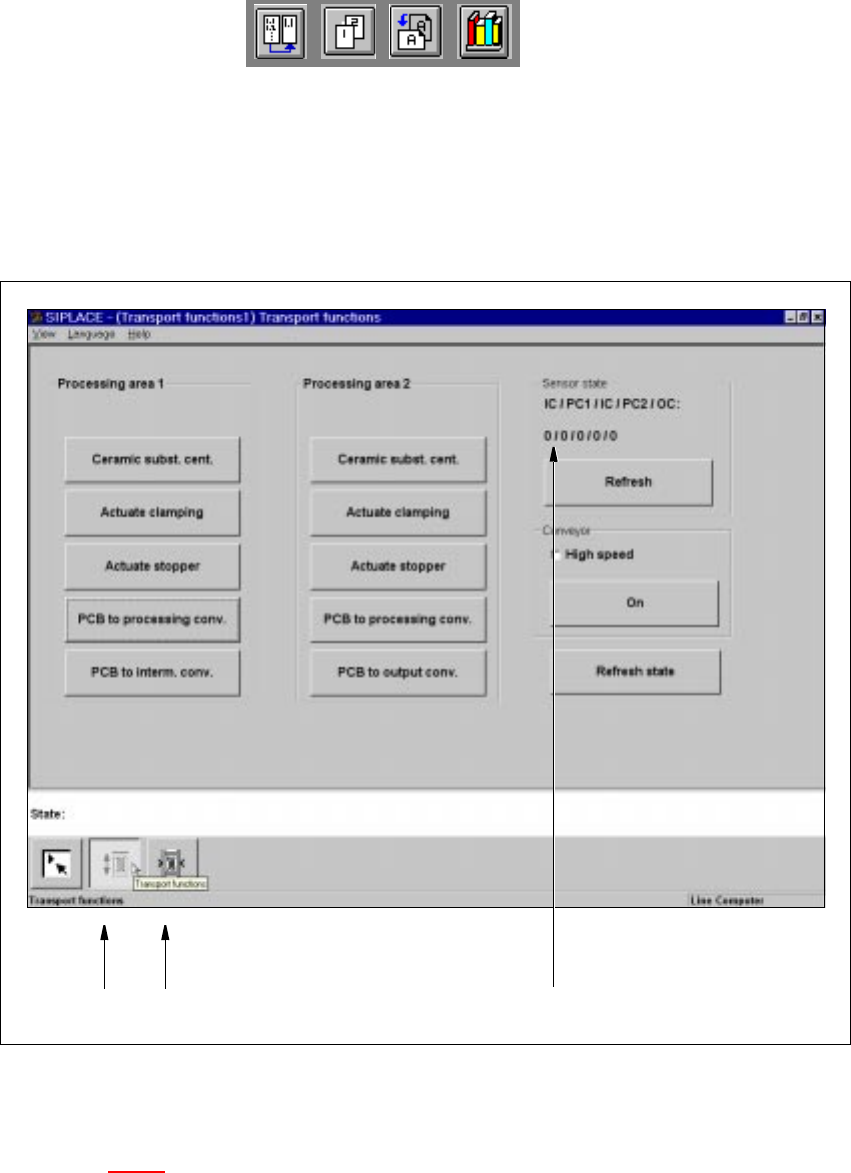
Fig. 5.3 - 1 "Transport functions" screen
Key to Fig. 5.3 - 1
(1) Functions for the board conveying systems
(2) Functions for adjusting the transport conveyor width
(3) Functions to display state of the ultrasonic sensors
5
5
12
3
User Manual HS-50 5 Single Functions
Software Version SR.501.xx 12/99 Issue US 5.3 Single functions, Transport
175
t IIt
5.3.1.1 Functions
Ceramic subst. cent. 5
NOTE
The ceramic substrate centering function can only be activated if the "Ceramic substrate centering"
option is installed and entered in the machine options. 5
This function can be found in both "Processing area 1" and "Processing area 2" and is used to
check the centering (clamping) of ceramic substrate for each of the processing conveyors.
Å Click the PCB to processing conv. button in "Processing area 1".
The ceramic substrate is moved to processing conveyor 1.
Å Click the Ceramic subst. cent. button in "Processing area 1".
The ceramic sustrate is centered (clamped).
Å Click the Ceramic subst. cent. button again.
The centering is released again.
Å Click the PCB to processing conv. in "Processing area 2".
The ceramic substrate is moved to processing conveyor 2.
Å Click the Ceramic subst. cent. button in "Processing area 2".
The ceramic sustrate is centered (clamped).
Å Click the Ceramic subst. cent. button again.
The centering is released again.
Actuate clamping 5
This function is available for both "Processing area 1" and "Processing area 2" and can be used to
check board clamping for the corresponding processing conveyors. 5
Å Use the PCB to processing conv. function in "Processing area 1" to move the board to
processing conveyor 1.
Å Click the Actuate clamping button in "Processing area 1".
The board is clamped to processing conveyor 1.
Å Click the Actuate clamping button again.
The clamping is released again.
Å Use the PCB to processing conv. function in "Processing area 2" to move the board to
processing conveyor 2 and check the board clamping for this area as described above.

5 Single Functions User Manual HS-50
5.3 Single functions, Transport Software Version SR.501.xx 12/99 Issue US
176
t IIt
Actuate stopper 5
This function is available in both "Processing area 1" and "Processing area 2" and can be used to
check the operation of each stopper as it is extended and then retracted. The function can be
executed either with or without a board.
Å Click the Actuate stopper button in "Processing area 1".
The stopper for processing conveyor 1 is extended and then returned to its original position.
Å Click the Actuate stopper button in "Processing area 2".
The stopper for processing conveyor 2 is extended and then returned to its original position.
PCB to processing conv. 5
This function is available in both "Processing area 1" and "Processing area 2" and can be used to
move a board which is on the input or intermediate conveyor to the appropriate processing con-
veyor, stop it there and clamp it. 5
Å Click the PCB to processing conv. button in "Processing area 1".
The board currently located on the input conveyor is moved to processing conveyor 1.
Å Click the PCB to processing conv. button in "Processing area 2".
The board currently located on the intermediate conveyor is moved to processing conveyor 2.
PCB to interm. conv. 5
This function is used to move a board from processing area 1 to the intermediate conveyor, to
stop it there and clamp it.
Å Click the PCB to interm. conv. button in "Processing area 1".
The board currently located on processing conveyor 1 is moved to the intermediate conveyor.
PCB to output conv. 5
This function is used to move a board currently in processing area 2 to the output conveyor. 5
Å Click the PCB to output conv. button in "Processing area 2".
The board currently located on processing conveyor 2 is moved to the output conveyor.