MAN00000772_SI-G200BB_SVCPDFA.pdf - 第13页
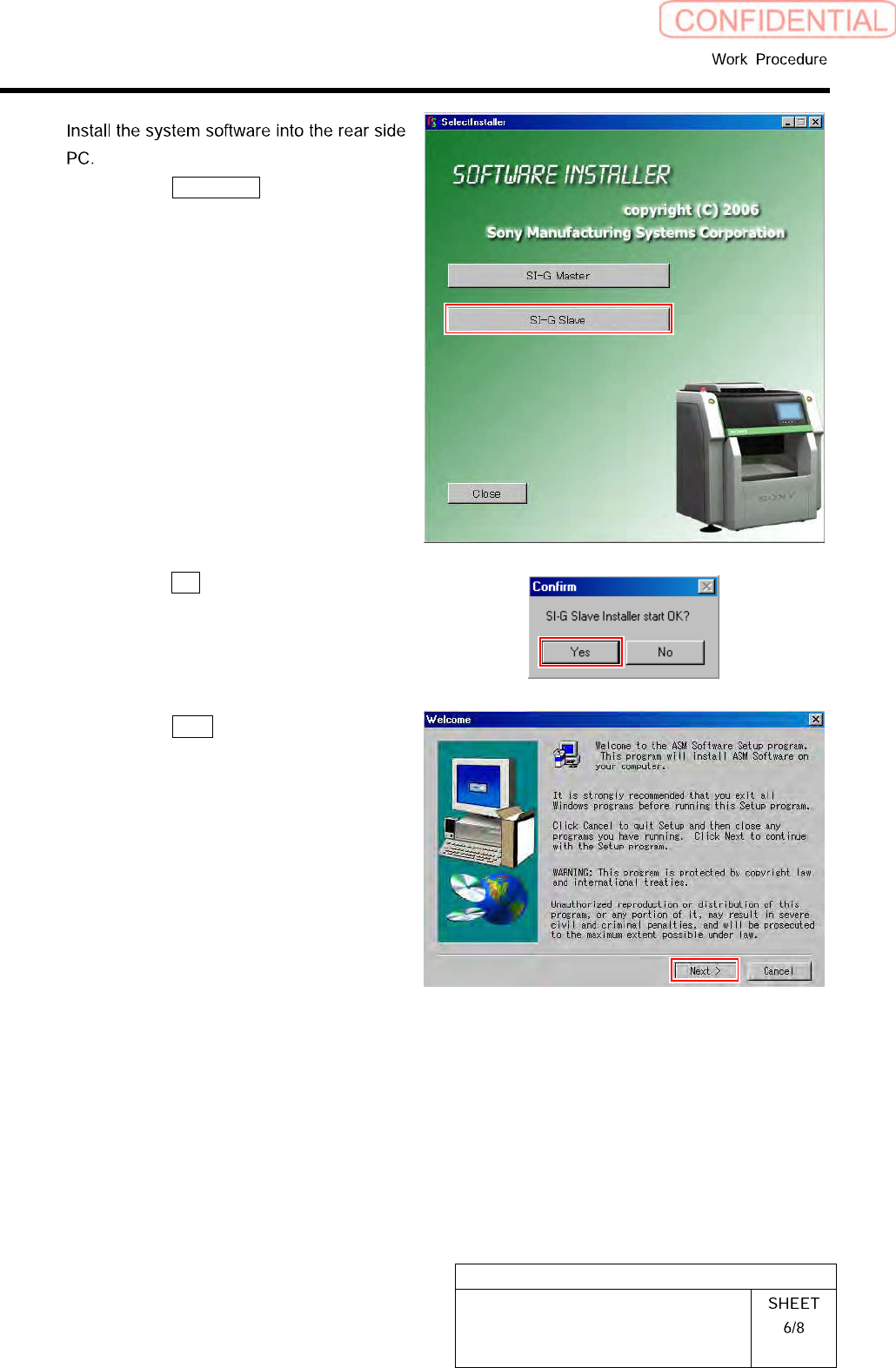
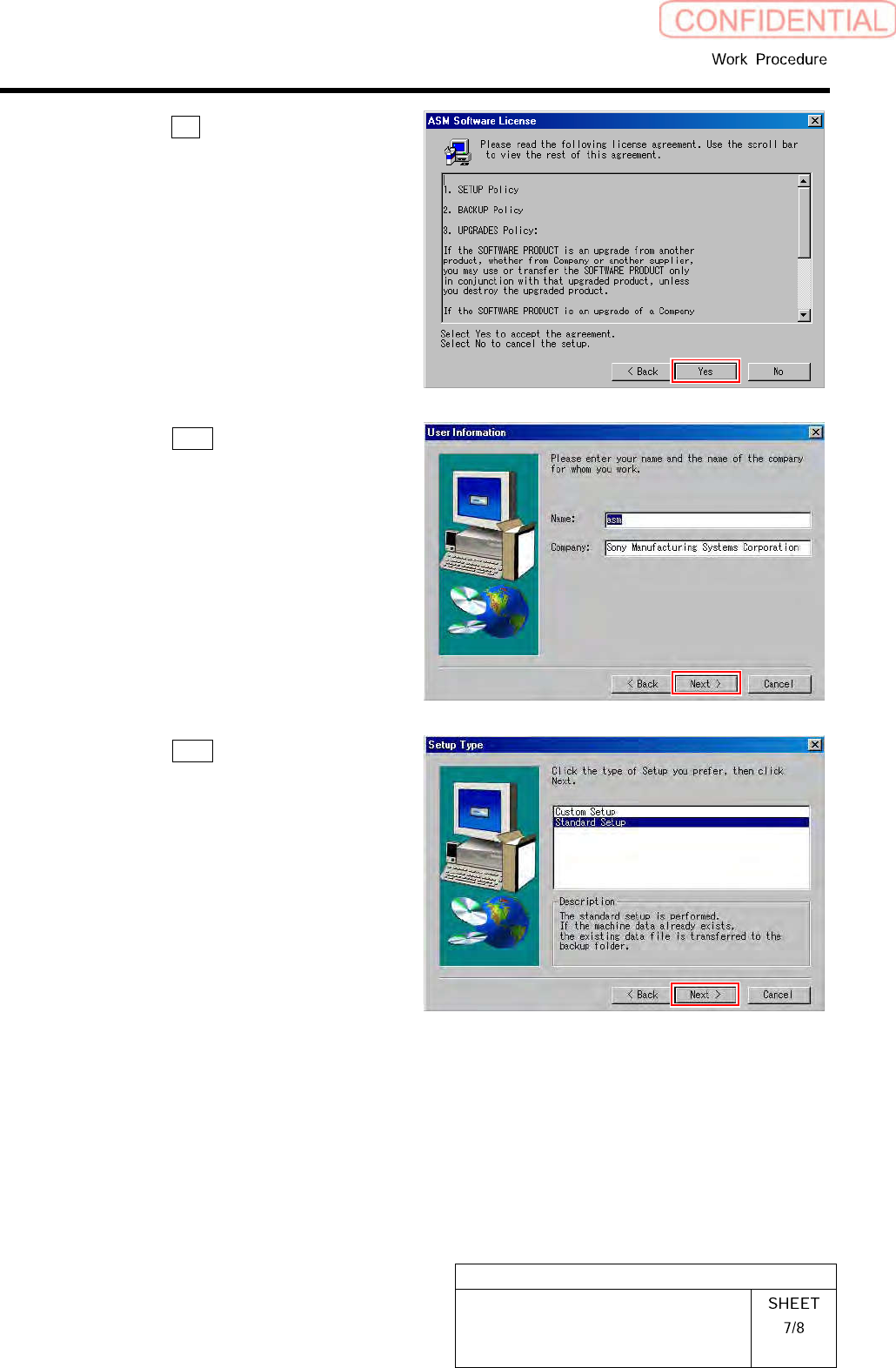
WKGB-10101-01 Inst alling System Sof tw are 4. Click the Y es button on the ASM So ft- ware License scre en. 5. Click the Ne xt button on the User In - formation screen. 6. Click the Next button on the Setup T yp e scree…
WKGB-10101-01
Installing System Software
7
1.
Click the SI-G Slave button on the
Installer screen.
Confirm dialog box is displayed.
2.
Click the Yes button on the Confirm
dialog box.
3.
Click the Next button on the Welcome
screen.
WKGB-10101-01
Installing System Software
4.
Click the Yes button on the ASM Soft-
ware License screen.
5.
Click the Next button on the User In-
formation screen.
6.
Click the Next button on the Setup
Type screen.
WKGB-10101-01
Installing System Software
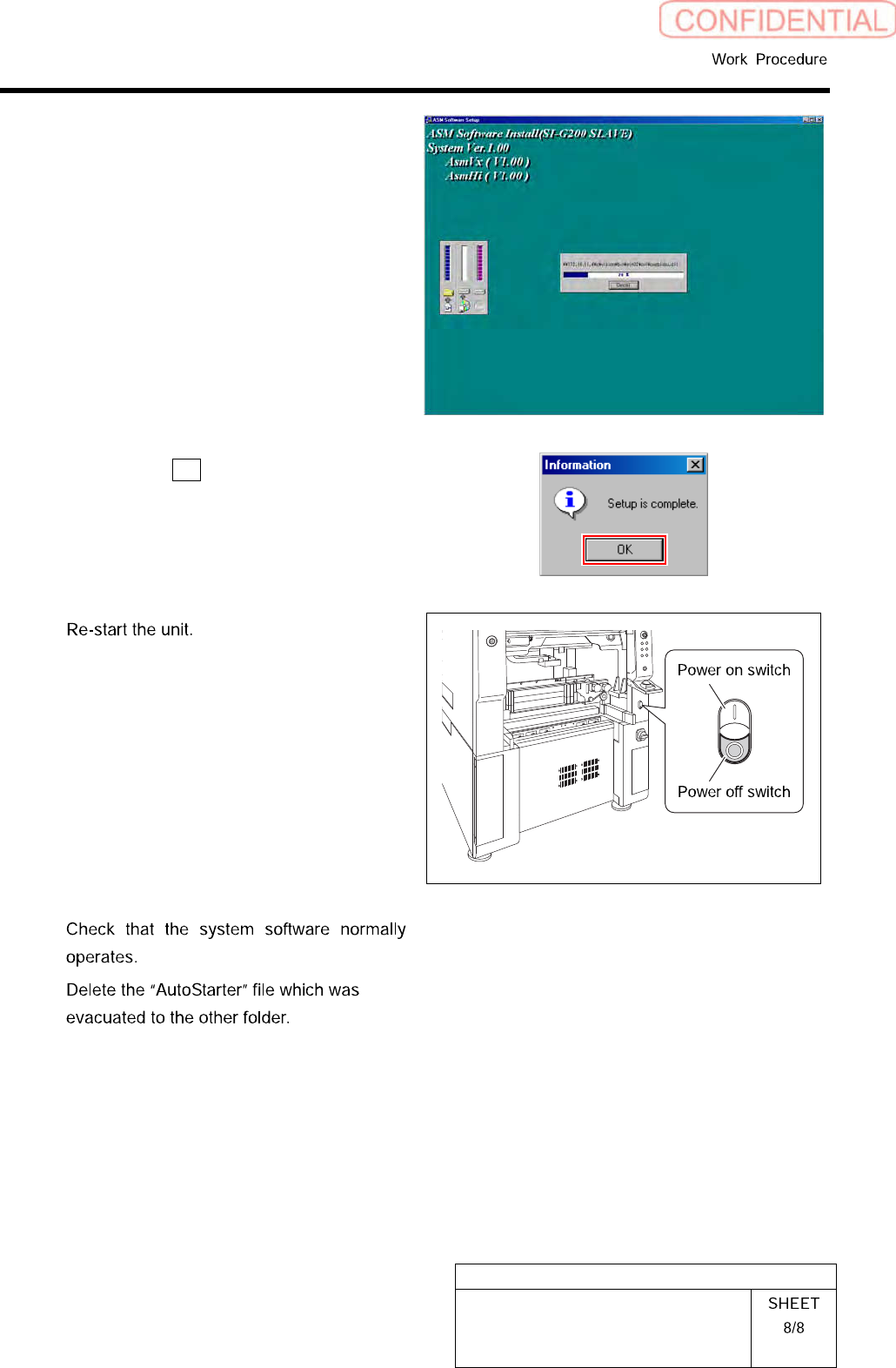
Installation of the system software is started.
When installation is ended, Information dialog
box appears.
7.
Click the OK button on the Informa-
tion dialog box.
8
1.
Close the Installer screen.
2.
Close the explorer window.
3.
Press the power off switch.
Shutting down of the system starts and the power
is automatically shut off.
4.
Press the power on switch.
The unit starts, and the system software auto-
matically starts up.
9
10