00195397-01_Installation Manual Setup Center 2.3.pdf - 第20页
Installation Hardware Installation Symbol MC70 2D barcode scanner 20 Installation Manual SIPLACE Setup Center 2.3 X Click on "Next" to proceed. X Accept the licen sing agreemen ts and select "Next". X…
Installation
Symbol MC70 2D barcode scanner Hardware Installation
Installation Manual SIPLACE Setup Center 2.3
19
MC70 scanner integrated in WLAN-infrastructure and accessible with "ping" windows-command.
SIPLACE Setup Center 2.3
5.2.3.2 Configurate WLAN on Scanner
Please. configurate the barcode scanner for the operation within WLAN network - as described in
document Installation Manual WLAN Infrastructure for SIPLACE (item no. 00195607-xx).
5.2.3.3 Setup Center Client Installation
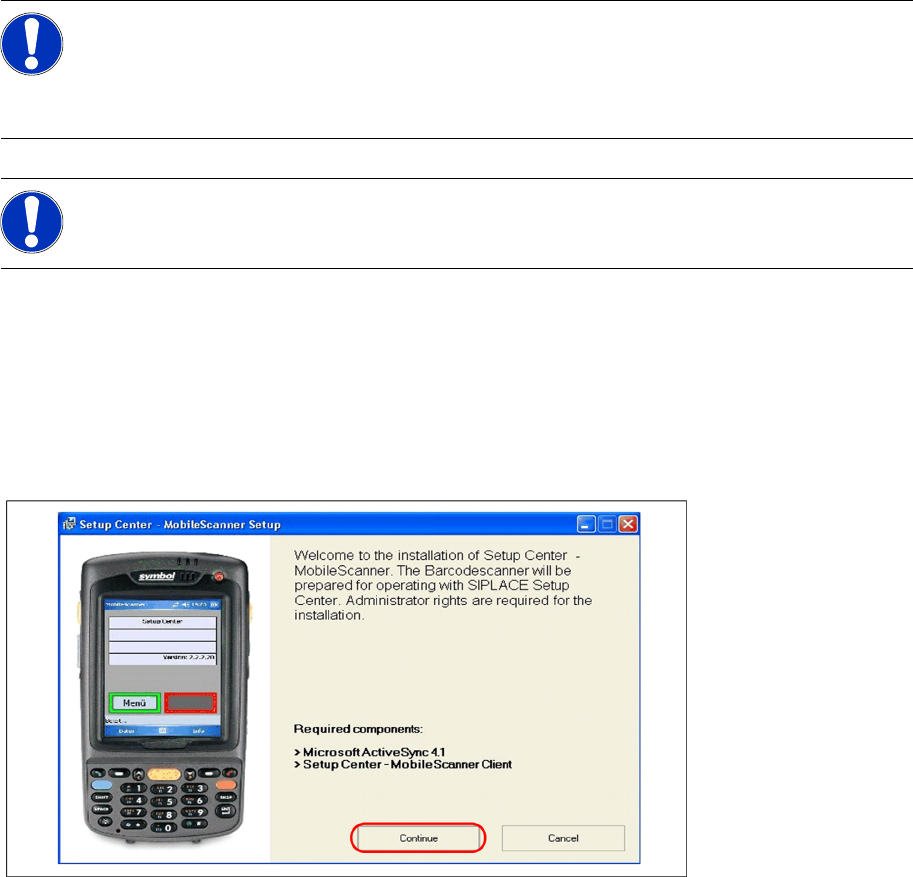
The installation for Setup Center – MobileScanner is located in the root directory of the CD
"\MobileScanner\MC70\". Execute the file "Setup.exe" to start the installation.
X Select "Continue" to proceed with the installation.
Step 1: Install ActiveSync
If ActiveSync is not installed on the system, the installation of Microsoft ActiveSync will be executed.
Make sure that the scanner is not yet connected to the basic station.
NOTE:
The MC70 might be delivered with a newer firmware version. Pls. install the firmware version
listed above if problems with the newer version occur. It is located on the Setup Center CD in
directory "\3rdparty installer\Symbol MC70\". Pls. observe by all means the enclosed
documentation.
NOTE:
You'll find more informationen regarding WLAN-configuration of the MC70 Scanner within the
enclosed Symbol-documentation.
Installation
Hardware Installation Symbol MC70 2D barcode scanner
20 Installation Manual SIPLACE Setup Center 2.3
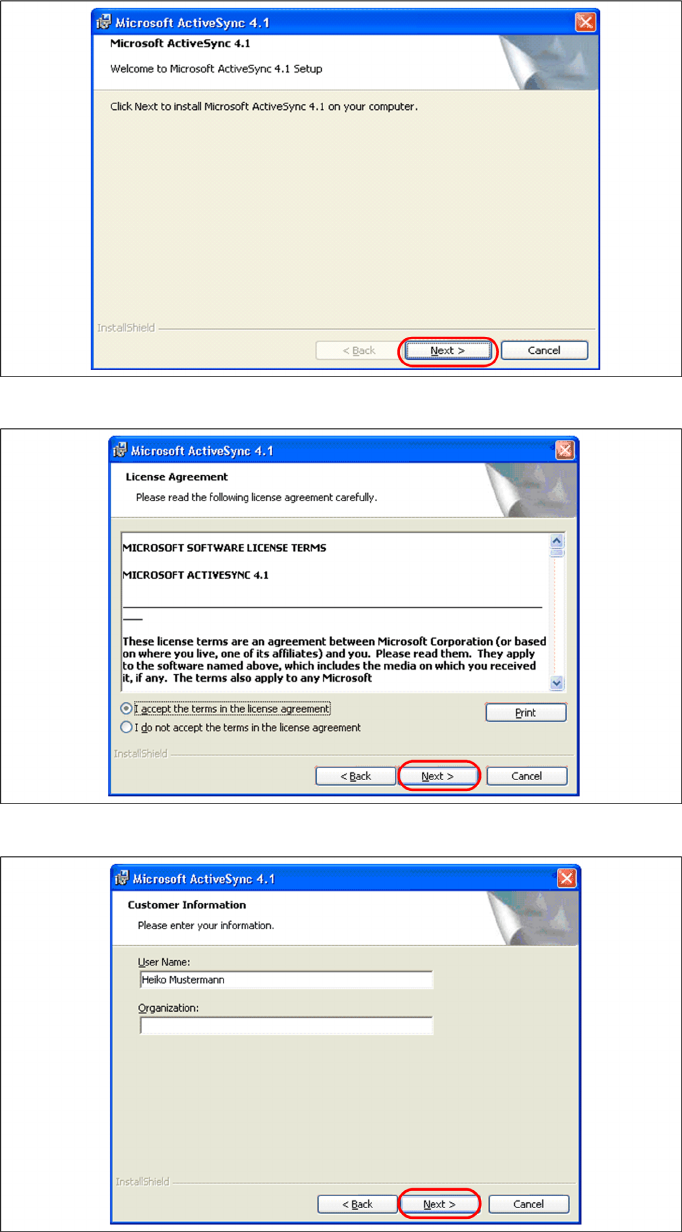
X Click on "Next" to proceed.
X Accept the licensing agreements and select "Next".
X Pls. enter your user information and select "Next".
Installation
Symbol MC70 2D barcode scanner Hardware Installation
Installation Manual SIPLACE Setup Center 2.3
21
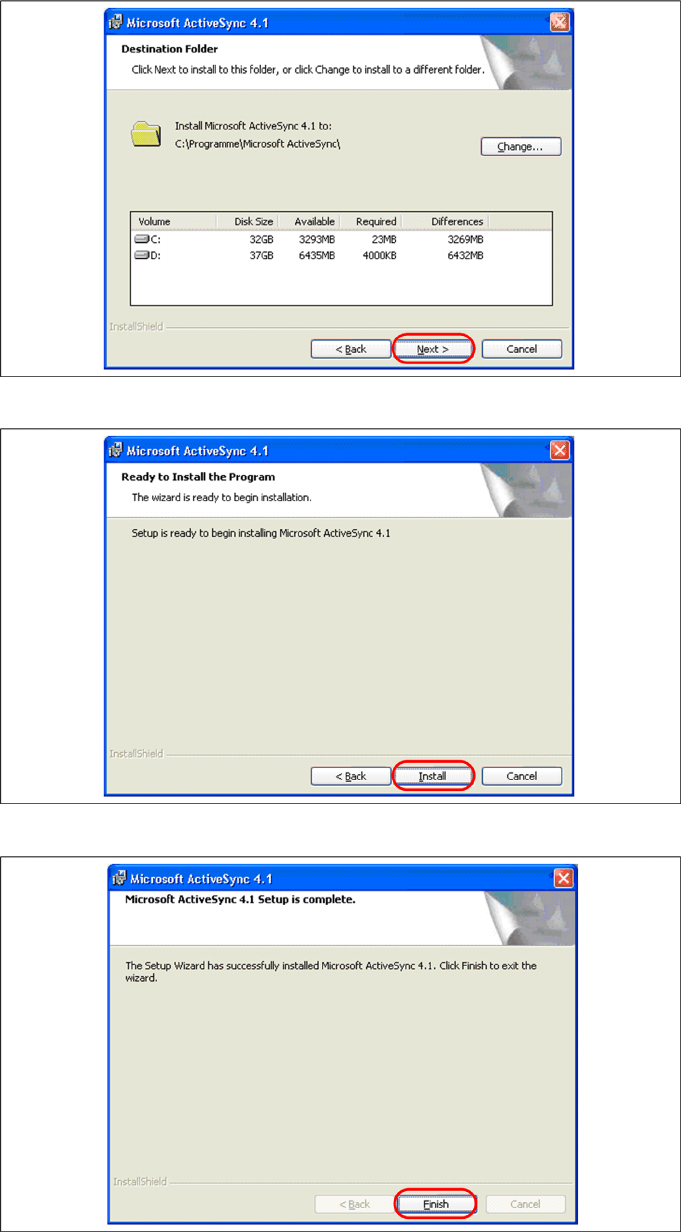
X Select the path for copying the installation files and select "Next".
X Select "Install" to start with the installation of Microsoft ActiveSync.
X Click on "Finish" to terminate the Microsoft ActiveSync Installation. In case that a restart is necessary
select "Yes".