00195397-01_Installation Manual Setup Center 2.3.pdf - 第44页
Installation Software Installation Setup Center 44 Installation Manual SIPLACE Setup Center 2.3 5.3 Sof tware Inst allation 5.3.1 Setup Center The following steps have to be performed to insta ll the required system comp…
Installation
Optional: Docking Station Hardware Installation
Installation Manual SIPLACE Setup Center 2.3
43
X Switch on the power supply.
X You will find a control lamp on the front of the device. This will shine when power is correctly supplied
to the device.
5.2.4.5 Firmware download for docking station
X Setup Center 2.3 can update the firmware of your docking station.
To learn how to update the firmware of your docking station, please refer to the chapter "Docking
Station Firmware Download" of the document User Guide Setup Center 2.3, item no. 00195402-xx.
DANGER:
Make sure that nobody is using the connected component trolley when you switch the power on.
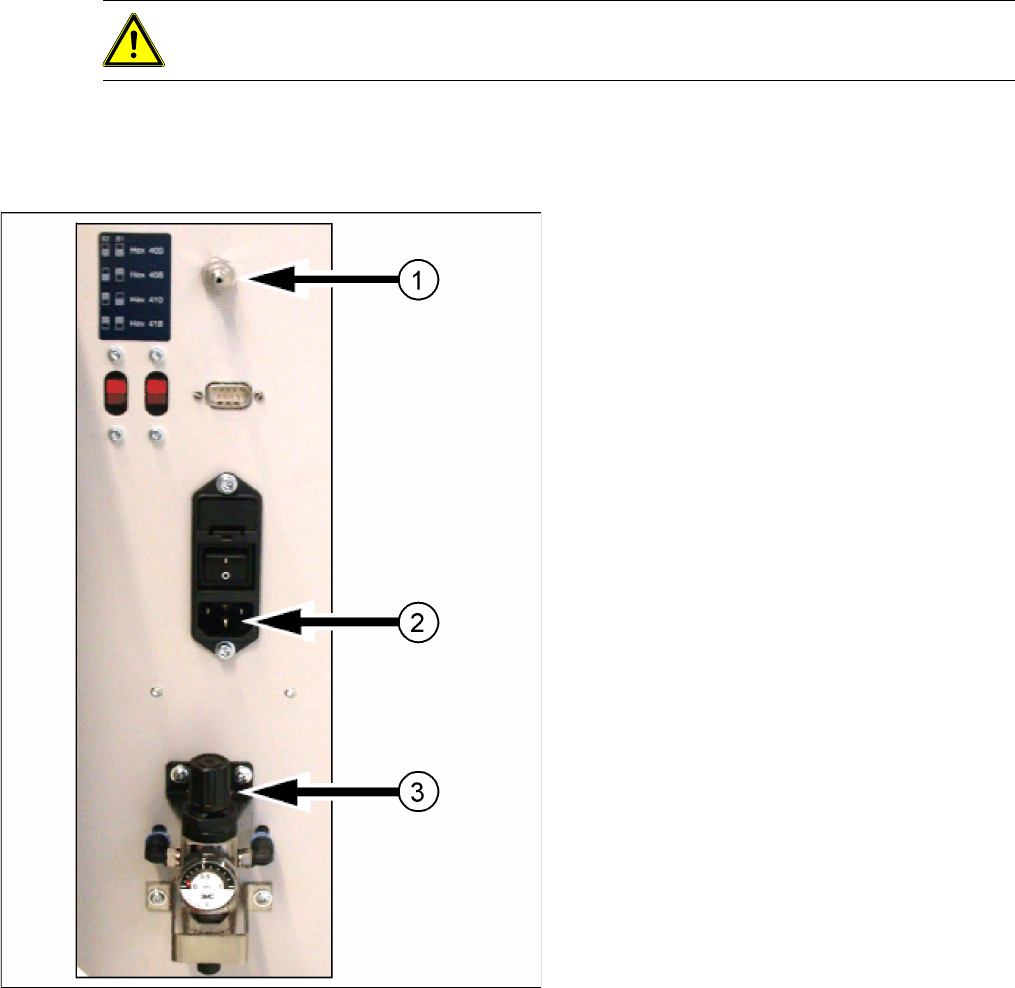
5-16: Docking station: compressed air and power supplies
Legend:
1. Compressed Air Connection
2. Power Connection
3. Set Compressed Air
Installation
Software Installation Setup Center
44 Installation Manual SIPLACE Setup Center 2.3
5.3 Software Installation
5.3.1 Setup Center
The following steps have to be performed to install the required system components on the specific
computer:
1. General settings, steps that are identical for all setup types
2. Setup types, the following setup types can be selected:
– SIPLACE Setup Center GUI
– SIPLACE Setup Center Database
– SIPLACE Setup Center Complete
5.3.1.1 General Settings
These steps are identical for all setup types. The subsequent steps only differ once you have selected
the setup type you require.
Run through the following steps to start the installation and then refer to the relevant section for your
specific setup type.
Step 1
X Insert the SIPLACE Setup Center installation CD into the CD-ROM drive. The installation routine
starts automatically.
X You can also start the installation by running the
Setup.exe
program located in the root directory on
the installation CD.
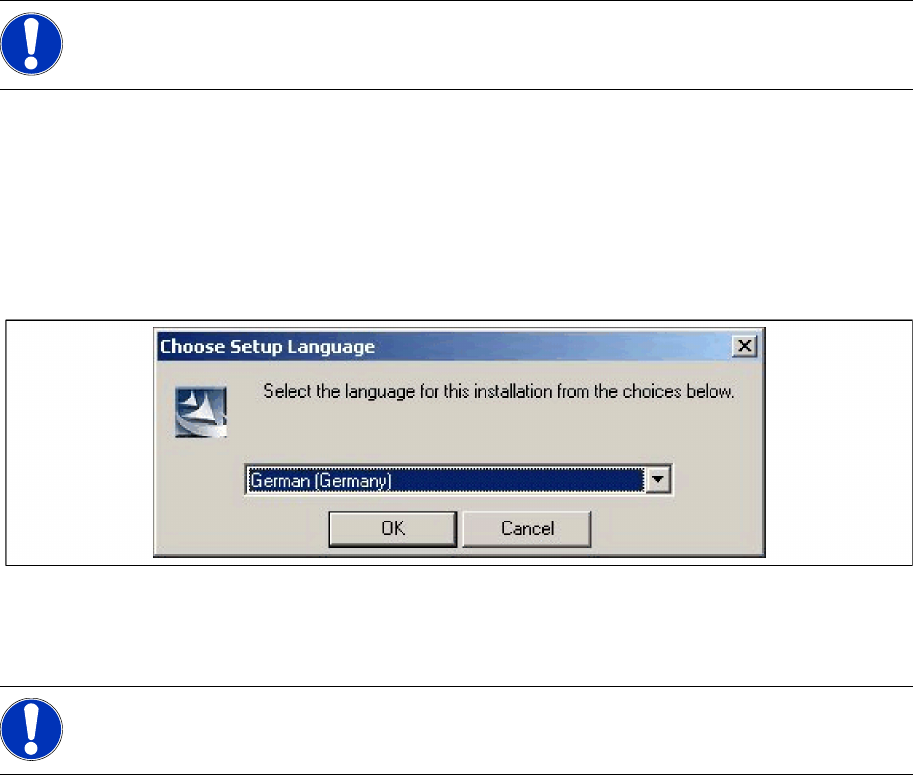
X This starts the user-controlled installation of SIPLACE Setup Center; you are prompted to select the
installation language.
5-17: "Choose setup language" dialog box
X Select the language you want.
X Click OK.
NOTE:
You require administrator rights for the installation procedure!
NOTE:
This decision only relates to the language used during the installation routine!
Installation
Setup Center Software Installation
Installation Manual SIPLACE Setup Center 2.3
45
Step 2
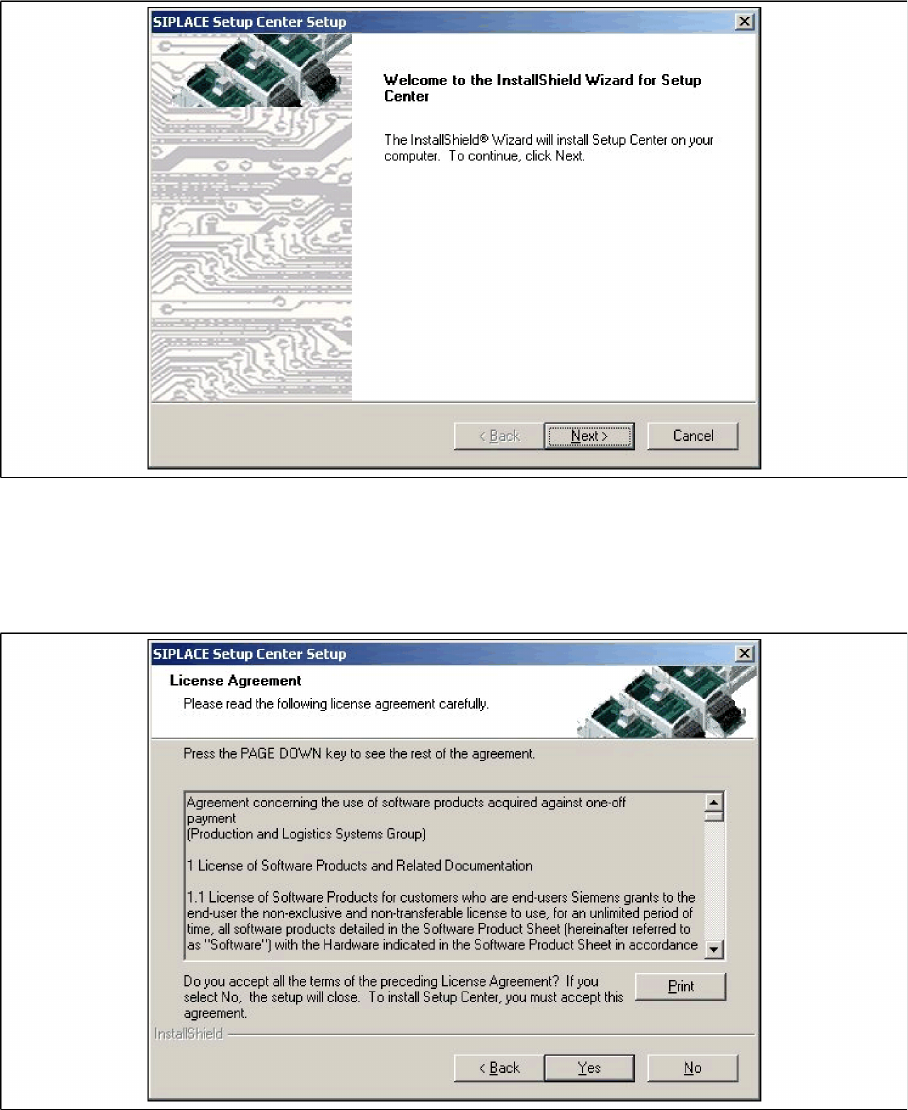
X The InstallShield Wizard will guide you through the program setup process.
5-18: InstallShield Wizard box for SIPLACE Setup Center
X Click Next.
Step 3
X Read the license agreement of Siemens AG relating to use of this software.
5-19: "Software License Agreement" dialog box
X The installation routine continues if you click the Yes button to accept the license agreement.
X Click No to cancel the installation.
X Click Print to print the License Agreement on the default printer of the PC.