00195397-01_Installation Manual Setup Center 2.3.pdf - 第48页
Installation Software Installation Setup Center 48 Installation Manual SIPLACE Setup Center 2.3 X Select the SIPLACE Setup Center GUI setup type. X Click Next . Step 2 The installation de tects the existing SPI version a…
Installation
Setup Center Software Installation
Installation Manual SIPLACE Setup Center 2.3
47
Step 6
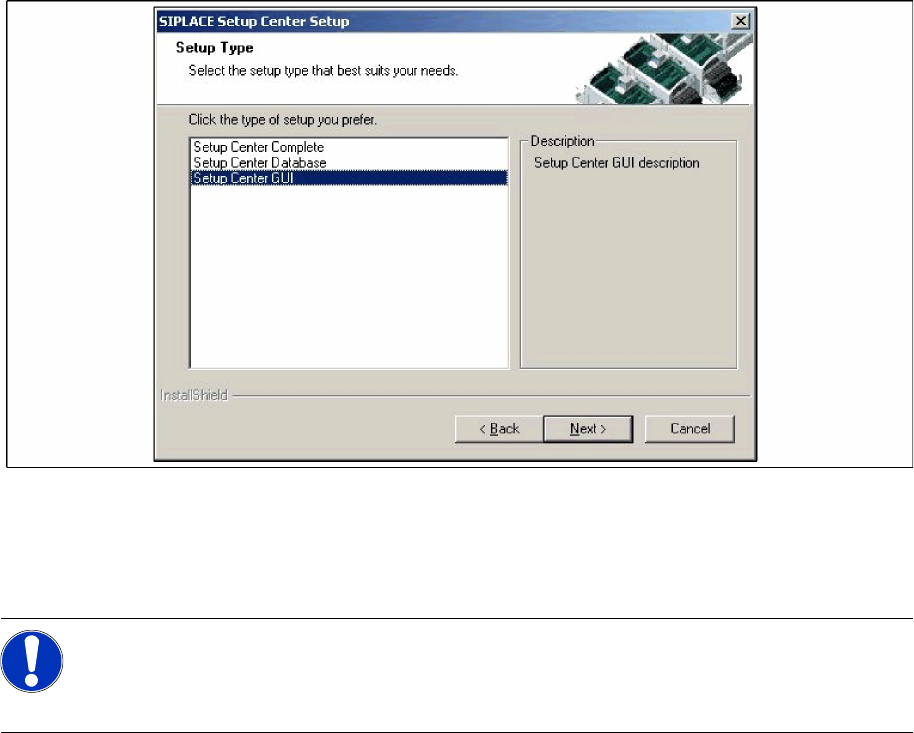
X The Setup Type dialog box displays the SIPLACE Setup Center components you could choose for
installation.
5-22: "Setup Type" dialog box
X Select the setup type you want to install in the Setup Type dialog box.
X Click Next.
X If you select a type, a short description of the setup type in question appears in the Description box.
5.3.1.2 Individual setup types and next steps
Setup Type – GUI
This setup type will install the GUI application of SIPLACE Setup Center. It is used to setup up a client
system while the database is located on a remote system.
Step 1
X Run through the steps in chapter "General Settings".
NOTE:
After choosing a setup type which includes a database installation, the setup program
immediately checks if SQL server or MSDE (Microsoft Data Desktop Engine) is installed on the
computer.
Installation
Software Installation Setup Center
48 Installation Manual SIPLACE Setup Center 2.3
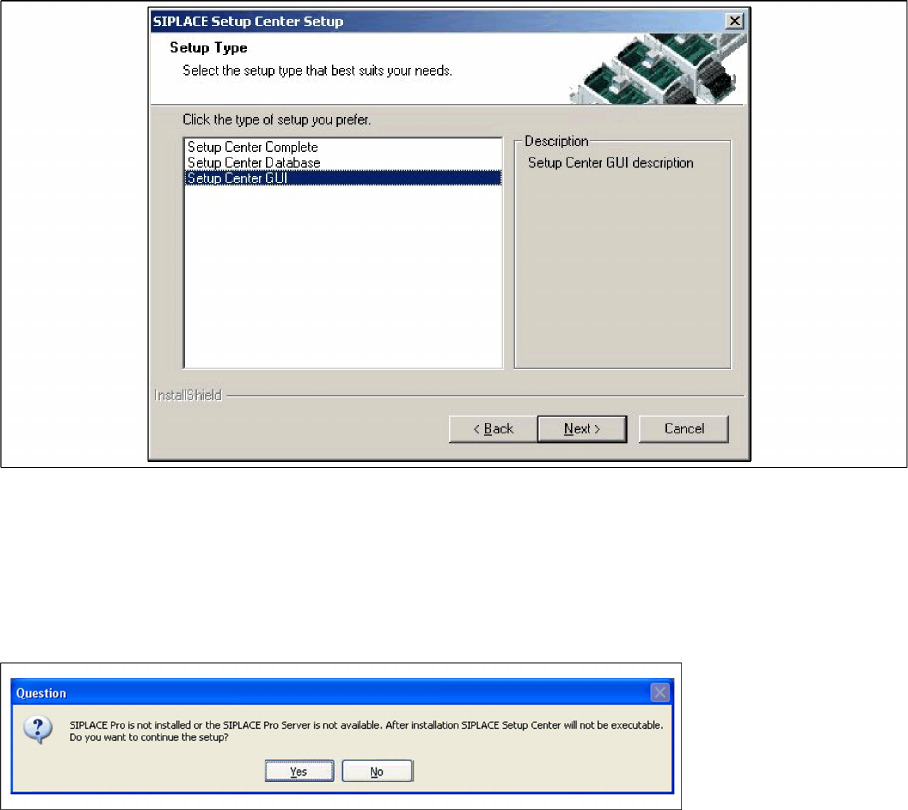
X Select the SIPLACE Setup Center GUI setup type.
X Click Next.
Step 2
The installation detects the existing SPI version and installs the according SIPLACE Setup Center files.
In case no SPI is detected, a warning message is displayed.
X Make sure that SIPLACE Pro is already installed or the SIPLACE Pro Server is available.
X Click Yes to continue the setup.
Step 3
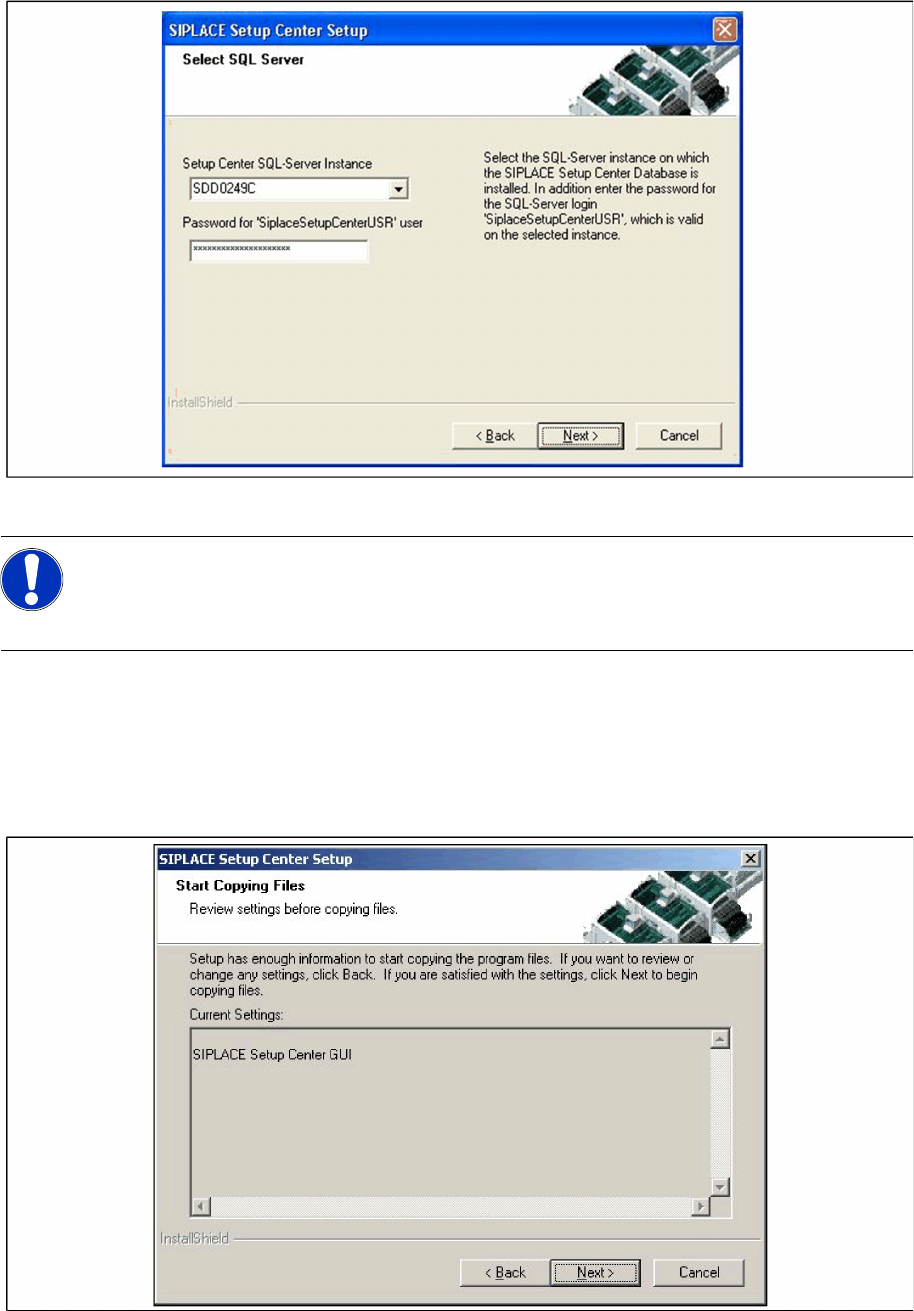
X Enter the information required to be connected with the SQL Server and database in the Select SQL-
Server dialog box.
Installation
Setup Center Software Installation
Installation Manual SIPLACE Setup Center 2.3
49
X Enter the Password for the SQL Server user "SiplaceSetupCenterUSR".
X Choose your SQL Server Instance from the pull-down menu.
X Click Next.
Step 4
X The Start Copying Files dialog box gives you a chance to check the information again, which you
have entered during the previous steps.
X Click Next if you accept all the information entered so far.
X If you want to alter one or more details, click the Back button until you get back to the dialog box in
question.
X There, enter your changes and click Next to continue as usual.
NOTE:
This password is empty if MSDE/SQL Server has been freshly installed. In this case, erase the
displayed default password. Subsequently, a window will open, prompting you to change this
password. You may accept the Siemens Service default password or choose one of your own.