00195425-01.pdf - 第111页
In st alla tio n an d Co nf igur at ion G ui de S IP LACE E xpl ore r Annex Edi tion 05 /200 7 EN Bu nd led We b S erv er In sta ll at ion 111 → Read the license agreemen t. If you agree click I A gr ee , otherwise click…
Annex Installation and Configuration Guide SIPLACE Explorer
Bundled Web Server Installation Edition 05/2007 EN
110
Bundled Web Server Installation - Tomcat 5.5.9
NOTE
Before installing Tomcat 5.5.9, make sure that all versions of Tomcat < 5.5.9 have been
uninstalled. Use the Apache Tomcat uninstallation program. This can be started via the
Start → Programs → Apache Tomcat 5.5 → Uninstall Tomcat menu in Windows. 5
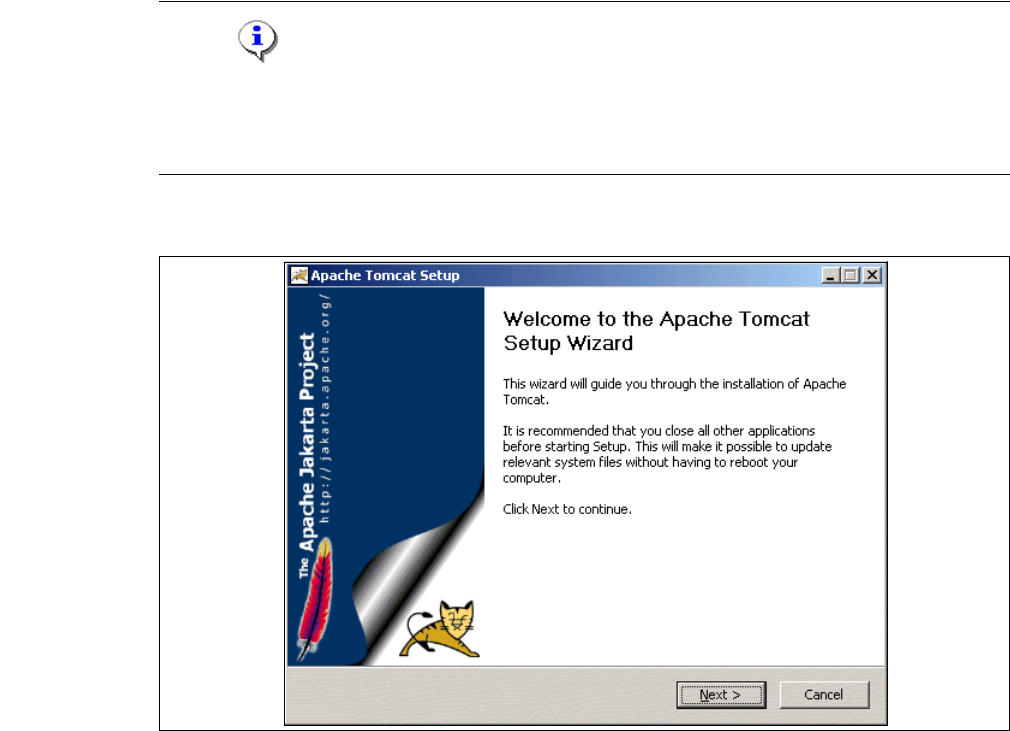
→ You will be guided through the Tomcat installation procedure.
5
Fig. 5 - 16 Apache Tomcat setup - welcome screen
→ Exit all other programs and then click on Next. The License Agreement dialog box will open.
Installation and Configuration Guide SIPLACE Explorer Annex
Edition 05/2007 EN Bundled Web Server Installation
111
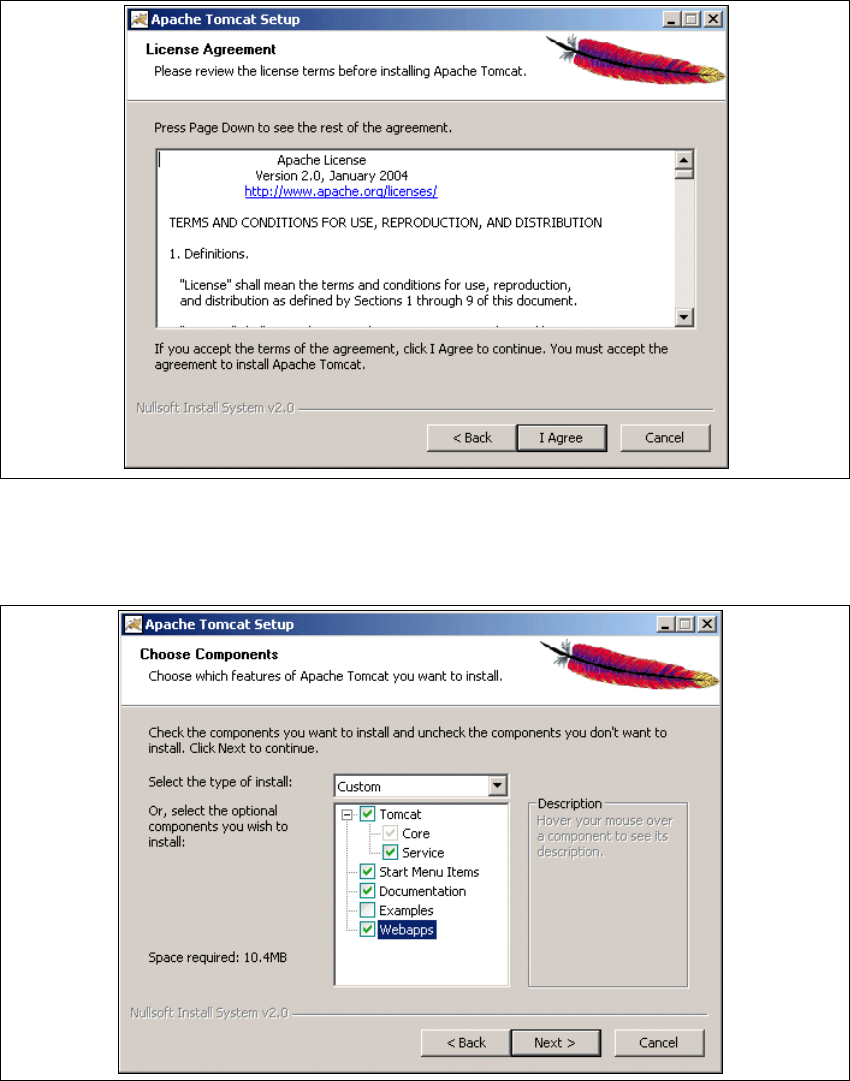
→ Read the license agreement. If you agree click I Agree, otherwise click Cancel. Clicking on
Cancel terminates the installation.
5
Fig. 5 - 17 Apache Tomcat setup - license agreement
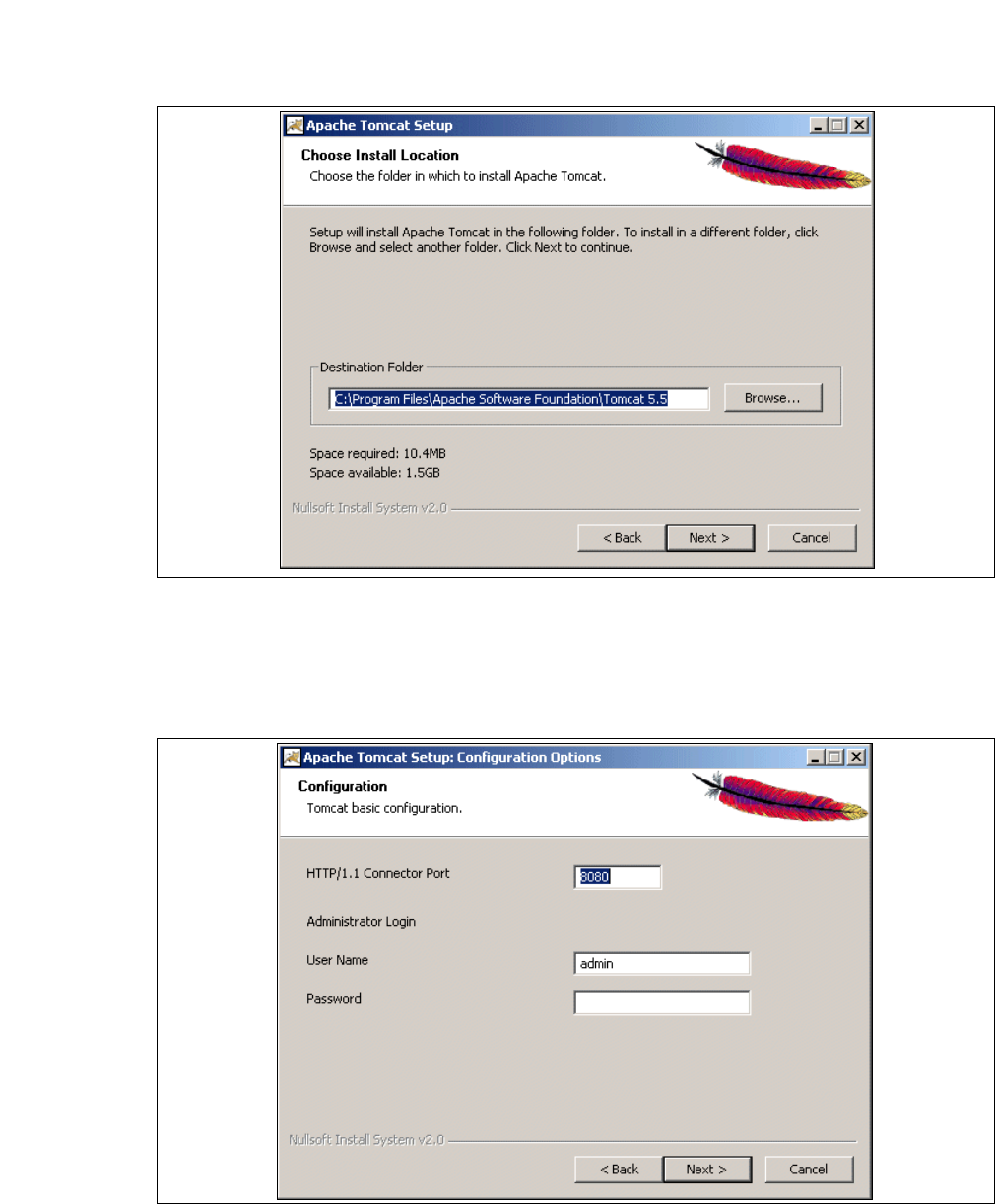
→ The Choose Components dialog box will open.
→ Now select the features you wish to install.
5
Fig. 5 - 18 Apache Tomcat setup - selecting features
→ Select the installation variant Custom.
Annex Installation and Configuration Guide SIPLACE Explorer
Bundled Web Server Installation Edition 05/2007 EN
112
→ Click the Tomcat option Service. Click on Next to continue. The Choose Install Location
dialog box will open.
→ Now specify the folder in which you wish to install the application.
5
Fig. 5 - 19 Apache Tomcat setup - select installation destination folder
→ You can alter the default installation folder by using the Browse button.
→ Click on Next to continue. The Configuration dialog box will open.
→ Now enter the port number and the administrator access data for Tomcat.
5
Fig. 5 - 20 Apache Tomcat setup - configuration