00195425-01.pdf - 第26页
3 In stalli ng SIP LAC E Expl orer Ins tall ati on and Confi gur ation Guid e SIPL ACE E xplo rer 3. 1 I ni tia l Inst all ati on o f SI PLA C E Ex pl ore r 2 .2 Ed iti on 05 /2 00 7 EN 26 (3) S IPLACE Explorer V .2.2 op…
Installation and Configuration Guide SIPLACE Explorer 3 Installing SIPLACE Explorer
Edition 05/2007 EN 3.1 Initial Installation of SIPLACE Explorer 2.2
25
Consider the following before beginning the installation: 3
NOTE
Before installing Tomcat 5.5.9, make sure that all versions of Tomcat < 5.5.9 have been
uninstalled. Use the Apache Tomcat uninstallation program. This can be started via the
Start → Programs → Apache Tomcat 5.5 → Uninstall Tomcat menu in Windows. 3
NOTE
You will need to specify the following information when installing Tomcat 5.5.9:
- Port number for Tomcat: By default, Tomcat is installed on port 8080. This means that your
users will access your website as follows:
http://yourServerName:8080/yourWebsite/index.jsp.
- Access data for the Tomcat administrator:
User name: admin
Password: MS128. This password is needed for website generation.
This login will automatically be used as default login for Line Configuration - Step 7 "Website
Generation". 3
NOTE
Before you install SIPLACE Explorer V2.2, make sure that Java 2 SE 5.0 update 7 has been
installed on your computer. 3
NOTE
If the Support Media DVD is not available, you can install the following software components
from the SIPLACE Explorer installation CD:
- Tomcat 5.5.9
- J2SE Runtime Environment 5.0.07
- MS XML Core Services 6.0
Proceed as described at “Bundled Web Server Installation” on page 107. 3
3 Installing SIPLACE Explorer Installation and Configuration Guide SIPLACE Explorer
3.1 Initial Installation of SIPLACE Explorer 2.2 Edition 05/2007 EN
26
(3)SIPLACE Explorer V.2.2 options:
The options Backflush V1.0, SIPLACE Traceability Option 1.0 and SIPLACE Maintenance
Manager V1.0 are not included in the SIPLACE Explorer V2.2 delivery package and must be
ordered (installed) separately. 3
3.1.1 Installation of SIPLACE Explorer 2.2 - Initial Installation
NOTE
You must have Windows administrator privileges to perform installation. 3
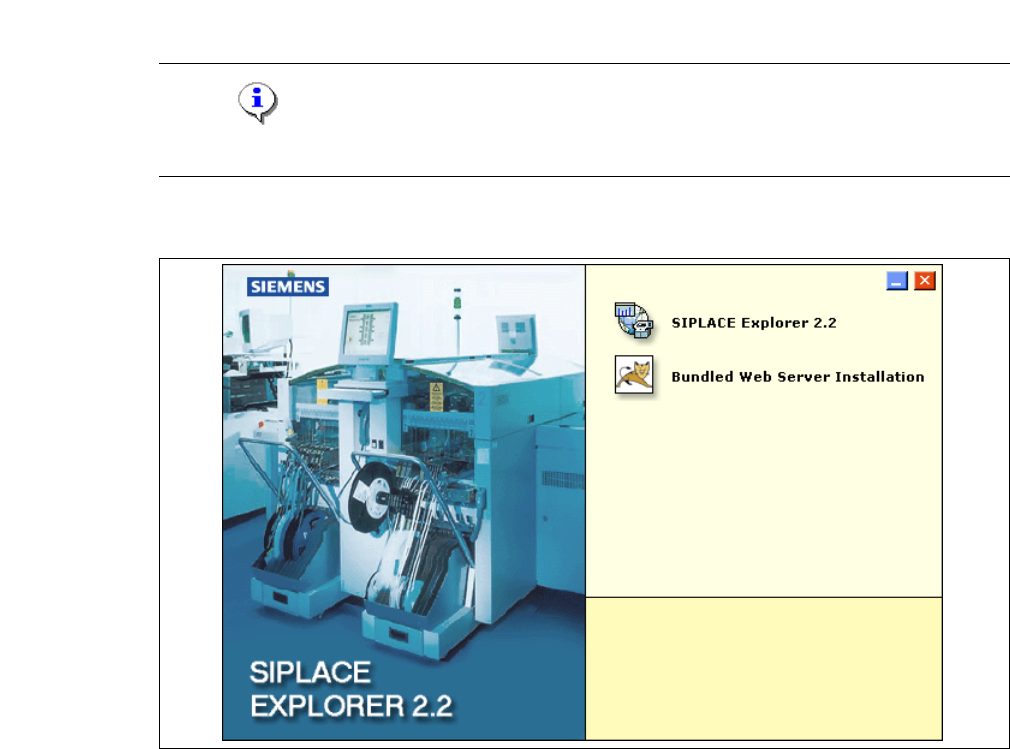
→ Place the SIPLACE Explorer CD in your CD-ROM drive. The Start screen will open.
3
Fig. 3 - 1 SIPLACE Explorer setup - Start screen
→ Select SIPLACE Explorer 2.2.
Installation and Configuration Guide SIPLACE Explorer 3 Installing SIPLACE Explorer
Edition 05/2007 EN 3.1 Initial Installation of SIPLACE Explorer 2.2
27
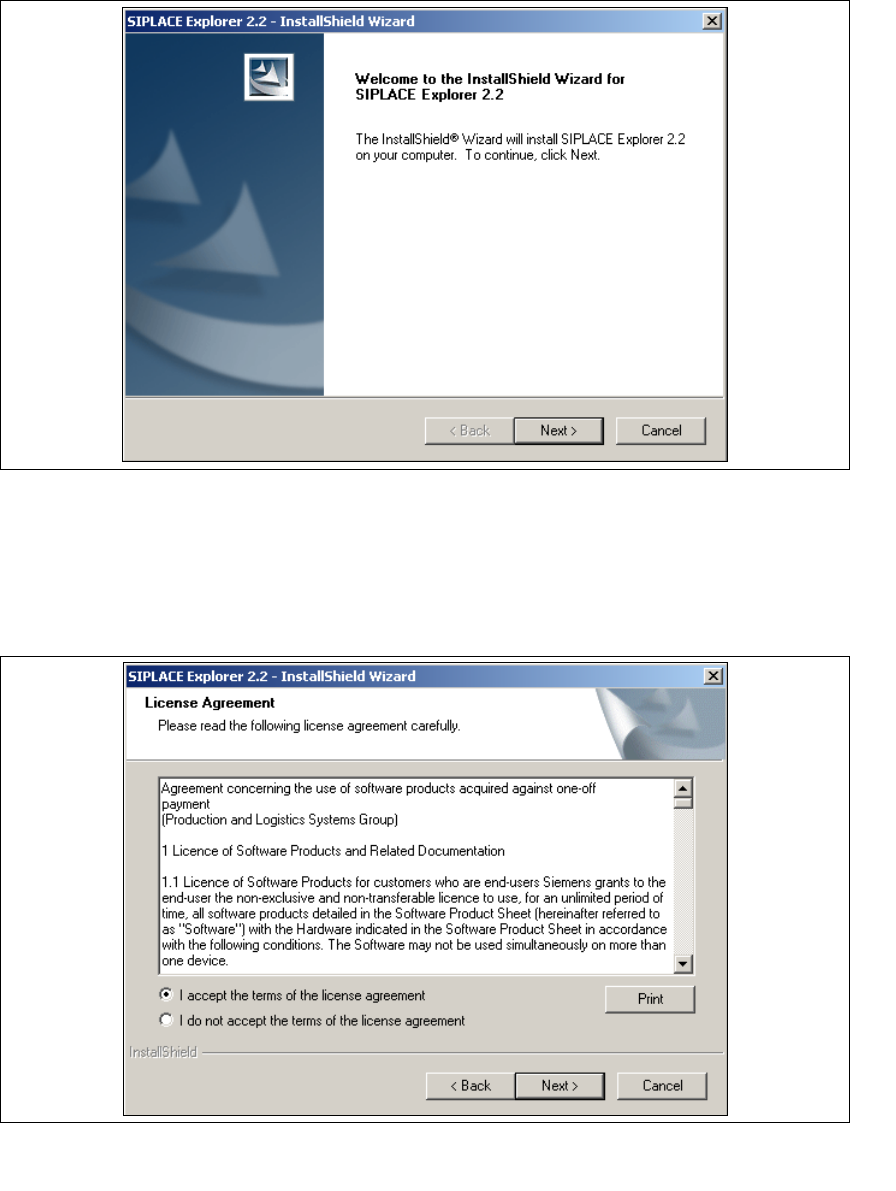
→ You will be guided through the SIPLACE Explorer installation procedure.
3
Fig. 3 - 2 SIPLACE Explorer welcome
→ Exit all other programs and then click on Next. The License Agreement dialog box will open.
→ Read the license agreement. If you agree with the conditions, click I accept ..., otherwise, click
on I do not accept .... If you select I do not accept ..., the installation procedure will be
terminated.
3
Fig. 3 - 3 SIPLACE Explorer setup - license agreement
→ Confirm your selection with Next.