00195425-01.pdf - 第27页
In st alla tio n an d Co nf igur at ion G uide SI P LACE E xpl ore r 3 I ns tal li ng SIP LAC E Ex plor er Edi tion 05 /200 7 EN 3.1 Ini tia l Ins t a lla t i on of SIP LACE Expl orer 2 .2 27 → Y ou will be guided throug…
3 Installing SIPLACE Explorer Installation and Configuration Guide SIPLACE Explorer
3.1 Initial Installation of SIPLACE Explorer 2.2 Edition 05/2007 EN
26
(3)SIPLACE Explorer V.2.2 options:
The options Backflush V1.0, SIPLACE Traceability Option 1.0 and SIPLACE Maintenance
Manager V1.0 are not included in the SIPLACE Explorer V2.2 delivery package and must be
ordered (installed) separately. 3
3.1.1 Installation of SIPLACE Explorer 2.2 - Initial Installation
NOTE
You must have Windows administrator privileges to perform installation. 3
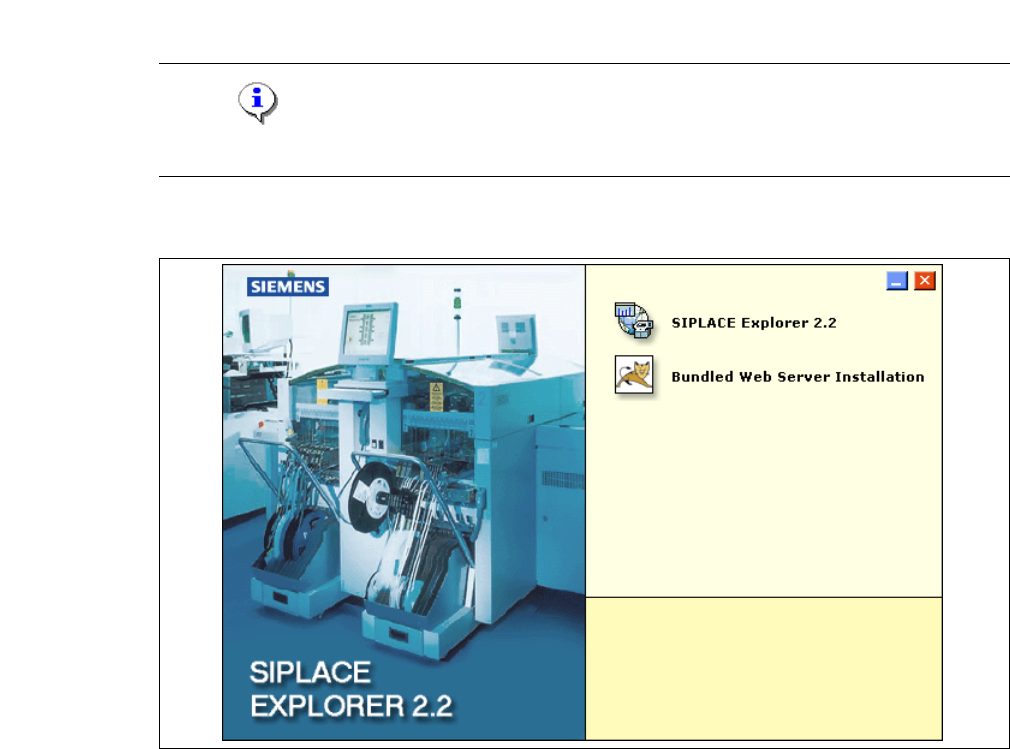
→ Place the SIPLACE Explorer CD in your CD-ROM drive. The Start screen will open.
3
Fig. 3 - 1 SIPLACE Explorer setup - Start screen
→ Select SIPLACE Explorer 2.2.
Installation and Configuration Guide SIPLACE Explorer 3 Installing SIPLACE Explorer
Edition 05/2007 EN 3.1 Initial Installation of SIPLACE Explorer 2.2
27
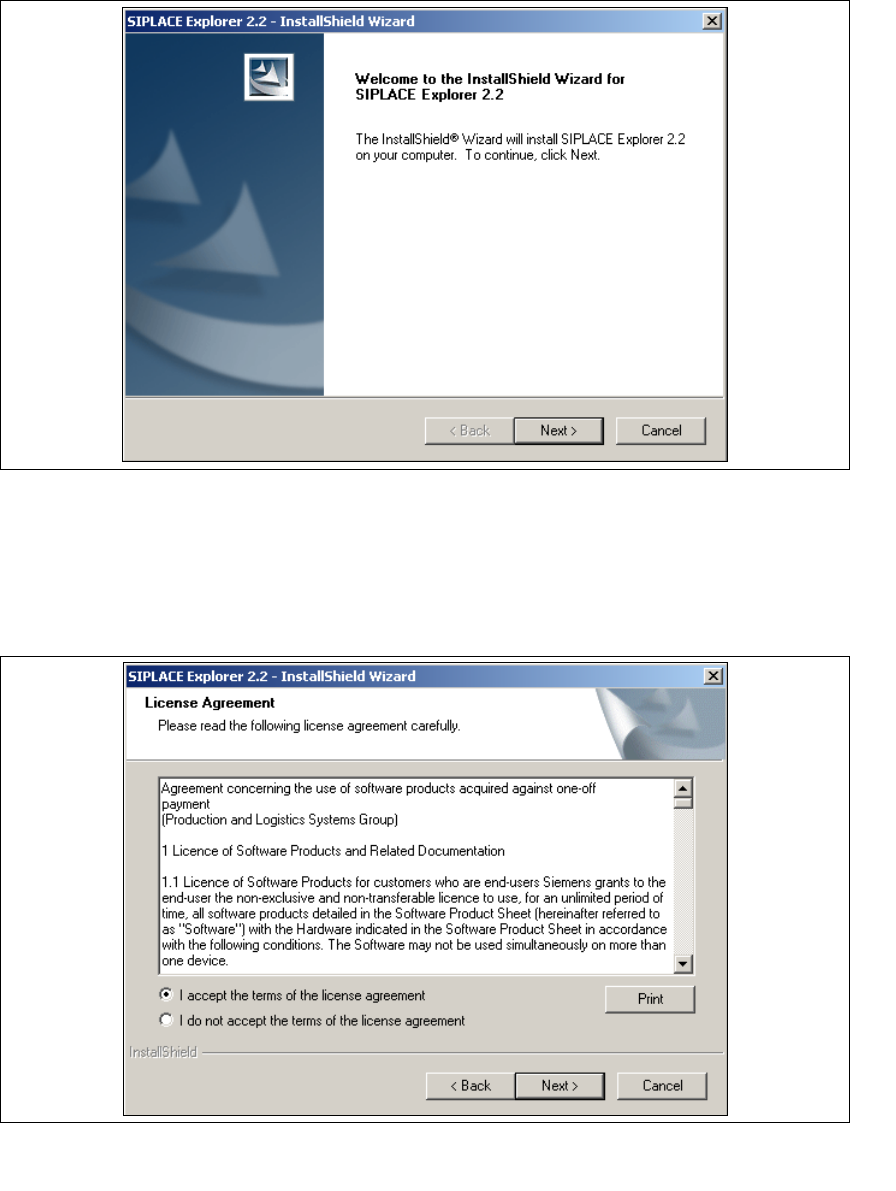
→ You will be guided through the SIPLACE Explorer installation procedure.
3
Fig. 3 - 2 SIPLACE Explorer welcome
→ Exit all other programs and then click on Next. The License Agreement dialog box will open.
→ Read the license agreement. If you agree with the conditions, click I accept ..., otherwise, click
on I do not accept .... If you select I do not accept ..., the installation procedure will be
terminated.
3
Fig. 3 - 3 SIPLACE Explorer setup - license agreement
→ Confirm your selection with Next.
3 Installing SIPLACE Explorer Installation and Configuration Guide SIPLACE Explorer
3.1 Initial Installation of SIPLACE Explorer 2.2 Edition 05/2007 EN
28
→ Before you can run SIPLACE Explorer, J2SE Runtime Environment 5.0. update 7 or higher
must be installed on your PC. If it is already installed on your PC, installation will begin
automatically.
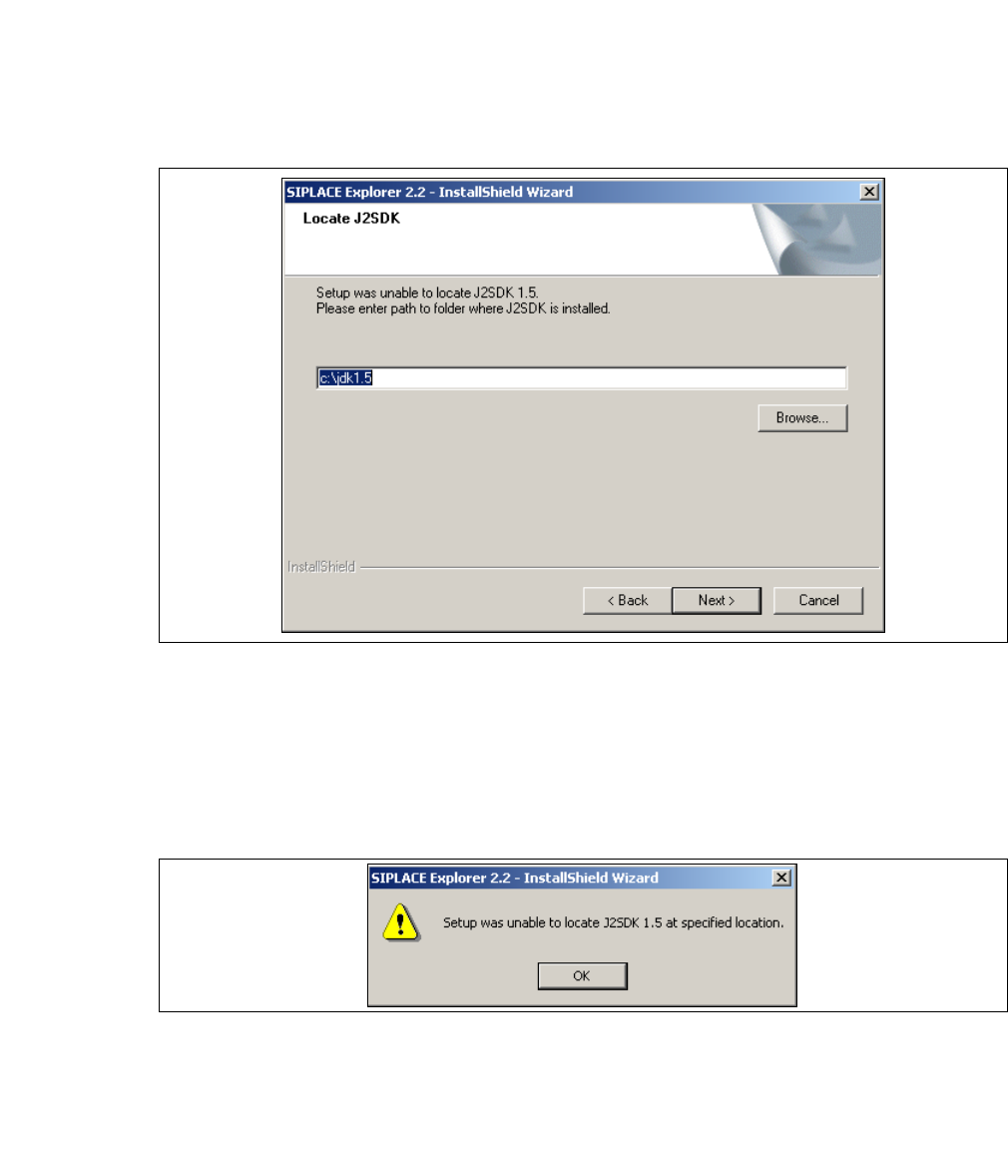
→ However, if the installation procedure is unable to find J2SE RTE 5.0.07, the Locate J2SDK
dialog box will appear on your screen.
3
Fig. 3 - 4 SIPLACE Explorer setup - locate JAVA 2 SDK
→ In this case, you can either enter the path to the J2SE Runtime Environment 5.0 folder directly
into the text field or click on the Browse button and use the Open File dialog box to find the
J2SE Runtime Environment 5.0 folder.
→ If you failed to correctly specify the path to the folder in which J2SE Runtime Environment 5.0
is installed, you will see the following message.
3
Fig. 3 - 5 SIPLACE Explorer setup - unable to locate J2SE
→ Click OK to return to the previous screen. SIPLACE Explorer requires J2SE Runtime
Environment 5.0 to be installed prior to installation of SIPLACE Explorer.
→ At this point, you can either try to specify the J2SE Runtime Environment 5.0 folder again, or
click Cancel to exit the installation of SIPLACE Explorer.