00195425-01.pdf - 第32页
3 In stalli ng SIP LAC E Expl orer Ins tall ati on and Confi gur ation Guid e SIPL ACE E xplo rer 3. 1 I ni tia l Inst all ati on o f SI PLA C E Ex pl ore r 2 .2 Ed iti on 05 /2 00 7 EN 32 → The Ready to Install th e Pro…
Installation and Configuration Guide SIPLACE Explorer 3 Installing SIPLACE Explorer
Edition 05/2007 EN 3.1 Initial Installation of SIPLACE Explorer 2.2
31
→ To accept the destination folder, click on Next in the Choose Destination Location window.
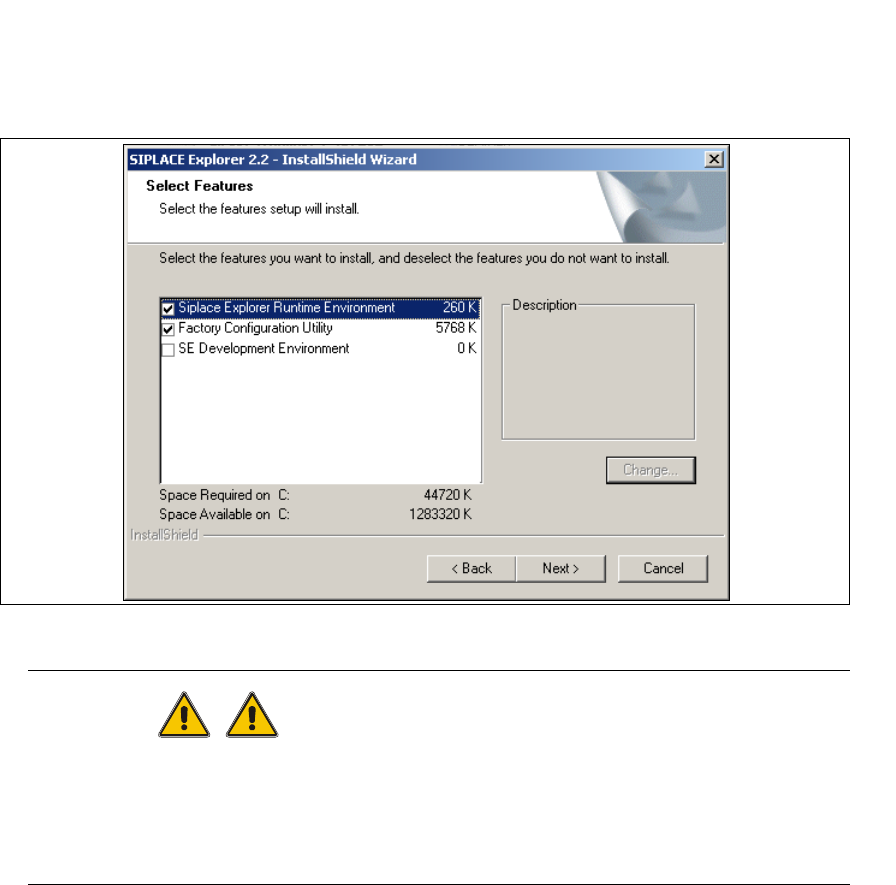
→ The Select Features dialog box will open. Here you can select any of the following three
components: SIPLACE Explorer Runtime Environment, Factory Configuration Utility and
SIPLACE Explorer Development Environment.
3
Fig. 3 - 9 SIPLACE Explorer setup - 'select features' dialog box
WARNING
Do not install "SIPLACE Explorer V.2.2 Runtime Environment" and "SIPLACE Explorer V.2.2
Development Environment" on the same computer. These two options will not run parallel to
one another. Before working with these options in succession, make sure you know the steps
for starting/terminating the respective option and observe these. 3
→ Once you have selected the required installation option, click on the Next button to continue.
3 Installing SIPLACE Explorer Installation and Configuration Guide SIPLACE Explorer
3.1 Initial Installation of SIPLACE Explorer 2.2 Edition 05/2007 EN
32
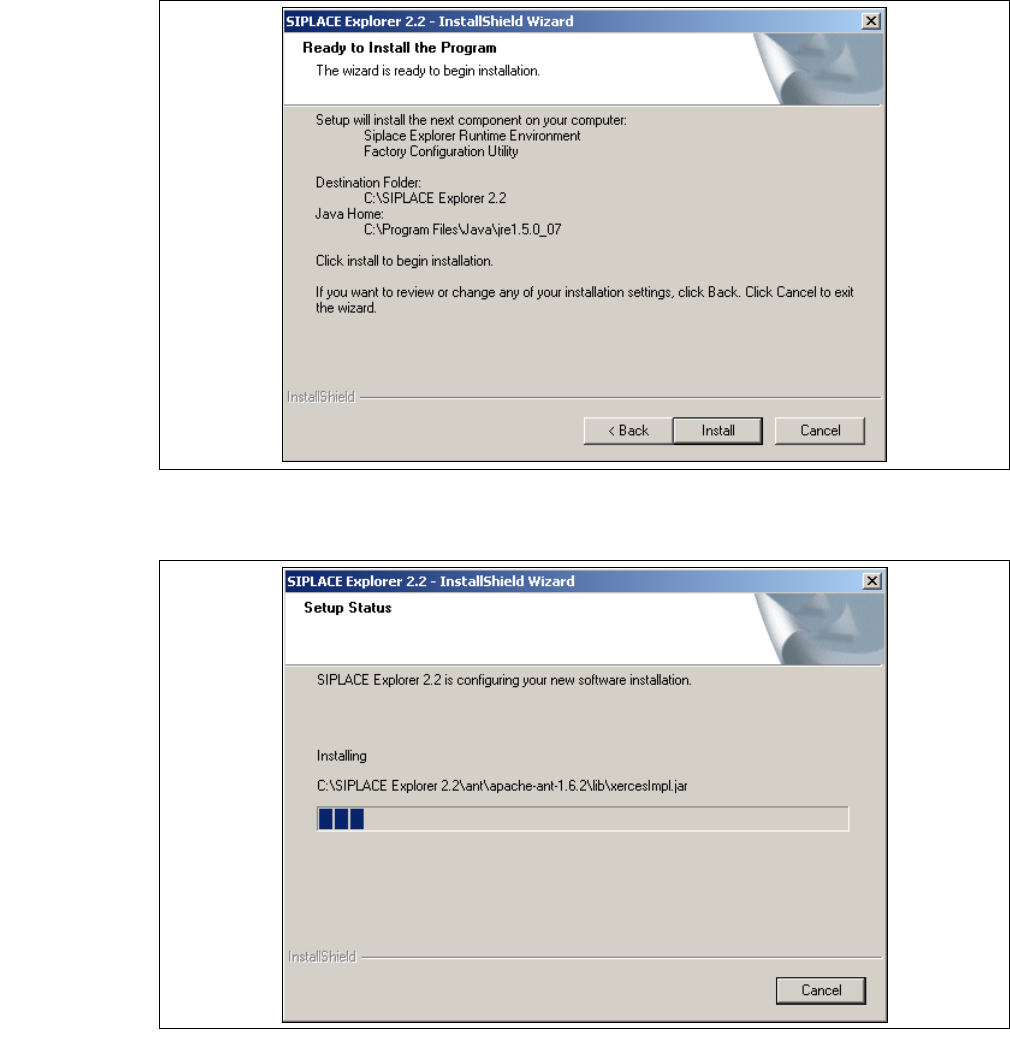
→ The Ready to Install the Program dialog box will open.
3
Fig. 3 - 10 SIPLACE Explorer setup - 'ready to install' dialog box
→ Click on the Install button, to begin the actual installation of SIPLACE Explorer V2.2.
3
Fig. 3 - 11 SIPLACE Explorer setup - setup status
Installation and Configuration Guide SIPLACE Explorer 3 Installing SIPLACE Explorer
Edition 05/2007 EN 3.1 Initial Installation of SIPLACE Explorer 2.2
33
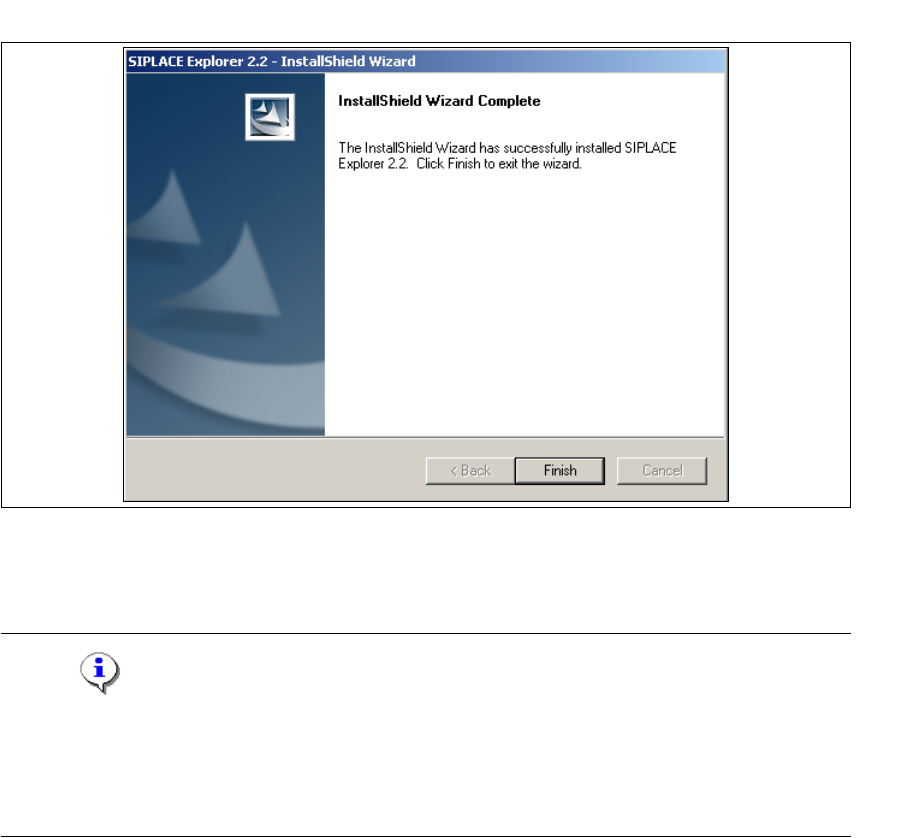
→ Once the installation procedure has finished, the following dialog box will open.
3
Fig. 3 - 12 SIPLACE Explorer setup - installation complete
→ Click on Finish. After you have rebooted your computer, SIPLACE Explorer will be available
for use. Follow the instructions at “Starting SIPLACE Explorer” on page 40.
NOTE
After installing SIPLACE Explorer, reboot your system. This ensures that port 1099 is available for
the Java Runtime Environment. In rare cases, port 1099 may be used by another application. If
you start SIPLACE Explorer after the installation, without rebooting the system, the error message
"SIPLACE Explorer 2.2 runtime not found" would be shown in such cases. 3