00195425-01.pdf - 第33页
In st alla tio n an d Co nf igur at ion G uide SI P LACE E xpl ore r 3 I ns tal li ng SIP LAC E Ex plor er Edi tion 05 /200 7 EN 3.1 Ini tia l Ins t a lla t i on of SIP LACE Expl orer 2 .2 33 → Once the installation proc…
3 Installing SIPLACE Explorer Installation and Configuration Guide SIPLACE Explorer
3.1 Initial Installation of SIPLACE Explorer 2.2 Edition 05/2007 EN
32
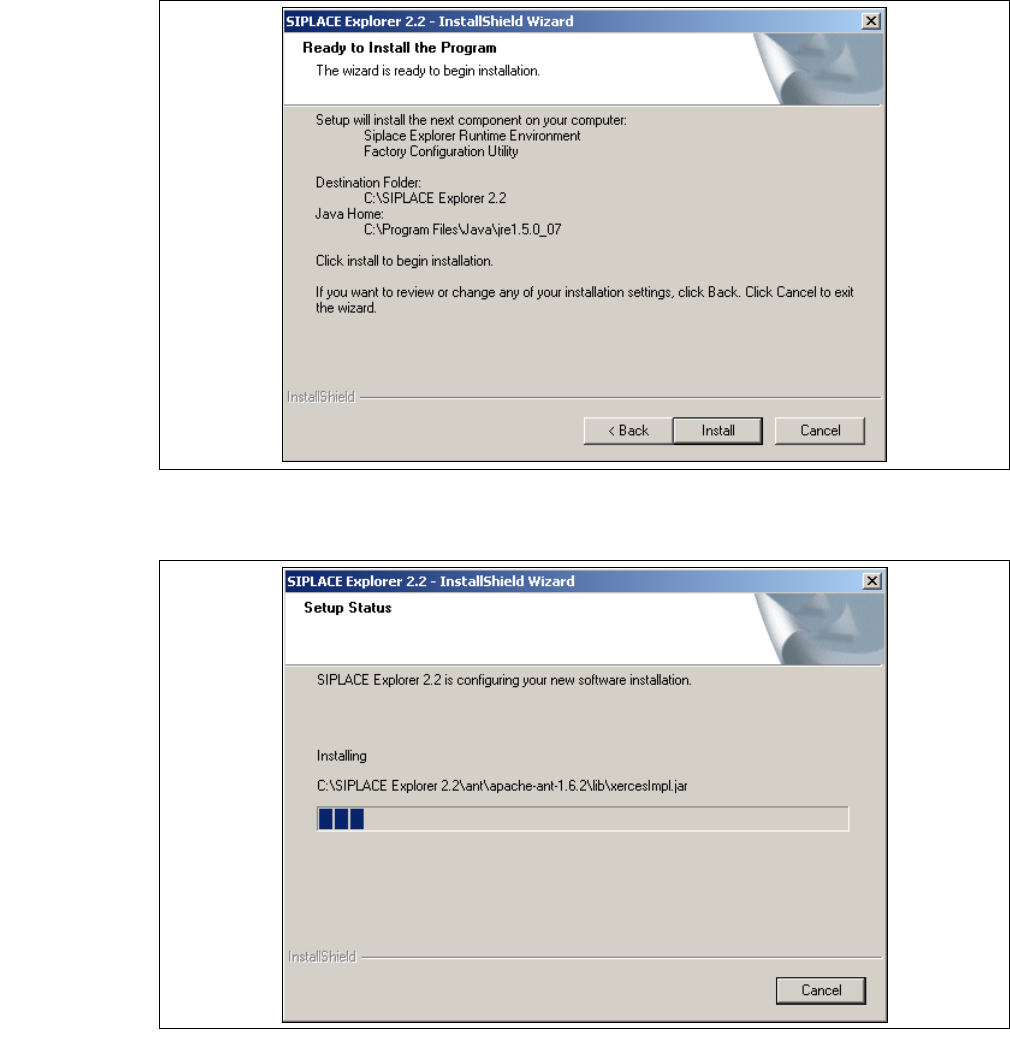
→ The Ready to Install the Program dialog box will open.
3
Fig. 3 - 10 SIPLACE Explorer setup - 'ready to install' dialog box
→ Click on the Install button, to begin the actual installation of SIPLACE Explorer V2.2.
3
Fig. 3 - 11 SIPLACE Explorer setup - setup status
Installation and Configuration Guide SIPLACE Explorer 3 Installing SIPLACE Explorer
Edition 05/2007 EN 3.1 Initial Installation of SIPLACE Explorer 2.2
33
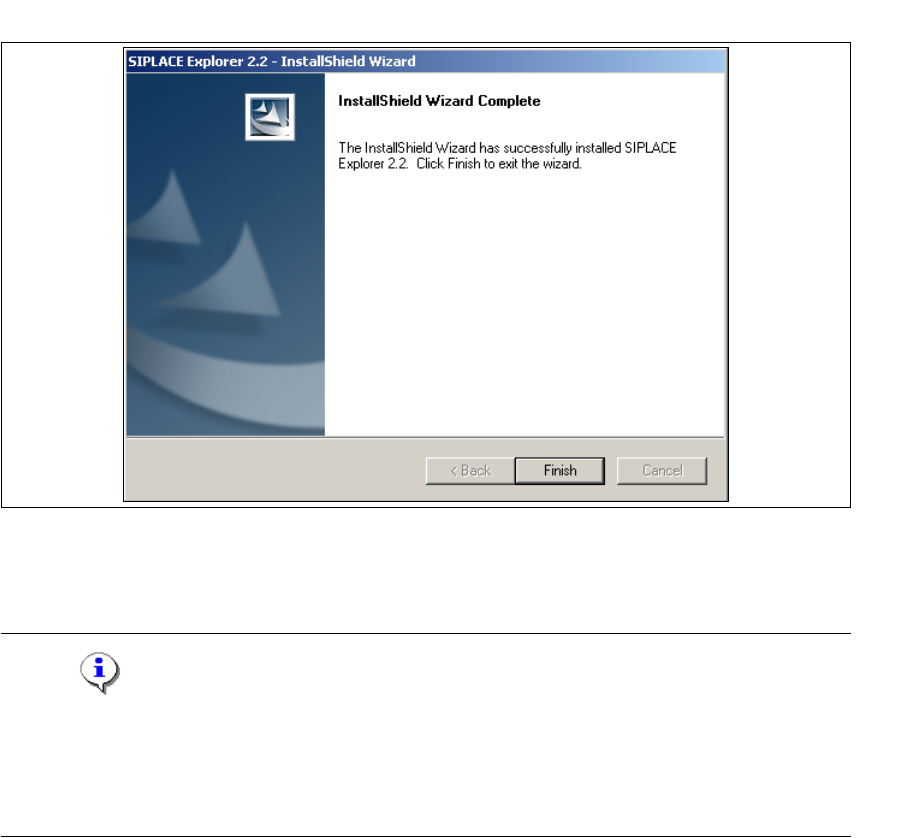
→ Once the installation procedure has finished, the following dialog box will open.
3
Fig. 3 - 12 SIPLACE Explorer setup - installation complete
→ Click on Finish. After you have rebooted your computer, SIPLACE Explorer will be available
for use. Follow the instructions at “Starting SIPLACE Explorer” on page 40.
NOTE
After installing SIPLACE Explorer, reboot your system. This ensures that port 1099 is available for
the Java Runtime Environment. In rare cases, port 1099 may be used by another application. If
you start SIPLACE Explorer after the installation, without rebooting the system, the error message
"SIPLACE Explorer 2.2 runtime not found" would be shown in such cases. 3

3 Installing SIPLACE Explorer Installation and Configuration Guide SIPLACE Explorer
3.1 Initial Installation of SIPLACE Explorer 2.2 Edition 05/2007 EN
34
3.1.2 Information about the Installation of MSDE 2000
NOTE
After the MSDE 2000 installation:
Once the MSDE 2000 installation has finished, you will see a popup window showing a port
number. Make a note of this port number - you will need it later, when using SIPLACE Explorer.3
3.1.2.1 Changing Password for "sa" Account Manually
If you want to change the password of the MSDE installation manually, you can do that via the
command line. 3
→ Open a command prompt window on the computer hosting MSDE and to which you wish to
establish a connection.
→ Type the following command, and then press ENTER:
osql -U sa 3
This command connects you to the local, default instance of MSDE by using the SA account.3
→ Type the following commands on two separate lines, and then press ENTER:
sp_myoldpassword null, 'mynewpassword', 'sa' 3
go 3
NOTE
Replace 'mynewpassword' with the new password. 3
→ You will receive a message, informing you that your password was changed successfully.