00195425-01.pdf - 第42页
3 In stalli ng SIP LAC E Expl orer Ins tall ati on and Confi gur ation Guid e SIPL ACE E xplo rer 3.3 S tartin g SIPLACE Explor er Ed iti on 05 /2 00 7 EN 42 S tart the Development Environment via the Prog rams → SI PLAC…
Installation and Configuration Guide SIPLACE Explorer 3 Installing SIPLACE Explorer
Edition 05/2007 EN 3.3 Starting SIPLACE Explorer
41
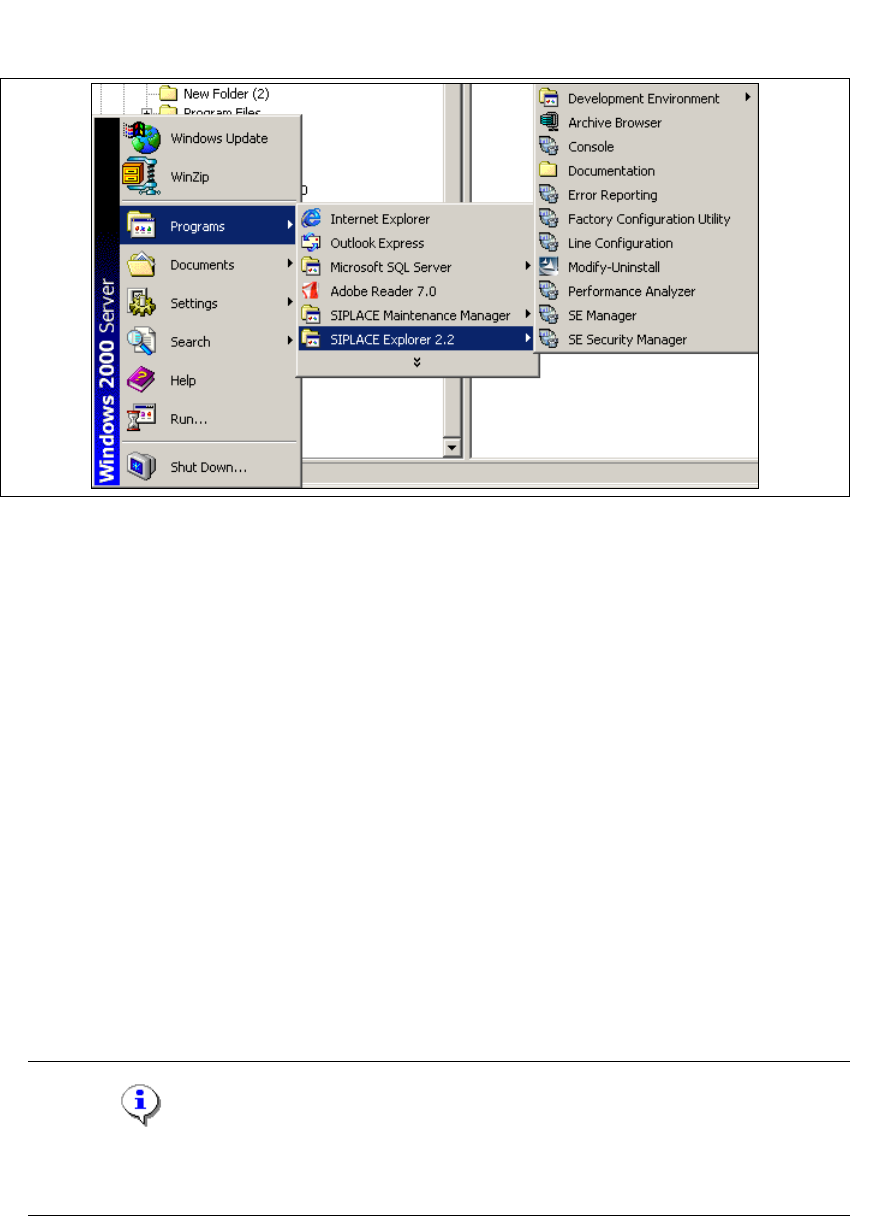
These additional applications and tools can also be started via the Programs → SIPLACE
Explorer 2.2 menu in Windows. 3
3
Fig. 3 - 19 RTE Windows Start menu
The following options are available: 3
–Archive Browser
–Console
– Documentation
– Error Reporting
– Factory Configuration Utility
– Line Configuration
– Modify-Uninstall
– Performance Analyzer
– SE Manager
– SE Security Manager
→ SIPLACE Explorer V.2.2 Development Environment
NOTE
You can only start the Development Environment if Runtime Environment has been
stopped. 3
3 Installing SIPLACE Explorer Installation and Configuration Guide SIPLACE Explorer
3.3 Starting SIPLACE Explorer Edition 05/2007 EN
42
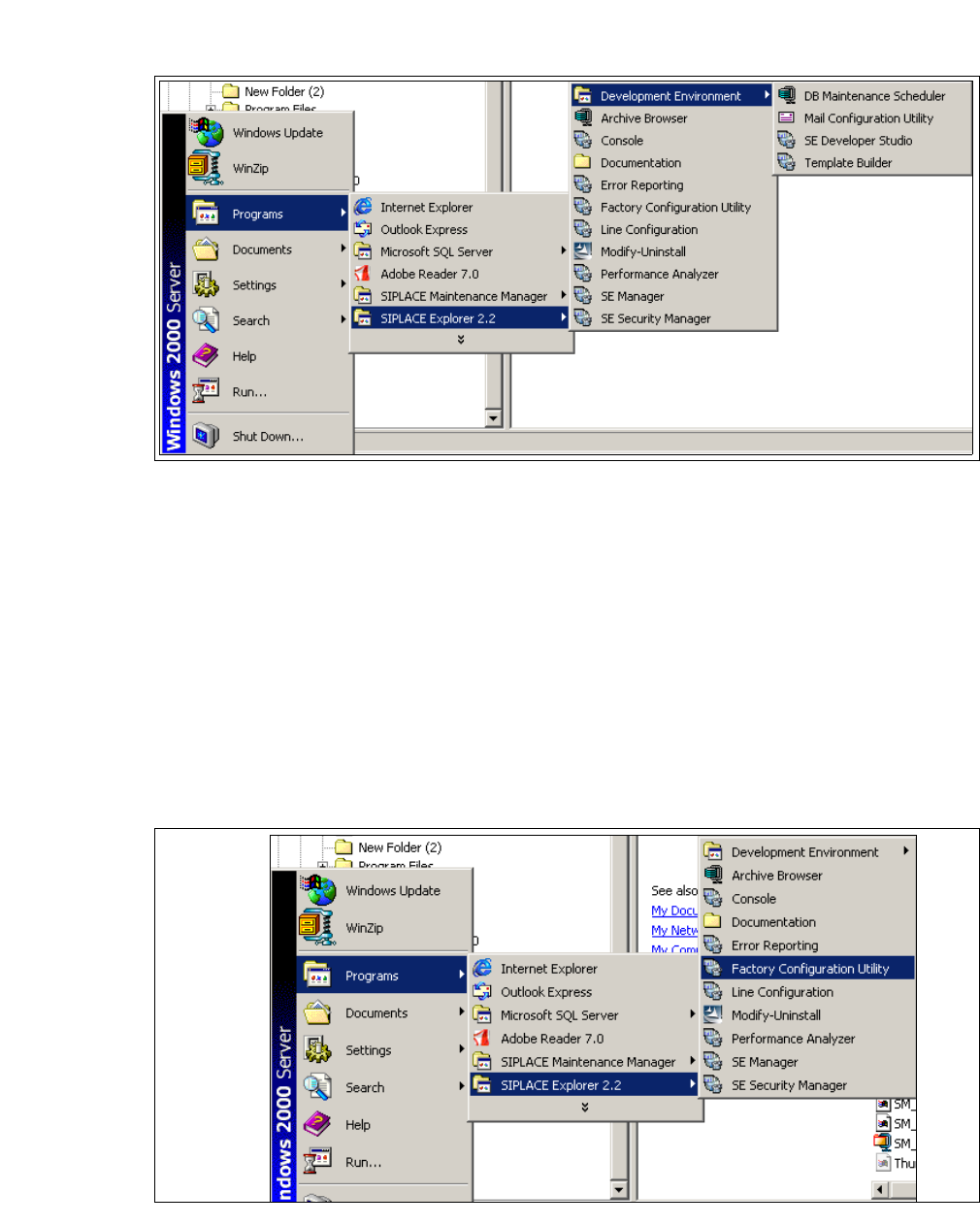
Start the Development Environment via the Programs → SIPLACE Explorer 2.2 →
Development Environment menu in Windows. 3
3
Fig. 3 - 20 DE Windows Start menu
The following applications and tools are available: 3
– DB Maintenance Scheduler
– Mail Configuration Utility
– SE Developer Studio
– Template Builder
→ SIPLACE Explorer V.2.2 Factory Configuration Utility
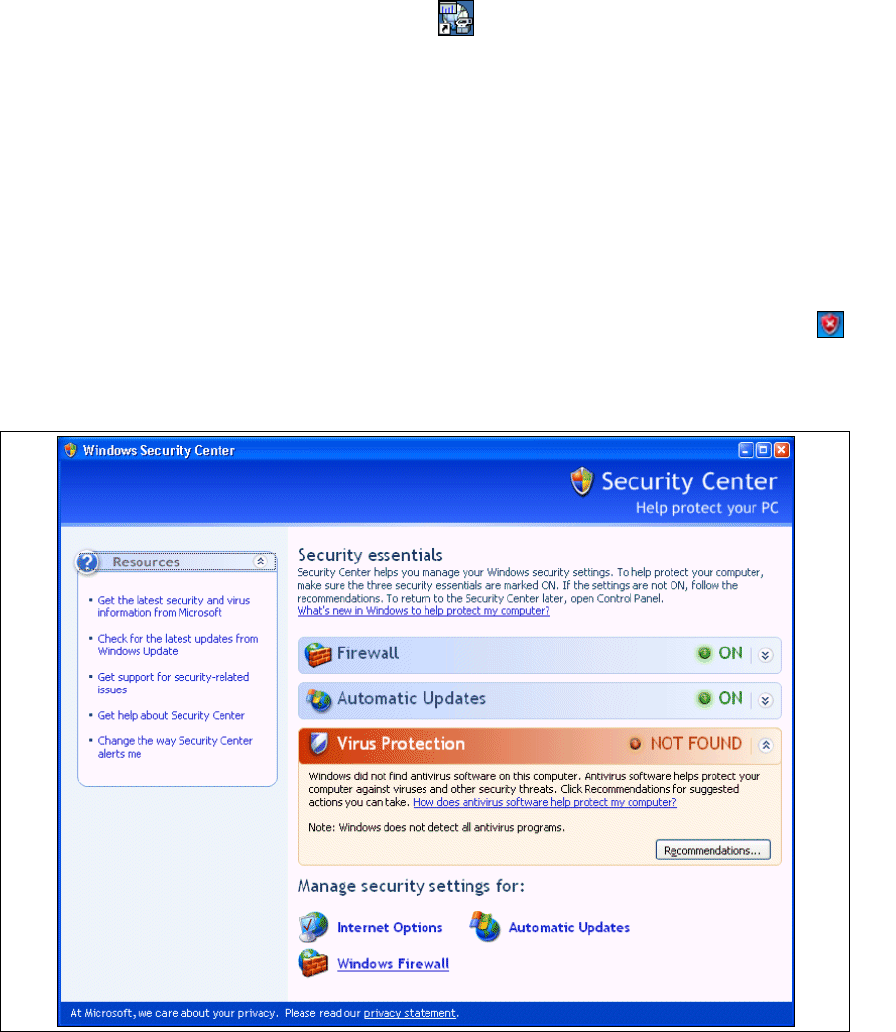
Start the Factory Configuration Utility via the Programs → SIPLACE Explorer 2.2 → Factory
Configuration Utility menu in Windows. 3
3
Fig. 3 - 21 Factory Configuration Utility Windows Start menu
Installation and Configuration Guide SIPLACE Explorer 3 Installing SIPLACE Explorer
Edition 05/2007 EN 3.4 Tomcat Configuration
43
→ Or click on the Factory Configuration Utility icon on your desktop.
3.4 Tomcat Configuration
3.4.1 Using Windows XP Professional with SP2
If you have installed Windows XP Professional with SP2 as your operating system, you will need
to reconfigure the XP firewalls before using SIPLACE Explorer V2.2. This involves releasing the
ports Tomcat 5.5 and SIPLACE Explorer V2.2. 3
→ Start the Windows Security Center by double-clicking on the Windows Security Alerts
icon in the console.
→ The Windows Security Center dialog box will open:
3
Fig. 3 - 22 Windows Security Center
→ Proceed to Manage security settings for and select the option Windows Firewall.