00195425-01.pdf - 第54页
4 Co nfi gurat ion Ins tall ation and Con figu rat ion Guid e SI PLA CE Exp lorer 4.1 S tan dard Moni tor ing Ap plic atio n ( SMA ) Editi on 05 /2 007 EN 54 → The Imp ort OI S Line s dialog box will ope n. 4 Fig . 4 - 3…
Installation and Configuration Guide SIPLACE Explorer 4 Configuration
Edition 05/2007 EN 4.1 Standard Monitoring Application (SMA)
53
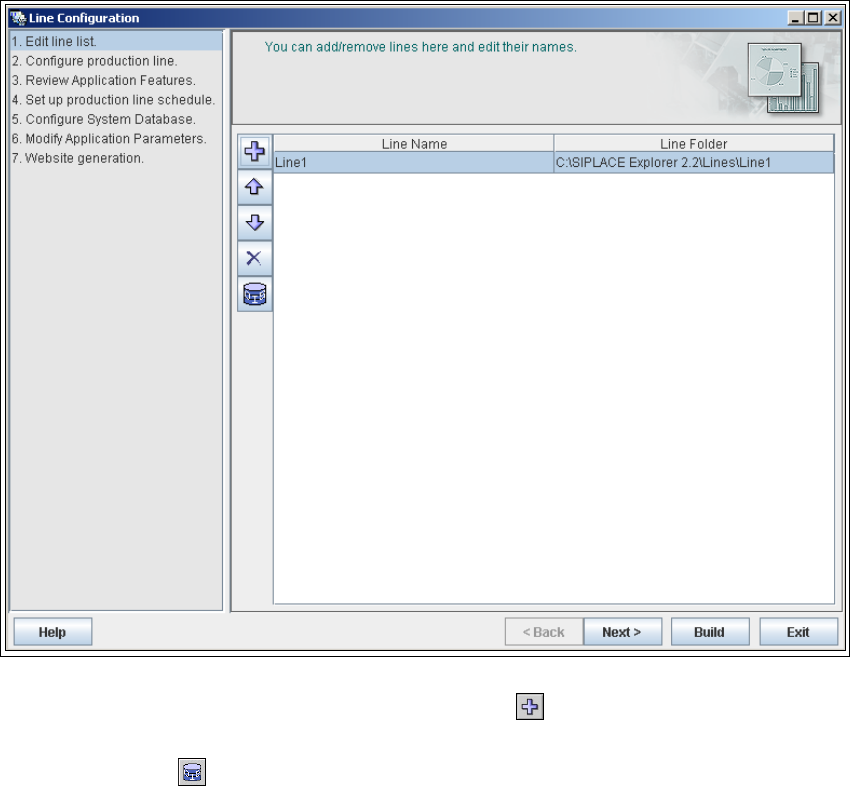
4.1.1.2 Step 1 - Edit Line List
→ Create the relevant production line(s) here.
4
Fig. 4 - 2 Step 1: edit line list
→ New production lines can be created with the Add line icon.
→ An existing production line can be imported with the OIS import function. Simply click on the
OIS Import icon .
4 Configuration Installation and Configuration Guide SIPLACE Explorer
4.1 Standard Monitoring Application (SMA) Edition 05/2007 EN
54
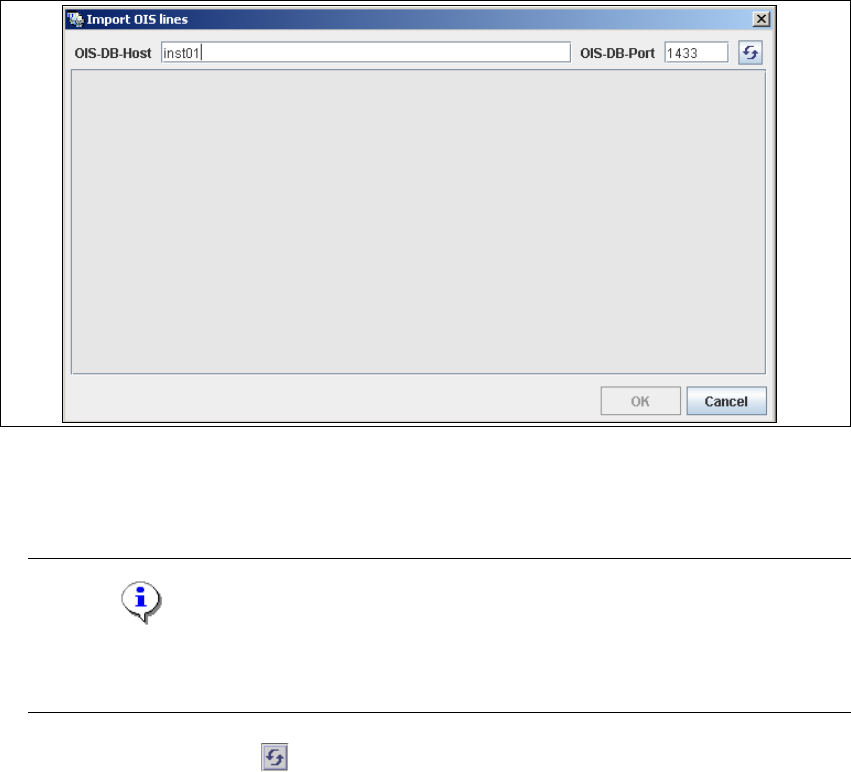
→ The Import OIS Lines dialog box will open.
4
Fig. 4 - 3 Step 1: import OIS lines
→ Enter the OIS DB host name in the OIS-DB-Host field and the OIS DB port in the OIS-DB-Port
field.
NOTE
If you have installed MSDE 2000, you must now enter the MSDE port number shown during
the installation procedure. 4
→ Click on the Refresh icon .
Installation and Configuration Guide SIPLACE Explorer 4 Configuration
Edition 05/2007 EN 4.1 Standard Monitoring Application (SMA)
55
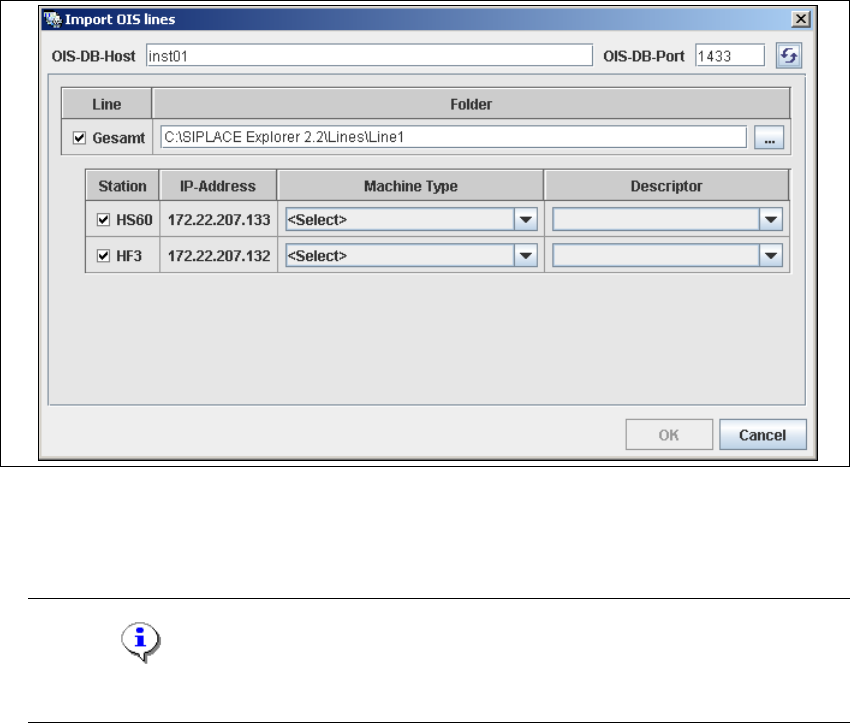
→ All production lines available for import from OIS will be shown.
4
Fig. 4 - 4 Step 1: import OIS lines
→ Now select the relevant machine type for each station and each production line, at Machine
Type. The corresponding OIS driver will then be automatically displayed in the Driver field.
NOTE
It is assumed that the machine types are known for each production line. 4
→ Once you have entered all settings, confirm your choice with OK.