00195425-01.pdf - 第73页
Ins tall ati on and Confi gurat ion G uid e SIPL ACE E xplo rer 4 Co nfig urati on Edi tion 05 /200 7 EN 4.1 St an dar d Mo ni to rin g A pp lica tio n (SM A) 73 4.1. 2.3 Step 2 - Select Configurati on T ype → Y ou can s…
4 Configuration Installation and Configuration Guide SIPLACE Explorer
4.1 Standard Monitoring Application (SMA) Edition 05/2007 EN
72
NOTE
Follow these steps and note that you may skip steps 5-8 and do the required configurations
later. 4
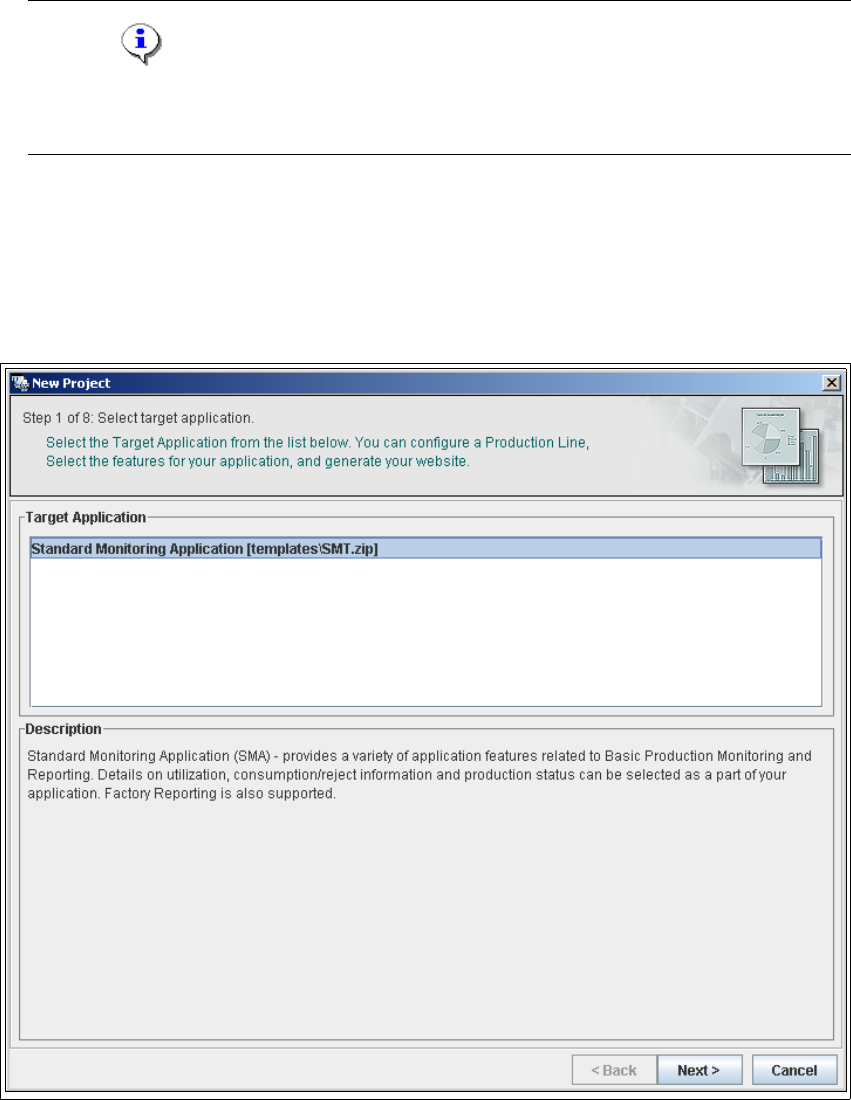
4.1.2.2 Step 1- Select Target Application
→ Select the required target application (this defines a set of templates needed to create a
customized application). The description field provides an explanation of the target application
concerned, helping you to make your selection from the list of Target Applications.
4
Fig. 4 - 25 Step 1: select target application
→ Once you have selected the desired application click on the Next button to continue with the
next step.
Installation and Configuration Guide SIPLACE Explorer 4 Configuration
Edition 05/2007 EN 4.1 Standard Monitoring Application (SMA)
73
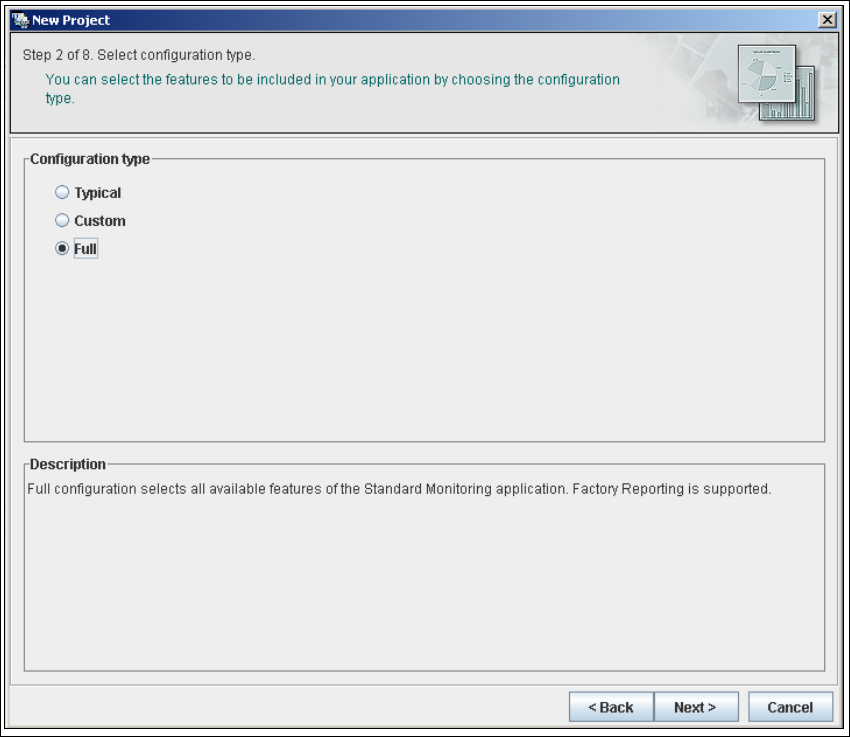
4.1.2.3 Step 2 - Select Configuration Type
→ You can select one of the following configuration types for the application to be created:
–Typical
The new application will include features required for Factory Reporting.
–Custom:
allows the user to choose the features to be included in the new application. All features
valid for the equipment in the production line are available for selection (see below).
– Full:
All features valid for the equipment in the production line will be included in the new
application.
4
Fig. 4 - 26 Step 2: select configuration type
→ Select the required configuration type and click on the Next button to continue with the next
step.
4 Configuration Installation and Configuration Guide SIPLACE Explorer
4.1 Standard Monitoring Application (SMA) Edition 05/2007 EN
74
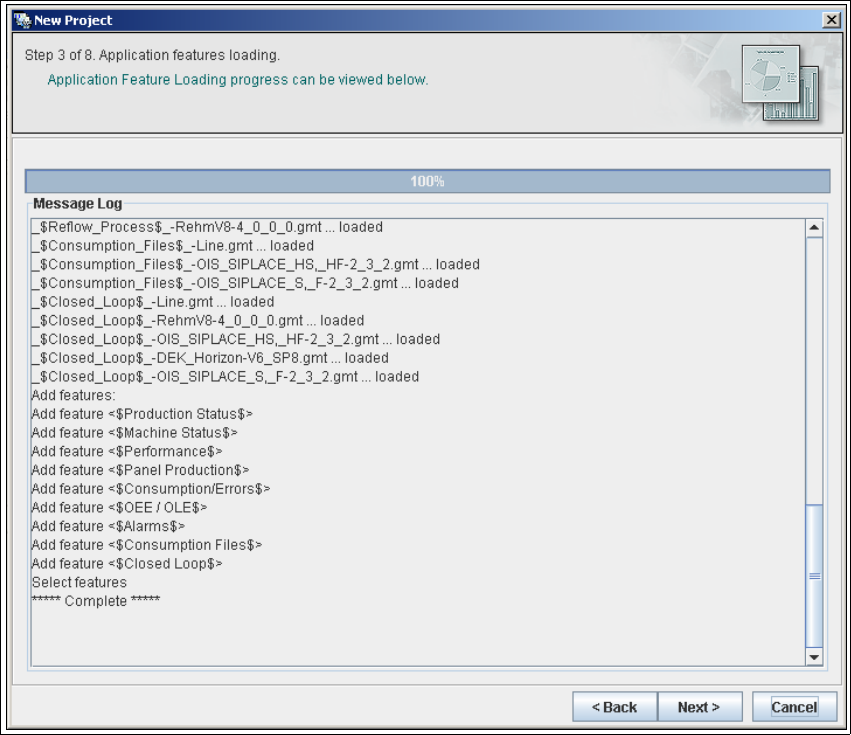
4.1.2.4 Step 3 - Application Features Loading
→ The selected target application will be loaded with all features.
4
Fig. 4 - 27 Step 3: application features loading
→ Click on Next to continue with Step 4 - Configuring the production line. From this step
onwards, application creation with the Application Wizard follows the same procedure as that
for application creation with the help of the Line Configuration feature in the Runtime
Environment. Follow the instructions at “Step 2 - Configure Production Line” on page 57.