00195425-01.pdf - 第94页
4 Co nfi gurat ion Ins tall ation and Con figu rat ion Guid e SI PLA CE Exp lorer 4. 3 D ata bas e Sett in gs Ed iti on 05 /2 00 7 EN 94 → Setup and configuration of the syst e m dat ab ase consis ts of a s imp le t hree…
Installation and Configuration Guide SIPLACE Explorer 4 Configuration
Edition 05/2007 EN 4.3 Database Settings
93
→ Please specify the following information:
–URL site
This URL contains a port number, which applies to the web server (Tomcat 5.5) e.g. "8080".
If you change the port number here, you will also need to update the port number of the web
server see “Port Configuration after Changing Tomcat Port Number” on page 50.
– Refresh rate
For capacity purposes, we recommend a refresh rate of at least one minute (60000 ms).
– Factory website language
→ Check your entries and confirm with OK. Factory website generation will begin.
The factory website is the single entry point" for all production line websites. This means that
you can navigate directly from the factory website to all other production line websites which
have been configured with the Factory Configuration Utility. 4
→ Start the Microsoft Internet Explorer. Enter the HTTP address of the factory website in the
Address field.
→ The login page will open. For a detailed description of the factory website, please see the
Getting Started manual.
4.3 Database Settings
4.3.1 Database Connection Wizard
The Database Connection Wizard is started if the system is unable to establish a connection to
the database. This could occur in the following cases: 4
– Runtime Environment:
Step 5 - Configure System Database page 61
– Development Environment:
Step 7 - Configure System Database page 61
– Factory Configuration Utility
Loading the DB settings on Factory Configuration Utility start, page 75
4 Configuration Installation and Configuration Guide SIPLACE Explorer
4.3 Database Settings Edition 05/2007 EN
94
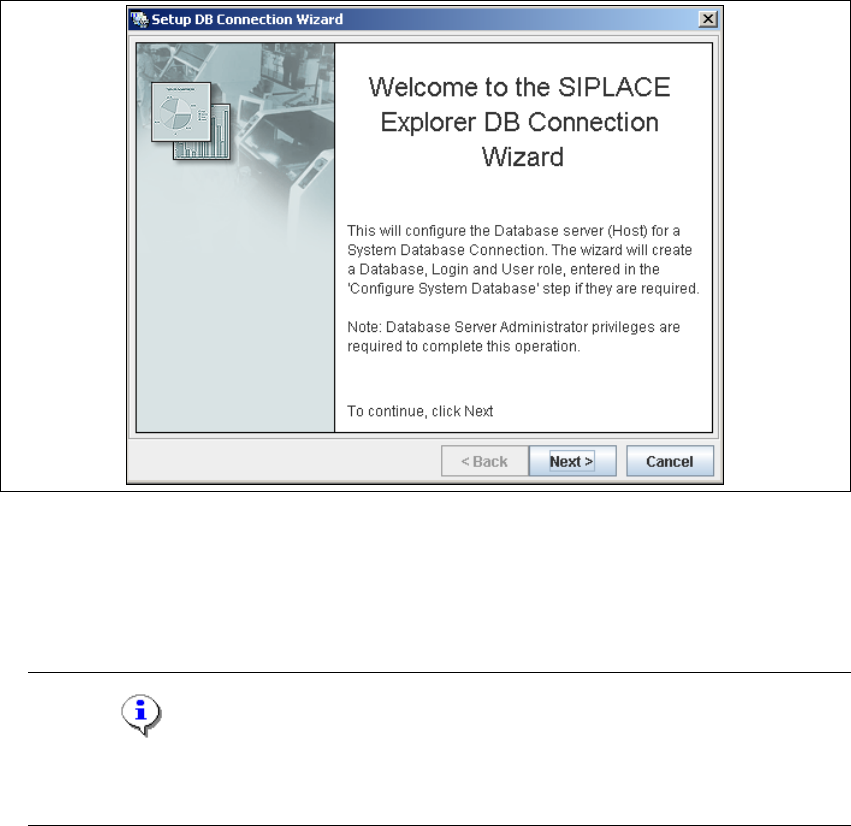
→ Setup and configuration of the system database consists of a simple three-step procedure.
Click on Next to continue.
4
Fig. 4 - 51 Welcome screen - database connection wizard
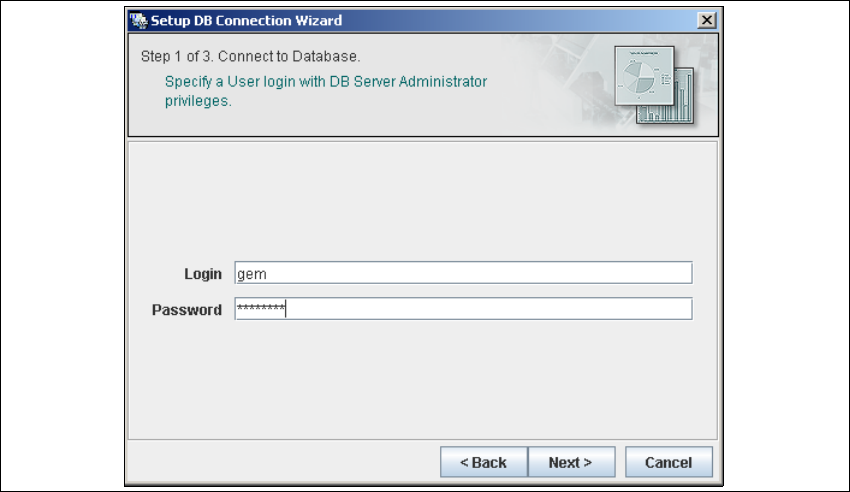
– Step 1- Connection to Database
→ At Step 1 you will need to specify your login and password to access the MS SQL Server.
Click on Next to continue.
NOTE
Please note that users must have DB administrator privileges to perform the necessary tests
and configuration. 4
Installation and Configuration Guide SIPLACE Explorer 4 Configuration
Edition 05/2007 EN 4.3 Database Settings
95
4
Fig. 4 - 52 Step 1- database connection wizard
At this point, the wizard will connect to the MS SQL Server and run tests to identify whether
the specified database, login and user roles exist. You will see a list of changes that the
wizard will undertake, in order to perform setup and configure the system database. 4