1OM-1086-002.pdf - 第196页
1.2.6 Menus for Recognized Image By using the menus for recognized image, a display pattern of the rec- ognized image can be specified to determine how the image should be imposed on the operation window on the touch scr…
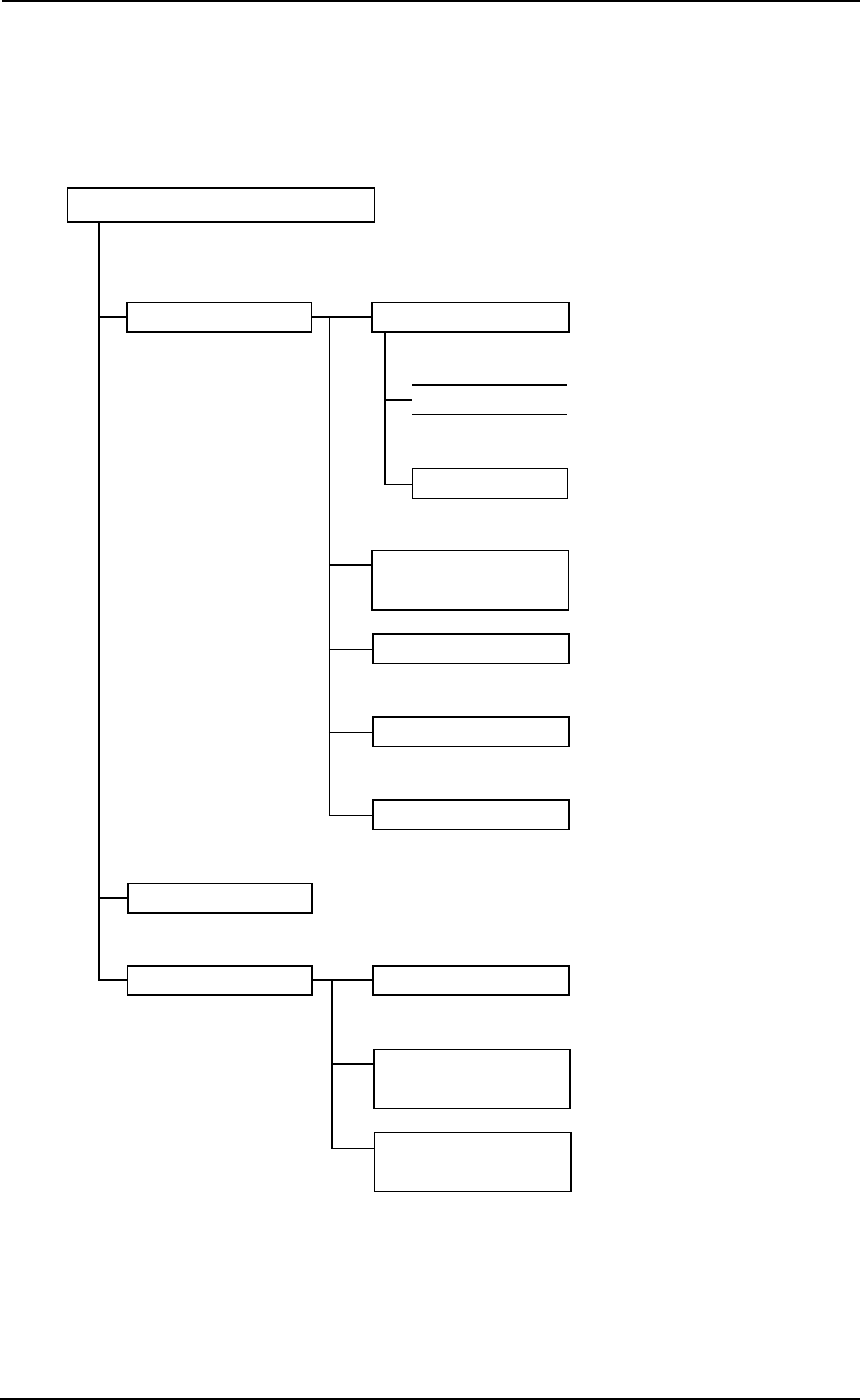
• Composition of Menus for System Setting
The menus for system setting are composed of the following submenus.
Refer to "2.1 Tabs" in "Section 4" for tabs and tab sheets.
SYSTEM
Submenus Tabs (Tab Sheets) Reference Item Nos.
MAC. SET-UP Password 2.1 in Section 4 of Chapter 1
(Volume 2)
Password In 2.1.1 in Section 4 of Chapter 1
(Volume 2)
Available Area 2.1.2 in Section 4 of Chapter 1
(Volume 2)
Tower Lamp/ 2.2 in Section 4 of Chapter 1
Buzzer Set-up (Volume 2)
Display Setting 2.3 in Section 4 of Chapter 1
(Volume 2)
Option Setting 2.4 in Section 4 of Chapter 1
(Volume 2)
Date/Time 2.5 in Section 4 of Chapter 1
(Volume 2)
DEVICE DATA 3. in Section 4 of Chapter 1
(Volume 2)
OFFSET DATA Machine Offset 4.1 in Section 4 of Chapter 1
(Volume 2)
P.E.C. Recog. 4.2 in Section 4 of Chapter 1
Camera (Volume 2)
Screen Recog. 4.3 in Section 4 of Chapter 1
Camera (Volume 2)
Fig. 2D6-1
1. 2 Using the Menus
0211-005 Chapter 2 4-13 Tg0582-PM-D1
1.2.6 Menus for Recognized Image
By using the menus for recognized image, a display pattern of the rec-
ognized image can be specified to determine how the image should be
imposed on the operation window on the touch screen.
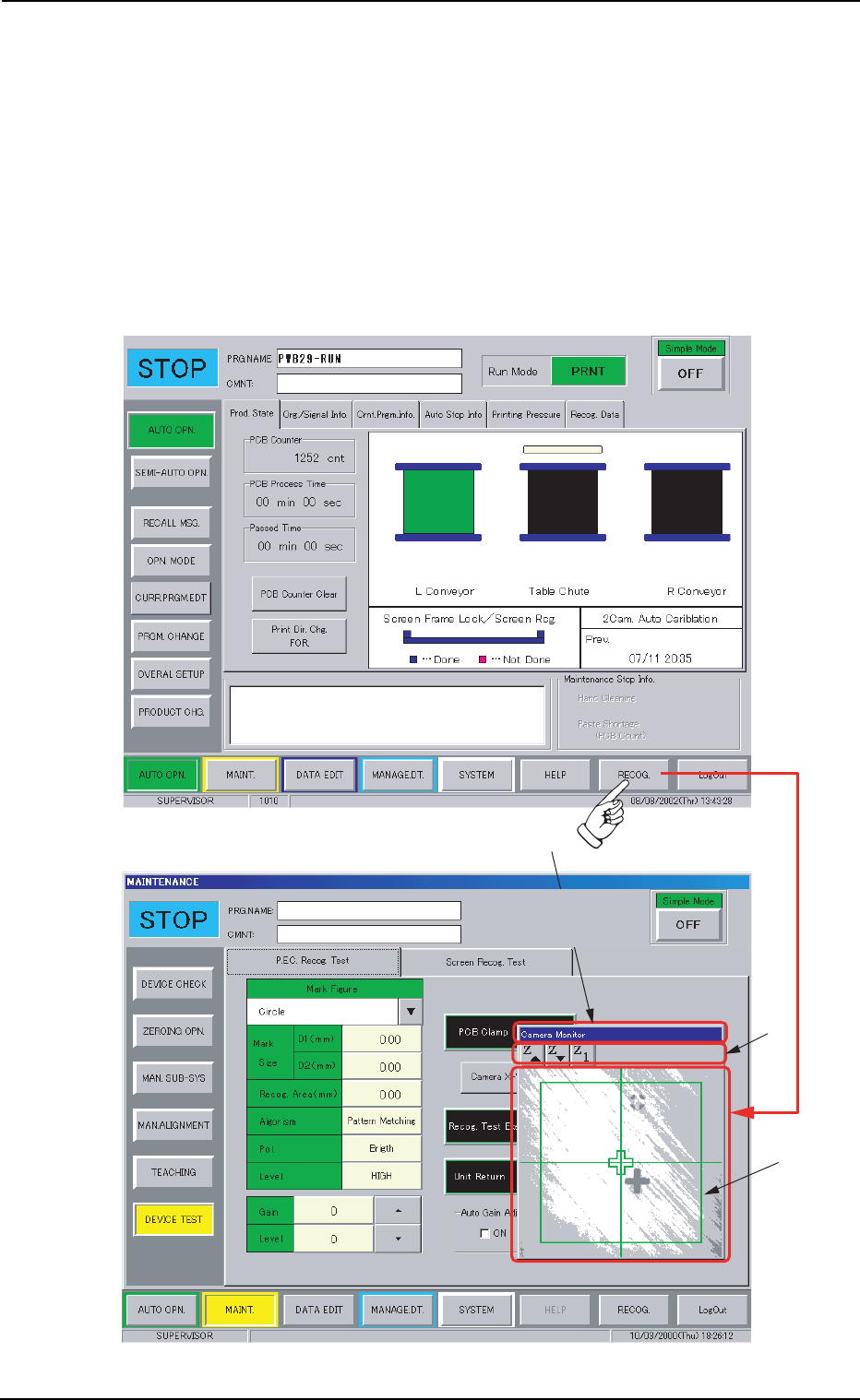
• Menu Selection
When the [RECOG.] button on the main menu bar is pressed, the
"RECOG." window opens separately.
Fig. 2D7
1. 2 Using the Menus
0211-005 Chapter 2 4-14 Tg0582-PM-D1
*3
*2
*1
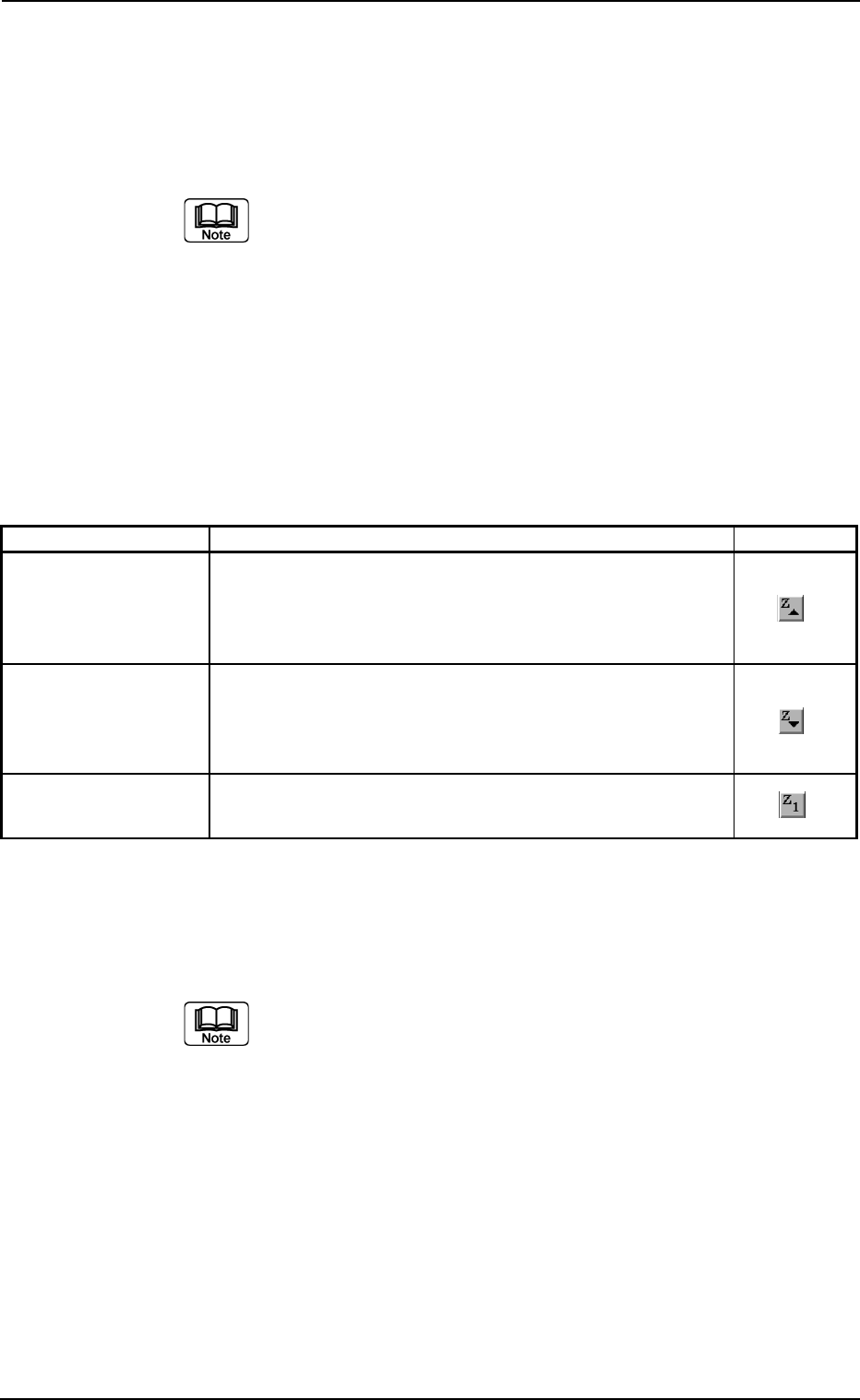
*1 "Recognition Camera" Window
An image captured by the P.E.C. or the screen recognition camera
is displayed at real time.
Whenever the [RECOG.] button on the main menu bar is pressed,
the "Recognition Camera" window appears or disappears.
(a) A camera can be selected in the "MAN. SUB-SYS"
window (submenu). (Operation Sequence: [MAINT.]
Button → [MAN. SUB-SYS] Button → "Recog. Block"
Tab Sheet)
(b) When the "Recognition Camera" window is pressed
twice in rapid succession, a tool bar appears or disap-
pears.
*2 Toolbar
A collection of buttons are arranged on the toolbar.
Table 2D1
Command Menus Functions Buttons
Zoom In To increase the size of the "Recognition Camera" win-
dow.
The displayed image is also magnified according to the
change of the window size.
Zoom Out To decrease the size of the "Recognition Camera" win-
dow.
The displayed image is also reduced according to the
change of the window size.
Zoom Back To resume the previous window size (the size before the
"Recognition Camera" window is magnified or reduced).
*3 Window Size Change Mode Selection Bar
This bar is used to determine whether or not the display size of the
"Recognition Camera" window should be changed.
Pressing this bar twice in rapid succession turns on or off
the function to change only the magnification of the cap-
tured item (not the size of the "Recognition Camera" win-
dow).
1. 2 Using the Menus
0211-005 Chapter 2 4-15 Tg0582-PM-D1