1OM-1086-002.pdf - 第199页
2.2 Operation for Settings 2.2.1 Check Box Check boxes are used to enable or disable one or more features or options from a set. When an option is selected, a check mark appears in the box. A check box may or may not hav…
2. Basic Operations
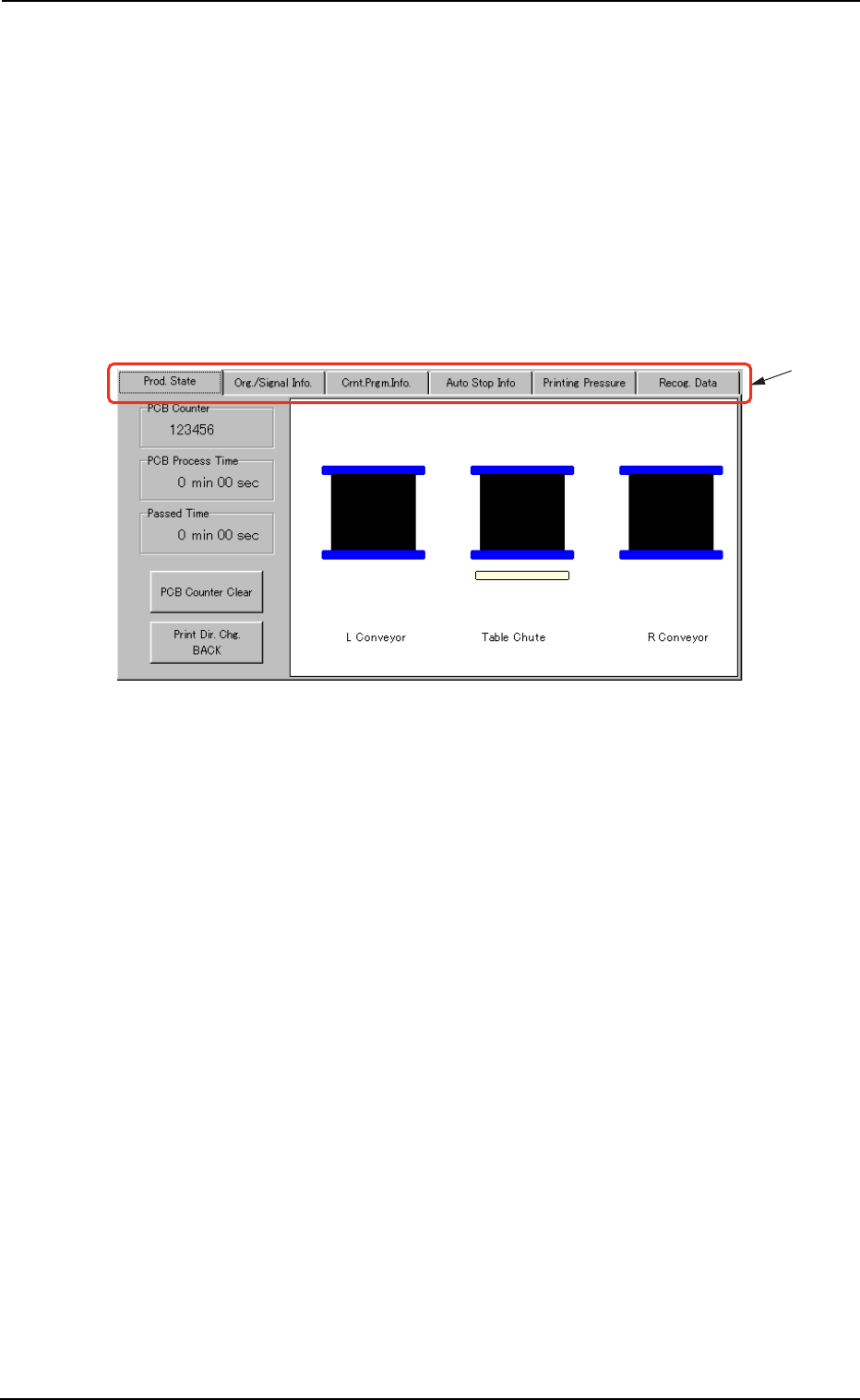
2.1 Tabs
When a window is composed of several sheets, all the sheets are pro-
vided with extensions called "Tabs" and laid on top of each other so that
the tab of each is visible.
In this manual, a sheet provided with a tab is called "Tab Sheet".
Each extension (tab) names the corresponding sheet. When a tab is
pressed, the corresponding sheet is brought to the front.
Fig. 2D8
2. Basic Operations
Tabs
0211-005 Chapter 2 4-16 Tg0582-PM-D1
2.2 Operation for Settings
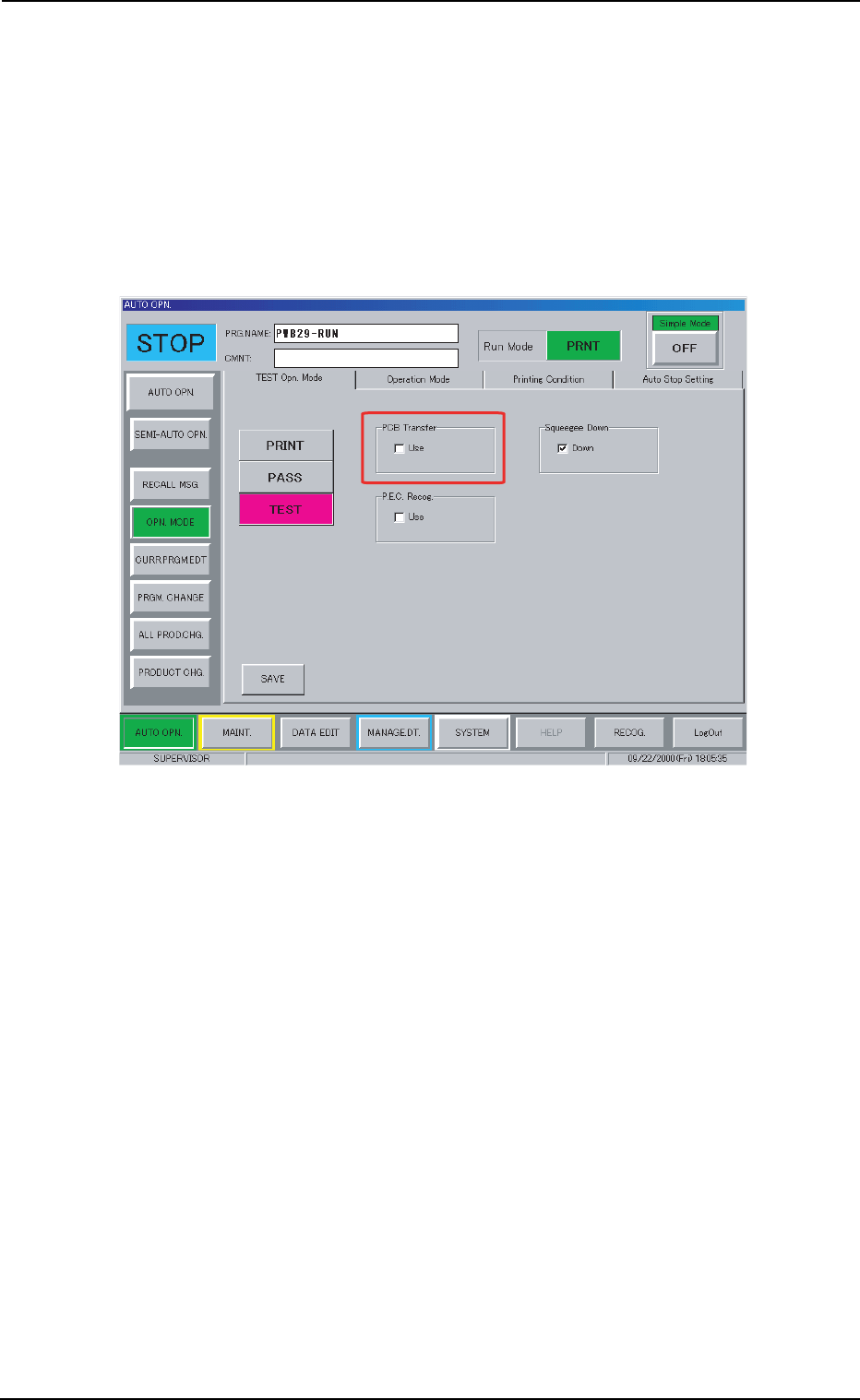
2.2.1 Check Box
Check boxes are used to enable or disable one or more features or
options from a set. When an option is selected, a check mark appears
in the box. A check box may or may not have a check mark, depending
on whether it is already selected or not.
Fig. 2D9
••
••
• Meaning of Check Boxes
; : The check box is marked, indicating that the function is used or
enabled.
: The check box is not marked, indicating that the function is not
used or disabled.
••
••
• Turning on or off a check box
To use or enable an optional function, turn on the check box. A check
mark appears in the box.
Turn off the check box not to use or disable the optional function. A
check mark disappears in the box.
2.2 Operation for Settings
0211-005 Chapter 2 4-17 Tg0582-PM-D1
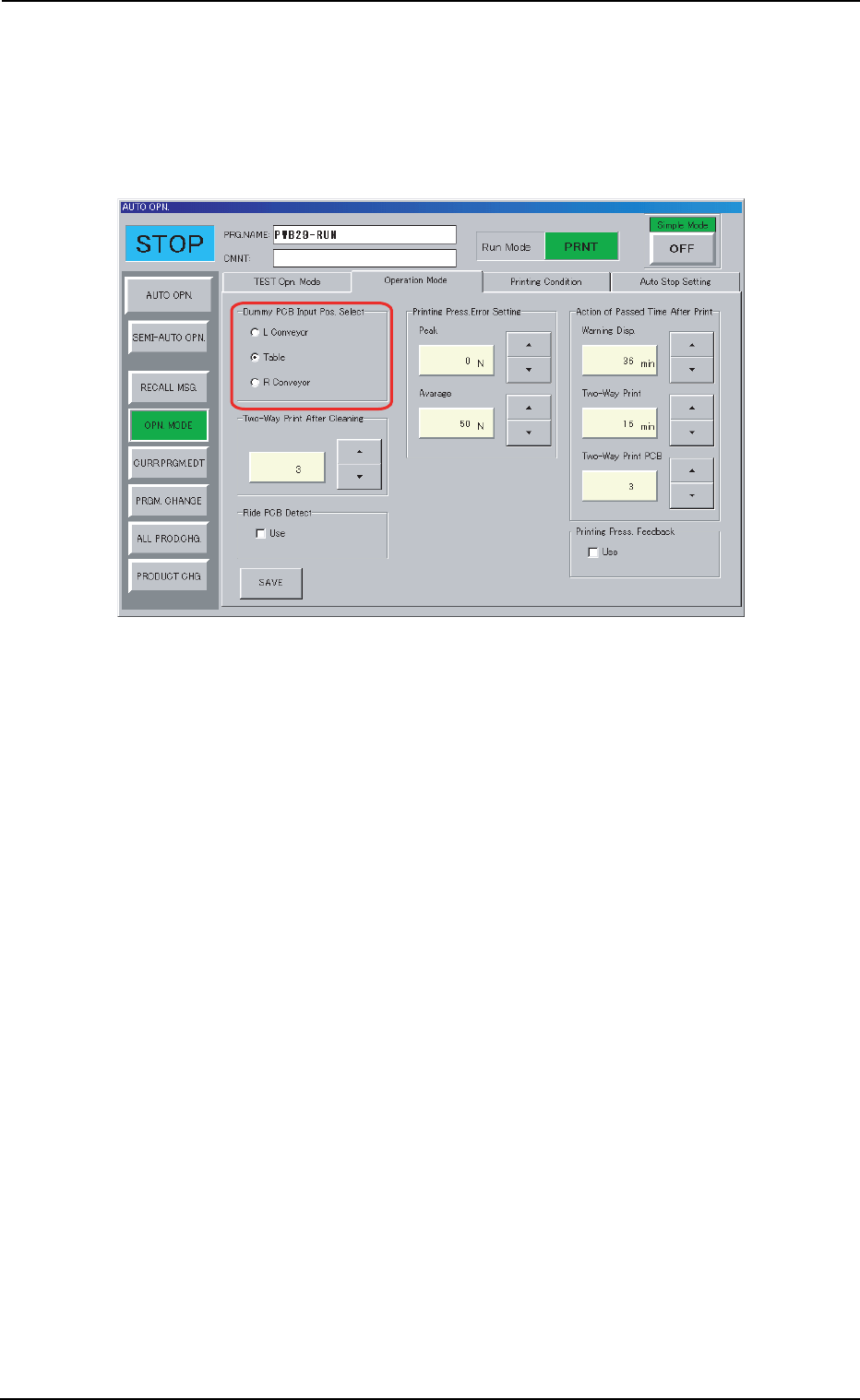
2.2.2 Option Buttons
Option buttons allow you to choose a single function from a group of
functions. An option button looks like a small circle. When the button is
selected, a dot appears inside the circle.
Fig. 2D10
••
••
• Meaning of Option Buttons
~ : When a dot is inside the circle, it indicates that this function is
selected.
{ : When no dot is inside the circle, it indicates that this function is
not selected.
••
••
• Turning on or off an option button
When a blank circle is pressed, a dot appears inside the circle, indi-
cating that the function is selected.
When a dot-marked circle is pressed, the dot disappears, indicating
that the function is not selected.
2.2 Operation for Settings
0211-005 Chapter 2 4-18 Tg0582-PM-D1