1OM-1086-002.pdf - 第201页
2. 3 Entry of Numerical V alues 2.3.1 T en-Key Window A ten-key window can be opened for an item that requires a numerical value to be entered in the text box (the background color: cream). A numerical value can also be …
2.2.2 Option Buttons
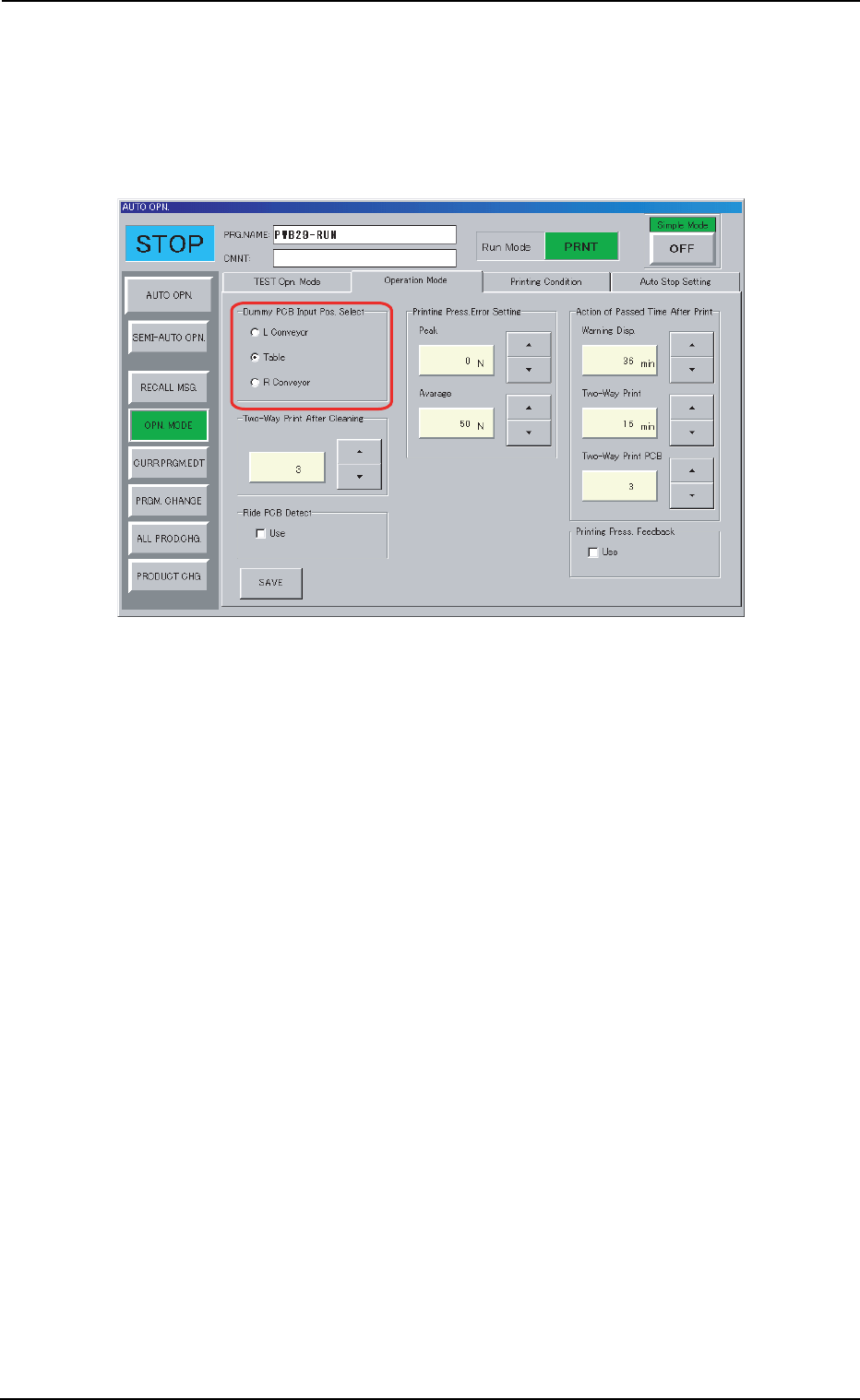
Option buttons allow you to choose a single function from a group of
functions. An option button looks like a small circle. When the button is
selected, a dot appears inside the circle.
Fig. 2D10
••
••
• Meaning of Option Buttons
~ : When a dot is inside the circle, it indicates that this function is
selected.
{ : When no dot is inside the circle, it indicates that this function is
not selected.
••
••
• Turning on or off an option button
When a blank circle is pressed, a dot appears inside the circle, indi-
cating that the function is selected.
When a dot-marked circle is pressed, the dot disappears, indicating
that the function is not selected.
2.2 Operation for Settings
0211-005 Chapter 2 4-18 Tg0582-PM-D1
2.3 Entry of Numerical Values
2.3.1 Ten-Key Window
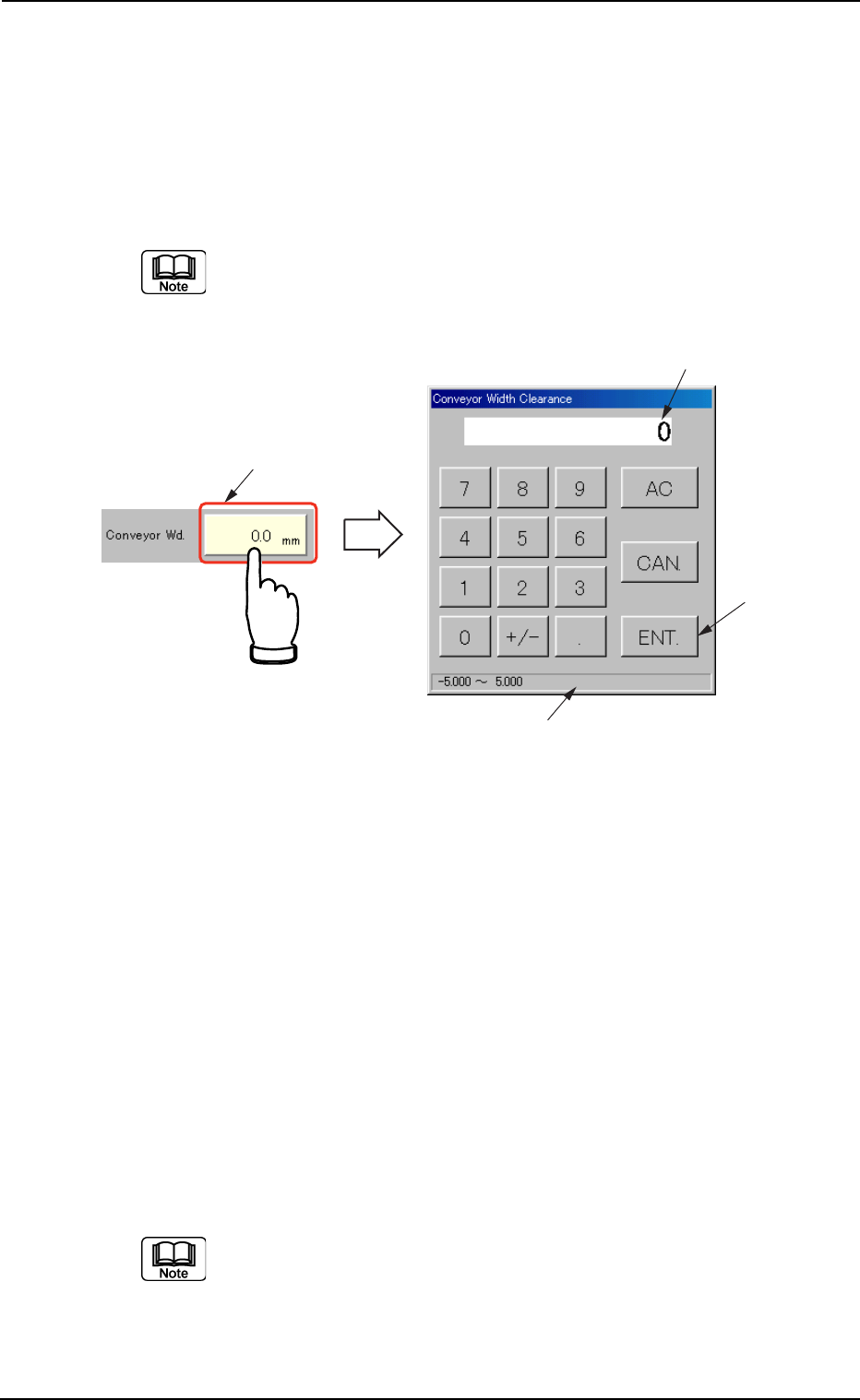
A ten-key window can be opened for an item that requires a numerical
value to be entered in the text box (the background color: cream).
A numerical value can also be entered, using the "Alphabet
Keyboard (Fullkey)". Refer to "2.3.3 Alphabet Keyboard
(Fullkey)" for details.
Fig. 2D11
••
••
• Ten-Key Operations
(1) When the text box *1 is pressed at an operation sheet, a ten-key
window appears.
(2) Refer to the range of set value *2 on the status bar and enter a nu-
merical value. The entered value appears in the display window *3.
(3) Check the entered numerical value and press the [ENT.] button *4.
The ten-key window disappears and the entered numerical value
is set in the text box of the operation sheet.
When the [CAN.] button is pressed, the operation is canceled and
the ten-key window disappears.
When the [AC] button is pressed, the value in the display window
is cleared to "0" (zero).
When the "Pattern Program" edit window is active, the ten-key
windows appear different in shape, etc.
Refer to "2. "Pattern Program" Edit Window in Section 2 Pat-
tern Program of Chapter 1 Programming" (Volume 2) for de-
tails.
2.3 Entry of Numerical Values
*1 Text Box
*3 Display Window
*2 Range of Set Value
*4
0211-005 Chapter 2 4-19 Tg0582-PM-D1
2.3.2 Spin Box
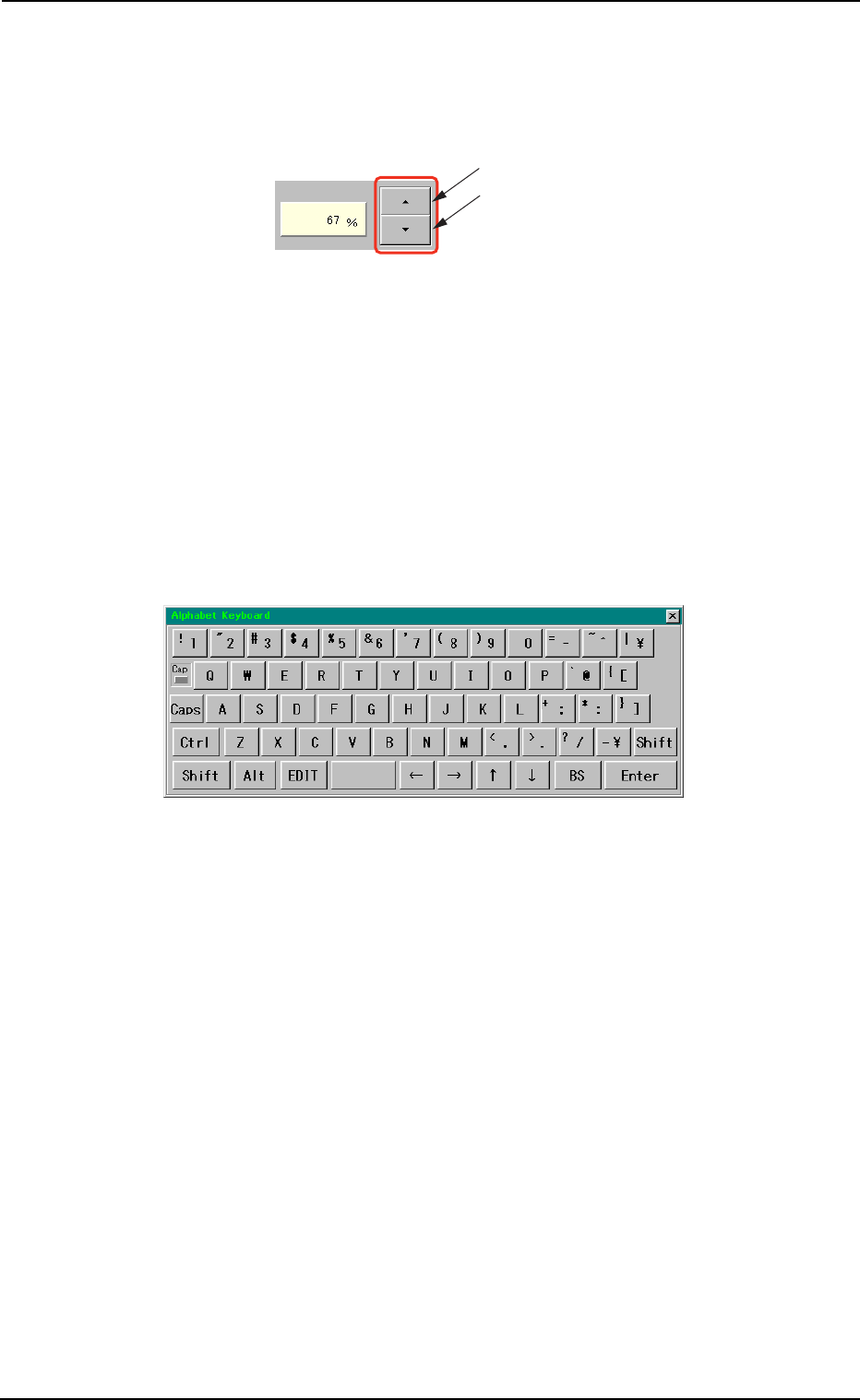
Some items (entry of numerical values required) are provided with up
and down arrows.
Fig. 2D12
When the up arrow is pressed, the numerical value increases by 1.
Pressing the down arrow decreases it by 1.
2.3.3 Alphabet Keyboard (Fullkey)
When alphabet letters such as a password must be entered, activate
the "Alphabet Keyboard (Fullkey)". Alphabet letters can easily be en-
tered.
Fig. 2D13
2.3 Entry of Numerical Values
Up Arrow
Down Arrow
0211-005 Chapter 2 4-20 Tg0582-PM-D1