1OM-1086-002.pdf - 第210页
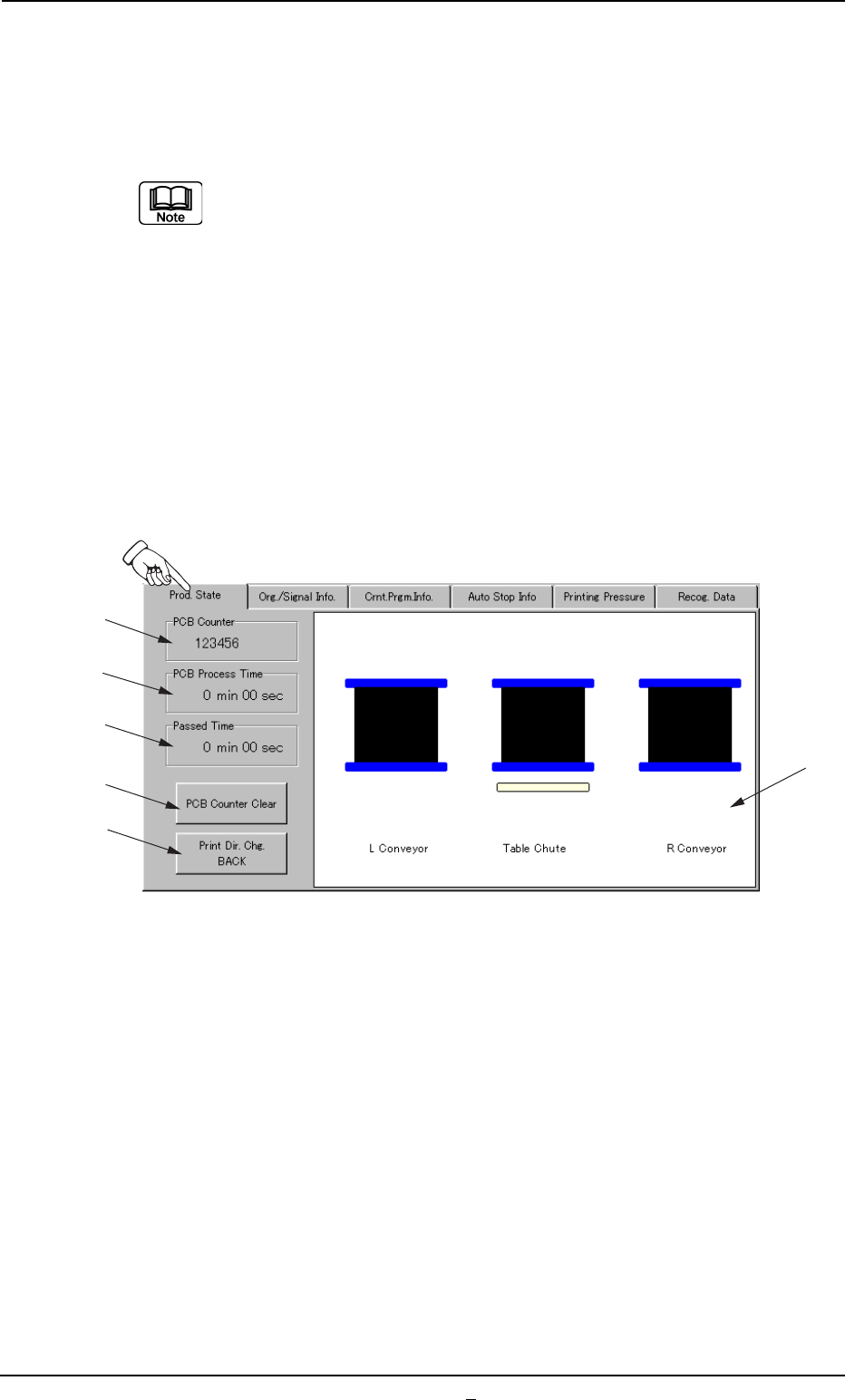
*1 *2 *3 *4 *5 *6 2.1 "Prod. State" T ab Displayed are the number of produced P .C.B.’s, the time required for printing, the elapsed time after end of printing The table chute section on the screen may look dif…
Table 2E1-2
Tabs Description
Printing Pressure Displayed in this tab sheet are the changes in printing pres-
sure during printing for each squeegee.
Recog. Data Displayed is the amount of correction for each axis after P.E.C.
recognition.
*2 Management Information
Displayed are the running condition, etc., of the machine.
*3 Maintenance Stop Info.
Displayed in the countdown system is the number of remaining
P.C.B.’s to be produced before the machine is stopped for mainte-
nance work such as manual cleaning, solder paste replenishment,
etc.
2. "AUTO OPERATION" Submenu
0211-005 Chapter 2 5-6 Tg0582-PM-D1
*1
*2
*3
*4
*5
*6
2.1 "Prod. State" Tab
Displayed are the number of produced P.C.B.’s, the time required for
printing, the elapsed time after end of printing
The table chute section on the screen may look different from
the actual one when the operation must be re-started after the
P.C.B. is removed manually because the section is not provided
with any P.C.B. detection sensor.
In this case, press the area between the conveyors at the table
chute section and change the color of the area as follows (to
match to the actual condition).
No P.C.B. in Table Chute Section : Change the color be-
tween the conveyors
to "Blue".
P.C.B. placed in Table Chute Section : Change the color be-
tween the conveyors
to "Green".
Fig. 2E4 "Prod. State" Tab Sheet
• Sheet Composition
*1 PCB Counter
Displayed is the number of produced P.C.B.’s.
*2 PCB Process Time
Displayed is the time required for printing.
The P.C.B. transfer time is not included.
2.1 "Prod. State" Tab
0211-005 Chapter 2 5-7 Tg0582-PM-D1
0211-005 Chapter 2 5-7-1 Tg0582-PM-D1
*3 Passed Time
Displayed is the elapsed time after the end of printing.
*4 [PCB Counter Clear] Button
When this button is pressed, the number of produced P.C.B.’s is
cleared to "0" (zero).
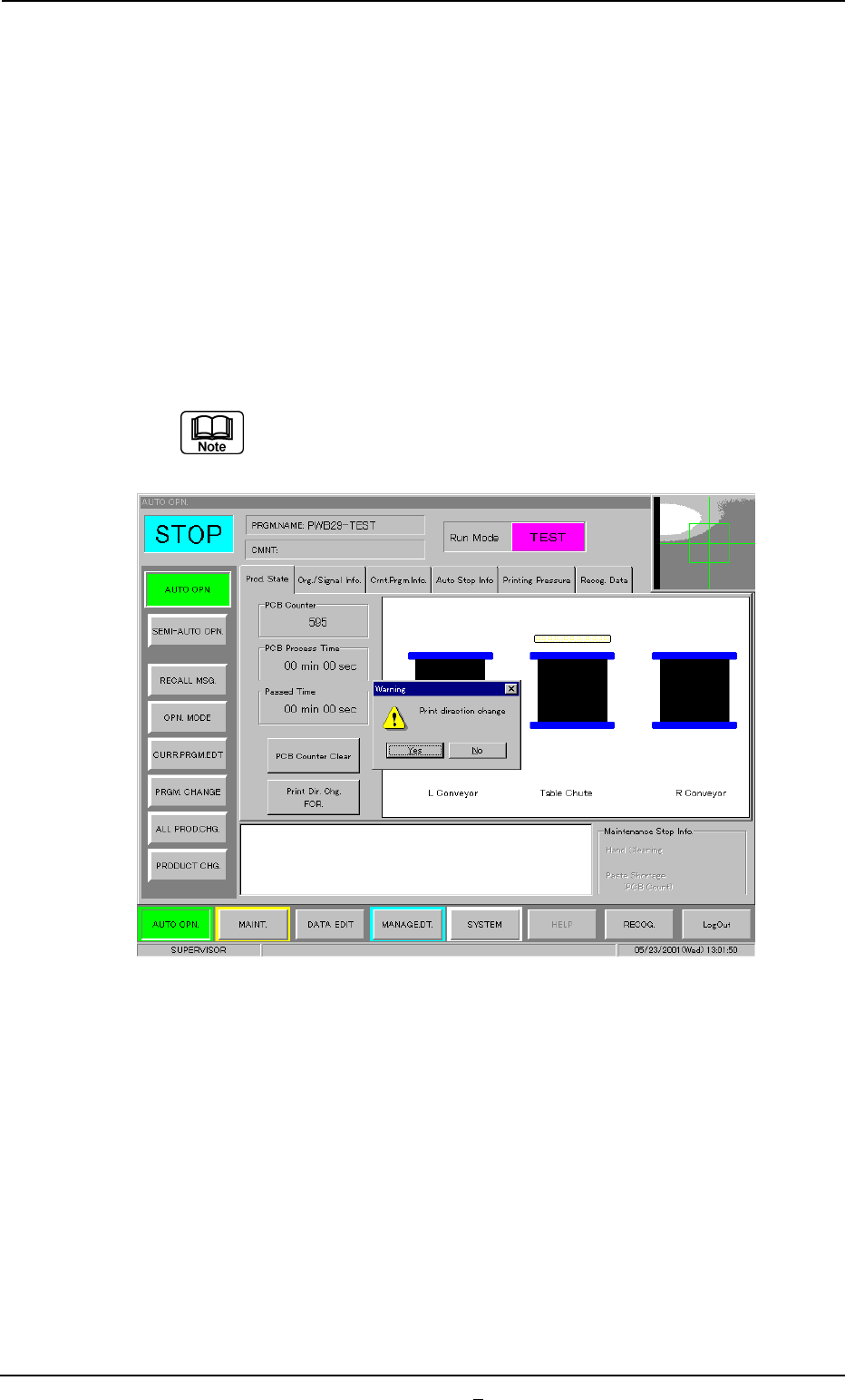
*5 [Print Dir. Chg. BACK] Button
When this button is pressed, the printing direction for the P.C.B. to
be printed subsequently is changed.
When the button is pressed, the "Warning" dialog box appears.
When the [Yes] button in the "Warning" dialog box is pressed, the
printing direction on the P.C.B. is changed.
This button must be pressed while the machine is in the
"STOP" mode.
*6 Production Stage Display Field
The running condition is displayed in real time.
2.1 "Prod. State" Tab
Fig. 2E4-1